
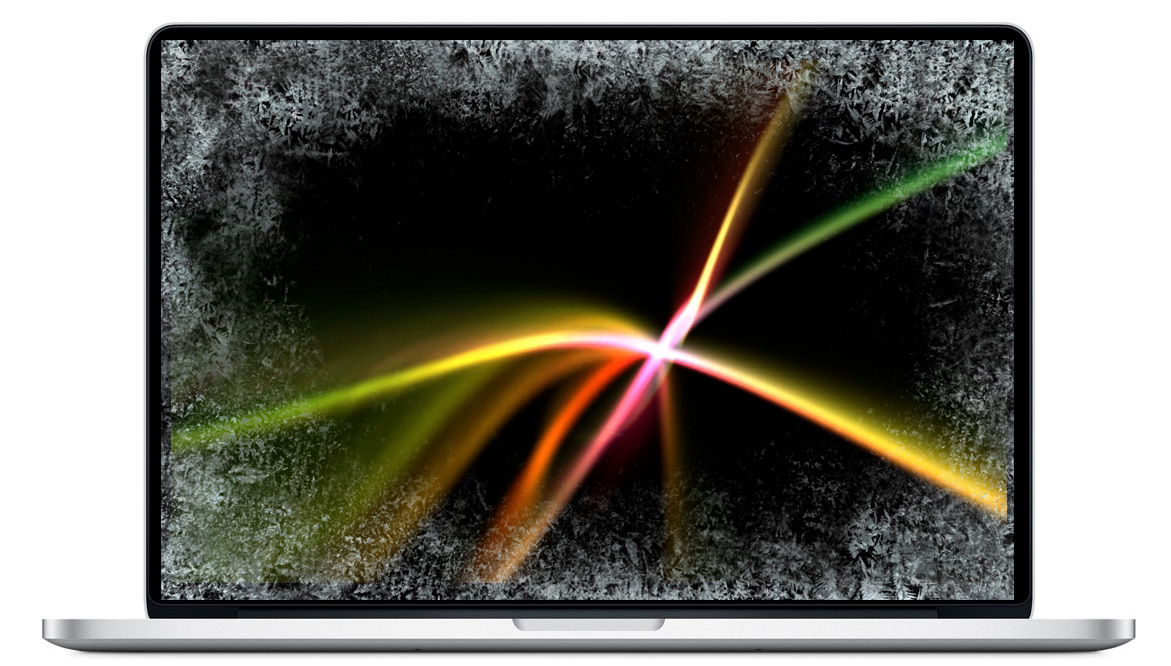
1. Mac Freezes on Screensaver? You’re Not the Only One 🧊
If your Mac freezes on screensaver—or immediately after waking from it—you’re not alone. Many users notice their keyboard and trackpad stop responding, or that the desktop never fully returns after the animation ends. This issue can happen randomly, even on newer Macs.
2. Why Your Mac Freezes After or During Screensaver
Here’s what typically triggers this issue:
- Too many background apps running while the Mac is idle
- Memory pressure from open browsers or syncing services
- Faulty animations (especially with custom screensavers)
- System sleep being interrupted by active processes
In short, if your system is too loaded, the Mac freezes on screensaver because it can’t handle the transition cleanly.
This is especially useful in shared workspaces, client presentations, or when leaving your Mac on overnight.
4. Other Tips to Avoid Screensaver-Related Freezes
- Use a simple screensaver (no 3D, no heavy animations)
- Update macOS to the latest version
- Disable login window on wake (to test faster recovery)
- Don’t leave apps open that require live data or syncing
Apple’s Help on Display and Sleep Issues
Check this support page: If your Mac doesn’t wake from sleep – Apple Support

- ✅ Pause heavy apps before your Mac idles
- ✅ Prevent memory overload during inactivity
- ✅ Wake instantly and avoid lock-ups or hangs
Why a screensaver can make the next wake feel slow
When the display wakes, macOS may need to restore the desktop, reconnect external displays, resume a browser or video app, and redraw animated wallpaper or screensaver effects. A brief delay is normal. A long delay, a frozen cursor, or a black screen that appears every time usually means one of those steps is not completing cleanly.
First test the simplest version of the setup: choose a still wallpaper, temporarily disable the screensaver, disconnect a non-essential display, and wake the Mac again. If the problem disappears, restore one setting or accessory at a time. This isolates the trigger more reliably than changing many system settings at once. Also check Login Items and background apps that manage windows, displays, screen recording, or animations.
When to use Safe Mode
If the Mac still freezes after waking with the screensaver disabled, restart in Safe Mode and repeat the test. A normal wake in Safe Mode suggests a login item, extension, or cache is involved. If the issue also occurs there, note whether it happens on battery, while charging, or with a specific external display before contacting support.
Where AppHalt may help
If Activity Monitor shows a regular app you recognise using resources while you do not need it, AppHalt gives you a reversible option: pause that selected app without quitting it, then resume it later. AppHalt does not repair macOS or guarantee a speed, temperature, battery, or stability result; the effect depends on what the app was doing.
Do not pause an app that is uploading, syncing, backing up, rendering, recording, playing media, or handling a call you need to continue.

