

Mac apps can keep working in the background because they are checking for messages, syncing files, updating content, playing media, or keeping a workspace ready. That is normal until the activity is no longer useful to you. The practical goal is not to disable everything: identify the app, understand what it is doing, and pause or close it only when you do not need that work to continue.
A safe decision before you stop a background app
| If the app is… | Best next step |
|---|---|
| Uploading, backing up, syncing, rendering, or in a call | Let it continue. Pausing can interrupt work you need. |
| Open only to preserve windows, tabs, or a project for later | Pause it with AppHalt if you do not need it active now. |
| Launching at login but rarely needed | Review Login Items and Background Items in macOS. |
| An unfamiliar system process | Investigate it first; do not force-quit it blindly. |
Apple explains that Background Items can perform tasks such as checking for updates or syncing data even when an app is not open. Use Apple’s Login Items & Extensions guide when you want to control what starts automatically.
Find the app before changing its behavior
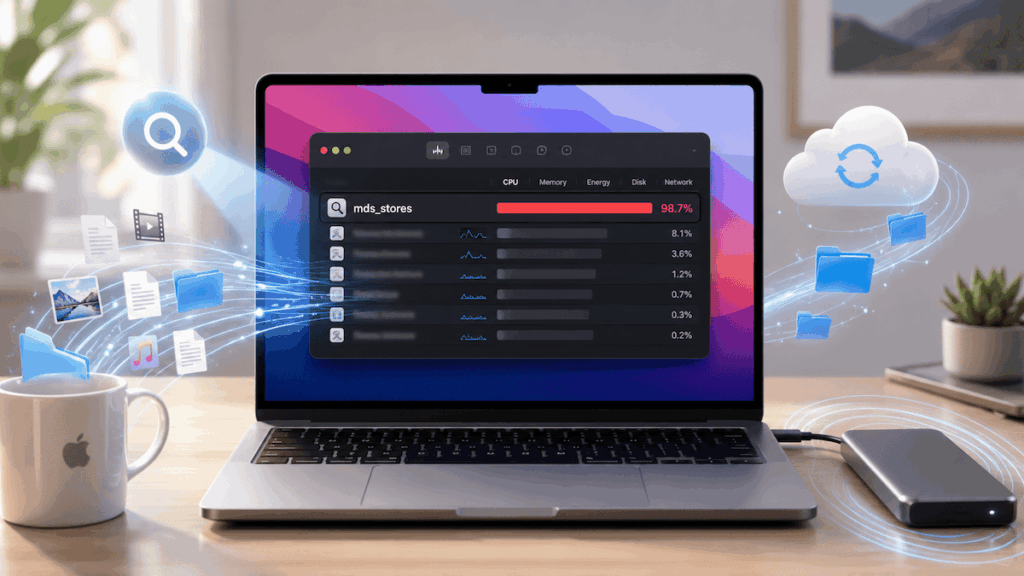
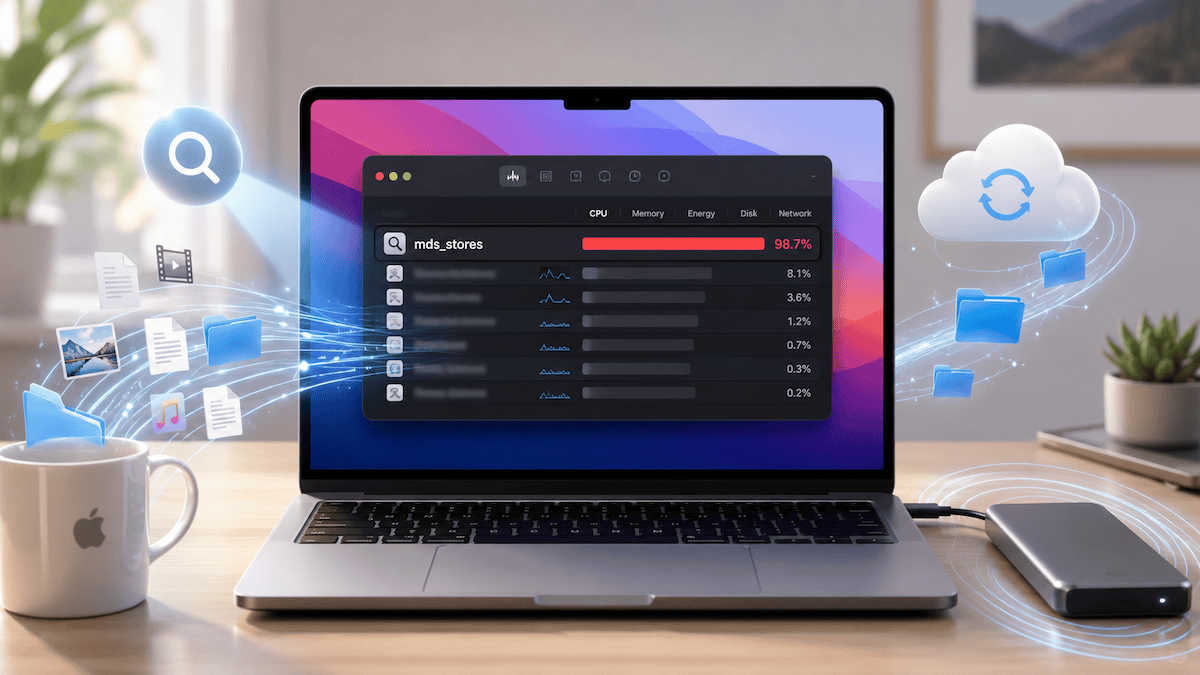
Open Activity Monitor and compare CPU, Memory, and Energy activity. Look for sustained work, not a single brief spike. Once you recognise the app and confirm it is idle, AppHalt gives you a reversible option: its window, tabs, and documents stay ready to resume.
Download AppHalt free to pause an unused app without closing your workspace.
Some Mac apps look quiet. Their windows are hidden. Their icons stay in the Dock. Nothing seems to be happening.
But behind the scenes, they may still be working.
An app can sync files, refresh data, check notifications, index content, update previews, scan libraries, or keep helper processes alive. None of this is always bad. macOS is designed to let apps do useful work in the background. The problem starts when too many apps keep doing small things all day.
That is when your Mac can feel warmer, slower, louder, or less responsive than it should.
Why Mac apps keep running in the background
Closing a window is not the same as quitting an app. On macOS, many apps remain open even when you no longer see their main window. This is useful when you want to return to your work quickly, but it also means the app may continue to use resources.
Common reasons include:
- Syncing: cloud apps, notes apps, email clients, and storage tools may keep checking for updates.
- Notifications: messaging apps often stay active so they can alert you quickly.
- Indexing: some apps organize files, search data, or local databases in the background.
- Auto-save: creative and productivity tools may keep tracking document changes.
- Helper processes: many apps run small background components even when the main app looks idle.
This behavior is normal. But normal does not always mean useful in the moment.
Why background apps can slow down your Mac
One app using a little CPU is rarely a problem. Ten apps doing small background tasks at the same time can become noticeable.
Your Mac has to share CPU, memory, disk access, network activity, and energy between everything that is running. When background apps keep asking for attention, the system has less room for what you are actually doing now.
This can lead to:
- a Mac that feels less responsive;
- fans spinning more often;
- reduced battery life;
- apps taking longer to react;
- more heat during normal work;
- slower switching between tasks.
The frustrating part is that the user often does not know which app is responsible. The Mac simply feels busy.
The problem with quitting every app
One solution is to quit unused apps. It works, but it has a cost.
When you quit an app, you may lose your exact workspace state. You may need to reopen windows, tabs, files, projects, chats, or dashboards later. For people who work with many apps open, quitting everything can create friction.
That is why many Mac users leave apps open.
They do not want every app to keep working. They just want their workspace to stay ready.
The better idea: pause apps without closing them
AppHalt is built around a simple idea: sometimes you do not want to quit an app. You just want it to stop working in the background until you need it again.
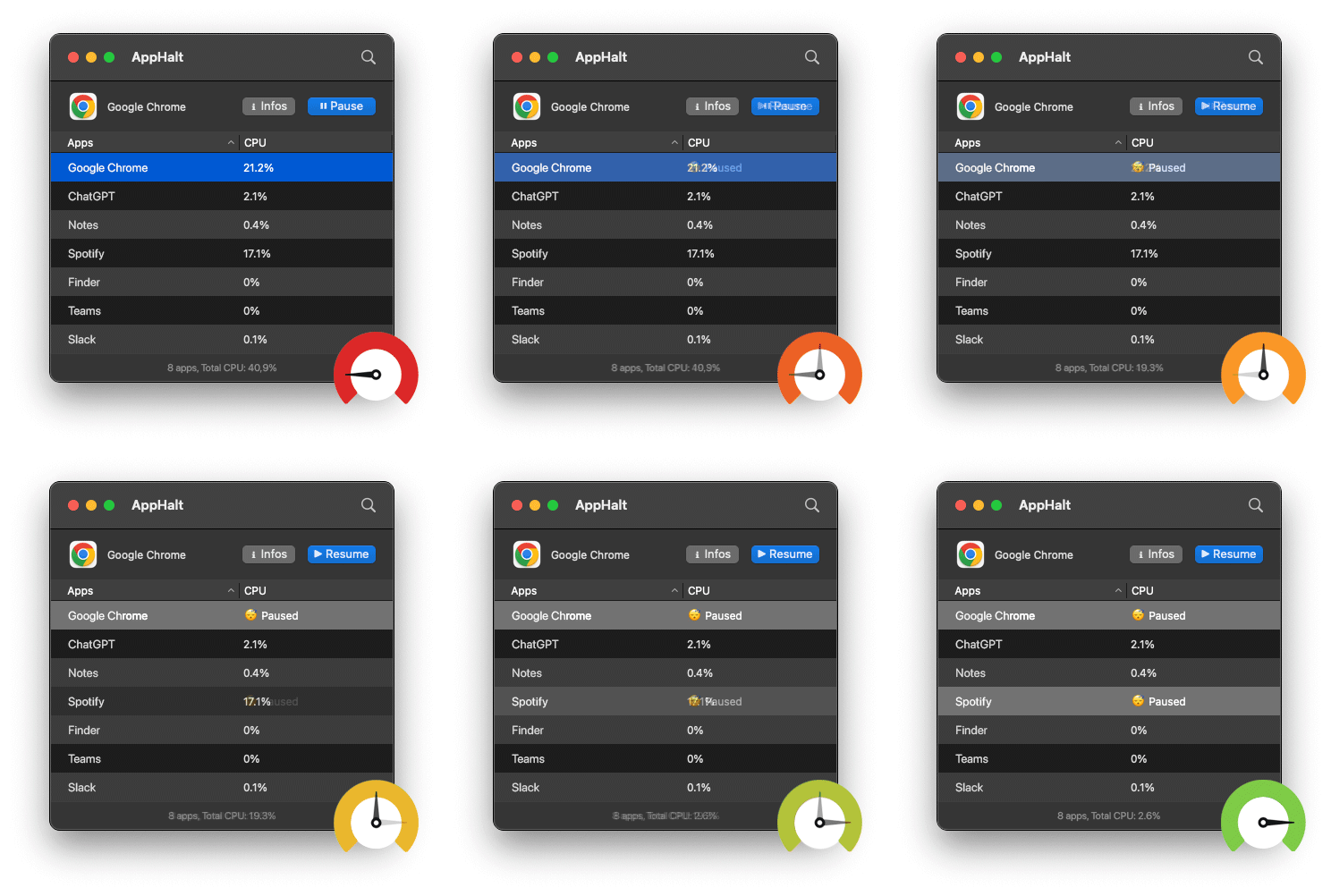
When an app is paused with AppHalt, it stays open. Its window, project, or workspace remains there. But the app stops using CPU until you resume it.
This gives you a middle ground between two extremes:
- Leaving everything running: convenient, but potentially wasteful.
- Quitting everything: efficient, but disruptive.
Pausing gives you control without breaking your flow.
How to understand activity levels in AppHalt
AppHalt avoids showing only raw technical numbers. Instead, it uses simple activity levels such as Low, Moderate, High, and Very high.
The goal is simple: you should not need to deeply understand CPU to know whether an app is active.
For example:
- Very low · 1.3% CPU means the app is doing very little.
- Moderate · 12.0% CPU means the app is more active and may be worth watching.
- High · 31.2% CPU means the app is using noticeable processing power.
The activity level gives you the meaning. The CPU percentage gives you the technical proof.
Which apps should you pause?
You do not need to pause everything. In fact, you should not.
The best candidates are apps that are open but not currently useful. For example:
- a browser you are not using right now;
- a design tool left open between tasks;
- a chat app you do not need for the next hour;
- a cloud-heavy app that keeps syncing;
- a productivity app sitting in the background.
The key question is not “Is this app bad?”
The better question is:
Do I need this app to keep working right now?
If the answer is no, pausing it can make sense.
Why AppHalt protects the app you are using
One important AppHalt principle is protection.
The app you are currently using should not be treated like a background app. If you are writing in a text editor, browsing a page, editing a file, or working inside a design tool, AppHalt should not interrupt that flow.
That is why AppHalt marks the current app as protected. It helps users understand that AppHalt is not blindly pausing everything. It is designed to keep control in your hands.
Background activity is not always bad
Some background activity is useful. Some system processes are part of macOS. Some sync tools are doing exactly what you asked them to do.
The point is not to fight every process.
The point is to make background activity understandable and actionable. If an app is active and you do not need it, AppHalt gives you a simple option: pause it, then resume it later.
Before you pause an app, make sure it is not uploading, syncing, backing up, rendering, or doing other work you need to continue. For a step-by-step walkthrough, read how to pause Mac apps without quitting them.
When pausing apps can help the most
AppHalt can be especially useful when:
- you keep many apps open during the day;
- your Mac feels busy even when you are doing simple work;
- you often switch between tools but do not want to quit them;
- you work on a MacBook and care about heat or battery life;
- you want more control without opening Activity Monitor.
It is not about obsessing over every number. It is about making your Mac feel calmer and easier to manage.
Use AppHalt to keep your Mac calmer
If your Mac often feels busy because too many apps stay active in the background, AppHalt gives you a simple way to take back control.
You can see what is active, understand the activity level, pause apps you do not need right now, and resume them whenever you want.
Your workspace stays open. Your Mac gets a little more breathing room.
Try AppHalt
AppHalt helps you pause unused Mac apps without quitting them. Keep your workspace open, reduce background activity, and resume apps whenever you need them.