
Your Mac may not be too old. It may simply be doing too much in the background.
When a Mac becomes slow, the first reaction is often the same: maybe it is getting old, maybe macOS is heavier than before, maybe the storage is full, maybe it is time to buy a new one.
Sometimes that is true. But very often, the real problem is quieter: your Mac is not idle, even when it looks idle.
A browser tab keeps running. A cloud app keeps syncing. A design tool stays open after a large file. A video meeting app does not fully calm down. A menu bar utility refreshes all day. A background item starts every time you log in. None of these things may look dramatic on their own. Together, they can make your Mac feel slow, hot, noisy, and less responsive.
This guide is not a generic list of “clean your cache” tricks. It is a practical way to answer one question:
Why is my Mac so slow, and what should I do first?
You will learn how to diagnose the real cause, how to read the warning signs, how to fix the most common issues safely, and how to prevent the same slowdown from coming back tomorrow.
Quick answer: if your Mac is slow, start by checking CPU, memory, energy usage, storage, login items, browser tabs, and background apps. In many cases, the fastest improvement comes from stopping unused apps from working in the background, without breaking your workflow.

The real reason your Mac feels slow
A slow Mac is usually not caused by one huge problem. It is usually caused by many small forms of pressure happening at the same time.
Your Mac can feel slow because:
- One app is using too much CPU.
- Several apps are active in the background.
- Your browser has too many tabs or extensions.
- Memory pressure is too high.
- Your storage is nearly full.
- Too many apps start automatically when you log in.
- Cloud sync, backup, or indexing is running.
- An app is frozen, stuck, or badly optimized.
- Your MacBook is hot and reducing performance to protect itself.
The important point is this: the Dock does not tell the whole truth.
An app can sit quietly in the Dock and still use CPU. A menu bar icon can look tiny and still wake up all day. A browser can look like one app, while dozens of tabs and extensions are doing their own work. Your Mac may look calm on the surface while macOS is juggling too many background tasks underneath.
That is why the best fix is not to guess. The best fix is to diagnose.
The 5-minute slow Mac diagnosis
Before deleting files, reinstalling macOS, or downloading another cleaner app, spend five minutes checking where the pressure comes from.
| Minute | What to check | What it tells you |
|---|---|---|
| 1 | CPU usage in Activity Monitor | Whether one app is making your Mac work too hard |
| 2 | Memory pressure | Whether too many apps or tabs are active at once |
| 3 | Energy impact | Whether background activity is draining battery or creating heat |
| 4 | Login items | Whether your Mac starts the day overloaded |
| 5 | Unused open apps | Whether pausing or quitting background apps makes the Mac feel lighter |
This simple diagnosis is more useful than a random cleanup. It shows you what kind of slowness you are dealing with.
Slow Mac symptoms: what they usually mean
Different symptoms point to different causes. Use this table to choose the right fix faster.
| Symptom | Likely cause | Best first fix |
|---|---|---|
| Your Mac is slow right after startup | Too many login items or background items | Review startup apps in System Settings |
| Your MacBook gets hot | High CPU usage or heavy background activity | Check Activity Monitor and stop the heaviest apps |
| The fan is loud | CPU load, video calls, browser tabs, sync, or rendering | Sort Activity Monitor by CPU and Energy |
| Battery drains quickly | Apps waking up in the background | Check Energy impact and reduce background apps |
| The browser feels slow | Too many tabs, web apps, or extensions | Close tabs, remove extensions, restart the browser |
| Apps bounce forever before opening | Low storage, high memory pressure, or old software | Check storage, memory, and updates |
| The spinning beach ball appears often | Frozen app, high pressure, or disk activity | Find the app causing the freeze before restarting |
| Your Mac is slow after a macOS update | Indexing, cloud sync, Photos analysis, or app compatibility | Wait briefly, update apps, then check Activity Monitor |
1. Check Activity Monitor before trying random fixes
Activity Monitor is the best place to start because it shows what your Mac is actually doing. It is not perfect, and it can look technical at first, but you only need a few tabs to make better decisions.
Open Activity Monitor, then check these sections:
- CPU: shows which apps and processes are using processing power.
- Memory: shows whether your Mac is under memory pressure.
- Energy: helps identify apps that may drain battery or create heat.
- Disk: helps spot heavy read/write activity.
- Network: helps identify apps sending or receiving a lot of data.
Start with CPU. Sort by % CPU. If one app is using far more CPU than expected, that app is probably part of the problem.
Common examples include:
- A browser tab running a heavy website.
- A video call app still active after a meeting.
- A design app left open with a large file.
- A cloud tool syncing a large folder.
- A stuck app that should have stopped working.
- A helper process from an app you installed months ago.
Do not force quit random system processes. Focus first on apps you recognize. If Safari, Chrome, Figma, Teams, Slack, Dropbox, Notion, Photoshop, Discord, Spotify, or another familiar app is using too much CPU while you are not using it, that is useful information.
2. Understand the difference between open, active, idle, and paused
This is where many Mac performance articles stay too vague.
An app being open does not always mean it is a problem. Some open apps are almost idle. Others keep working constantly. The useful question is not “Is this app open?” The useful question is:
Is this app doing work I need right now?
| State | What it means | Performance impact |
|---|---|---|
| Open and active | You are using the app right now | Normal and expected |
| Open and idle | The app is open but doing almost nothing | Usually low |
| Open and working in the background | The app is not in front, but still using CPU, network, disk, or energy | Can be high |
| Quit | The app is closed | No app activity, but your context is gone |
| Paused | The app is stopped from continuing background work until resumed | Can reduce wasted activity while preserving the app state |
This distinction matters because modern Mac slowdowns often come from the third category: apps that are open, not needed, but still working.
That is the performance gap AppHalt is designed to solve. It gives you a middle ground between leaving everything running and quitting everything.
3. Stop unused apps from working in the background
If you only try one fix today, try this: reduce the number of unused apps actively running in the background.
This single habit can help with several problems at once:
- High CPU usage.
- Battery drain.
- MacBook heat.
- Fan noise.
- Memory pressure.
- General sluggishness.
- Distraction from constant app activity.
You can do this manually by quitting apps you do not need. That is simple and effective.
But quitting is not always ideal. Sometimes you want to keep your workspace intact. You may want to return to a project later without reopening files, reconnecting sessions, or rebuilding your setup.
That is why pausing can be smarter than quitting in some situations.
AppHalt helps you pause unused apps so they stop wasting resources while your Mac focuses on what you are doing now. It is not about closing your whole workflow. It is about stopping background waste.
Use pausing for apps you recognize and do not need right now. Do not pause apps that are actively saving, uploading, downloading, rendering, recording, syncing important files, or processing work you care about.
Quit, force quit, or pause: which one should you use?
These actions are not the same. Choosing the right one makes your Mac easier to manage.
| Action | Best when | Downside |
|---|---|---|
| Quit | You are done with the app for now | You lose the open workspace |
| Force quit | The app is frozen or not responding | Can lose unsaved work |
| Leave open | You need the app active or ready | May waste CPU, memory, or battery |
| Pause | You want to keep the app state but stop background activity | Not suitable for apps doing important live work |
This is the practical rule:
- Quit apps you will not need again soon.
- Force quit apps only when they are frozen or misbehaving.
- Leave open apps you are actively using.
- Pause apps that are open for later but do not need to work right now.
This is also why “just close apps” is incomplete advice. Closing works, but it is not always the best experience. A good performance routine should protect both speed and workflow.
4. Reduce login items so your Mac starts clean
If your Mac is slow immediately after startup, login items are one of the first things to check.
Login items are apps that open automatically when you log in. Some are useful. Many are not. Over time, apps add background helpers, menu bar items, launch agents, and update tools. You may forget them, but your Mac does not.
To review login items:
- Open System Settings.
- Go to General.
- Open Login Items & Extensions or Login Items, depending on your macOS version.
- Remove apps you do not need at startup.
- Review background items carefully.
Good candidates to remove from startup:
- Apps you only use occasionally.
- Old utilities you no longer trust.
- Chat apps you prefer opening manually.
- Cloud tools for services you no longer use.
- Menu bar apps that duplicate other tools.
- Launchers or helpers you tested once and forgot.
Be more careful with:
- Password managers.
- Security software.
- Backup tools.
- Cloud sync you rely on daily.
- Audio, display, or hardware drivers.
Your goal is not to make startup empty. Your goal is to make startup intentional.
5. Check memory pressure instead of guessing about RAM
Many people blame RAM when their Mac slows down. Sometimes they are right. But the useful metric is not only how much RAM your Mac has. It is how much pressure your current workflow puts on memory.
Open Activity Monitor, then click Memory. Look at Memory Pressure.
If memory pressure is low, RAM is probably not your main problem. If memory pressure is high during normal work, your Mac is juggling more than it can comfortably handle.
Common memory-heavy workflows include:
- Many browser tabs.
- Large Figma, Photoshop, or Illustrator files.
- Video editing.
- Virtual machines.
- Developer tools.
- AI tools and local models.
- Multiple Electron-based apps open all day.
To reduce memory pressure:
- Close large files you are not editing.
- Quit apps you will not return to soon.
- Pause apps that can wait.
- Reduce browser tabs.
- Restart heavy apps that have been open for days.
The goal is not to obsess over numbers. The goal is to notice when your Mac is carrying more active work than your current task requires.
6. Fix your browser before blaming your Mac
For many users, the browser is the heaviest app on the Mac.
It holds email, documents, music, dashboards, project management, AI chats, analytics, admin tools, social feeds, streaming, shopping carts, and forty tabs saved “for later”.
That convenience has a cost.
A browser can slow down your Mac through:
- Too many tabs.
- Heavy web apps.
- Video and audio playback.
- Ads and trackers.
- Extensions running on every page.
- Old sessions restored automatically.
- Pinned tabs that never sleep.
Try this browser reset before doing anything more dramatic:
- Bookmark tabs you do not need today.
- Close unnecessary tabs.
- Remove extensions you forgot you installed.
- Restart the browser.
- Reopen only what you need for the next hour.
If your Mac feels faster after this, your Mac was not the only problem. Your browser workload was.
7. Free up storage space safely
Low storage can make macOS feel less responsive. Your Mac needs free space for temporary files, updates, app data, virtual memory, caches, downloads, and normal system operations.
To check storage:
- Open System Settings.
- Go to General.
- Click Storage.
Start with safe cleanup:
- Empty the Trash.
- Delete old files from Downloads.
- Remove old .dmg installers.
- Move large video files to external storage.
- Delete duplicate exports.
- Remove apps you no longer use.
- Review large files before deleting them.
Be careful with system folders. Do not delete random files from System, Library, or hidden folders unless you know exactly what they are.
A cleaner app may promise a quick win, but deleting the wrong thing can create more problems than it solves. Storage cleanup should be boring, visible, and reversible.
8. Watch cloud sync, backups, and indexing
Sometimes your Mac is not broken. It is busy.
Cloud sync, backups, Spotlight indexing, Photos analysis, and file scanning can all create temporary load. This often happens after:
- A macOS update.
- Setting up a new Mac.
- Restoring from backup.
- Adding many photos or videos.
- Moving a large folder into iCloud Drive, Dropbox, Google Drive, or OneDrive.
- Connecting an external drive.
If the slowdown starts after a large sync or update, give your Mac time while plugged in. But if the same process runs for days, investigate.
Open Activity Monitor and check CPU, Disk, and Network. If one sync tool is constantly active, open that app and look for errors, stuck files, or huge folders.
Cloud sync is useful. Endless cloud sync is not.
9. Update macOS and your main apps
Old software can slow down your Mac through bugs, compatibility issues, memory leaks, and inefficient background behavior.
To update macOS:
- Open System Settings.
- Go to General.
- Click Software Update.
Also update the apps you use every day:
- Browsers.
- Design tools.
- Office apps.
- Video meeting apps.
- Cloud sync apps.
- Developer tools.
- Menu bar utilities.
Before installing a major macOS upgrade, back up your Mac. A minor update is usually simple. A major upgrade deserves more caution, especially if you rely on professional software, plugins, drivers, or older hardware.
10. Remove old apps and forgotten helpers
Unused apps can still leave traces: login items, background helpers, update agents, launch services, browser extensions, or menu bar tools.
Open your Applications folder and look honestly.
Remove apps that match these descriptions:
- You tested them once and never used them again.
- You replaced them with a better tool.
- You do not recognize them.
- They launch automatically without a clear reason.
- They duplicate something macOS already does well enough.
If an app has an official uninstaller, use it. Some apps install components outside the Applications folder. Dragging the app to the Trash may not remove everything.
The goal is not minimalism. The goal is to reduce forgotten background load.
11. Reduce menu bar overload
Menu bar apps are easy to ignore because each one looks small. But five or ten small utilities can create constant background work.
Common examples include:
- Clipboard managers.
- Calendar helpers.
- Cloud sync tools.
- Launchers.
- Screenshot tools.
- VPN apps.
- Monitoring tools.
- Note apps.
- Messaging tools.
Some are useful. Some are excellent. But each one should earn its place.
Ask:
- Do I use this every day?
- Does it need to run all the time?
- Can I open it manually?
- Does it appear often in Activity Monitor?
- Does it duplicate another app?
A faster Mac is often a quieter Mac: fewer background tasks, fewer icons, fewer notifications, fewer small tools waking up all day.
12. Restart your Mac, but do not use restart as a strategy
Restarting your Mac can help. It clears temporary states, closes stuck processes, and gives macOS a fresh start.
But restarting does not explain the problem.
If your Mac becomes slow again one hour later, the restart only removed the symptom temporarily. Something in your workflow is bringing the slowdown back.
After restarting, notice the pattern:
- Does the Mac slow down after opening your browser?
- Does it slow down after a video call?
- Does it get hot when a cloud app syncs?
- Does it become sluggish after opening a specific design file?
- Does the slowdown return after login items finish loading?
The pattern tells you more than the restart.
13. Use Safe Mode when the slowdown feels abnormal
If your Mac is unusually slow and the usual checks do not explain why, Safe Mode can help. Safe Mode starts macOS with fewer background items and performs certain checks.
If your Mac feels much better in Safe Mode, the cause may be related to third-party software, extensions, startup items, caches, or background components.
Safe Mode is not a daily optimization trick. It is a diagnostic tool. Use it when the slowdown feels strange, persistent, or difficult to explain.
14. Avoid performance myths that waste time
Some Mac performance advice sounds confident but does not help much. Worse, it can distract you from the real issue.
Myth 1: “You should clear cache constantly”
Cache is not automatically bad. Apps and macOS use cache to avoid repeating work. Clearing cache can help in specific cases, but doing it constantly can make apps rebuild data and feel slower for a while.
Myth 2: “A cleaner app will fix everything”
No single button understands your workflow. Some tools are useful, but a cleaner cannot magically know whether your real problem is CPU, memory, browser tabs, storage, login items, or a stuck sync process.
Myth 3: “If the app is not visible, it is not active”
Wrong. Many apps work in the background. That is the whole point of checking Activity Monitor instead of trusting what you see on screen.
Myth 4: “A new Mac is always the answer”
A new Mac can help if your hardware is genuinely too limited for your work. But if your workflow is overloaded with background apps, tabs, sync tools, and startup items, you may bring the same habits to the new machine.
15. Build a simple Mac performance routine
The best routine is the one you actually follow. Keep it short.
Daily: 60 seconds
- Pause or quit apps you are not using.
- Close browser tabs that are not useful today.
- Check whether your Mac feels hot, noisy, or unusually slow.
- Keep only the apps needed for your current session active.
Weekly: 5 minutes
- Restart your Mac.
- Clean Downloads.
- Empty Trash if needed.
- Update your main apps.
- Review apps that keep launching automatically.
Monthly: 15 minutes
- Check storage space.
- Remove apps you no longer use.
- Review browser extensions.
- Look at Activity Monitor if performance feels different.
- Back up important files.
This routine is not exciting. That is why it works. Good maintenance should be boring, fast, and repeatable.

16. Why background apps are the hidden performance problem
Most people do not think about background apps because they are invisible by design. That is what makes them useful. Mail can fetch messages. Cloud storage can sync files. Calendar apps can send reminders. Music apps can keep playing. Messaging apps can notify you.
But usefulness becomes waste when too many apps keep working after they stop being relevant.
Think about a normal workday:
- You open your browser.
- You join a video call.
- You open a design tool.
- You check messages.
- You sync files.
- You listen to music.
- You open notes.
- You test a utility.
- You forget to close half of it.
By the afternoon, your Mac may still be carrying the morning.
That is why background app control is one of the most practical ways to improve Mac performance. It does not require deleting your files. It does not require reinstalling macOS. It does not require buying a new Mac. It simply asks your Mac to stop giving power to things you are not using.
17. Where AppHalt fits into a smart Mac workflow
AppHalt is not a magic cleaner. It is not trying to replace Activity Monitor, macOS updates, good storage habits, or common sense.
Its purpose is more specific: help you pause unused apps so they stop consuming resources in the background.
This matters because the usual choices are imperfect:
| Choice | What you gain | What you lose |
|---|---|---|
| Leave everything open | Convenience | CPU, battery, memory, calm |
| Quit everything | Clean system state | Workflow, context, speed of return |
| Force quit apps | Emergency recovery | Unsaved work risk |
| Pause unused apps with AppHalt | Less background waste while keeping your workspace easier to return to | Requires choosing apps carefully |
That is the real benefit: AppHalt gives you a middle ground.
You can keep your Mac focused without constantly closing and reopening your whole day. You can reduce background CPU usage without turning performance management into a hobby. You can make your Mac feel lighter without pretending that one cleanup button can solve every problem.
Best use cases for AppHalt:
- You keep many apps open while working.
- Your MacBook gets hot when you multitask.
- Your battery drains faster than expected.
- You want to pause apps instead of quitting them.
- You want to reduce CPU usage from apps you are not using right now.
- You want a calmer Mac without manually checking everything all day.
When not to pause an app:
- It is saving a file.
- It is uploading or downloading something important.
- It is rendering, exporting, or recording.
- It is syncing files you need right now.
- It is handling a live call, stream, backup, or transfer.
This honesty matters. A good performance tool should help you make better decisions, not encourage reckless clicks.
The best order to fix a slow Mac
If you want the clearest path, follow this order:
- Check CPU in Activity Monitor. Find apps using too much processing power.
- Pause or quit unused apps. Reduce background activity first.
- Restart your browser. Tabs and extensions are often the real culprit.
- Check memory pressure. See whether your workflow is overloaded.
- Review login items. Stop unnecessary apps from launching automatically.
- Free storage safely. Use System Settings before deleting random files.
- Update macOS and key apps. Fix bugs and compatibility issues.
- Watch sync and indexing. Let temporary work finish, but investigate endless activity.
- Use Safe Mode if needed. Diagnose deeper third-party issues.
This order starts with the fixes that are fast, reversible, and most likely to help. You do not need to reinstall macOS before checking whether one app is eating your CPU.
FAQ: Why is my Mac so slow?
Why is my Mac so slow all of a sudden?
Your Mac may suddenly feel slow because one app is using too much CPU, a browser tab is misbehaving, storage is nearly full, a cloud sync is running, or a background process is stuck. Start with Activity Monitor and check CPU, Memory, and Energy.
Why is my Mac slow even when nothing is open?
Something may still be running in the background. Login items, menu bar apps, cloud sync tools, browser helpers, update agents, and system processes can all be active even when your screen looks calm.
Why is my MacBook fan so loud?
A loud fan usually means your MacBook is working hard or getting warm. Video calls, browser tabs, rendering, cloud sync, external displays, and CPU-heavy apps can all contribute. Check Activity Monitor to find the source.
Does leaving apps open slow down a Mac?
It can. Some open apps use almost no resources when idle. Others keep refreshing, syncing, checking the network, or using CPU. The real question is whether the app is active in the background.
Is Chrome slowing down my Mac?
It might be. Any modern browser can become heavy with many tabs, extensions, video, ads, and web apps. If your Mac feels faster after closing or restarting the browser, your browser workload was part of the problem.
Can Safari also slow down a Mac?
Yes. Safari is well integrated into macOS, but any browser can become heavy if many tabs, media pages, web apps, or extensions are active.
How do I know which app is slowing down my Mac?
Open Activity Monitor and sort by CPU. Then check Memory and Energy. Look for apps using more resources than expected. Focus first on apps you recognize before touching system processes.
Does low storage make a Mac slow?
Yes. When storage is nearly full, macOS has less room for temporary files, updates, app data, caches, and virtual memory. Freeing storage safely can improve stability and responsiveness.
Should I clear cache to speed up my Mac?
Not as your first move. Cache is not automatically bad. It often helps apps work faster. Clear cache only when you have a specific reason, not as a daily ritual.
Why is my Mac slow after a macOS update?
After an update, your Mac may spend time indexing, syncing, analyzing photos, or updating app data. This can be temporary. If the slowdown continues, update your apps and check Activity Monitor for the process causing load.
Do menu bar apps slow down a Mac?
They can. One menu bar app may be harmless. Many menu bar apps running all day can add background activity, notifications, startup load, and CPU usage.
Is it better to quit or pause an app?
If you will not need the app again soon, quit it. If you want to keep your workspace but stop the app from working in the background, pausing can be a better option.
Can AppHalt make my Mac faster?
AppHalt can help your Mac feel faster by reducing unnecessary background app activity. It does not replace storage cleanup, macOS updates, or hardware upgrades, but it helps your Mac stop wasting resources on apps you are not using.
Is AppHalt safe to use?
AppHalt is designed to pause apps you choose. Use it on apps you recognize and do not need right now. Avoid pausing apps that are saving, syncing, uploading, downloading, rendering, recording, or handling important live work.
Do I need a new Mac if mine is slow?
Not necessarily. If your Mac is very old or underpowered for your work, a new Mac can help. But many slowdowns come from background activity, browser load, low storage, or startup clutter. Fix those first before assuming the hardware is finished.
Useful official Apple resources
If you want to go deeper, these Apple guides are useful:
- Activity Monitor User Guide for Mac
- See used and available storage space on your Mac
- Open items automatically when you log in on Mac
- Start up your Mac in safe mode
Final thoughts: your Mac should not work for apps you are not using
A slow Mac is not always a dying Mac. Often, it is a busy Mac.
It is carrying yesterday’s tabs, this morning’s video call, old login items, forgotten menu bar utilities, cloud sync, unused creative apps, and background processes you never meant to keep active.
The best fix is not panic. It is control.
Check what is using resources. Reduce what does not matter. Keep your browser lighter. Remove unnecessary startup apps. Free storage safely. Update your software. And most importantly, stop unused apps from working when they do not need to.
Your Mac should spend its power on what you are doing now, not on apps waiting in the background.
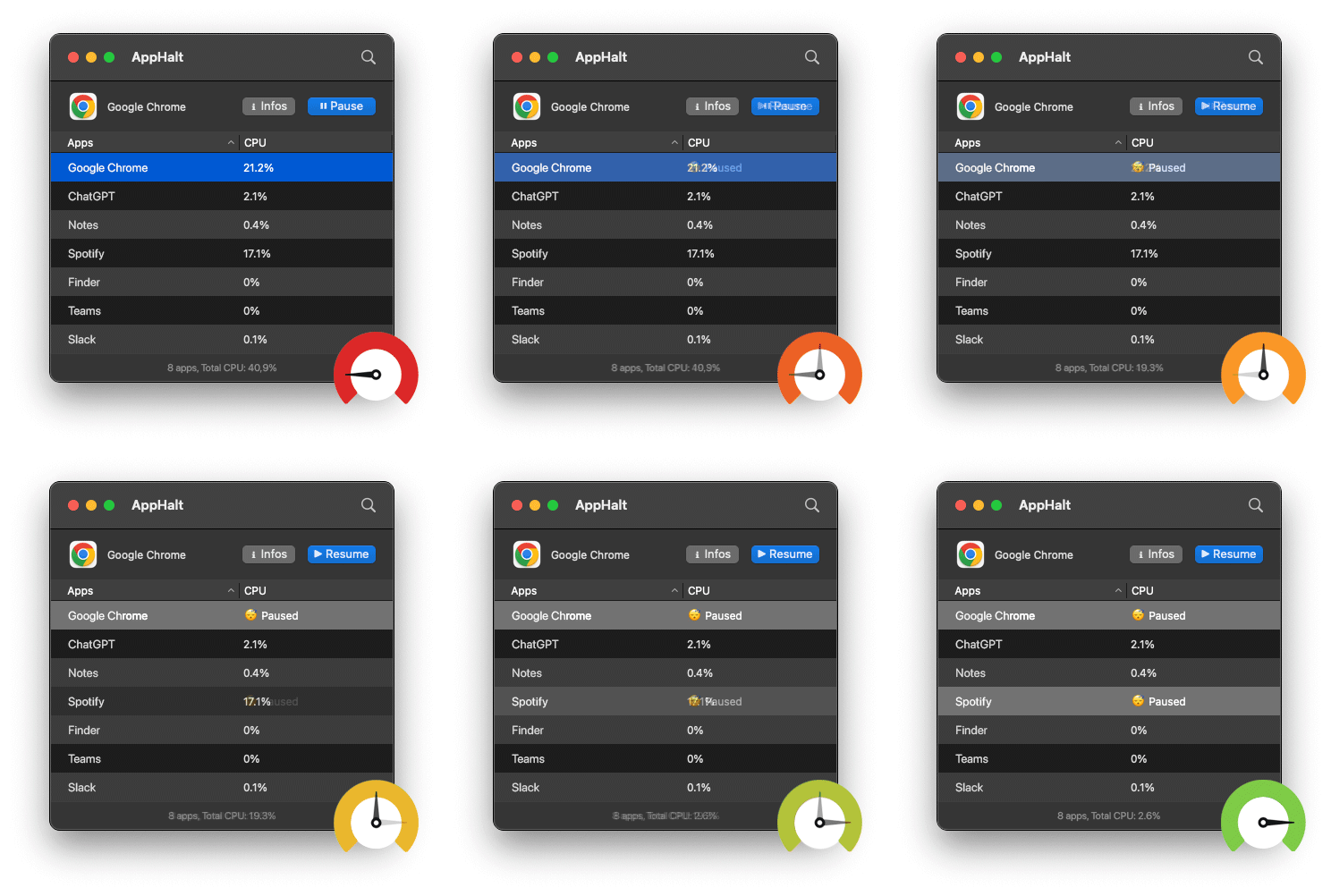
🚀 Speed Up Your Mac with AppHalt
AppHalt helps your Mac stop wasting power on apps you are not using.
Instead of quitting everything or letting every app run in the background, AppHalt gives you a smarter middle ground: pause unused apps, reduce background CPU usage, and keep your Mac focused on what matters now.
✅ Reduce background CPU usage.
✅ Help prevent overheating and battery drain.
✅ Pause apps without fully breaking your workflow.
✅ Keep your MacBook feeling faster, lighter, and calmer.
📥 Want a faster Mac without overthinking it? Download AppHalt now.
Before changing anything, use Activity Monitor to identify the app actually slowing your Mac. It gives you a measurable starting point instead of relying on a guess.
Choose the right next step: investigate, quit, clean, or pause
“My Mac is slow” is a symptom, not a diagnosis. The useful next move depends on what you find. This avoids both unnecessary cleanup and pausing the wrong thing.
- You do not recognize the process: investigate it in Activity Monitor first. Do not pause unfamiliar system processes.
- You have finished with the app: quit it. Closing its window may not stop all of its activity.
- You need the app and its workspace later, but not now: use AppHalt to pause it without quitting. Save important work first, and never pause an app that is syncing, uploading, downloading, exporting, recording, backing up, or in a live call.
- Your storage is nearly full: follow a storage-cleanup workflow. AppHalt does not delete files, caches, or applications.
If you are comparing approaches, see AppHalt vs CleanMyMac for cleanup versus app pausing, or AppHalt vs App Tamer for deliberate pausing versus automatic CPU management.