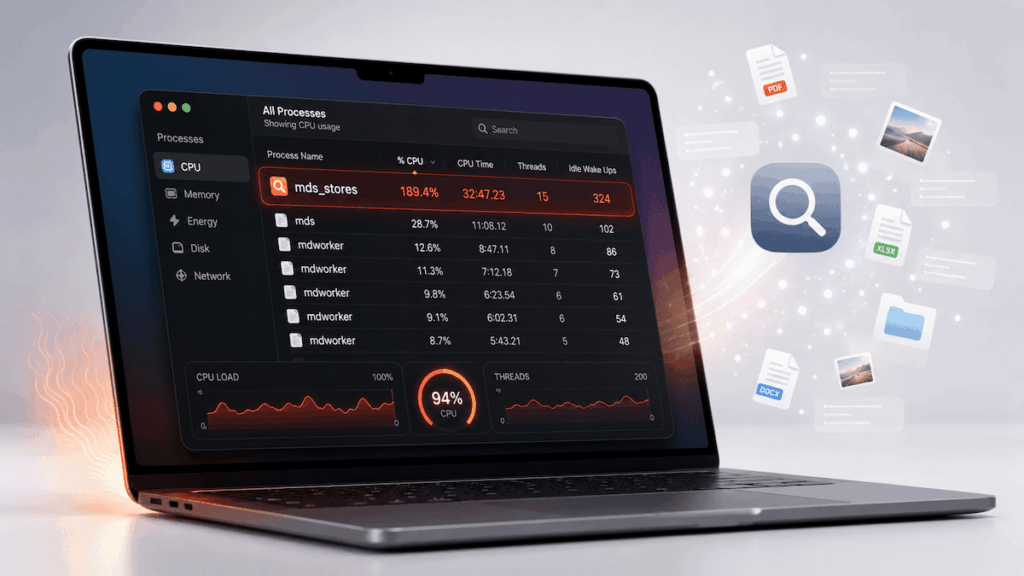
If you opened Activity Monitor and saw mds_stores using high CPU on your Mac, the first reaction is usually confusion: what is this process, why is it using so much power, and is it safe?
The good news: mds_stores is usually not malware. It is commonly related to Spotlight indexing, the system that helps your Mac search files, apps, documents, messages, settings, and other content quickly.
The bad news: when Spotlight indexing gets busy, stuck, or overloaded, mds_stores can use a lot of CPU. Your Mac may feel slow, hot, noisy, or less responsive. On a MacBook, you may also notice faster battery drain.
This guide explains what mds_stores is, why it can use high CPU on Mac, when it is normal, when it is not, and how to reduce it safely without breaking search, updates, or your workflow.
Quick answer: mds_stores high CPU on Mac is usually caused by Spotlight indexing. It can happen after a macOS update, after moving many files, after connecting external drives, after restoring from backup, or when a folder keeps changing. To reduce it, wait if indexing is temporary, restart your Mac, disconnect external drives for testing, exclude unnecessary folders from Spotlight Search Privacy, check Activity Monitor, update macOS, and reduce background apps with AppHalt while your Mac finishes indexing.
What is mds_stores on Mac?
mds_stores is a macOS background process commonly associated with Spotlight indexing.
Spotlight is the search system built into macOS. It helps you quickly find apps, files, folders, documents, settings, actions, web suggestions, and more.
For Spotlight to be fast, macOS needs to maintain an index of your files and metadata. That indexing work can involve background processes such as mds, mdworker, and mds_stores.
In normal use, these processes should stay relatively quiet most of the time. But during indexing, they may become more active.
You may notice mds_stores in Activity Monitor when your Mac is:
- Indexing files after a macOS update.
- Rebuilding Spotlight search data.
- Scanning a large folder.
- Processing an external drive.
- Reindexing after a restore or migration.
- Handling many file changes at once.
- Working through cloud-synced files.
So mds_stores is not automatically a problem. It becomes a problem when high CPU usage lasts too long or makes your Mac difficult to use.
Is mds_stores high CPU normal?
Sometimes, yes.
mds_stores high CPU can be normal when your Mac has a lot of indexing work to do. This often happens after major system or file changes. Situation Is high CPU normal? What to do Just updated macOS Often normal Leave the Mac plugged in and wait Just restored from backup Often normal Let indexing finish Just connected an external drive Common Wait or exclude the drive from Spotlight Moved thousands of files Common Let Spotlight process the changes mds_stores high CPU for several days Not ideal Investigate stuck indexing or problematic folders Mac is hot, slow, and battery drains fast Worth checking Use Activity Monitor and reduce workload
The key question is not “Is mds_stores using CPU?” It is: is it temporary, or is it stuck?
Why mds_stores uses high CPU on Mac
mds_stores can use high CPU when Spotlight has a lot to index or when something causes indexing to repeat.
Common causes include:
- A recent macOS update.
- A new Mac setup.
- A migration from another Mac.
- A Time Machine restore.
- Large file transfers.
- External drives connected to the Mac.
- Cloud sync folders changing constantly.
- Developer folders with thousands of files.
- Large photo, video, or audio libraries.
- Mail database indexing.
- Corrupted Spotlight index data.
- Folders that change repeatedly.
Some of these are temporary. Others can keep mds_stores busy for much longer than expected.
The 5-minute mds_stores high CPU diagnosis
Before changing Spotlight settings, diagnose the situation. Minute What to check What it tells you 1 Activity Monitor → CPU Whether mds_stores is really the main CPU user 2 Recent macOS updates or file moves Whether indexing is expected 3 External drives Whether a connected disk is triggering indexing 4 Cloud sync folders Whether files keep changing in the background 5 Other high CPU apps Whether mds_stores is the only issue or part of a larger workload
This helps you avoid the wrong fix. If indexing is temporary, waiting may be best. If a folder or drive is causing repeated indexing, you need a targeted fix.
1. Check Activity Monitor first
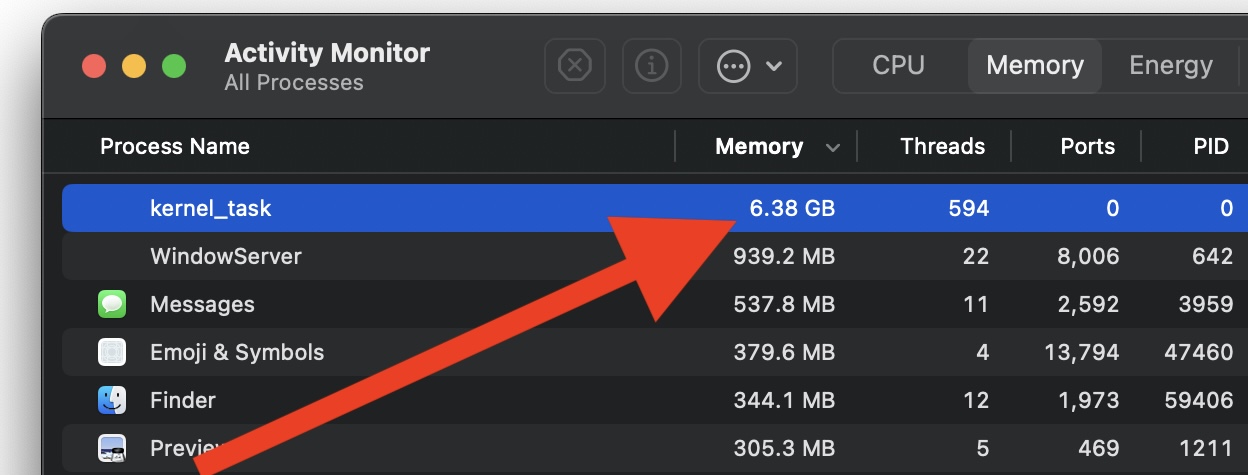
Open Activity Monitor, click the CPU tab, and sort by % CPU.
Look for:
- mds_stores
- mds
- mdworker
- mdworker_shared
- Other processes using high CPU at the same time
If mds_stores is high but CPU drops after a while, indexing may simply be finishing.
If mds_stores stays high for hours, days, or immediately returns after every restart, something may be keeping Spotlight busy.
Also check the bottom of Activity Monitor:
- System CPU: CPU used by macOS processes.
- User CPU: CPU used by apps you opened.
- Idle: CPU not being used.
If Idle stays very low, your Mac has little breathing room.
2. Wait if indexing is temporary
If you recently updated macOS, restored your Mac, moved files, or connected a large drive, the safest first step is to wait.
Spotlight indexing can temporarily use CPU because macOS is building or updating search data.

Best practice:
- Plug in your MacBook.
- Keep the Mac awake for a while.
- Use a hard, ventilated surface.
- Avoid opening too many heavy apps at the same time.
- Check Activity Monitor again later.
If CPU gradually drops, the problem was temporary indexing.
Trying to interrupt every indexing process immediately can make the issue last longer.
3. Restart your Mac if mds_stores stays high
A normal restart can clear temporary stuck states and give you a cleaner baseline.
Use this order:
- Save your work.
- Quit open apps.
- Restart your Mac.
- Wait a few minutes after login.
- Open Activity Monitor before launching everything again.
- Check whether mds_stores is still high.
If mds_stores only becomes high after opening specific apps or connecting a specific drive, you have a useful clue.
4. Disconnect external drives for testing
External drives are a common reason Spotlight indexing becomes busy.
This includes:
- Backup drives.
- USB drives.
- External SSDs.
- External HDDs.
- SD cards.
- Project drives.
- Media libraries stored outside the Mac.
To test:
- Eject external drives safely.
- Disconnect them.
- Restart your Mac.
- Check Activity Monitor.
- Reconnect drives one by one.
If mds_stores high CPU returns only when one drive is connected, that drive may be triggering indexing.
You can then decide whether Spotlight search is useful on that drive or whether it should be excluded from Spotlight Search Privacy.
5. Exclude large folders or drives from Spotlight Search Privacy
Apple allows you to exclude specific folders or disks from Spotlight searches.
This can be useful if a folder or drive creates too much indexing work and you do not need it to appear in Spotlight results.
Good candidates to consider:
- Large temporary folders.
- Build folders.
- Developer dependency folders.
- Cache folders.
- External drives used only for storage.
- Backup-like folders that do not need search.
- Large media archives.
To exclude a folder or disk:
- Open System Settings.
- Open Spotlight.
- Click Search Privacy.
- Add the folder or disk you want to exclude.
- Wait and check whether mds_stores CPU improves.
Be careful: if you exclude important folders, Spotlight will not search them. Apple also notes that excluding some files and folders may affect update notifications for some apps, and excluding the entire internal disk can prevent update notifications.
So do not exclude your whole Mac unless you truly understand the trade-off.
6. Check cloud sync folders
Cloud sync can keep Spotlight busy because files may change constantly.
Check folders managed by:
- iCloud Drive.
- Dropbox.
- Google Drive.
- OneDrive.
- Synology Drive.
- Creative cloud apps.
- Developer sync tools.
If files are uploading, downloading, appearing, disappearing, or being rewritten, Spotlight may keep reindexing.
What to do:
- Let important sync finish while plugged in.
- Pause nonessential sync temporarily.
- Check whether mds_stores CPU drops.
- Exclude folders from Spotlight only if you do not need search there.
Do not force quit a sync app while important files are moving unless you understand the risk.
7. Watch developer folders and node_modules
Developer folders can contain thousands of small files. That can make indexing heavier.
Common examples include:
- node_modules folders.
- Build folders.
- Derived data.
- Package manager caches.
- Large repositories.
- Generated files.
- Temporary compilation output.
If you are a developer and mds_stores is always high, check whether your project folders are changing constantly.
You may not need Spotlight to index every dependency or generated file.
In that case, excluding specific heavy folders from Spotlight can reduce unnecessary indexing while keeping search useful elsewhere.
8. Check Mail, Photos, and large libraries
Some Apple apps and libraries can trigger indexing work.
Examples include:
- Large Mail databases.
- Large Photos libraries.
- PDF archives.
- Document folders.
- Audio sample libraries.
- Video projects.
- Design asset folders.
If you recently imported many files, moved a library, restored an account, or reconnected cloud storage, Spotlight may need time to process everything.
Let indexing finish while plugged in if the data is important and searchable.
If the folder is an archive you rarely search, consider excluding it from Spotlight.
9. Reduce other background apps while Spotlight indexes
When mds_stores is already using CPU, other background apps can make your Mac feel much worse.
Spotlight indexing may be normal, but your Mac can still feel overloaded if other apps are also active.
Common background load comes from:
- Browsers with many tabs.
- Cloud sync tools.
- Chat apps.
- Video call apps.
- Creative apps.
- Game launchers.
- Media apps.
- Menu bar utilities.
If indexing is temporary, the best thing you can do is reduce everything else while it finishes.
10. Use AppHalt while mds_stores is busy

AppHalt does not stop Spotlight indexing, and it should not. Spotlight is a useful macOS feature.
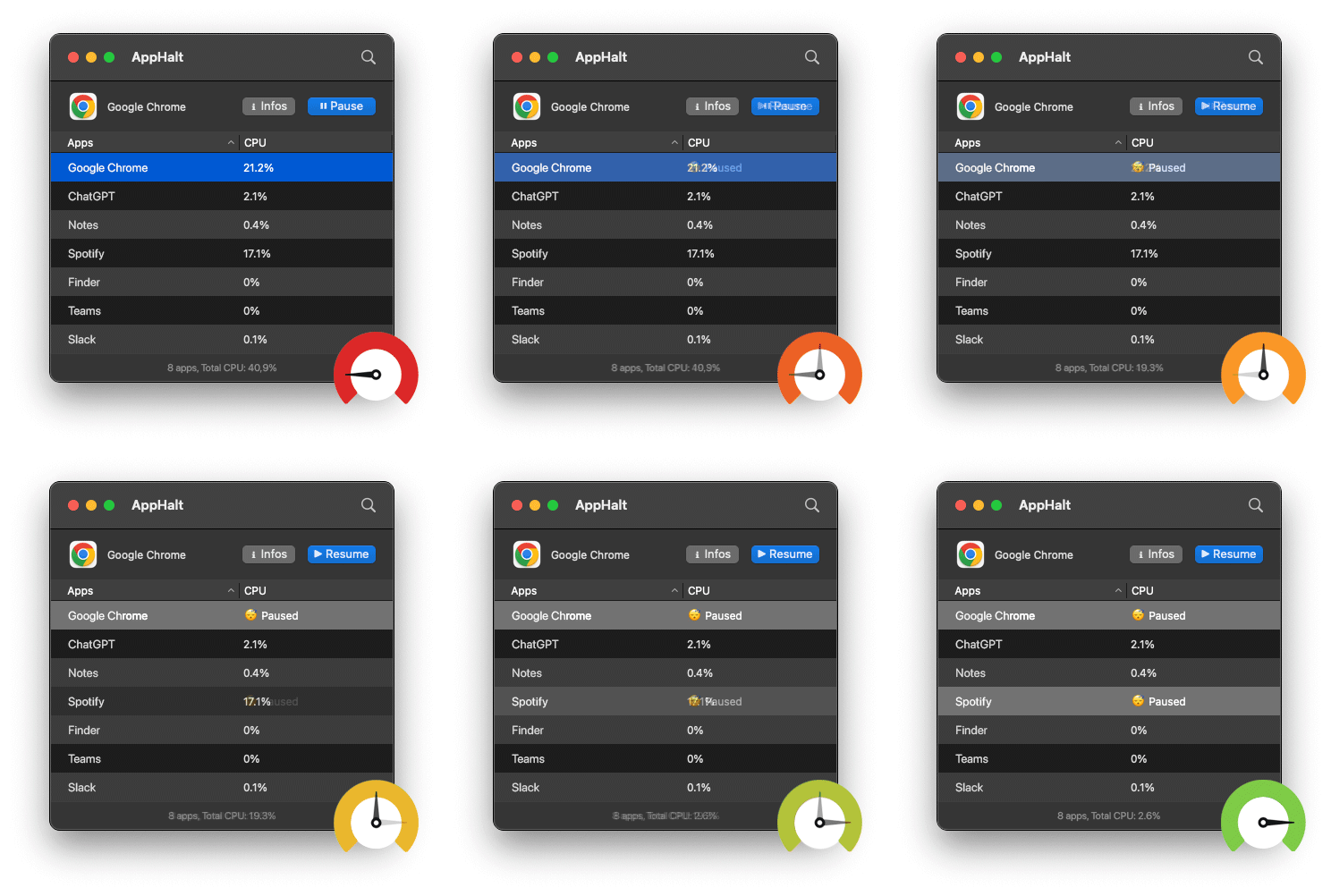
But AppHalt can help with the surrounding problem: when mds_stores is already using CPU, unused apps should not add more background load.
AppHalt lets you pause unused apps without fully quitting them. That can help your Mac stay more responsive while indexing finishes.
Use AppHalt when:
- mds_stores is using high CPU.
- Your Mac feels slow during indexing.
- You want to keep apps open but inactive.
- You have many apps running in the background.
- Your MacBook gets warm while Spotlight is indexing.
- You want to reduce background CPU usage without closing your whole workspace.
AppHalt will not repair a broken Spotlight index. But it can reduce the number of apps competing with Spotlight for CPU, memory, and energy.
Do not pause apps that are saving, syncing important files, uploading, downloading, rendering, recording, exporting, compiling, or handling live work.
11. Should you force quit mds_stores?
Usually, no.
Force quitting system-related processes is not the right first move. If mds_stores is indexing normally, interrupting it may not solve the real issue. It may simply return later and continue indexing.
Try safer steps first:
- Wait if indexing is expected.
- Restart normally.
- Disconnect external drives for testing.
- Exclude unnecessary folders or disks from Spotlight.
- Pause unused apps with AppHalt.
- Update macOS.
If the process is genuinely stuck for days, the better fix is usually to identify what it is trying to index, not to repeatedly kill it.
12. When mds_stores high CPU is a real problem
Take it seriously if:
- mds_stores stays high for several days.
- Your Mac is hot with no visible activity.
- Battery drains quickly while idle.
- High CPU returns after every restart.
- Spotlight search results are wrong or incomplete.
- One external drive always triggers the issue.
- A cloud folder seems to reindex constantly.
- Your Mac becomes unreliable for work.
At that point, you should focus on external drives, cloud sync folders, recently changed directories, developer folders, and Spotlight Search Privacy.
Best order to fix mds_stores high CPU on Mac
Follow this safe order:
- Open Activity Monitor and confirm mds_stores is using high CPU.
- Check whether you recently updated, migrated, restored, or moved files.
- Wait if indexing is expected, especially after major changes.
- Plug in your MacBook and keep it ventilated.
- Restart your Mac normally.
- Disconnect external drives and test again.
- Check cloud sync folders for constant file changes.
- Exclude unnecessary folders or disks from Spotlight Search Privacy.
- Pause unused apps with AppHalt to reduce extra CPU load.
- Update macOS and apps.
- Investigate if high CPU continues for days.
Common mistakes with mds_stores high CPU
Mistake 1: Thinking mds_stores is malware
mds_stores is commonly related to Spotlight indexing. High CPU does not automatically mean malware.
Mistake 2: Force quitting it immediately
If Spotlight is indexing normally, killing the process may only delay the work. Start with diagnosis.
Mistake 3: Excluding the whole internal disk
This can break useful search behavior and may affect update notifications. Exclude targeted folders instead.
Mistake 4: Ignoring external drives
External drives can trigger indexing. Test by disconnecting them safely.
Mistake 5: Forgetting cloud sync folders
Cloud folders that constantly change can keep indexing active longer than expected.
Mistake 6: Leaving every app active while indexing runs
If Spotlight is already using CPU, unused apps make the Mac feel even slower. Pause or quit what you do not need.
FAQ: mds_stores high CPU on Mac
What is mds_stores on Mac?
mds_stores is a macOS background process commonly associated with Spotlight indexing. It helps maintain search-related data so Spotlight can find files and information quickly.
Why is mds_stores using high CPU?
mds_stores may use high CPU because Spotlight is indexing files after a macOS update, backup restore, migration, large file transfer, cloud sync, or external drive connection.
Is mds_stores a virus?
No. mds_stores is normally a legitimate macOS process. High CPU usually points to indexing activity, not malware.
How long does mds_stores high CPU last?
It depends on how much Spotlight needs to index. After a major update or large file move, it may take a while. If it stays high for several days, investigate external drives, cloud folders, or stuck indexing.
Can I quit mds_stores?
You should not treat it like a normal app. Force quitting may not fix the cause and may delay indexing. Use safer steps first.
How do I reduce mds_stores CPU usage?
Wait if indexing is temporary, restart your Mac, disconnect external drives, exclude unnecessary folders from Spotlight Search Privacy, pause unused apps, and check cloud sync folders.
Can external drives cause mds_stores high CPU?
Yes. External drives can trigger Spotlight indexing, especially if they contain many files or change often.
Can cloud sync cause mds_stores high CPU?
Yes. iCloud Drive, Dropbox, Google Drive, OneDrive, and similar tools can keep files changing, which may cause Spotlight-related processes to stay active.
Can AppHalt help with mds_stores high CPU?
AppHalt does not stop Spotlight indexing. But it can help pause unused apps so they do not add extra background CPU while mds_stores is already busy.
Should I disable Spotlight completely?
Usually no. Spotlight is useful for search and system features. It is better to exclude specific unnecessary folders or disks than to disable search broadly.
Why is my MacBook hot when mds_stores is high?
High CPU creates heat. If mds_stores is indexing and other apps are active too, your MacBook may get warm and drain battery faster.
Does mds_stores affect battery life?
Yes. If mds_stores uses high CPU for a long time, it can increase battery drain, heat, and energy use on MacBook.
Useful official Apple resources
If you want to go deeper, these Apple resources are useful:
- Search for anything with Spotlight on Mac
- Prevent Spotlight searches in specific folders or disks on Mac
- If searching your Mac returns unexpected results
- View CPU activity in Activity Monitor on Mac
- Activity Monitor User Guide for Mac
Final thoughts: mds_stores high CPU is usually Spotlight working too hard
mds_stores high CPU can look worrying, but in many cases it simply means Spotlight is indexing files.
If the issue appears after a macOS update, migration, restore, large file move, or external drive connection, waiting may be the right first step. But if mds_stores stays high for days, comes back after every restart, or drains battery constantly, look deeper.
Check Activity Monitor. Test external drives. Review cloud sync folders. Exclude unnecessary folders from Spotlight Search Privacy. Avoid disabling everything blindly. And reduce other background apps so your Mac has enough breathing room while Spotlight finishes its work.
A Mac can handle indexing much better when it is not also fighting dozens of open apps, tabs, sync tools, and forgotten background processes.
🚀 Keep Your Mac Responsive While Spotlight Indexes with AppHalt
AppHalt helps your Mac stop wasting CPU on apps you are not using while Spotlight-related processes are already busy.
Instead of quitting your whole workspace or letting every app keep running in the background, AppHalt gives you a smarter middle ground: pause unused apps, reduce background CPU usage, and help your Mac stay lighter while indexing finishes.
✅ Reduce background CPU usage.
✅ Help prevent overheating, fan noise, and battery drain.
✅ Pause unused apps without fully breaking your workflow.
✅ Keep your Mac feeling faster, lighter, and calmer.
📥 Is your Mac busy with mds_stores high CPU? Download AppHalt now.