
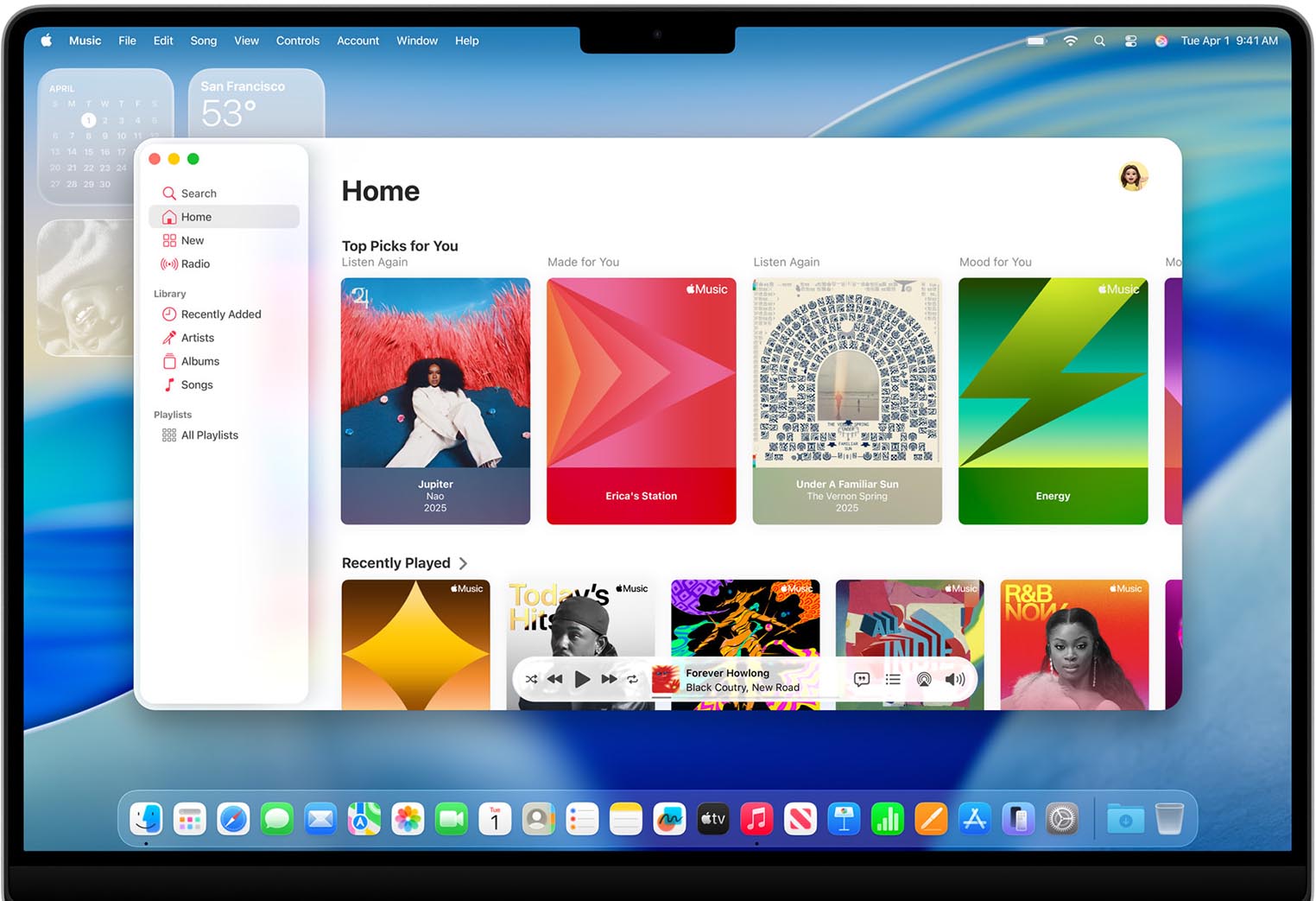
Slow MacOS After Tahoe Update? Here’s What You Need to Know
macOS Tahoe has finally landed, bringing a refreshed design, smarter AI suggestions, and tighter cross-device integration. But if your Mac feels slower than before, you’re not the only one. Many users report performance drops right after updating—especially on older Intel Macs or base M1/M2 models.
Animations stutter. Apps take longer to launch. Battery drains faster. Let’s dive into why your Mac is slow after installing macOS Tahoe and how to fix it quickly—with practical steps and one powerful tool.
Why Your Mac Is Slower macOS after Tahoe update?
1. New Background Intelligence Features
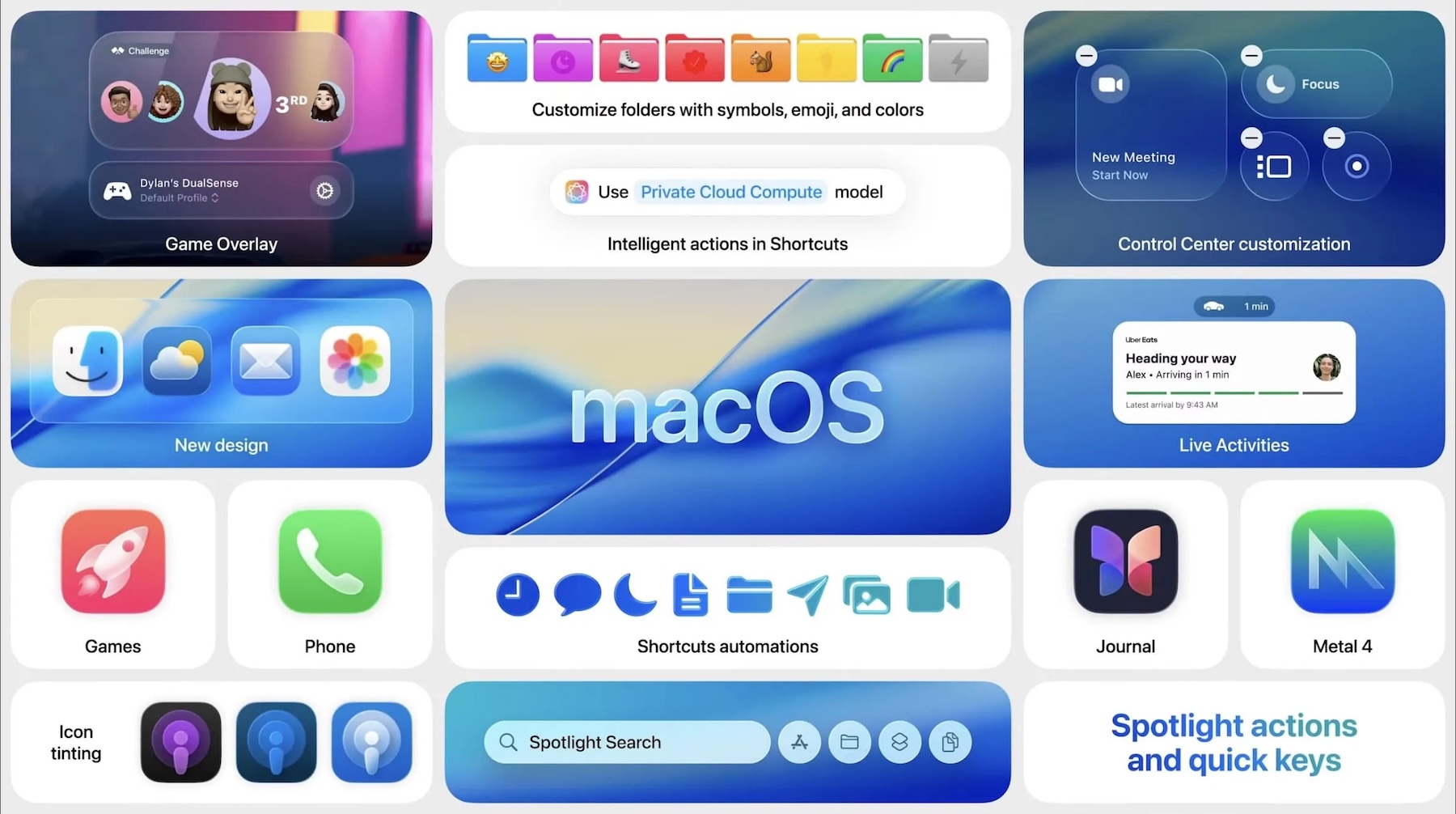
macOS Tahoe introduced real-time on-device suggestions, background app insights, and adaptive UI. These features run constantly and use CPU, RAM, and even network bandwidth—even when you don’t see them.
2. App Compatibility Issues
After any macOS update, third-party apps need time to catch up. Some apps might not be optimized for Tahoe yet, leading to crashes, freezes, and high memory usage.
3. Visual Effects and GPU Load
The new UI introduces layered translucency, responsive tiles, and animated widgets—all of which can strain your GPU. If you’re on an older Mac or a base model without a dedicated GPU, these effects can slow things down significantly.
4. Auto-Sync and Reindexing
Tahoe reindexes your files, emails, and even on-device AI models. iCloud, Photos, Spotlight, and Siri all start syncing in the background, making your Mac work overtime in silence.
How to Fix macOS Tahoe Performance Issues?
Instead of closing apps like Slack, Discord, or Creative Cloud, simply pause them. You’ll notice an instant drop in CPU and fan noise.
✅ Step 2: Reduce Motion & Transparency
Navigate to System Settings → Accessibility → Display and enable “Reduce motion” and “Reduce transparency.” These settings can dramatically improve responsiveness, especially on older Macs.

✅ Step 3: Clean Up Login Items
macOS Tahoe may re-enable login apps after installation. Head to System Settings → General → Login Items and remove anything you don’t absolutely need at startup. Fewer auto-launching apps = faster boot and less memory pressure.
✅ Step 4: Free Up RAM with Smart Sleep
✅ Step 5: Give It a Few Days
macOS often needs a few days post-update to complete all indexing and syncing tasks. If your Mac is still slow after 72 hours of light use, it’s time to optimize more aggressively.
- ✅ Pause apps with a single click
- ✅ Avoid CPU spikes and overheating
- ✅ Extend your battery life
- ✅ Speed up macOS Tahoe without reinstalling anything
Real Results, Instantly
Conclusion: Don’t Let macOS Tahoe Slow You Down
macOS Tahoe is beautiful and powerful—but not always smooth. If you’ve noticed your Mac is slower after installing macOS Tahoe, you’re not imagining things.
Your Mac deserves to run as fast as it looks.

🚀 macOS Tahoe slowing your Mac?
- ✅ One-click control
- ✅ Smart Sleep mode
- ✅ Performance boost with zero risk
Where AppHalt may help
If Activity Monitor shows a regular app you recognise using resources while you do not need it, AppHalt gives you a reversible option: pause that selected app without quitting it, then resume it later. AppHalt does not repair macOS or guarantee a speed, temperature, battery, or stability result; the effect depends on what the app was doing.
Do not pause an app that is uploading, syncing, backing up, rendering, recording, playing media, or handling a call you need to continue.

