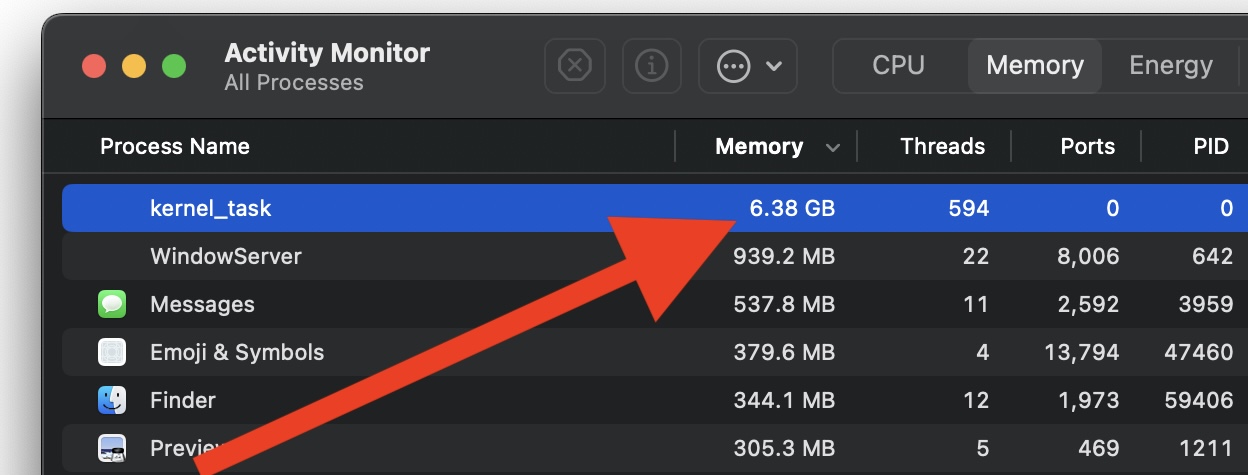
When your Mac says an app is “using significant energy”, it is not just a random battery warning. It is a clue.
Your Mac is telling you that one or more apps are using enough power to matter. That power use can affect battery life, heat, fan noise, performance, and how long your MacBook lasts away from the charger.
The confusing part is that the app may not look busy. It may be sitting in the Dock. It may have no visible window. It may be a browser tab, a cloud sync tool, a video call app, a creative app, or a menu bar utility working quietly in the background.
This is why the “apps using significant energy” warning matters. It helps you catch apps that are doing more work than expected.
This guide explains what “apps using significant energy” means on Mac, how to find the cause in Activity Monitor, what is safe to close, what you should not stop, and how to reduce energy impact without ruining your workflow.
Quick answer: if your Mac shows apps using significant energy, open Activity Monitor, check the Energy tab, identify apps with high Energy Impact or 12 hr Power, quit or pause unused apps, reduce browser tabs, stop unnecessary sync, update problematic apps, and review login items that keep running in the background.
If Chrome is the culprit, learn when and how to pause it without closing your tabs.
What “apps using significant energy” means on Mac
When macOS says an app is using significant energy, it means that app is consuming enough power to affect your Mac’s energy use.
This can happen because the app is using:
- CPU power.
- Graphics power.
- Network activity.
- Disk activity.
- Background refresh.
- Media playback.
- Syncing or uploading.
- Extensions or helper processes.
This does not always mean the app is bad. Some apps naturally use energy when they are doing real work. A video editor exporting a project, a browser playing video, or a cloud app uploading files may legitimately use significant energy.
The real question is:
Is this app using energy for something you still need right now?
If yes, let it finish. If no, it may be wasting battery in the background.
Why significant energy use matters
Energy use affects more than battery percentage.
An app with high energy impact can also make your Mac:
- Feel slower.
- Run warmer.
- Drain battery faster.
- Spin the fan louder.
- Wake more often.
- Reduce available performance for your current task.
On a desktop Mac, energy impact may feel less urgent because the Mac is plugged in. On a MacBook, MacBook Air, MacBook Pro, or MacBook Neo, it matters immediately because battery life is part of the experience.
A MacBook that should last hours can feel disappointing if apps you are not using keep consuming energy behind the scenes.
The 5-minute significant energy diagnosis
Before changing random settings, use this quick diagnostic method.
| Minute | What to check | What it tells you |
|---|---|---|
| 1 | Activity Monitor → Energy | Which apps are currently using the most energy |
| 2 | Energy Impact and 12 hr Power | Whether the app is a short spike or a long-term drain |
| 3 | Preventing Sleep | Whether an app may keep your Mac awake |
| 4 | Browser tabs and extensions | Whether the browser is the hidden energy source |
| 5 | Cloud sync, calls, media, and background apps | Whether active background work explains the warning |
This method gives you evidence instead of guessing.
1. Open Activity Monitor and check the Energy tab
The best place to understand energy use is Activity Monitor.
Open Applications > Utilities > Activity Monitor, or search for Activity Monitor with Spotlight.
Then click the Energy tab.
Look at these columns:
- Energy Impact: current energy use. Lower is better.
- 12 hr Power: average energy impact over the last 12 hours or since startup.
- App Nap: whether macOS is reducing the app’s background activity.
- Preventing Sleep: whether the app is stopping your Mac from sleeping.
If an app has high Energy Impact right now, it is using power now. If it has high 12 hr Power, it has been using energy for a longer period.
That distinction matters.
| What you see | What it likely means | What to do |
|---|---|---|
| High Energy Impact, low 12 hr Power | Short temporary activity | Let it finish if the task is useful |
| High Energy Impact, high 12 hr Power | Ongoing battery drain | Investigate and reduce the app’s activity |
| Low current impact, high 12 hr Power | The app was draining power earlier | Check whether it repeats daily |
| Preventing Sleep | The app may keep your Mac awake | Quit, update, or troubleshoot if unnecessary |
2. Decide whether the energy use is normal or wasteful
Not all significant energy use is a problem.
It may be normal when you are:
- Exporting video.
- Rendering graphics.
- Joining a video call.
- Using screen sharing.
- Uploading many files.
- Downloading a large update.
- Playing a game.
- Running a virtual machine.
- Using local development tools.
It becomes wasteful when:
- The app is not being used.
- The app keeps running after a task is finished.
- The app uses energy while sitting in the background.
- A browser tab keeps refreshing for no good reason.
- A cloud sync app is stuck.
- A menu bar utility keeps checking data all day.
- An app prevents sleep when it should not.
The goal is not to make every app use zero energy. The goal is to stop unnecessary energy use.
3. Quit apps you are finished using
The simplest fix is still one of the best: quit apps you do not need.
On macOS, closing a window does not always quit the app. The app may keep running in the Dock or background.
To quit an app:
- Click the app, then choose App Name > Quit in the menu bar.
- Right-click the app icon in the Dock and choose Quit.
- Use Command + Q when the app is active.
Good candidates to quit:
- Video call apps after meetings.
- Design tools after finishing a file.
- Media apps you left open.
- Games.
- Old browser windows.
- Apps you opened once and forgot.
- Utilities you are not using today.
If the warning disappears or battery life improves after quitting an app, the app was likely part of the energy problem.
4. Pause apps when quitting would break your workflow
Quitting works, but it can be too aggressive.
You may want to keep a browser session, project file, messaging app, or creative tool ready for later. But you do not want that app to keep using energy while you are focused on something else.
This is where AppHalt fits naturally.
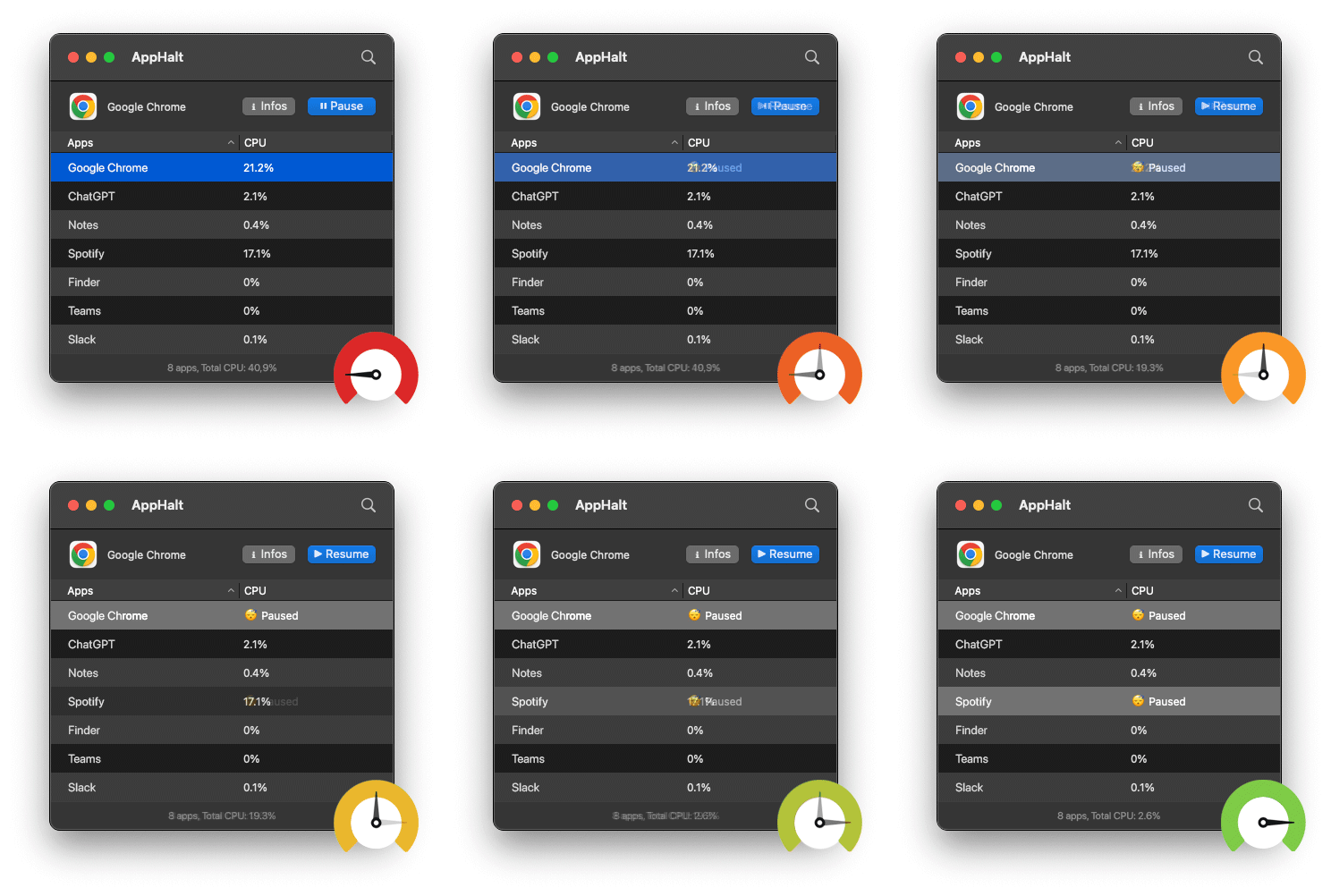
AppHalt gives you a middle ground between leaving an app active and quitting it completely. You can pause unused apps so they stop continuing background work while your Mac focuses on what you are doing now.
Use AppHalt when:
- You want to keep an app open for later.
- The app is using energy in the background.
- You are working on battery.
- You want less heat or fan noise.
- You multitask and forget to close apps.
- You want to reduce background CPU usage without rebuilding your workspace.
Do not pause apps that are saving, uploading, downloading, syncing important files, rendering, recording, exporting, compiling, or handling live work.
5. Check your browser before blaming the battery
Your browser is often the biggest energy user on a Mac.
This is not surprising. A browser can run email, documents, dashboards, videos, music, AI tools, project management, chat, analytics, social feeds, and web apps at the same time.
Browser energy use often comes from:
- Too many open tabs.
- Video or audio playback.
- Auto-refreshing dashboards.
- Heavy web apps.
- Ads and trackers.
- Browser extensions.
- Pinned tabs.
- Old sessions restored automatically.
To reduce browser energy impact:
- Close tabs you do not need today.
- Stop video or audio playback.
- Remove extensions you no longer use.
- Restart the browser if it has been open for days.
- Use bookmarks instead of keeping everything open.
- Check whether one website triggers the warning repeatedly.
If your MacBook battery improves after reducing browser load, the issue was probably not the battery. It was the browser workload.
6. Watch video call apps and screen sharing
Video calls can use significant energy quickly.
They involve camera, microphone, speakers, network, CPU, graphics, and sometimes screen sharing. If you also keep heavy apps open in the background, your MacBook has to power both the call and everything else.
Apps that commonly use energy during calls include:
- Zoom.
- Microsoft Teams.
- Google Meet in a browser.
- FaceTime.
- Slack calls.
- Discord.
Before long calls:
- Close unnecessary apps.
- Pause unused apps with AppHalt.
- Close heavy browser tabs.
- Stop unnecessary sync.
- Avoid screen sharing more than needed.
After the call, quit the meeting app or close the meeting tab. A call app that remains open all day can keep using energy after the meeting is over.
7. Check cloud sync and backup apps
Cloud sync can easily trigger significant energy use.
Apps like iCloud Drive, Dropbox, Google Drive, OneDrive, Photos, and backup tools can use energy while they upload, download, compare, scan, index, or verify files.
This is often normal after:
- Adding many files.
- Importing photos or videos.
- Moving folders into cloud storage.
- Setting up a new Mac.
- Restoring from backup.
- Updating macOS.
If sync is actively doing useful work, let it finish while plugged in. If sync is not urgent, pause it inside the app.
Do not force quit sync tools while important files are moving unless you understand the risk. A clean pause is safer than interrupting a transfer.
Why OneDrive may show “significant energy” on Mac
OneDrive can appear under apps using significant energy while it compares folders, indexes a large change, downloads cloud-only files, uploads photos, or retries a sync problem. A short increase after signing in, waking the Mac, or changing many files can be normal. Continuous high energy use when no files are changing deserves investigation.
Open OneDrive from the menu bar and check whether it says Processing changes, Syncing, or shows an error. Let an expected sync finish while the Mac is connected to power. If the status appears stuck, pause syncing from OneDrive itself, wait a minute, then resume it. Also check for one repeatedly failing file, an unusually large folder, or thousands of new files.
Do not suspend or force quit OneDrive while important files are still uploading. That can delay synchronization and leave another device with an older copy. AppHalt is a reasonable option only when you intentionally do not need OneDrive for a while and have first confirmed that no important transfer is active. Resume it before expecting files to sync again.
Useful test: note OneDrive’s Energy Impact in Activity Monitor, pause its own sync for five minutes, and compare. If the energy reading falls, the workload is likely connected to syncing rather than a general macOS battery problem.
8. Review apps preventing sleep
If an app prevents sleep, your Mac may stay more active than expected. This can affect battery life, especially on a MacBook.
In Activity Monitor’s Energy tab, look for the Preventing Sleep column.
An app preventing sleep may be normal during:
- Video playback.
- Downloads.
- Uploads.
- Backups.
- Screen sharing.
- Media exports.
- Remote access sessions.
It is more suspicious when:
- The app is idle.
- The task finished hours ago.
- The app prevents sleep every day.
- Battery drains overnight.
- The app is old or not updated.
If an app prevents sleep without a good reason, quit it, update it, or check its preferences.
9. Review login items and background items
Some apps use energy because they start automatically and stay active all day.
To review them:
- Open System Settings.
- Go to General.
- Open Login Items & Extensions or Login Items.
- Remove apps you do not need at startup.
- Review background items carefully.
Good candidates to remove from startup include:
- Old utilities.
- Chat apps you prefer opening manually.
- Menu bar apps you rarely use.
- Launchers you tested once.
- Cloud tools for services you no longer use.
- Apps that duplicate another tool.
Be careful with password managers, backup tools, security software, hardware drivers, and cloud sync tools you rely on.
The goal is not to disable everything. The goal is to stop unnecessary apps from using energy before you even start working.
10. Update apps that keep using significant energy
If the same app repeatedly appears as using significant energy, update it.
Energy problems can come from bugs, old versions, compatibility issues, extensions, or helper processes that do not behave correctly.
Prioritize updates for:
- Browsers.
- Cloud sync apps.
- Video call apps.
- Creative apps.
- Developer tools.
- Messaging apps.
- Menu bar utilities.
- Backup tools.
If the app still causes high energy impact after updating, try removing unnecessary extensions, changing app preferences, reinstalling the app from its official source, or replacing it with a lighter alternative.

11. What to quit, pause, leave, or investigate
Use this table when you are not sure what to do with an energy-hungry app.
| Situation | Best action | Why |
|---|---|---|
| You are finished with the app | Quit it | It does not need to keep using energy |
| You need the app later but not now | Pause it with AppHalt | You keep the workflow while reducing background activity |
| The app is exporting, uploading, or syncing | Let it finish or pause properly | Stopping it abruptly can interrupt work |
| The app is frozen | Force quit carefully | It may not stop normally |
| The same app appears every day | Update or investigate it | It may have a bug, extension issue, or bad setting |
| The app prevents sleep without reason | Quit, update, or change settings | It can cause battery drain while idle or overnight |
The best fix is the least aggressive one that solves the problem.
12. Common mistakes when fixing significant energy use
Mistake 1: Assuming the battery is the problem
A weak battery can make drain worse, but significant energy warnings usually point to app behavior first. Check apps before blaming the battery.
Mistake 2: Closing a window instead of quitting the app
On macOS, closing a window does not always stop the app. Use Quit if you want the app to stop running.
Mistake 3: Ignoring browser tabs
Browser tabs are often the hidden energy problem. A single browser can hold dozens of active tasks.
Mistake 4: Force quitting sync tools
Force quitting cloud tools can interrupt file transfers. Use pause controls when possible.
Mistake 5: Installing more utilities without removing old ones
Too many menu bar utilities can create the exact background activity you are trying to reduce.
Mistake 6: Treating AppHalt like a magic battery button
AppHalt helps reduce unnecessary background activity. It does not replace battery health checks, app updates, or macOS settings.
13. Build a lower-energy Mac routine
The best battery routine is simple enough to repeat.
Before working on battery
- Quit apps you are done with.
- Pause unused apps with AppHalt.
- Close unnecessary browser tabs.
- Stop non-urgent cloud sync.
- Disconnect accessories you do not need.
Before video calls
- Close heavy browser tabs.
- Pause creative apps you are not using.
- Stop downloads and uploads.
- Use only the apps needed for the call.
Once a week
- Review login items.
- Update apps that appear in Energy often.
- Remove unused menu bar utilities.
- Restart your browser.
- Check Activity Monitor if battery life feels worse.
This routine works because it targets the real source of wasted battery: unnecessary activity.
Best order to fix apps using significant energy on Mac
If you want the cleanest path, follow this order:
- Open Activity Monitor and go to the Energy tab.
- Check Energy Impact to see what is using power now.
- Check 12 hr Power to see what has been using energy over time.
- Check Preventing Sleep if battery drains while idle or sleeping.
- Quit apps you are finished with.
- Pause unused apps with AppHalt when you want to keep their state.
- Reduce browser tabs and extensions.
- Control cloud sync instead of force quitting it.
- Review login items and background items.
- Update apps that repeatedly use significant energy.
- Check battery health if energy use is normal but battery drain remains severe.
This order helps you fix the app workload before assuming the MacBook itself is the problem.
Why is Finder using significant energy on Mac?
If Finder is using significant energy, the cause is usually the work around Finder rather than a normal Finder window by itself. Finder may be creating previews and thumbnails, calculating folder sizes, copying files, browsing a network drive, or waiting for a cloud-storage extension to finish. A large Downloads folder, external disk, shared folder, or a file transfer can also make Finder appear near the top of Activity Monitor for a while.
First, check whether files are copying, uploading, or being indexed. Close Finder windows you do not need, especially ones showing large folders or remote locations, and give active transfers time to finish. If Finder stays high after the work is done, a normal Finder relaunch can clear a stuck interface; do not force quit it routinely. Finder is a macOS system component, so it should not be paused with AppHalt.
For a focused diagnosis, read our Finder slow on Mac guide. It covers the safe checks to make before assuming Finder itself is the problem.
Why is Spotlight using significant energy on Mac?
Spotlight can use significant energy while macOS builds or refreshes its search index. This is common after a macOS update, restoring a backup, adding a large external drive, moving many files, or changing a Photos library. In Activity Monitor, that work may appear as mds, mds_stores, or related indexing processes rather than an app named Spotlight.
If indexing has a clear reason and gradually settles down, let it finish—ideally while your Mac is plugged in. Do not force quit Spotlight’s indexing processes: macOS will usually start them again and the work may take longer. Use Spotlight Privacy only for folders or drives that you intentionally do not want searched; it is not a general performance switch.
If the activity stays high for an unusually long time with no recent change, use our mds_stores high CPU guide to check the index safely. AppHalt is for compatible user apps you recognize, not for Finder, Spotlight, or other macOS system processes.
FAQ: apps using significant energy on Mac
What does “apps using significant energy” mean on Mac?
It means one or more apps are using enough power to affect energy consumption. This can reduce battery life, increase heat, and make your MacBook feel less efficient.
How do I see which app is using significant energy?
Open Activity Monitor, click the Energy tab, and look at Energy Impact, 12 hr Power, and Preventing Sleep. These columns help identify apps that use power now or over time.
Is high Energy Impact bad?
Not always. High Energy Impact is normal during heavy tasks like video calls, exports, uploads, or media playback. It becomes a problem when an app uses energy while you are not using it.
Why does my browser use significant energy on Mac?
Browsers can use significant energy because of tabs, extensions, video playback, web apps, ads, trackers, downloads, and restored sessions. Reducing tabs and extensions can help.
Can apps using significant energy drain my MacBook battery?
Yes. Apps using significant energy can reduce battery life, especially if they keep working in the background while you are on battery.
What is Energy Impact on Mac?
Energy Impact is a relative measure of an app’s current energy use in Activity Monitor. Lower is better.
What is 12 hr Power on Mac?
12 hr Power shows an app’s average energy impact over the last 12 hours or since the Mac started. It helps reveal apps that drain energy over time.
What does Preventing Sleep mean in Activity Monitor?
Preventing Sleep means an app is stopping your Mac from going to sleep. This may be normal during certain tasks, but it can cause battery drain if unnecessary.
Should I force quit apps using significant energy?
Only force quit an app if it is frozen or not responding. If the app is working normally, quit it properly or pause it with AppHalt if you want to keep its state.
Can AppHalt reduce apps using significant energy?
AppHalt can help reduce unnecessary background activity by pausing apps you are not using. This can help reduce background CPU usage and energy waste, especially on battery.
Is AppHalt safe to use with energy-hungry apps?
Yes, if you choose carefully. Pause apps you recognize and do not need right now. Do not pause apps that are saving, uploading, downloading, syncing, rendering, recording, or handling live work.
Why does an app keep using significant energy after I close its window?
On macOS, closing a window does not always quit the app. The app may continue running in the Dock or background. Use Quit if you want it to stop completely.
Can menu bar apps use significant energy?
Yes. Menu bar apps can refresh, monitor, sync, or check data in the background. Some are useful, but too many can add unnecessary energy use.
Should I replace my MacBook battery if apps use significant energy?
Not immediately. First check which apps are using power. If energy use looks normal but battery still drains quickly, then check battery health.
Useful official Apple resources
If you want to go deeper, these Apple guides are useful:
- View energy consumption in Activity Monitor on Mac
- Activity Monitor User Guide for Mac
- Quit an app or process in Activity Monitor on Mac
- Change Battery settings on a Mac laptop
- Open items automatically when you log in on Mac
Final thoughts: significant energy means significant attention
When your Mac shows apps using significant energy, do not ignore it. The warning is a useful signal that something is consuming enough power to affect battery life, heat, fan noise, or overall comfort.
But do not panic either.
Some energy use is normal. What matters is whether the app is doing useful work right now. If it is, let it finish. If it is not, quit it, pause it, update it, or change its settings.
The best MacBook battery habit is not obsessing over percentages. It is keeping your active workload honest.
Your Mac should use energy for what you are doing now, not for forgotten apps, old tabs, stuck sync, or utilities quietly running behind the scenes.
🚀 Reduce Significant Energy Use with AppHalt
AppHalt helps your Mac stop wasting energy on apps you are not using.
Instead of quitting everything or letting every app keep running in the background, AppHalt gives you a smarter middle ground: pause unused apps, reduce background CPU usage, and help your MacBook stay cooler, quieter, and more efficient on battery.
✅ Reduce background CPU usage.
✅ Help prevent overheating, fan noise, and battery drain.
✅ Pause unused apps without fully breaking your workflow.
✅ Keep your Mac feeling faster, lighter, and calmer.
📥 Want fewer apps using significant energy? Download AppHalt now.
Need a precise explanation of the app behind the alert? Read Activity Monitor on Mac and compare its Energy and CPU readings.