
“Your system has run out of application memory” looks alarming, but it does not always mean your Mac is broken.
It means macOS is under memory pressure. Your Mac is trying to keep too many active apps, tabs, files, processes, or background tasks available at the same time, and it no longer has enough comfortable working space.
This warning can appear on a MacBook, MacBook Air, MacBook Pro, iMac, Mac mini, or MacBook Neo. It may happen when you have too many browser tabs open, a large creative file, an app with a memory leak, a virtual machine, a video project, a browser session that has been running for days, or several heavy apps open at once.
The mistake is to panic and start deleting random files, installing a “RAM cleaner”, or force quitting everything without understanding the cause.
This guide explains what the “Your system has run out of application memory” warning means on Mac, how to fix it safely, how to find the app causing the issue, and how to prevent it from coming back.
Quick answer: if your Mac says “Your system has run out of application memory”, close or quit apps you do not need, reduce browser tabs, check Memory Pressure in Activity Monitor, restart apps that have been open for days, update apps that may have memory leaks, free storage if your disk is nearly full, and avoid fake RAM cleaner shortcuts.
What “Your system has run out of application memory” means
Application memory is the working space your Mac uses to keep apps and active tasks running. When you open apps, browser tabs, documents, design files, videos, virtual machines, or developer tools, they all need memory.
When your Mac has enough memory available, everything feels smooth. When too much is active at once, macOS starts working harder to keep things running. Eventually, it may show the warning:
Your system has run out of application memory.
This does not always mean your physical RAM is defective. It usually means your current workload is too heavy for the memory available right now.
That workload may come from:
- Too many apps open at once.
- Too many browser tabs.
- Heavy browser extensions.
- Large design, video, audio, or photo files.
- Virtual machines or developer tools.
- Apps with memory leaks.
- Apps left open for days without restarting.
- Low storage space making swap harder.
- Background apps that stay active longer than needed.
The warning is macOS telling you that your Mac needs relief.
Memory is not the same as storage
This is one of the most important distinctions.
Memory and storage are not the same thing.
| Term | What it means | Example problem |
|---|---|---|
| Memory / RAM | Temporary working space for active apps and tasks | Too many apps or browser tabs open at once |
| Storage | Permanent space for files, apps, photos, videos, and system data | Your disk is nearly full |
| Swap | Storage used by macOS to help when memory is under pressure | Your Mac slows down when memory pressure is high |
If you delete files, you free storage. That may help if your disk is nearly full, but it does not directly close active apps or reduce memory pressure immediately.
If you quit apps, close tabs, or restart a memory-heavy app, you reduce active memory usage.
Both can matter. But they solve different problems.
The 5-minute memory warning diagnosis
Before you delete files or restart everything, diagnose the problem.
| Minute | What to check | What it tells you |
|---|---|---|
| 1 | Activity Monitor → Memory | Whether memory pressure is high and which apps use the most memory |
| 2 | Browser tabs and extensions | Whether the browser is the biggest memory source |
| 3 | Large creative or work files | Whether one project file is making memory usage spike |
| 4 | Storage space | Whether low disk space is making memory pressure worse |
| 5 | Apps open for days | Whether a restart or app update may fix a memory leak |
This diagnosis gives you the right fix. Without it, you may waste time on the wrong problem.
1. Open Activity Monitor and check Memory Pressure
Activity Monitor is the best place to start.
Open Activity Monitor from Applications > Utilities, or search for it with Spotlight.
Then click the Memory tab.
Look at:
- Memory Pressure: the most useful overall signal.
- Memory: how much memory each app is using.
- Compressed Memory: memory macOS is compressing to save space.
- Swap Used: storage being used to help with memory pressure.
Memory Pressure is the easiest signal to understand:
| Memory Pressure | Meaning | What to do |
|---|---|---|
| Green | Your Mac is handling memory well | No urgent action needed |
| Yellow | Your Mac is under pressure | Close tabs, quit heavy apps, reduce active workload |
| Red | Your Mac is struggling | Quit memory-heavy apps, save work, restart if needed |
If Memory Pressure is yellow or red, focus on active apps and browser tabs before doing anything else.
2. Find the app using too much memory
In Activity Monitor’s Memory tab, sort the list by memory usage. Look at the apps using the most memory.
Common memory-heavy apps include:
- Chrome, Safari, Firefox, Arc, or other browsers.
- Figma, Photoshop, Illustrator, Lightroom, or design tools.
- Final Cut Pro, Premiere Pro, DaVinci Resolve, or video tools.
- Virtual machines.
- Developer tools and local servers.
- Large spreadsheets or office documents.
- Messaging apps with long histories.
- Apps that have been open for several days.
Do not assume the top app is always bad. Some apps genuinely need memory for real work. A large video project or design file may naturally use a lot of memory.
The real question is:
Is this app using memory for something I still need right now?
If the answer is no, save your work and quit the app.
3. Close browser tabs before blaming your Mac
For many Mac users, the browser is the biggest memory user.
A browser is not one simple app anymore. It can hold email, documents, music, video, dashboards, AI tools, project management, social feeds, admin panels, shopping carts, and dozens of pages saved “for later”.
Each tab can use memory. Extensions can use memory too. Heavy web apps can keep running even when they are not visible.
Browser memory problems often come from:
- Too many open tabs.
- Pinned tabs that never sleep.
- Restored sessions with old tabs.
- Video and music pages.
- Heavy web apps.
- Browser extensions.
- Tabs left open for days.
To reduce browser memory usage:
- Bookmark tabs you do not need today.
- Close old tabs.
- Remove extensions you no longer use.
- Restart the browser.
- Reopen only what you need for the next task.
If the warning disappears after reducing browser load, your Mac was not the main problem. Your browser session was.
4. Save work and quit apps you are done with
When memory pressure is high, quitting apps is often the most direct fix.
Quitting an app closes it and can free memory that app was using. This is different from simply closing a window. On macOS, closing a window does not always quit the app.
Use Command + Q to quit the active app, or right-click the app icon in the Dock and choose Quit.
Good candidates to quit:
- Apps you are finished using today.
- Large creative tools with no active project.
- Video call apps after meetings.
- Games or media apps you left open.
- Old browser windows.
- Apps you opened once and forgot.
Before quitting, save your work. If an app has unsaved changes, handle those first.
5. Force quit only when an app is stuck
Force quit can help if an app is frozen, not responding, or using extreme memory without recovering. But it should not be your normal way to close apps.
To open the Force Quit window, press:
Command + Option + Escape
Use force quit when:
- An app is frozen.
- An app is not responding.
- You cannot close it normally.
- It is clearly causing the memory warning and will not recover.
Do not force quit apps that are saving, exporting, syncing, uploading, downloading, or processing important work. You may lose data.
If the app is responsive, quit it normally instead.
6. Restart apps that have been open for days
Some apps become heavier the longer they stay open. This can happen because of memory leaks, long sessions, cached data, large histories, extensions, or simply because the app has accumulated too much state.
This is common with:
- Browsers.
- Design tools.
- Messaging apps.
- Video call apps.
- Developer tools.
- Apps with many plugins or extensions.
If an app has been open for days and uses a lot of memory, save your work, quit it, and reopen it.
This simple step often helps more than complicated “optimization” tricks.
7. Restart your Mac if memory pressure stays high
If you have closed tabs, quit heavy apps, and memory pressure still remains high, restart your Mac.
A restart can clear temporary states, close stuck processes, and give macOS a cleaner baseline.
Before restarting:
- Save your work.
- Finish uploads or downloads if important.
- Close active documents safely.
- Note which apps were using the most memory.
After restarting, do not reopen everything immediately. Open only what you need and watch whether the warning returns.
If the warning returns after opening one specific app, that app is probably part of the problem.
8. Check storage space if memory warnings keep coming back
Storage and memory are different, but low storage can make memory pressure worse.
When your Mac is low on memory, macOS may use storage as swap space. If your disk is nearly full, your Mac has less room to manage that pressure comfortably.
To check storage:
- Open System Settings.
- Go to General.
- Click Storage.
Safe cleanup steps:
- Empty the Trash.
- Clean old files from Downloads.
- Remove old .dmg installers.
- Delete duplicate exports.
- Move large videos or archives to external storage.
- Remove apps you no longer use.
Do not delete random files from System or Library folders. Storage cleanup should be visible and safe.
9. Update apps that may have memory leaks
A memory leak happens when an app keeps using more memory over time instead of releasing memory it no longer needs.
You do not need to diagnose the technical details. The practical sign is simple: an app keeps growing in memory usage, even after you stop doing heavy work.
Apps that may show memory problems include:
- Browsers.
- Creative apps.
- Messaging apps.
- Electron-based apps.
- Developer tools.
- Video meeting apps.
- Apps with plugins or extensions.
Update the app. If the problem continues, restart the app regularly, remove unnecessary extensions, or reinstall it from its official source.
If one app repeatedly causes the memory warning, consider replacing it with a lighter alternative.
10. Remove unnecessary login items
Login items can make memory pressure worse because they open automatically when you start your Mac.
If too many apps launch at login, your Mac begins the day already loaded.
To review login items:
- Open System Settings.
- Go to General.
- Open Login Items & Extensions or Login Items.
- Remove apps that do not need to open automatically.
Good candidates to remove from login include:
- Apps you use only occasionally.
- Old utilities.
- Launchers you tested once.
- Chat apps you prefer opening manually.
- Cloud services you no longer use.
- Menu bar apps that duplicate other tools.
Be careful with password managers, backup tools, security apps, and cloud sync tools you depend on.
11. Do not trust fake “clear RAM” advice
Many articles recommend clearing RAM as if memory were a trash can. That is not the best way to think about macOS.
macOS is designed to use memory efficiently. Empty memory is not always better. Your Mac may keep data in memory because it helps apps reopen faster or work more smoothly.
The problem is not that memory is being used. The problem is high memory pressure.
Focus on the useful fixes:
- Quit apps you do not need.
- Close unnecessary browser tabs.
- Restart apps with memory leaks.
- Update problematic apps.
- Free storage if your disk is nearly full.
- Reduce apps that open automatically.
A “RAM cleaner” may make a number look better for a moment, but it does not solve a heavy workflow, a memory leak, or a browser session with too many tabs.
12. Understand where AppHalt helps — and where it does not
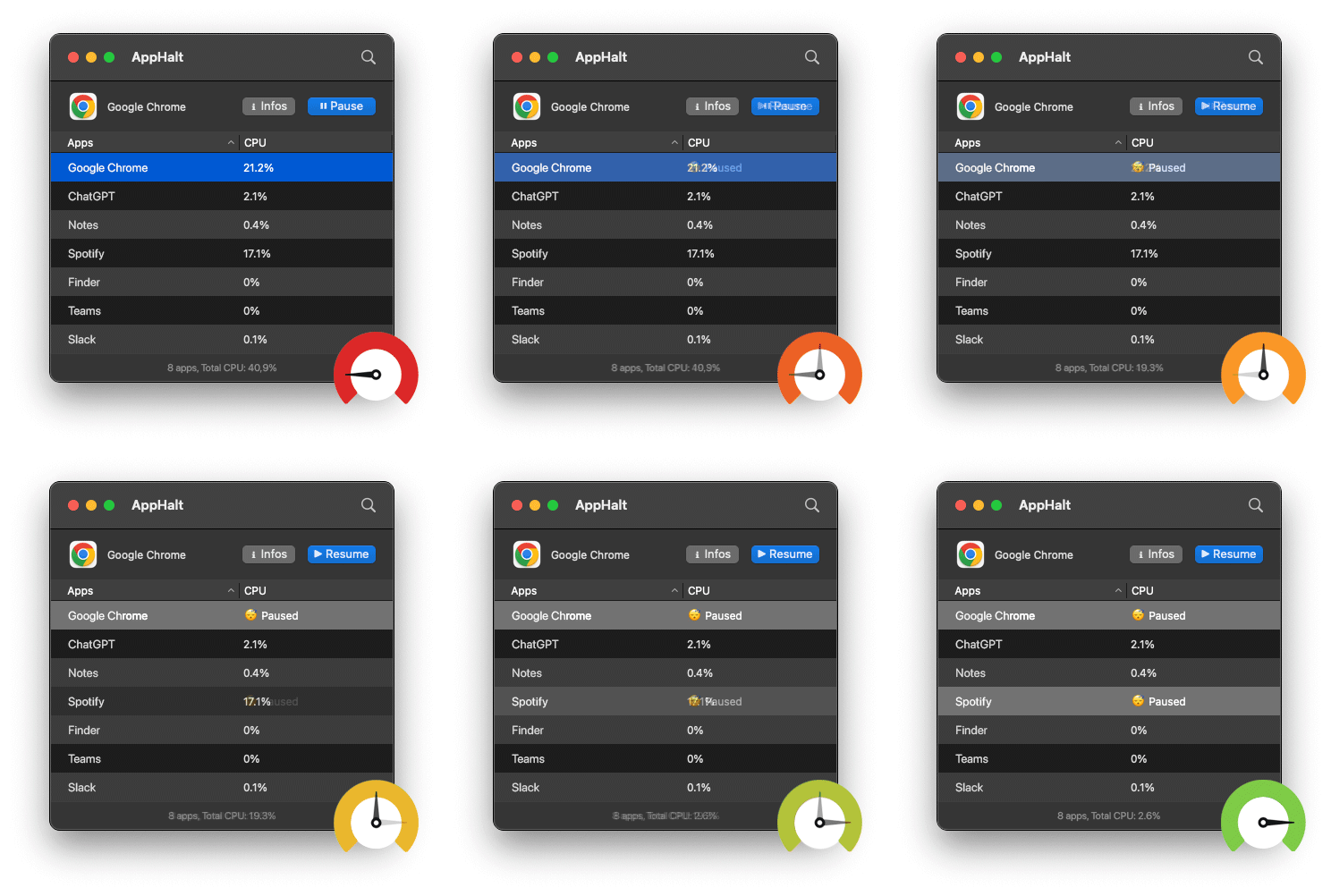
This is important: AppHalt is not a magic RAM cleaner.
If you need to immediately free memory, quitting apps is usually the more direct action. Pausing an app can stop it from continuing to work, but it may not instantly release all the memory that app has already allocated.
So why use AppHalt in a memory-related workflow?
Because memory warnings are often part of a bigger workload problem. Too many apps are open, too many apps are active, and too many apps continue doing background work after you stop using them.
AppHalt helps by giving you a middle ground:
- Quit apps when you need to free memory immediately.
- Pause apps when you want to stop background activity without fully closing your workspace.
- Use Activity Monitor when you need to identify the biggest memory users.
- Use AppHalt to keep unused apps from continuing CPU and energy work in the background.
This honest distinction matters. AppHalt helps control workload. It does not pretend to change how memory works.

13. What to quit, what to pause, and what to leave alone
When you see a memory warning, use the right action for the right situation.
| Situation | Best action | Why |
|---|---|---|
| You are done with a heavy app | Quit it | This can free memory directly |
| A browser has too many tabs | Close tabs or restart the browser | Tabs often create memory pressure |
| An app is frozen | Force quit carefully | The app may not release resources normally |
| An app is needed later but should stop working now | Pause it with AppHalt | This reduces background activity without fully quitting |
| An app is saving, exporting, uploading, or syncing | Leave it alone until finished | Stopping it could interrupt important work |
| A login item opens every day but is rarely used | Remove it from Login Items | This reduces automatic workload |
This approach is safer than closing everything in panic.
14. Prevent the application memory warning from coming back
The best fix is not only clearing the warning today. It is reducing the chance that it returns tomorrow.
Use these habits:
- Restart your browser regularly if you keep many tabs open.
- Close large files when you finish working on them.
- Quit apps you are truly done with.
- Pause unused apps that keep doing background work.
- Remove login items that do not need to open automatically.
- Update apps that repeatedly grow in memory usage.
- Keep enough free storage space for macOS to work comfortably.
- Avoid installing too many menu bar utilities.
Memory management should not become a daily obsession. But a few habits can prevent the same warning from interrupting you again and again.
15. Common mistakes when fixing Mac application memory problems
Mistake 1: Deleting files before closing apps
Deleting files frees storage. It does not directly close active apps or reduce memory usage. If the warning is happening now, start with apps and tabs.
Mistake 2: Force quitting everything
Force quit can lose unsaved work. Use it only for apps that are frozen or clearly stuck.
Mistake 3: Installing a RAM cleaner immediately
A cleaner app cannot fix a bad browser session, a memory leak, or a workflow with too many heavy apps open.
Mistake 4: Ignoring the browser
Browsers are often the biggest memory users. Start there, especially if you keep many tabs open.
Mistake 5: Confusing memory with storage
Memory is active working space. Storage is where files live. They interact, but they are not the same thing.
Mistake 6: Assuming the Mac is too old immediately
Older Macs can have tighter limits, but many memory warnings are caused by workload, tabs, apps, or leaks. Diagnose before replacing the machine.
Best order to fix “Your system has run out of application memory” on Mac
If you want the safest path, follow this order:
- Save your work.
- Open Activity Monitor and check Memory Pressure.
- Sort apps by memory usage.
- Close unnecessary browser tabs.
- Quit heavy apps you are done with.
- Force quit only frozen apps.
- Restart the browser if it has been open for days.
- Restart your Mac if memory pressure stays high.
- Check storage space if warnings keep returning.
- Update or replace apps that repeatedly cause memory spikes.
- Review login items to reduce automatic workload.
- Use AppHalt to pause unused apps and reduce background activity.
This order starts with the least risky actions and moves toward deeper fixes only if needed.
FAQ: “Your system has run out of application memory” on Mac
What does “Your system has run out of application memory” mean on Mac?
It means your Mac is under memory pressure and cannot comfortably keep all active apps, tabs, files, and processes running at the same time. It is usually caused by a heavy workload, too many tabs, memory-heavy apps, or an app using memory abnormally.
Is “Your system has run out of application memory” serious?
It can be serious if it happens often, but one warning does not mean your Mac is broken. Save your work, close unnecessary apps and tabs, then use Activity Monitor to find the cause.
How do I fix application memory full on Mac?
Close browser tabs, quit apps you do not need, restart memory-heavy apps, check Memory Pressure in Activity Monitor, update problematic apps, restart your Mac if needed, and free storage if your disk is nearly full.
Why does my Mac say it has run out of application memory when I have storage left?
Because memory and storage are different. You can have storage space available but still have too many active apps and processes using memory at the same time.
Can low storage cause application memory warnings?
Low storage can make memory pressure worse because macOS may need storage for swap space. It is not always the main cause, but keeping free storage helps macOS manage heavy workloads more comfortably.
Which apps use the most memory on Mac?
Browsers, creative apps, video tools, virtual machines, developer tools, messaging apps, and apps with many plugins or extensions often use the most memory.
Does Chrome cause application memory problems on Mac?
Chrome can contribute to memory pressure if many tabs, extensions, videos, or web apps are active. Safari, Firefox, Arc, and other browsers can also use a lot of memory when overloaded.
Should I install a RAM cleaner on Mac?
Usually no. Start by closing tabs, quitting heavy apps, updating apps, and checking Activity Monitor. RAM cleaners may make numbers look better temporarily, but they do not fix the real workload.
Does quitting apps free memory on Mac?
Yes, quitting apps can free memory used by those apps. This is usually more useful than only closing windows, because some Mac apps continue running after their windows are closed.
Does pausing apps with AppHalt free memory?
Pausing an app may reduce its background activity, CPU usage, and energy use, but it may not immediately release all memory already allocated by the app. If you need to free memory directly, quit the app. If you want to stop background work without fully quitting, use AppHalt.
Why does the warning come back after restarting?
The same heavy apps, browser tabs, login items, or background tools may be reopening after restart. Review Login Items, browser session restore, and Activity Monitor to find what returns automatically.
Can a memory leak cause this warning?
Yes. If one app keeps using more memory over time and does not release it, it may have a memory leak. Update the app, restart it regularly, remove extensions, or replace it if the problem continues.
Should I buy a Mac with more RAM?
If your normal work includes heavy creative apps, virtual machines, large development projects, or many browser tabs, more RAM can help. But first check whether your current issue comes from too many apps, old tabs, login items, or one app behaving badly.
Is this warning more common on older MacBooks?
It can be, because older MacBooks often have less memory and less performance headroom. But even newer Macs can show memory pressure if the workload is heavy enough.
Useful official Apple resources
If you want to go deeper, these Apple guides are useful:
- Activity Monitor User Guide for Mac
- View memory usage in Activity Monitor on Mac
- Quit an app or process in Activity Monitor on Mac
- See used and available storage space on your Mac
- Open items automatically when you log in on Mac
Final thoughts: memory warnings are about workload, not panic
The “Your system has run out of application memory” warning is frustrating, but it is also useful. It tells you your Mac is carrying more active work than it can comfortably handle.
The solution is not to panic, delete random files, or trust a fake RAM cleaner.
Start with the basics: save your work, check Activity Monitor, close unnecessary tabs, quit heavy apps, restart apps that have been open for too long, update anything that behaves badly, and keep enough free storage for macOS to work comfortably.
Then build better habits. Do not let every app stay open forever. Do not let browsers become endless memory containers. Do not let login items load your Mac before you start working.
Your Mac should use memory for what you are doing now, not for every app, tab, and background process you forgot to close.
🚀 Keep Your Mac Workload Under Control with AppHalt
AppHalt helps your Mac stop wasting power on apps you are not using.
When your Mac feels overloaded, quitting apps can free memory directly. But when you want to keep your workspace while reducing background activity, AppHalt gives you a smarter middle ground: pause unused apps, reduce background CPU usage, and keep your Mac focused on what matters now.
✅ Reduce background CPU usage.
✅ Help prevent overheating, fan noise, and battery drain.
✅ Pause unused apps without fully breaking your workflow.
✅ Keep your Mac feeling faster, lighter, and calmer.
📥 Want to keep your Mac calmer when too many apps are open? Download AppHalt now.