If WindowServer is using high CPU on your Mac, your Mac may feel slow, hot, laggy, or visually sluggish — especially when you have many windows, tabs, displays, or apps open at the same time.
Seeing WindowServer near the top of Activity Monitor can be confusing because it does not look like a normal app. You may wonder if it is a virus, whether you should quit it, or why it is using so much CPU when you are not doing anything heavy.
The short answer is simple: WindowServer is closely tied to what your Mac displays on screen. The more visual work your Mac has to manage — windows, animations, external monitors, browser tabs, transparency, video, full-screen apps, and background apps with active interfaces — the more WindowServer can appear in Activity Monitor.
This guide explains what WindowServer is, why WindowServer CPU can become high on Mac, what not to do, and how to reduce the load safely without breaking your session.
Quick answer: to reduce WindowServer high CPU on Mac, close unused windows and tabs, disconnect external displays for testing, reduce visual clutter, quit or pause unused apps, restart the Mac, update macOS and apps, check Activity Monitor, test in Safe Mode if needed, and avoid force quitting WindowServer unless you understand the consequences.

What is WindowServer on Mac?
WindowServer is a core macOS process involved in drawing and managing what appears on your screen.
It is connected to visual activity such as:
- Open windows.
- App interfaces.
- Desktop spaces.
- Mission Control.
- Full-screen apps.
- External displays.
- Animations and transparency.
- Browser tabs with active visual content.
- Video playback.
- Apps constantly updating their interface.
WindowServer is not a random app. It is part of how macOS displays your workspace.
That is why high WindowServer CPU often appears when your Mac has too much visual work to handle, not necessarily when one obvious app is doing something heavy.
Is WindowServer high CPU a problem?
Sometimes yes, sometimes no.
WindowServer using some CPU is normal. It becomes a problem when CPU usage stays high for a long time and your Mac starts to feel worse. WindowServer behavior Meaning What to do Small CPU spikes when switching apps Usually normal No action needed Higher CPU with external display Common visual workload increase Test without the display High CPU with many windows and tabs Visual clutter may be the cause Close windows and pause unused apps High CPU plus lag, heat, or fan noise Worth investigating Use Activity Monitor and reduce workload Very high CPU after a macOS update Could be temporary or app-related Restart, update apps, check background activity
The goal is not to make WindowServer disappear. It will always be part of macOS. The goal is to reduce the visual and background workload that makes it unusually busy.
Why WindowServer CPU gets high on Mac
WindowServer high CPU usually comes from one or more of these causes:
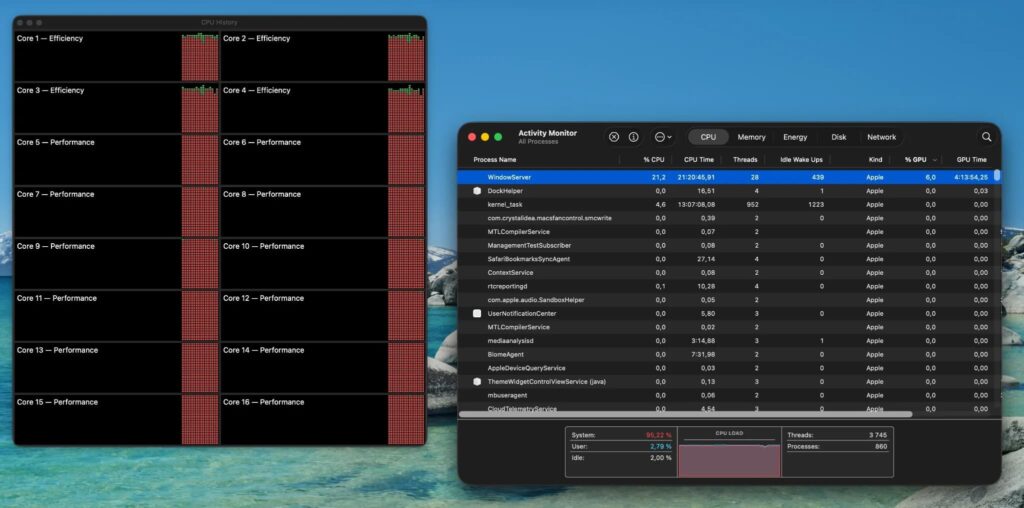
- Too many open windows.
- Too many browser tabs.
- External monitors.
- High-resolution displays.
- Multiple desktop spaces.
- Apps with constantly updating interfaces.
- Video playback.
- Screen sharing or recording.
- Animated wallpapers or widgets.
- Transparency and visual effects.
- Apps stuck refreshing visually.
- macOS beta or update-related bugs.
- Old or incompatible display utilities.
In many cases, WindowServer is not the root cause by itself. It is showing you that your Mac is doing too much visual work.
The 5-minute WindowServer high CPU diagnosis
Use this quick diagnosis before changing deeper settings. Minute What to check What it tells you 1 Activity Monitor → CPU Whether WindowServer is actually using high CPU 2 Number of open windows and browser tabs Whether visual clutter is likely 3 External displays Whether display setup increases CPU load 4 Apps with live or animated interfaces Whether one app is forcing constant redraws 5 Background apps and Login Items Whether unused apps are adding interface and CPU work
If WindowServer CPU drops after closing windows, disconnecting a display, or pausing unused apps, the issue is likely workload-related.
1. Do not force quit WindowServer first
This is important.
WindowServer is not like quitting a normal app. Force quitting important system processes can disrupt your session, close apps, log you out, or create instability.
Instead of force quitting WindowServer, start with safer fixes:
- Close unused windows.
- Quit unused apps.
- Pause unused apps with AppHalt.
- Restart your Mac normally.
- Disconnect external displays for testing.
- Update macOS and apps.
- Test in Safe Mode if the issue continues.
Use Force Quit only for normal apps you recognize and understand, especially if they are frozen or unresponsive.
2. Close unused windows, not just unused apps
WindowServer is strongly affected by what is visible or ready to be displayed.
That means open windows matter.
You may have only a few apps open, but each app may contain many windows:
- Several Finder windows.
- Multiple browser windows.
- Chat windows.
- Preview documents.
- PDFs.
- Design files.
- Video players.
- Floating panels and inspectors.
Try this:
- Close windows you are not using.
- Merge browser windows if possible.
- Close old Finder windows.
- Close unused Preview documents.
- Quit apps you are done with.
- Check WindowServer CPU again.
If WindowServer CPU drops, your issue was partly visual clutter.
3. Reduce browser tabs and browser windows
Browsers can increase WindowServer workload because they often combine visual complexity, animations, video, web apps, and many tabs.
A browser session may include:
- Video streaming pages.
- Animated websites.
- Dashboards that refresh live.
- Social media feeds.
- Email web apps.
- AI tools.
- Project management tools.
- Multiple profiles.
- Many restored tabs.
Before blaming macOS, try a browser cleanup:
- Close tabs you do not need today.
- Stop video and audio playback.
- Close extra browser windows.
- Disable unused extensions.
- Restart the browser.
- Check Activity Monitor again.
If WindowServer CPU improves, the browser was likely contributing to the visual workload.
4. Test external displays
External monitors can increase WindowServer CPU because your Mac has more pixels, more windows, and often more desktop space to manage.
This is especially noticeable with:
- 4K monitors.
- Multiple displays.
- High scaling settings.
- Docking stations.
- Cheap adapters.
- Display utilities.
- Many windows spread across screens.
To test:
- Disconnect external displays.
- Restart your Mac.
- Use only the built-in display for a while.
- Check WindowServer CPU in Activity Monitor.
- Reconnect the display and compare.
If WindowServer CPU is much lower without the external display, your display setup is a major factor.
That does not mean you cannot use an external monitor. It means you may need a cleaner setup, fewer windows, a better cable or adapter, or less aggressive display scaling.
5. Reduce transparency and motion
Visual effects can add to the overall display workload, especially on older Macs or overloaded systems.
Try reducing visual effects:
- Open System Settings.
- Go to Accessibility.
- Open Display.
- Enable Reduce transparency.
- Enable Reduce motion if animations bother performance or comfort.
This will not fix every WindowServer issue, but it can help reduce visual complexity.
It is also a safe change because you can reverse it easily.
6. Quit apps with constantly updating interfaces
Some apps force your Mac to redraw information frequently.
These can increase visual and CPU workload:
- System monitors.
- Live dashboards.
- Crypto or stock tickers.
- Weather widgets.
- Animated menu bar apps.
- Screen recording apps.
- Screen sharing apps.
- Video players.
- Communication apps with animated content.
Try quitting these apps one by one and watch WindowServer CPU.
If one app makes a clear difference, update it, adjust its settings, or avoid leaving it open all day.
7. Pause unused apps with AppHalt
AppHalt does not pause WindowServer itself, and it should not.

But AppHalt can help with one of the common reasons WindowServer becomes busy: too many apps staying active when you are not using them.
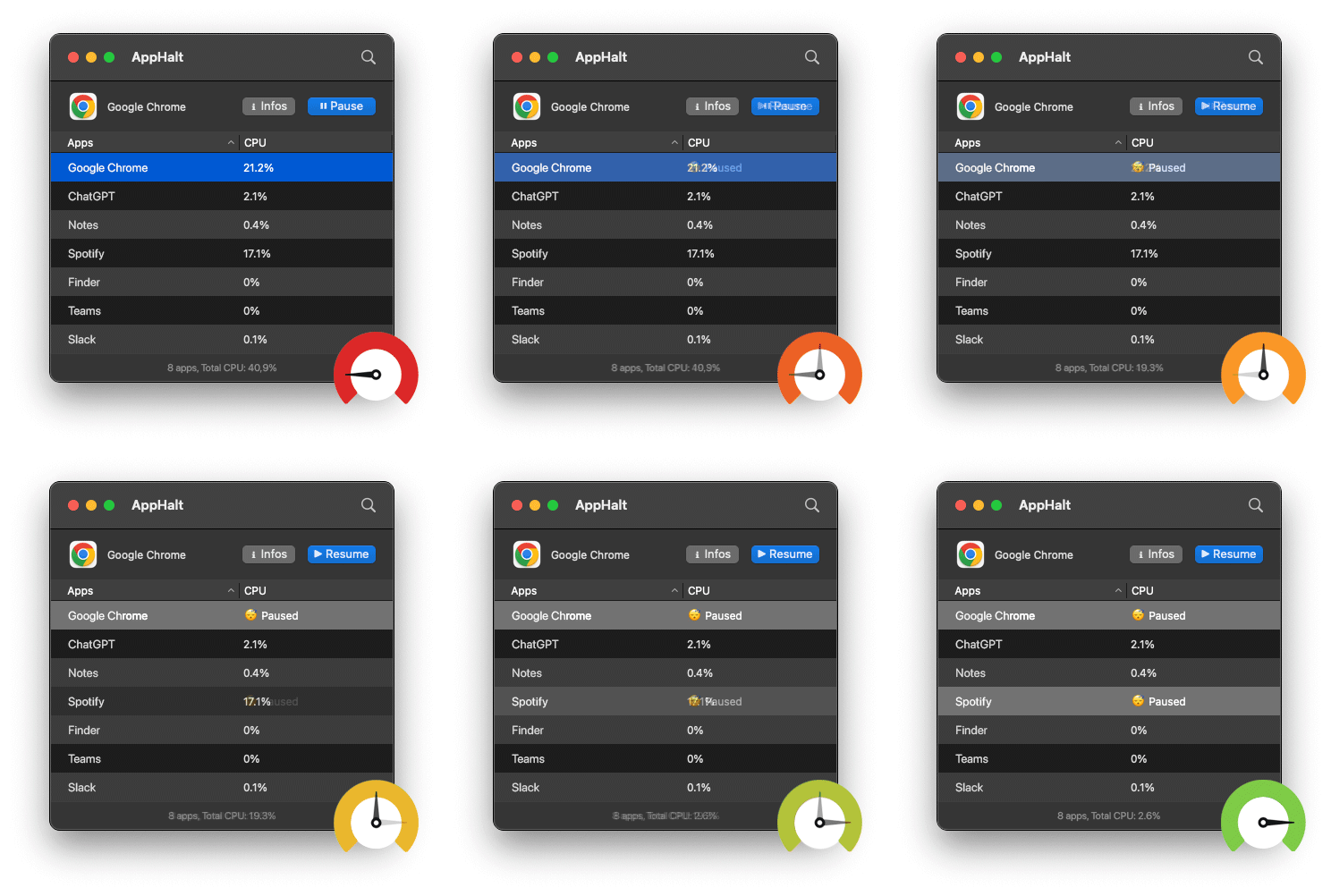
AppHalt lets you pause unused apps without fully quitting them. This can reduce background CPU activity and help your Mac focus on the apps you actually need right now.
Use AppHalt when:
- You have many apps open.
- Your Mac feels visually laggy.
- WindowServer CPU is high alongside other active apps.
- You want to keep apps open for later but stop them from working now.
- You are using a MacBook with limited memory.
- You are testing whether background apps are adding load.
AppHalt is not a magic WindowServer repair tool. It is a practical way to reduce app workload around WindowServer.
Do not pause apps that are saving, syncing important files, uploading, downloading, rendering, recording, exporting, compiling, or handling live work.
8. Restart your Mac normally
If WindowServer CPU stays high, restart your Mac normally.
A restart can clear temporary visual glitches, reset app states, close stuck processes, and give you a clean baseline.
Use this order:
- Save your work.
- Quit open apps.
- Restart your Mac.
- Wait a few minutes after login.
- Open Activity Monitor before reopening everything.
- Check WindowServer CPU.
This helps you understand whether WindowServer is high by itself or only after your usual apps return.
9. Review Login Items and Background Items
If WindowServer high CPU returns after every restart, your startup setup may be part of the problem.
Open System Settings > General > Login Items & Extensions or Login Items.
Review apps that open automatically.
Good candidates to remove from startup:
- Old utilities.
- Game launchers.
- Media apps.
- Video call apps.
- Duplicate menu bar tools.
- Live dashboards.
- Apps you only use occasionally.
Be careful with password managers, VPNs, backup tools, cloud sync, security software, hardware drivers, and work-required tools.
A cleaner login means fewer apps adding windows, menu bar items, animations, and background work immediately after startup.
10. Update macOS and your apps
WindowServer high CPU can sometimes be connected to software bugs, display glitches, or app compatibility issues.
Update:
- macOS.
- Browsers.
- Display utilities.
- Window managers.
- Menu bar apps.
- Screen recording tools.
- Video call apps.
- Creative apps.
- GPU-heavy or visual apps.
If the issue started after installing one app, update or remove that app first.
11. Test in Safe Mode if WindowServer CPU stays high
Safe Mode can help you understand whether startup software, login items, extensions, or caches are involved.
If WindowServer high CPU does not happen in Safe Mode, the cause may be related to software that normally loads when your Mac starts up.
Safe Mode can be useful when:
- WindowServer CPU stays high after every restart.
- You cannot identify the app causing it.
- The issue appeared after installing utilities.
- You suspect login items or extensions.
- Your Mac feels slow before you open normal apps.
After testing, restart normally to leave Safe Mode.
12. Check display-related utilities and window managers
Window management tools are useful, but they directly interact with your visual workspace.
Review apps such as:
- Window snapping tools.
- Display managers.
- Menu bar display tools.
- Screen recording apps.
- Virtual display tools.
- Remote desktop apps.
- Wallpaper animation apps.
- Desktop widget tools.
If WindowServer high CPU started after installing one of these, test without it.
Quit the app, remove it from Login Items, restart, and compare Activity Monitor.
13. What if WindowServer is high after a macOS beta update?
macOS beta versions can make WindowServer behavior less predictable because visual systems, animations, graphics drivers, and app compatibility may still be changing.
If WindowServer high CPU appears after a beta update:
- Restart your Mac.
- Update apps.
- Disable visual utilities temporarily.
- Disconnect external displays for testing.
- Reduce transparency and motion.
- Check Activity Monitor for other high CPU apps.
- Report repeatable issues through Feedback Assistant.
If the Mac is critical for daily work, avoid using beta software as your main system.
Best order to reduce WindowServer high CPU on Mac
Follow this safe order:
- Open Activity Monitor and confirm WindowServer CPU is high.
- Close unused windows, not just unused apps.
- Clean up browser tabs and browser windows.
- Quit or pause unused apps with AppHalt.
- Disconnect external displays for testing.
- Reduce transparency and motion in Accessibility settings.
- Quit live dashboards, screen recorders, and visual utilities.
- Restart your Mac normally.
- Review Login Items and Background Items.
- Update macOS and visual apps.
- Test in Safe Mode if the issue continues.
This order starts with safe changes and avoids dangerous system process force quitting.
Common mistakes with WindowServer high CPU
Mistake 1: Force quitting WindowServer immediately
This can disrupt your session. Start with windows, apps, displays, and visual settings first.
Mistake 2: Ignoring external displays
External monitors can increase visual workload, especially high-resolution displays or complex scaling setups.
Mistake 3: Leaving dozens of windows open
WindowServer is affected by visual complexity. Too many windows can add workload even if you are not actively using them.
Mistake 4: Forgetting browser tabs
Modern web apps can be visually and computationally heavy. Tabs, videos, and dashboards matter.
Mistake 5: Installing more system utilities before diagnosing
More utilities can create more visual hooks, menu bar items, and background processes. Diagnose first.
Mistake 6: Blaming WindowServer when another app is the cause
WindowServer may be reacting to visual work created by another app. Look for the app that causes the load.
FAQ: WindowServer high CPU on Mac
What is WindowServer on Mac?
WindowServer is a core macOS process involved in displaying and managing what appears on your screen, including windows, spaces, visual effects, and display output.
Why is WindowServer using high CPU?
WindowServer may use high CPU because of too many windows, browser tabs, external displays, visual effects, video playback, screen recording, display utilities, or apps constantly updating their interface.
Is WindowServer a virus?
No. WindowServer is a normal macOS process. High CPU does not mean it is malware. It usually means your Mac is doing a lot of visual work.
Can I quit WindowServer?
You should not treat WindowServer like a normal app. Force quitting important processes can disrupt your session. Start by reducing windows, apps, displays, and visual effects instead.
How do I reduce WindowServer CPU on Mac?
Close unused windows, reduce browser tabs, disconnect external displays for testing, reduce transparency, quit visual utilities, pause unused apps with AppHalt, restart your Mac, and update apps.
Can external monitors cause WindowServer high CPU?
Yes. External displays, high resolutions, scaling, adapters, and more windows across screens can increase WindowServer workload.
Can browser tabs increase WindowServer CPU?
Yes. Heavy browser sessions with videos, animations, dashboards, and many windows can add visual workload and contribute to high WindowServer CPU.
Can AppHalt reduce WindowServer high CPU?
AppHalt does not pause WindowServer itself. It can help reduce background app activity and unused app workload, which may help when WindowServer high CPU is caused by too many active apps and windows.
Why does WindowServer CPU get high after a macOS update?
After a macOS update, apps, display settings, visual effects, caches, or compatibility issues may change. Restart, update apps, reduce visual utilities, and check Activity Monitor.
Does Safe Mode help diagnose WindowServer high CPU?
Yes. Safe Mode can help determine whether startup software, login items, extensions, or caches are involved.
Why is my Mac laggy when WindowServer CPU is high?
If WindowServer is busy, your Mac may feel visually laggy because the system is working harder to manage windows, displays, animations, and interface updates.
Should I reinstall macOS for WindowServer high CPU?
Not as a first step. Start with windows, browser tabs, external displays, visual effects, Login Items, app updates, and Safe Mode testing before considering reinstalling macOS.
Useful official Apple resources
If you want to go deeper, these Apple resources are useful:
- View CPU activity in Activity Monitor on Mac
- Quit an app or process in Activity Monitor on Mac
- Start up your Mac in Safe Mode
- Activity Monitor User Guide for Mac
Final thoughts: WindowServer high CPU is usually a visual workload problem
WindowServer high CPU can look scary in Activity Monitor, but it is usually not something you fix by attacking WindowServer directly.
In most cases, the smarter approach is to reduce what WindowServer has to manage.
Close unused windows. Reduce browser tabs. Test external displays. Quit visual utilities. Reduce transparency. Restart. Review Login Items. Update apps. Use Safe Mode if needed. And when too many apps are active, use AppHalt to pause what you are not using.
Your Mac does not need every window, every tab, every dashboard, and every app running all the time.
Less visual clutter means less work for WindowServer — and often a Mac that feels calmer, cooler, and more responsive.
🚀 Reduce Visual and Background Clutter with AppHalt
AppHalt helps your Mac stop wasting CPU on apps you are not using.
When WindowServer high CPU is linked to too many active apps, windows, and background processes, AppHalt gives you a smarter middle ground: pause unused apps, reduce background CPU usage, and keep your Mac feeling lighter, calmer, and more responsive.
✅ Reduce background CPU usage.
✅ Help prevent overheating, fan noise, and battery drain.
✅ Pause unused apps without fully breaking your workflow.
✅ Keep your Mac feeling faster, lighter, and calmer.
📥 Want fewer apps adding visual and CPU clutter? Download AppHalt now.