
Your MacBook should not lose a large amount of battery while it is sleeping. If it does, something may be keeping it more awake than you think.
You close the lid at night with 80% battery. The next morning, your MacBook is at 62%. Or 45%. Or almost dead. Nothing was on screen. You were not using it. It should have been sleeping.
This is one of the most frustrating MacBook battery problems because it feels invisible. The MacBook looks closed. The screen is off. The desk is quiet. But inside macOS, an app, setting, sync tool, network feature, or background process may still be active enough to drain battery.
The mistake is to assume immediately that the battery is dead. A weak battery can make the problem worse, but overnight battery drain is often not a battery health problem first. It is usually a sleep, wake, background activity, or energy impact problem.
This guide explains why your MacBook battery is draining while sleeping, how to find what is waking it up, what settings to check, what apps to stop, and how to reduce overnight battery loss without guessing.
Quick answer: if your MacBook battery is draining while sleeping, check Activity Monitor’s Energy tab for apps preventing sleep, review battery and sleep settings, stop unnecessary cloud sync, close or pause unused apps before closing the lid, disable unnecessary login items, disconnect accessories, and update apps that may keep waking your MacBook.

Why your MacBook battery drains while sleeping
Sleep mode is designed to reduce power use while keeping your MacBook ready to wake quickly. But sleep does not always mean absolutely nothing is happening.
Your MacBook may still handle certain tasks, respond to settings, maintain network features, or be interrupted by apps and accessories. If that activity becomes too frequent, too heavy, or poorly controlled, battery can drop overnight.
Common causes include:
- An app preventing sleep.
- Cloud sync running before or during sleep.
- Browser tabs or web apps staying active.
- Messaging or video call apps keeping background services alive.
- External accessories waking the MacBook.
- Network access settings allowing wake events.
- Bluetooth devices reconnecting or triggering activity.
- Login items and background helpers.
- macOS updates, indexing, or Photos analysis.
- A specific app behaving badly after an update.
- A battery health issue making every drain more noticeable.
The key point is simple: a MacBook that loses battery while sleeping may not be fully resting.
Normal vs abnormal MacBook battery loss overnight
A tiny amount of battery loss during sleep can happen. A large drop is different.
| Overnight battery drop | What it usually means | What to do |
|---|---|---|
| 0–3% | Usually normal | No urgent action needed |
| 4–8% | Worth watching | Check apps, sync, and sleep settings if repeated |
| 10–20% | Likely background activity or wake events | Investigate Energy, Preventing Sleep, and accessories |
| 20%+ | Abnormal for typical sleep | Diagnose immediately and check battery health if persistent |
One unusual night can happen after a macOS update, large sync, or heavy file activity. A repeated pattern is more important than one isolated drop.
If your MacBook loses a large amount of battery every night, do not ignore it. Something is likely keeping the machine active.
The 5-minute overnight battery drain diagnosis
Before changing every setting, use this quick diagnosis.
| Minute | What to check | What it tells you |
|---|---|---|
| 1 | Activity Monitor → Energy | Which apps use power and whether any app prevents sleep |
| 2 | Browser tabs and web apps | Whether a browser session is still active in the background |
| 3 | Cloud sync status | Whether files are uploading, downloading, or indexing |
| 4 | Battery and sleep settings | Whether macOS is allowed to wake for network or background tasks |
| 5 | Accessories and login items | Whether connected devices or startup helpers keep waking the Mac |
This method is better than guessing because it focuses on the most common reasons a sleeping MacBook keeps losing battery.
1. Check Activity Monitor for apps preventing sleep
Activity Monitor can show more than CPU and memory. Its Energy tab can help you understand which apps are using power and whether an app is preventing your Mac from sleeping properly.
Open Activity Monitor from Applications > Utilities, or search for it with Spotlight.
Then:
- Click the Energy tab.
- Look at Energy Impact.
- Look for the Preventing Sleep column.
- Focus first on apps you recognize.
If an app shows that it is preventing sleep, it may be one reason your MacBook battery drains while sleeping.
Common candidates include:
- Browsers.
- Video call apps.
- Cloud sync tools.
- Media apps.
- Backup tools.
- Developer tools.
- Download managers.
- Remote access apps.
- Menu bar utilities.
Do not panic if you see an app preventing sleep during an active task. For example, a video export, backup, upload, or download may legitimately keep the Mac awake. The problem is when an app keeps doing this after the task no longer matters.
2. Close or pause apps before closing the lid
Many people close the lid without checking what is still active. That is convenient, but it can leave work running in the background.
Before sleeping your MacBook, look at what is open:
- Is your browser still full of active tabs?
- Is a cloud app syncing files?
- Is a video call app still running?
- Is a media app playing or paused in the background?
- Is a design or developer tool still processing?
- Is a download or upload still active?
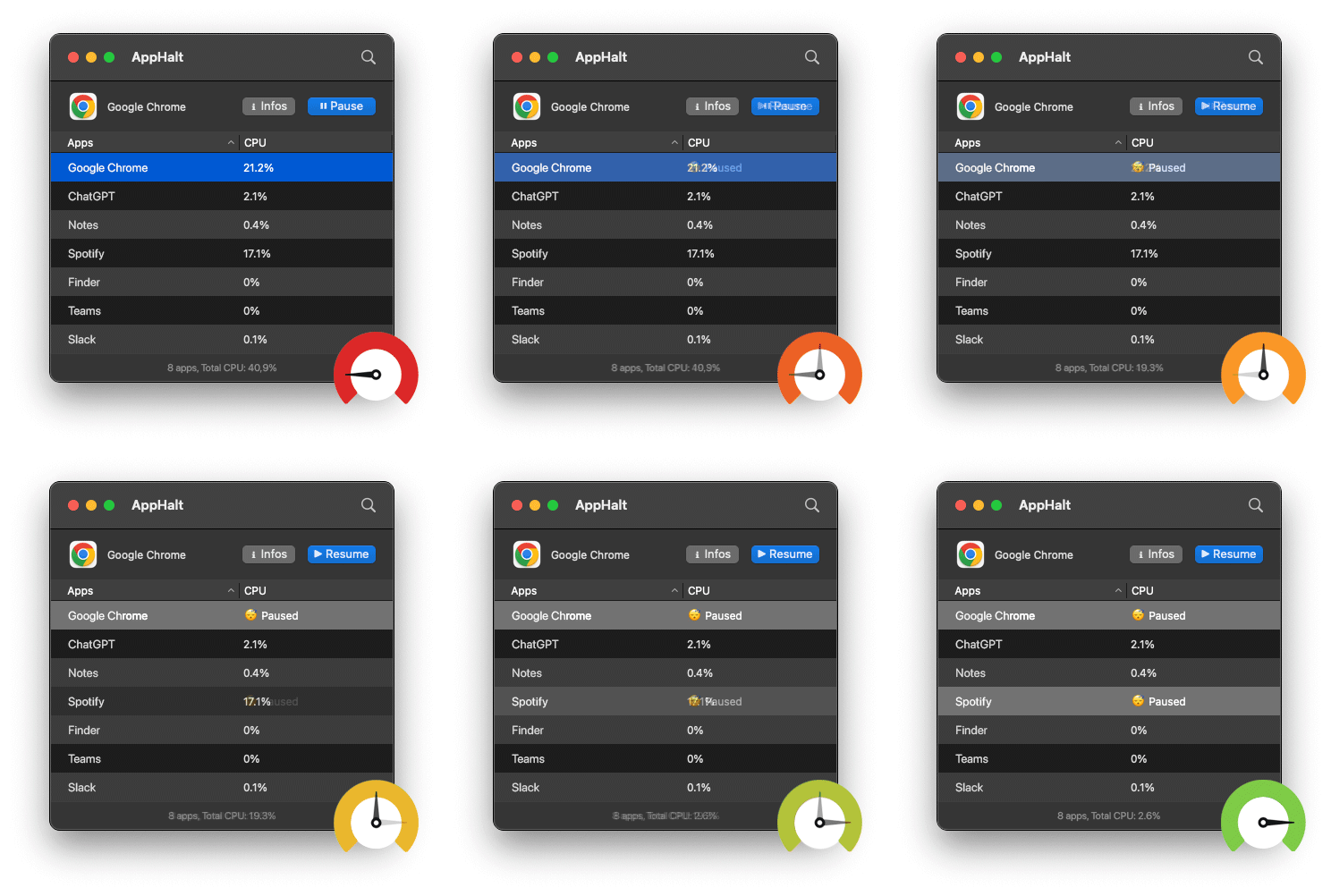
If you are done with an app, quit it. If you want to keep the app state but stop it from continuing background activity, pause it with AppHalt.
This is especially useful on a MacBook Neo or any MacBook you use throughout the day with many apps open. You may not want to quit everything at night, but you also do not want unused apps wasting battery until morning.
Use AppHalt carefully: pause apps you recognize and do not need right now. Do not pause apps that are saving, uploading, downloading, syncing important files, rendering, recording, exporting, compiling, or handling live work.
3. Check whether your browser is keeping your MacBook active
Your browser is one of the most common reasons a MacBook does not rest properly.
Modern browsers run much more than websites. They handle email, documents, dashboards, AI tools, project management, chat, video, streaming, music, admin panels, and background scripts.
A browser can contribute to sleep battery drain through:
- Tabs that refresh automatically.
- Web apps with notifications.
- Video or audio pages.
- Browser extensions.
- Downloads still running.
- Cloud apps open in tabs.
- Large restored sessions.
- Websites that prevent sleep during media playback.
Before closing your MacBook for the night:
- Close tabs you do not need tomorrow.
- Stop video or audio playback.
- Check downloads.
- Quit the browser if you are done.
- Or pause it if you want to keep the session but stop activity.
If overnight battery drain improves after controlling your browser, the issue was not mysterious. Your browser session was still too alive.
4. Control cloud sync before sleep
Cloud sync can drain battery during sleep-adjacent periods because it may upload, download, compare, scan, index, or verify files.
This can involve:
- iCloud Drive.
- iCloud Photos.
- Dropbox.
- Google Drive.
- OneDrive.
- Backup tools.
- Project sync tools.
Cloud sync is not bad. It protects your files and keeps devices up to date. But if you close the lid while a large sync is running, your MacBook may continue activity or wake repeatedly.
Before sleep, check whether sync is still active.
If the sync is important, plug in the MacBook and let it finish. If it can wait, pause sync from the cloud app’s own controls.
Do not force quit sync tools while important files are moving unless you understand the risk. A clean pause is safer than a brutal stop.
5. Review battery and sleep settings
macOS includes settings that affect how your Mac sleeps, wakes, and uses power. These settings vary by macOS version and Mac model, but the principle is the same: the more your Mac is allowed to wake for tasks, the more battery it may use.
Open System Settings and review:
- Battery settings.
- Low Power Mode if available.
- Options related to wake, network access, and power use.
- Lock Screen settings for display sleep timing.
Pay special attention to settings related to waking for network access. If your MacBook is allowed to wake for network activity while on battery, it may use more power than expected.
The right setting depends on your needs. If you rely on remote access, file sharing, or network availability, you may need wake features. If you simply want better overnight battery retention, reducing unnecessary wake behavior can help.
6. Disconnect accessories before closing the lid
Accessories can wake or keep a MacBook active.
Before blaming the battery, check what is connected:
- External displays.
- USB-C hubs.
- External drives.
- Audio interfaces.
- Webcams.
- Keyboards and mice.
- Adapters.
- Charging docks.
An external drive may index or sync. A hub may keep devices connected. A Bluetooth device may wake the Mac. A display setup may change sleep behavior.
Test one night with accessories disconnected. If battery drain improves dramatically, reconnect accessories one by one until you find the cause.
This is boring, but it works. Battery drain diagnosis is often about isolating one variable at a time.
7. Check Bluetooth devices and wake behavior
Bluetooth accessories are convenient, but they can sometimes wake a MacBook or keep it more active than expected.
Common examples:
- Mouse movement on a desk.
- Keyboard presses in a bag.
- Bluetooth headphones reconnecting.
- Game controllers or accessories waking devices.
- Nearby devices interacting unexpectedly.
If your MacBook loses battery overnight, test with Bluetooth disabled before sleep for one night.
If the battery drain improves, the issue may involve a Bluetooth accessory or wake behavior. You can then test accessories one by one.
8. Stop login items from starting unnecessary background work
Login items affect what runs after startup, but they can also contribute to background load throughout the day. If too many apps automatically open, your MacBook may always have more active background work than necessary.
To review them:
- Open System Settings.
- Go to General.
- Open Login Items & Extensions or Login Items.
- Remove apps that do not need to open automatically.
- Review background items carefully.
Good candidates to remove include:
- Old utilities.
- Chat apps you prefer opening manually.
- Menu bar apps you rarely use.
- Launchers you tested once.
- Cloud tools for services you no longer use.
- Apps that duplicate another tool.
Be careful with password managers, security tools, backup tools, cloud sync, and hardware drivers. The goal is not to disable everything. The goal is to reduce unnecessary automatic activity.
9. Watch for battery drain after macOS updates
After a macOS update, your MacBook may temporarily use more energy. It may index files, analyze photos, update app data, sync cloud content, or rebuild internal information.
That can make the first night or two look worse than usual.
If overnight drain happens right after an update:
- Plug in your MacBook and let background tasks finish.
- Update your main apps.
- Restart once after the system settles.
- Check Activity Monitor if the drain continues.
Temporary post-update activity can be normal. Repeated overnight battery drain for many nights is not something to ignore.
10. Check battery health, but do not start there
Battery health matters. A degraded battery can lose charge faster and make every background issue more visible.
But if your MacBook only loses battery dramatically while sleeping, start with sleep and background activity first.
Check battery health in System Settings > Battery. Depending on your macOS version and MacBook model, you may see battery health information, cycle count, or service recommendations.
Battery health may be part of the problem if:
- Battery drains quickly during normal use too.
- The MacBook shuts down unexpectedly.
- Battery percentage drops suddenly.
- macOS shows a service recommendation.
- The battery is old and has many cycles.
But do not replace a battery before checking whether an app is preventing sleep or a sync tool is keeping your MacBook active every night.
11. Use a simple overnight test
To find the cause, run a controlled overnight test.
Before going to sleep:
- Charge your MacBook to a known percentage.
- Write down the battery percentage.
- Quit heavy apps.
- Close or pause your browser.
- Pause non-essential cloud sync.
- Disconnect accessories.
- Close the lid.
- Check the percentage in the morning.
If battery loss is much lower, one of the things you stopped was likely responsible.
Then test one variable at a time:
- One night with browser open.
- One night with cloud sync active.
- One night with accessories connected.
- One night with Bluetooth on.
This is the most reliable way to avoid guessing.
12. Where AppHalt fits into overnight battery drain
AppHalt is useful because many sleep battery problems begin before sleep.
You close the lid while too many apps are still active. Some may be syncing, refreshing, checking, rendering, or keeping background helpers alive. Even if they do not fully prevent sleep, they can contribute to energy use before or around sleep transitions.
AppHalt gives you a practical middle ground:
- Quit apps you are finished with.
- Leave active apps running when they are doing important work.
- Pause unused apps that should not keep working overnight.
This is especially helpful if you use many apps during the day and do not want to rebuild your workspace every morning.
Examples of apps you might pause before sleep:
- A messaging app you do not need overnight.
- A browser session you want to keep but quiet down.
- A creative app left open after work.
- A media app sitting idle.
- A utility that does not need to refresh until tomorrow.
Do not pause apps that are uploading, downloading, syncing important files, saving, exporting, recording, rendering, or handling live work.
AppHalt is not a battery repair tool. It does not replace battery health checks or macOS settings. Its role is specific: help reduce unnecessary app activity before it becomes battery waste.
13. What to quit, what to pause, and what to leave alone before sleep
| Situation | Best action | Why |
|---|---|---|
| You are done with an app for the day | Quit it | It does not need to remain open overnight |
| You want to keep an app state for tomorrow | Pause it with AppHalt | It stops background activity without fully quitting |
| A cloud app is syncing important files | Let it finish or pause sync properly | Force stopping can interrupt files |
| A browser has many active tabs | Close tabs, quit, or pause | Tabs can keep activity alive |
| An app is preventing sleep without a good reason | Quit, update, or troubleshoot it | It may be causing overnight drain |
| Backup, security, or password app | Be cautious | It may be important for protection or access |
The best action depends on what the app is doing. The goal is not to stop everything. The goal is to stop unnecessary overnight work.
14. Common mistakes when fixing MacBook sleep battery drain
Mistake 1: Assuming the battery is dead immediately
A degraded battery can make drain worse, but apps preventing sleep, cloud sync, accessories, and wake settings are often easier to fix.
Mistake 2: Closing the lid without checking active work
If uploads, downloads, sync, media, or background apps are still active, closing the lid does not always mean the MacBook instantly becomes inactive.
Mistake 3: Force quitting sync tools
Force quitting cloud sync can interrupt file transfers. Use the app’s pause controls when possible.
Mistake 4: Ignoring the browser
Browser tabs and web apps are a major source of background activity. Do not overlook them.
Mistake 5: Changing every setting at once
If you change everything at once, you will not know what fixed the problem. Test one variable at a time.
Mistake 6: Keeping too many login items
Apps that open automatically can create a permanently busy MacBook. Review them regularly.
Best order to fix MacBook battery draining while sleeping
If you want the cleanest path, follow this order:
- Check Activity Monitor Energy for apps with high impact or Preventing Sleep.
- Quit apps you are finished with before closing the lid.
- Pause unused apps with AppHalt when you want to keep their state.
- Close or control browser tabs, especially media and dashboards.
- Check cloud sync before sleep.
- Review battery and sleep settings, especially wake/network behavior.
- Disconnect accessories for one overnight test.
- Test Bluetooth devices if the drain continues.
- Review login items and background items.
- Update macOS and apps that may be behaving badly.
- Check battery health if drain remains abnormal.
This order starts with the most likely and least risky fixes before moving toward deeper troubleshooting.
FAQ: MacBook battery draining while sleeping
Why is my MacBook battery draining while sleeping?
Your MacBook battery may drain while sleeping because an app is preventing sleep, cloud sync is running, the browser is still active, accessories are waking the Mac, network wake settings are enabled, or background items keep working.
Why does my MacBook lose battery overnight?
Overnight battery loss usually means your MacBook is not fully idle. Check Activity Monitor’s Energy tab, browser tabs, cloud sync, sleep settings, connected accessories, Bluetooth devices, and login items.
How much battery should a MacBook lose overnight?
A small drop can be normal, but repeated drops of 10%, 20%, or more while sleeping suggest background activity, wake events, or a battery health issue that needs investigation.
How do I see which app is preventing sleep on Mac?
Open Activity Monitor, click the Energy tab, and look for the Preventing Sleep column. Apps marked as preventing sleep may be keeping your Mac active.
Can browser tabs drain MacBook battery while sleeping?
Yes. Browser tabs, media pages, web apps, downloads, dashboards, notifications, and extensions can contribute to background activity before or around sleep.
Can cloud sync drain battery overnight?
Yes. iCloud Drive, Photos, Dropbox, Google Drive, OneDrive, and backup tools can use power while syncing, scanning, uploading, downloading, or indexing files.
Should I shut down my MacBook instead of sleeping?
Sleep is usually convenient for daily use, but shutting down can be useful for testing. If shutdown prevents overnight battery loss, the issue is likely related to sleep, wake, apps, accessories, or background activity.
Can AppHalt help with MacBook battery drain during sleep?
AppHalt can help reduce unnecessary background activity before sleep by pausing unused apps. It is not a battery repair tool, but it can help stop apps you are not using from continuing background work overnight.
Is it safe to pause apps before closing my MacBook?
Yes, if you choose carefully. Pause apps you recognize and do not need overnight. Do not pause apps that are syncing, saving, uploading, downloading, rendering, recording, exporting, or handling live work.
Why does my MacBook battery drain when the lid is closed?
The MacBook may still wake or remain active because of apps, accessories, network wake settings, Bluetooth devices, sync tools, or background items. Closing the lid does not always mean zero activity.
Can an external monitor or hub cause sleep battery drain?
Yes. Hubs, displays, external drives, and other accessories can affect sleep behavior or keep activity alive. Test one night with accessories disconnected.
Should I disable Wake for network access?
If you do not need your MacBook to be available on the network while sleeping, reducing network wake behavior may help battery life. If you rely on remote access or file sharing, review this carefully before changing it.
Why did sleep battery drain start after a macOS update?
After an update, macOS may run indexing, sync, Photos analysis, app updates, or background maintenance. If the issue continues for several nights, check Activity Monitor and update your apps.
When should I worry about the battery itself?
Check battery health if the battery drains quickly during normal use, shuts down unexpectedly, drops suddenly, shows service warnings, or continues losing large amounts overnight after sleep and app issues are fixed.
Useful official Apple resources
If you want to go deeper, these Apple guides are useful:
- View energy consumption in Activity Monitor on Mac
- Activity Monitor User Guide for Mac
- Set sleep and wake settings for your Mac
- Change Battery settings on a Mac laptop
- Open items automatically when you log in on Mac
Final thoughts: sleep battery drain is usually a clue, not a mystery
If your MacBook battery drains while sleeping, the real question is not only “Is my battery bad?” It is “What kept my MacBook active?”
Sometimes the cause is a browser tab. Sometimes it is cloud sync. Sometimes it is an app preventing sleep. Sometimes it is a hub, Bluetooth device, login item, or network setting. Sometimes the battery itself is part of the story.
The best fix is not panic. It is a method.
Check Activity Monitor. Look for Preventing Sleep. Control browser tabs. Pause or quit unused apps. Review sync tools. Disconnect accessories for a test. Check sleep settings. Then check battery health if the problem continues.
Your MacBook should not spend the night working for apps you stopped using hours ago.
🚀 Reduce Overnight Battery Waste with AppHalt
AppHalt helps your MacBook stop wasting power on apps you are not using before it goes to sleep.
Instead of closing your whole workspace or letting every app keep running in the background, AppHalt gives you a smarter middle ground: pause unused apps, reduce background CPU usage, and help your MacBook stay calmer before sleep.
✅ Reduce background CPU usage.
✅ Help prevent overheating, fan noise, and battery drain.
✅ Pause unused apps without fully breaking your workflow.
✅ Keep your Mac feeling faster, lighter, and calmer.
📥 Want your MacBook to waste less battery overnight? Download AppHalt now.