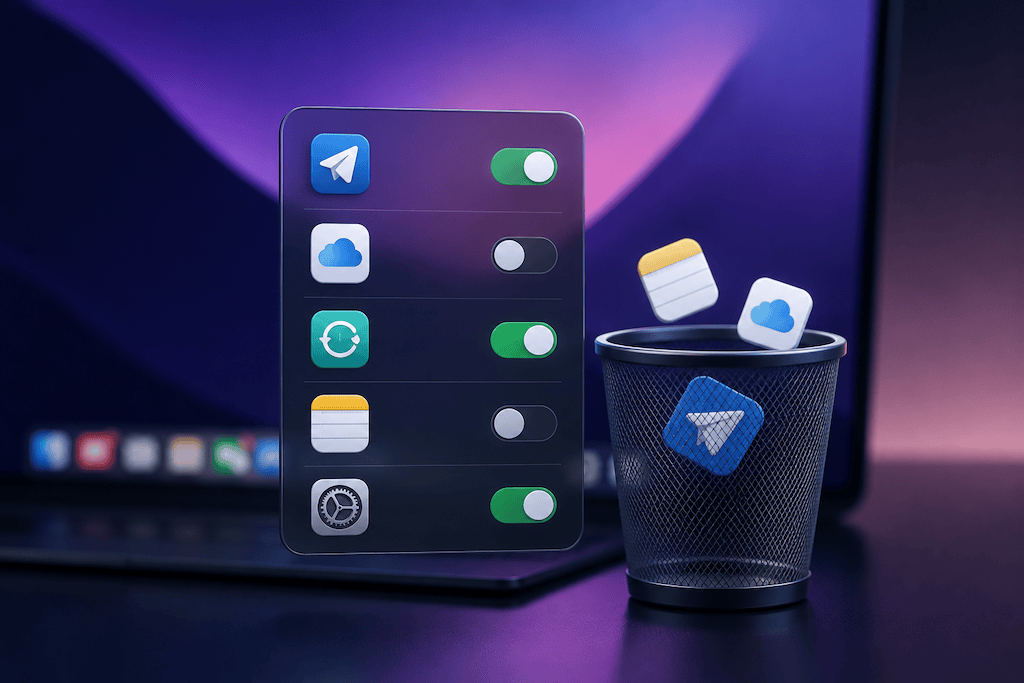
Background Items are apps or helpers allowed to perform work when their main window is closed, such as syncing files or checking for updates. Keep items you rely on; disable an item only when you recognise it and do not need its background work.
What is safe to disable in Mac Background Items?
Usually, an optional app you recognise and do not use every day can be disabled from Login Items & Extensions. Do not disable backup, security, cloud-sync, work, or hardware utilities unless you understand the consequence. Apple explains that Background Items can handle updates and synchronization even when an app is not open.
How AppHalt is different
Disabling a Background Item affects whether it can start or run in the background. AppHalt is for an app that is already open and temporarily not needed: it lets you pause the app while keeping its workspace available to resume.
If you opened System Settings and found a long list of Mac Background Items, you probably asked the obvious question: which ones are safe to disable?
This is a smart question. Background Items can affect startup speed, battery life, CPU usage, memory pressure, fan noise, and how busy your Mac feels after login. But disabling everything randomly is not a good idea either.
Some background items are harmless. Some are unnecessary. Some are important. Some belong to apps you forgot you installed. And some are needed for password managers, cloud sync, backup, VPN, security tools, hardware drivers, or communication apps.
The goal is not to turn everything off. The goal is to understand what each item does and remove the background activity you do not actually need.
This guide explains what Mac Background Items are, which ones are usually safe to disable, which ones you should keep, how to check their impact, and how AppHalt can help you reduce background activity without breaking your workflow.
Quick answer: you can usually disable Mac Background Items for apps you no longer use, old updaters, duplicate utilities, media apps, launchers, trial apps, and nonessential menu bar tools. Be careful with password managers, cloud sync, backup tools, VPNs, security apps, printer or audio drivers, and apps you rely on for notifications, file syncing, or device support.
What are Mac Background Items?
Mac Background Items are apps or helper processes that can run tasks even when the main app is not open.
They may be used for:
- Checking for app updates.
- Syncing files.
- Showing notifications.
- Connecting hardware accessories.
- Running menu bar utilities.
- Keeping cloud storage active.
- Supporting VPN or security services.
- Starting helper processes after login.
Some background activity is useful. For example, a cloud storage app needs background access to sync files. A password manager may need a helper to fill logins. A printer utility may need a background process to detect your printer.
But background items can also accumulate over time. Old apps, uninstall leftovers, trial utilities, launchers, and updaters may continue running even if you barely use them.
That is where performance problems begin.
Why Background Items can slow down your Mac
A single background item may not matter much. The problem is accumulation.
If you have many background items active, your Mac may start the day already busy before you open anything.
Background Items can affect:
- Startup speed: more items can load after login.
- CPU usage: apps may check, sync, scan, refresh, or index.
- Battery life: background tasks can use energy on MacBook.
- Memory pressure: helpers and agents can stay resident.
- Fan noise: high background CPU can generate heat.
- Sleep behavior: some apps may prevent or interrupt sleep.
- Network usage: cloud tools and updaters can transfer data.
This is why disabling the right Background Items can make a Mac feel cleaner and lighter.
But the word “right” is important. Turning off the wrong item may break sync, backups, security, VPN access, hardware support, or notifications.
Where to find Background Items on Mac
To review Background Items:
- Open System Settings.
- Click General.
- Open Login Items & Extensions or Login Items, depending on your macOS version.
- Review the apps that open at login.
- Review apps allowed to run in the background.
You may see two types of items:
- Open at Login: apps that launch automatically when you sign in.
- Background activity: apps allowed to perform tasks even when the app itself is not open.
Both can matter. An app that opens at login can slow startup. An app allowed in the background can keep working quietly later.
Mac Background Items: what is safe to disable?
There is no universal list that applies to every Mac, because the right answer depends on the apps you use.
But some categories are usually safe to review and often safe to disable. Background item type Usually safe to disable? Why Apps you no longer use Yes No reason to let unused apps run in the background Old app updaters Usually Especially if the app is gone or rarely used Trial apps Usually Many trial tools leave helpers behind Media apps Often Useful only if you need automatic launch or background control Game launchers Often They do not always need to run at login Duplicate menu bar utilities Often Too many small utilities can add up Unknown leftovers from uninstalled apps Usually But identify them before disabling if possible
A simple rule works well: if you do not use the app and do not depend on its background feature, disable it.
Background Items you should be careful with
Some Background Items should not be disabled casually.
Be careful with:
- Password managers.
- Cloud sync apps.
- Backup tools.
- VPN apps.
- Security or antivirus tools.
- Firewall utilities.
- Printer or scanner utilities.
- Audio interface software.
- Mouse, keyboard, or trackpad utilities.
- External drive or NAS tools.
- Apps needed for work authentication.
Disabling these may cause real problems.
For example:
- Your password manager may stop filling logins properly.
- Your cloud files may stop syncing.
- Your backup tool may stop protecting files.
- Your VPN may stop connecting automatically.
- Your printer or audio device may stop being detected correctly.
That does not mean you must keep all of them forever. It means you should understand the role of the item before turning it off.
The safest way to disable Background Items
Do not disable everything at once.
Use a controlled method:
- Take a screenshot of your current Background Items list.
- Disable one or two obvious nonessential items.
- Restart your Mac.
- Use your Mac normally for a day.
- Check whether anything important stopped working.
- Continue with the next items if everything is fine.
This method is slower than turning everything off, but much safer.
If something breaks, you know which item caused it.
How to decide if a Background Item is safe to turn off
Use this decision table before disabling anything. Question If yes If no Do you still use the app? Keep investigating before disabling Usually safe to disable Does it sync files? Be careful Lower risk Does it protect, back up, or secure your Mac? Do not disable casually Lower risk Does hardware depend on it? Be careful Lower risk Does it only check for updates? Often safe to disable if you update manually Check what it actually does Do you recognize the developer? Research the role Be cautious and identify it first
If you cannot identify an item, search the app or developer name before disabling it.
How to check if Background Items are hurting performance
Use Activity Monitor to see whether background activity is actually affecting your Mac.
Open Activity Monitor, then check:
- CPU: which apps or processes use processor power.
- Memory: whether your Mac is under memory pressure.
- Energy: which apps use the most energy.
- Disk: whether apps are reading or writing heavily.
- Network: whether apps are syncing or downloading.
Look for patterns:
- An app uses CPU even when you are not using it.
- A helper process appears after every login.
- Battery drains faster when a specific item is enabled.
- Fan noise increases while nothing visible is open.
- Cloud sync keeps working when you do not need it.
If an item has no visible benefit and keeps using resources, it is a strong candidate to disable or remove.
Background Items vs Login Items: what is the difference?
Login Items and Background Items are related, but not identical. Type What it does Example Login Item Opens automatically when you log in A chat app launching after startup Background Item Runs tasks even when the app is not open A sync helper checking files
A Login Item is visible more often because the app opens. A Background Item can be less obvious because the helper may run without a normal window.
Both can affect performance, but Background Items are easier to forget because they are less visible.
Which Mac Background Items should you disable first?
Start with low-risk items.
Good first candidates:
- Apps you uninstalled or no longer use.
- Old update helpers.
- Game launchers you use rarely.
- Media apps that do not need automatic background access.
- Shopping, coupon, or trial utilities.
- Duplicate screenshot, clipboard, or menu bar tools.
- Apps you only open manually once in a while.
Leave these for later:
- Password managers.
- Cloud sync apps.
- Backup apps.
- Security tools.
- VPN apps.
- Hardware drivers.
- Work tools required by your company.
This order gives you the best chance to reduce background clutter without breaking important features.
Should you disable cloud sync Background Items?
Be careful.
Cloud sync tools often need background access to work properly. This includes apps like iCloud Drive, Dropbox, Google Drive, OneDrive, and similar services.
If you disable their background access, you may notice:
- Files stop syncing automatically.
- Downloads do not complete.
- Shared folders stop updating.
- Cloud-only files are not available when expected.
- Sync errors appear later.
If cloud sync drains battery or CPU, do not disable it blindly. Instead:
- Open the sync app.
- Check whether it is actively uploading or downloading.
- Pause sync inside the app if needed.
- Let large sync jobs finish while plugged in.
- Reduce the number of synced folders if possible.
Cloud sync can be resource-heavy, but it is also useful. Control it instead of breaking it.
Should you disable update helpers?
Sometimes, yes.
Many apps install background helpers to check for updates. This is useful if you want automatic updates. But if the app is rarely used, no longer installed, or easy to update manually, its helper may not need to run all the time.
Good candidates to disable:
- Update helpers for apps you no longer use.
- Old software updaters.
- Trial app updaters.
- Duplicate update helpers.
- Apps you prefer updating manually.
Be more careful with update helpers for security tools, browsers, VPN apps, and work-critical software.
Should you disable menu bar utilities?
Menu bar utilities can be useful, but they are also easy to accumulate.
Each small utility may feel harmless. But together, they can add CPU, memory, energy, notifications, and background refreshes.
Review utilities such as:
- Weather menu bar apps.
- Clipboard managers.
- Screenshot tools.
- Window managers.
- System monitors.
- Launchers.
- Calendar helpers.
- Small productivity tools.
Keep the ones you use every day. Disable or remove the ones you forgot existed.
How AppHalt fits with Background Items
Disabling Background Items is useful for long-term cleanup. But it is not the same as managing apps during the day.
That is where AppHalt fits naturally.

AppHalt lets you pause unused apps without fully quitting them. This gives you a middle ground between leaving every app active and closing your whole workspace.
Use AppHalt when:
- You want to reduce background CPU usage right now.
- You want to keep an app open for later.
- Your Mac feels slow because too many apps are active.
- You are on battery and want fewer apps working in the background.
- You do not want to permanently disable app features.
- You want a reversible way to calm your Mac.
Think of it this way:
- Disable Background Items for apps that should not run automatically long-term.
- Use AppHalt for apps you want to keep open but inactive right now.
That combination is much more practical than trying to solve everything with one setting.
Best order to clean up Mac Background Items
Follow this order for the safest cleanup:
- Open System Settings and review Login Items & Extensions.
- Take a screenshot of the current list before changing anything.
- Remove apps you no longer use from Open at Login.
- Disable obvious old or unnecessary Background Items.
- Leave password managers, backup tools, VPNs, security apps, and sync tools alone at first.
- Restart your Mac and use it normally.
- Check Activity Monitor for CPU, Memory, and Energy improvements.
- Disable more items gradually if everything works correctly.
- Use AppHalt for apps you want to pause temporarily instead of disabling permanently.
- Uninstall apps properly if their background helpers keep returning.
This gives you a clean Mac without creating avoidable problems.
Common mistakes with Mac Background Items
Mistake 1: Disabling everything at once
This makes troubleshooting harder. If something breaks, you will not know which item caused it.
Mistake 2: Disabling cloud sync without checking
Your files may stop syncing. Pause or configure sync inside the app instead when possible.
Mistake 3: Removing security or VPN helpers casually
Security, VPN, backup, and work tools may need background access to function properly.
Mistake 4: Forgetting app leftovers
If an app was removed badly, a helper may remain. In that case, disabling is useful, but proper uninstall cleanup may be better.
Mistake 5: Confusing closing a window with quitting an app
On macOS, closing a window does not always quit the app. The app may continue running in the Dock or background.
Mistake 6: Expecting one cleanup to solve everything
Background Items are one part of performance. Browser tabs, memory pressure, CPU-heavy apps, storage, and updates also matter.
FAQ: Mac Background Items safe to disable
What Background Items are safe to disable on Mac?
Background Items are usually safe to disable if they belong to apps you no longer use, old updaters, trial apps, duplicate utilities, game launchers, media apps you open manually, or nonessential menu bar tools.
What Background Items should I not disable?
Be careful with password managers, cloud sync apps, backup tools, VPN apps, security software, hardware drivers, printer utilities, audio tools, and work-required apps.
Do Background Items slow down Mac?
They can. Too many Background Items can increase startup load, CPU usage, memory pressure, energy use, network activity, and battery drain.
Is it safe to turn off all Background Items on Mac?
No. Turning off everything can break useful features like syncing, backups, VPN access, password filling, hardware support, or notifications. Disable items gradually.
How do I know what a Background Item does?
Check the app or developer name, search for the item, open the app’s settings, and look for update, sync, notification, driver, or helper features.
Can I disable Google Drive, Dropbox, or OneDrive Background Items?
You can, but file sync may stop working properly. It is usually better to pause sync inside the app or reduce synced folders instead of disabling background access blindly.
Can I disable browser Background Items?
If you do not need browser helpers running in the background, you can test disabling them. But if you rely on notifications, web apps, or automatic updates, check carefully.
Why do Background Items come back after I disable them?
Some apps recreate helpers when they update or launch. If you do not use the app, uninstalling it properly may be better than repeatedly disabling its background item.
Do Background Items affect battery life?
Yes. Background Items can use CPU, network, disk, and energy, especially on MacBook. Check Activity Monitor’s Energy tab to see which apps use the most power.
Do Background Items affect startup speed?
Yes. Login Items and background helpers can make your Mac busier immediately after login.
Is AppHalt the same as disabling Background Items?
No. Disabling Background Items changes what apps can do automatically in the background. AppHalt pauses unused apps temporarily so they stop consuming background CPU while keeping your workflow available.
Can AppHalt help with Background Items?
AppHalt can help reduce background CPU usage from apps you are not using. It does not replace proper Background Item cleanup, but it gives you a practical way to pause apps during the day.
Useful official Apple resources
If you want to go deeper, these Apple resources are useful:
- Open items automatically when you log in on Mac
- Activity Monitor User Guide for Mac
- View energy consumption in Activity Monitor on Mac
- View CPU activity in Activity Monitor on Mac
- View memory usage in Activity Monitor on Mac
Final thoughts: disable less, understand more
Mac Background Items are not automatically bad. Many exist for good reasons. But they can become a problem when old apps, updaters, helpers, utilities, and sync tools pile up over time.
The safest approach is not to disable everything. It is to identify what you use, what you depend on, and what no longer deserves background access.
Start with apps you no longer use. Remove old login items. Disable obvious nonessential helpers. Leave critical tools alone until you understand them. Check Activity Monitor for real evidence. Then use AppHalt when you want to pause apps temporarily instead of permanently changing background permissions.
A faster Mac is not always about doing something extreme. Sometimes it is about removing the quiet background work you never asked for.
🚀 Reduce Mac Background Activity with AppHalt
AppHalt helps your Mac stop wasting CPU on apps you are not using.
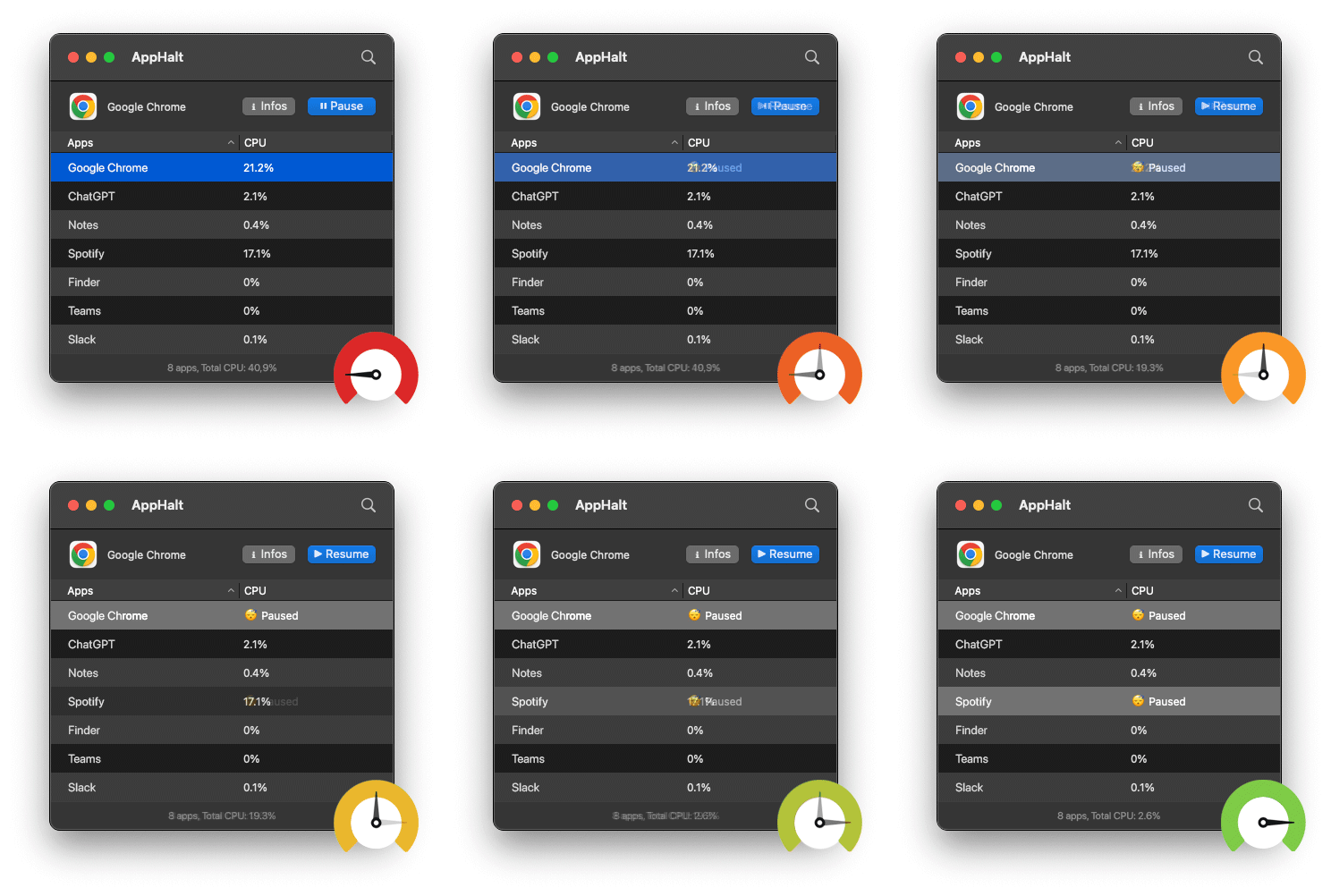
Instead of quitting your whole workspace or letting every app keep running in the background, AppHalt gives you a smarter middle ground: pause unused apps, reduce background CPU usage, and keep your Mac feeling lighter, calmer, and more responsive.
✅ Reduce background CPU usage.
✅ Help prevent overheating, fan noise, and battery drain.
✅ Pause unused apps without fully breaking your workflow.
✅ Keep your Mac feeling faster, lighter, and calmer.
📥 Want fewer apps wasting resources in the background? Download AppHalt now.