Your MacBook Neo is ready to use out of the box. But the way you set it up in the first hour can decide how fast, calm, and efficient it feels every day after that.
A new MacBook Neo feels clean at first. The desktop is empty. The battery is fresh. The system is fast. Apps open quickly. Nothing feels heavy yet.
Then real life arrives.
You install your browser, messaging apps, cloud storage, office tools, creative apps, utilities, menu bar helpers, password manager, video call apps, and maybe a few things you only test once. A week later, your MacBook Neo may still be new, but it can already feel busier than it should.
This guide is designed to help you set up your MacBook Neo properly from day one. Not with random tricks. Not with fake “optimization” rituals. But with practical decisions that protect speed, battery life, storage, privacy, focus, and long-term performance.
Quick answer: after setting up your MacBook Neo, update macOS, enable useful battery settings, review login items, install only essential apps, organize cloud sync carefully, understand the USB-C ports, keep browser tabs under control, set up backups, and use AppHalt to pause unused apps before they become background waste.
Why your MacBook Neo setup matters
Most people set up a new Mac in a hurry. They sign in, install their usual apps, restore old files, open their browser, and start working.
That is understandable. But it is also how a clean Mac becomes cluttered quickly.
The problem is not one bad app. The problem is accumulation. A few login items. A browser with restored tabs. A cloud folder syncing everything. A video call app opening automatically. A menu bar utility you forget about. A background helper that runs all day.
Individually, each thing looks small. Together, they can affect:
- Startup speed.
- Battery life.
- Heat.
- Fan noise.
- Storage space.
- Focus.
- Long-term responsiveness.
The best MacBook Neo setup is not about installing more tools. It is about making better defaults.
The first-hour MacBook Neo setup checklist
If you want the cleanest path, follow this order.
| Step | What to do | Why it matters |
|---|---|---|
| 1 | Finish Setup Assistant carefully | Start with the right account, Wi-Fi, accessibility, and privacy settings |
| 2 | Update macOS | Get the latest fixes before installing everything else |
| 3 | Set up battery options | Protect battery life and daily endurance |
| 4 | Install only essential apps first | Avoid creating background clutter on day one |
| 5 | Review login items | Stop unnecessary apps from opening automatically |
| 6 | Configure your browser | Prevent tabs and extensions from becoming the main performance problem |
| 7 | Set up backup | Protect your files before the Mac becomes important |
| 8 | Install AppHalt | Pause unused apps before they waste CPU, battery, and focus |
This order matters. It gives your MacBook Neo a clean foundation before your old habits return.
1. Finish Setup Assistant without rushing
When you first open your MacBook Neo, Setup Assistant guides you through the basic setup: language, Wi-Fi, Apple Account, user account, accessibility options, privacy settings, Touch ID, Siri, and other macOS features.
Do not rush this step.
Good setup choices include:
- Use a strong password you can actually remember.
- Set up Touch ID if available.
- Connect to a reliable Wi-Fi network.
- Review privacy prompts instead of blindly accepting everything.
- Enable accessibility features if they improve your comfort.
- Sign in to your Apple Account if you use iCloud, App Store, Notes, Photos, or Messages.
If you are moving from another Mac, you may be tempted to transfer everything immediately. That is convenient, but it can also bring years of clutter to a new machine.
If your old Mac was slow, messy, or overloaded, consider setting up your MacBook Neo as cleanly as possible and moving only what you truly need.
2. Decide whether to migrate everything or start clean
This is one of the most important MacBook Neo setup decisions.
You have two main options:
| Setup style | Best for | Risk |
|---|---|---|
| Transfer everything | You want your old Mac environment back quickly | You may bring old clutter, login items, and unused apps |
| Start clean | You want the fastest, cleanest setup | You must reinstall apps and move files manually |
If your old Mac was well organized, migration can save time. If your old Mac was slow, full, noisy, or overloaded with apps, starting clean is often smarter.
A clean setup helps you ask better questions:
- Do I still need this app?
- Does this app need to open at startup?
- Do I want this folder synced to the new Mac?
- Do I use this browser extension every week?
- Is this utility solving a real problem?
A new MacBook Neo is a rare chance to stop carrying digital baggage.
3. Update macOS before installing too many apps
After setup, check for macOS updates before installing your full app stack.
Go to System Settings > General > Software Update.
This helps ensure your MacBook Neo starts with the latest fixes, security updates, and compatibility improvements. It also avoids installing many apps on a system that may immediately need to restart again.
After updating:
- Restart your MacBook Neo.
- Let macOS settle for a few minutes.
- Then install your essential apps.
Do not judge speed immediately after a large update. macOS may briefly run background tasks such as indexing, syncing, or app updates. Give it time before deciding something is wrong.
4. Set up battery options early
Battery settings are not something to think about only when battery life becomes bad. Set them correctly from the start.
Open System Settings and go to Battery.
Useful battery settings to review:
- Battery percentage: show it in the menu bar if you want quick visibility.
- Battery usage: check the last 24 hours or last 10 days to understand patterns.
- Optimized Battery Charging: useful for reducing battery wear over time.
- Low Power Mode: useful when traveling or working away from power.
- Display dimming on battery: helps conserve power.
The best battery habit is not obsessing over percentages. It is reducing unnecessary work.
That means closing or pausing apps you are not using, avoiding endless browser sessions, and preventing background tools from draining power quietly.
5. Understand the MacBook Neo USB-C ports
Before buying adapters or connecting accessories, understand the ports.
Your MacBook Neo has two USB-C ports. You can charge using either port. The left port is the faster USB 3 port and supports external display output. The right port uses USB 2 speeds and is useful for charging or simpler accessories.
Practical setup advice:
- Use the left USB-C port for an external display or faster data transfer.
- Use the right USB-C port for charging when possible, leaving the left port free for display or faster accessories.
- Check accessory compatibility before buying adapters.
- Do not assume every Thunderbolt-only device will work.
This matters because a bad accessory setup can create frustration quickly. If you plan to use an external display, hub, keyboard, mouse, storage drive, or audio interface, choose accessories that match what the MacBook Neo supports.
6. Connect an external display the smart way
If you use your MacBook Neo at a desk, an external display can improve comfort and productivity. But it can also increase workload, especially if you keep many apps open on both screens.
For the MacBook Neo, connect the external display to the left USB-C port. Make sure your cable or adapter supports the display you want to use.
After connecting the display, open System Settings > Displays and review:
- Resolution.
- Brightness.
- Color profile.
- Arrangement.
- Whether the display feels sharp and comfortable.
A larger display often encourages more multitasking. That can be useful, but it also makes it easier to leave apps open everywhere.
If your MacBook Neo gets warm or slow while using an external display, check background apps, browser tabs, and CPU usage before blaming the display alone.
7. Install essential apps first, not every app you remember
A new MacBook Neo does not need every app on day one.
Install in layers:
First layer: essential apps
- Password manager.
- Main browser.
- Work communication apps.
- Cloud storage you truly use.
- Office or creative tools needed immediately.
- Backup or security tools you trust.
Second layer: workflow apps
- Design tools.
- Developer tools.
- Writing tools.
- Project management apps.
- Media apps.
Third layer: optional utilities
- Menu bar tools.
- Launchers.
- Clipboard managers.
- Window managers.
- Monitoring tools.
The third layer is where clutter often begins. Utilities can be excellent, but each one should earn its place.
Ask one question before installing anything:
Do I need this app every week, or am I installing it out of habit?
8. Review login items before they multiply
Login items are apps that open automatically when you log in. They are useful when intentional and annoying when accidental.
Go to System Settings > General > Login Items & Extensions or Login Items, depending on your macOS version.
Remove anything that does not need to start automatically.
Common apps that often do not need to open at startup:
- Chat apps you prefer launching manually.
- Old utilities.
- Launchers you are only testing.
- Cloud services you do not use daily.
- Menu bar tools that duplicate other tools.
- Apps that only need to run occasionally.
Be careful with password managers, backup tools, security tools, hardware drivers, and cloud sync apps you depend on.
The goal is not to make startup empty. The goal is to make startup intentional.
9. Configure your browser before it becomes the heaviest app
On many Macs, the browser becomes the real operating system. It holds email, documents, dashboards, videos, AI tools, music, project management, shopping, admin panels, and dozens of tabs.
That makes browser setup important.
Good browser habits for MacBook Neo:
- Install only the extensions you truly use.
- Avoid restoring huge sessions automatically.
- Use bookmarks instead of keeping every tab open.
- Close video and dashboard tabs when you are done.
- Keep one main browser profile for work and another for personal use if needed.
- Restart the browser when it starts feeling heavy.
Browser clutter can affect speed, heat, battery life, and focus. A clean browser setup is one of the best performance decisions you can make early.
10. Set up cloud sync carefully
Cloud sync is useful. It can also overload a new MacBook Neo if you sync too much too soon.
Before enabling every cloud folder, decide what should actually live on this Mac.
Review:
- iCloud Drive.
- Desktop and Documents sync.
- Photos library.
- Dropbox.
- Google Drive.
- OneDrive.
- Project folders.
- Large media archives.
Syncing years of files can create CPU, network, disk, and battery load. That may be normal during the first setup, but it can make your MacBook Neo feel hot or slow.
Best practice:
- Sync essentials first.
- Avoid syncing huge archives immediately.
- Let large syncs finish while plugged in.
- Pause sync if you need battery life or performance.
- Check sync status if the MacBook Neo stays busy for too long.
Cloud sync should support your workflow, not silently dominate it.
11. Set up backups before you need them
Backup is boring until it saves you.
Set up your backup system before your MacBook Neo becomes full of important files. Use Time Machine, cloud backup, external storage, or another trusted system that fits your workflow.
A good backup setup should answer three questions:
- Where are my important files stored?
- How are they backed up?
- How would I restore them if the MacBook Neo were lost, damaged, or erased?
Do not wait until your MacBook Neo contains months of work. Set up backup while the machine is still fresh.
12. Turn on Find My and review security settings
A MacBook is portable. That is its strength and its risk.
Review security early:
- Use a strong user password.
- Enable Touch ID if available.
- Turn on Find My if you use Apple’s device location features.
- Keep automatic updates enabled if they fit your workflow.
- Review app permissions for microphone, camera, location, files, and accessibility.
- Do not grant accessibility or full disk access to apps you do not trust.
Security setup is not just about hackers. It is about reducing future regret.
13. Personalize the trackpad and keyboard
Comfort affects speed. If your trackpad, scrolling, keyboard, and gestures feel natural, your MacBook Neo feels faster even before you touch performance settings.
Review:
- Tracking speed.
- Click pressure.
- Tap to click.
- Secondary click.
- Scroll direction.
- Keyboard repeat speed.
- Text replacements.
- Dictation or accessibility features if useful.
Small comfort settings matter because you use them hundreds of times a day.
14. Organize the Dock and menu bar
The Dock and menu bar shape how your MacBook Neo feels every day.
Keep the Dock focused:
- Remove apps you rarely use.
- Keep only daily tools visible.
- Use Spotlight or Launchpad for occasional apps.
- Avoid turning the Dock into an archive.
Keep the menu bar intentional:
- Hide icons you do not need.
- Remove utilities you are only testing.
- Keep battery visible if useful.
- Do not let every app add a permanent icon.
A clean Dock and menu bar do not just look better. They reduce visual noise and make background apps easier to notice.
15. Install AppHalt early to prevent background clutter
Most performance tools are installed after a problem appears. AppHalt is more useful when installed before your MacBook Neo becomes overloaded.
The idea is simple:
Your MacBook Neo should not spend power on apps you are not using.
As you install apps, some will keep working in the background. Browsers, chat apps, creative tools, sync apps, media apps, and utilities may use CPU, energy, memory, or network even when they are not in front of you.
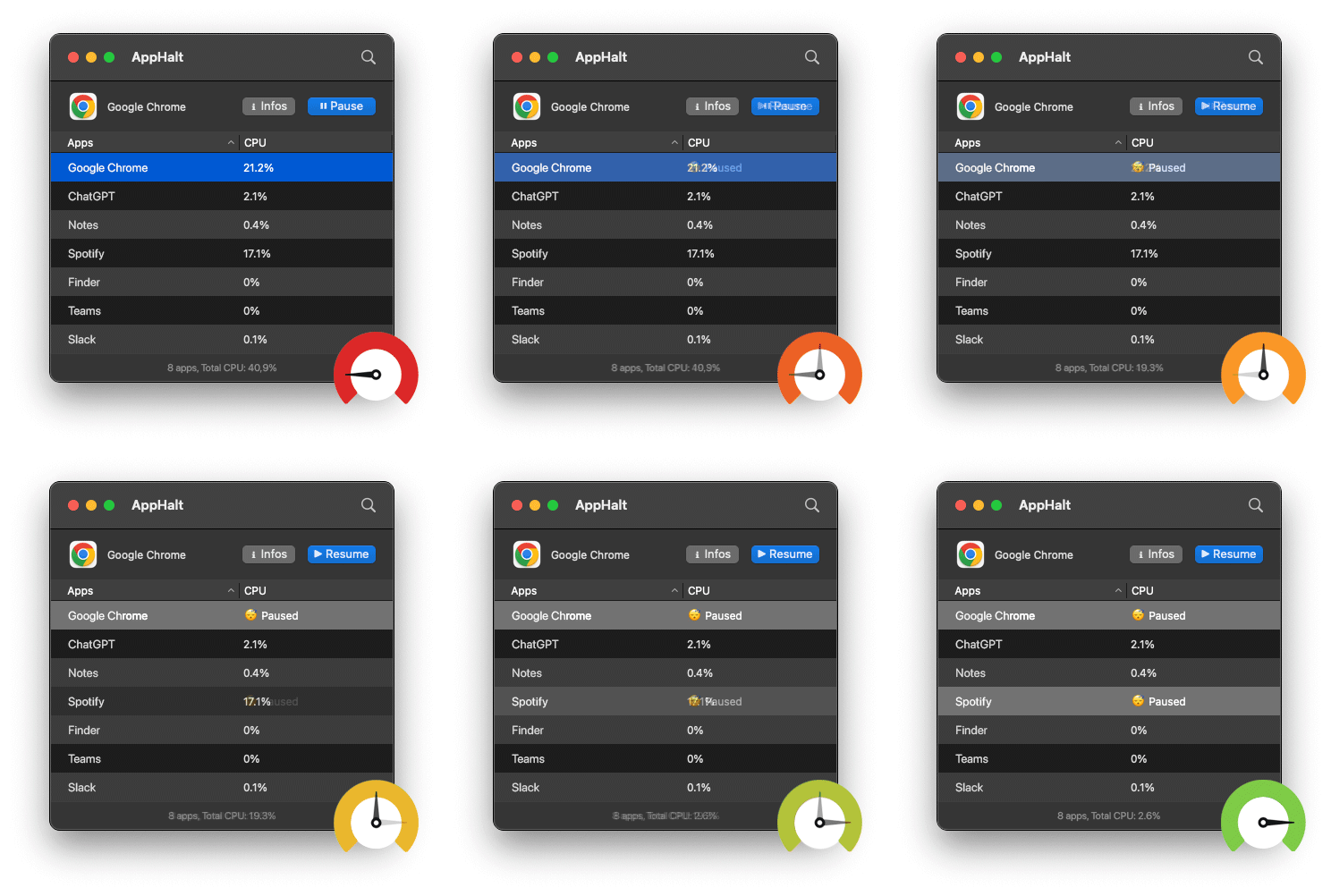
AppHalt gives you a middle ground between quitting everything and leaving everything running. You can pause unused apps so your MacBook Neo stays focused on your current task.
AppHalt is especially useful if:
- You keep many apps open.
- You multitask across work, browser, messaging, and creative tools.
- You want to reduce background CPU usage.
- You want better battery life during the day.
- You want less heat and fan noise.
- You do not want to constantly quit and reopen apps.
Use it carefully: pause apps you recognize and do not need right now. Do not pause apps that are saving, syncing, uploading, downloading, rendering, recording, exporting, or handling live work.
16. Build a clean app rule: install slowly, remove quickly
A new MacBook Neo is easy to overfill because installing apps feels harmless.
Use this rule:
Install slowly. Remove quickly.
If you install an app and do not use it within a week, remove it. If a utility adds a menu bar icon but does not clearly help you, remove it. If an app asks to open at login without a strong reason, disable that behavior.
This keeps your MacBook Neo light over time.
Before keeping any app, ask:
- Do I use it often?
- Does it improve my workflow?
- Does it need to run in the background?
- Does it appear in Activity Monitor often?
- Would I miss it if it disappeared?
The cleanest Mac is not the one with no apps. It is the one where every app has a reason to be there.
17. Check Activity Monitor once your setup is complete
After installing your essential apps, open Activity Monitor.
Check:
- CPU: which apps are using processor power.
- Memory: whether your workflow creates pressure.
- Energy: which apps may affect battery life.
- Disk: whether sync or file operations are active.
- Network: which apps are sending or receiving data.
You do not need to obsess over Activity Monitor. The goal is simply to understand your baseline.
When the MacBook Neo is new and clean, notice what “normal” looks like. Later, if it feels slow, hot, or noisy, you will know what changed.
18. Avoid the most common MacBook Neo setup mistakes
These mistakes make a new Mac feel old too quickly.
Mistake 1: Migrating years of clutter without review
If your old Mac was slow, do not blindly copy the whole mess. Move what matters. Reinstall what you still use.
Mistake 2: Letting every app open at startup
Startup should be intentional. Every automatic app should have a clear reason.
Mistake 3: Installing too many menu bar utilities
Menu bar apps look small, but they can add background work, notifications, and clutter.
Mistake 4: Syncing everything immediately
Large cloud sync can make a new MacBook Neo feel slow or hot. Sync essentials first.
Mistake 5: Ignoring battery settings
Battery health and Low Power Mode are easier to use when you set them up before you need them.
Mistake 6: Treating a new Mac as impossible to slow down
Even a fresh MacBook Neo can become busy if enough apps, tabs, and background tools pile up.
19. Create a daily MacBook Neo workflow that stays fast
The best setup is not only about the first day. It is about habits.
Every morning
- Open only the apps you need for the first task.
- Avoid restoring every browser tab.
- Check that cloud sync is not doing heavy work.
- Keep the Dock and menu bar calm.
During work
- Pause or quit apps when switching focus.
- Close browser tabs after using them.
- Stop video call apps after meetings.
- Do not let creative tools sit open all day if you are done with them.
Once a week
- Restart your MacBook Neo.
- Review Downloads.
- Update important apps.
- Remove apps you tested and abandoned.
- Review login items.
This routine is simple because simple routines survive.
20. Set up for performance before you need performance
The best time to protect MacBook Neo performance is not when it becomes slow. It is when it is still fast.
A clean setup gives you three advantages:
- You know what you installed.
- You know what starts automatically.
- You know what “normal” performance feels like.
That makes future problems easier to solve.
If your MacBook Neo becomes hot, slow, noisy, or battery-hungry later, you can check what changed: new app, new extension, new login item, new cloud sync, new browser habit, or too many background apps.
Performance is easier to protect than to recover.
21. The ideal MacBook Neo setup philosophy
A good MacBook Neo setup is not about having nothing installed. It is about keeping control.
The best setup follows five principles:
- Install only what earns its place.
- Let only essential apps start automatically.
- Keep browser tabs and extensions under control.
- Sync intentionally, not blindly.
- Pause or quit apps that should not keep working.
This gives you a MacBook Neo that feels clean not only on day one, but months later.
Best order to set up your MacBook Neo
If you want the simplest plan, follow this order:
- Finish Setup Assistant carefully.
- Update macOS.
- Set up battery visibility and Optimized Battery Charging.
- Understand the USB-C ports before buying accessories.
- Connect external displays correctly.
- Install only essential apps first.
- Configure your browser.
- Set up cloud sync carefully.
- Set up backups.
- Review login items.
- Install AppHalt to control background apps.
- Check Activity Monitor once your setup is complete.
This setup protects speed, battery life, and comfort without turning your MacBook Neo into a maintenance project.
FAQ: MacBook Neo setup
What should I do first after buying a MacBook Neo?
Finish Setup Assistant, connect to Wi-Fi, sign in to your Apple Account if needed, update macOS, review battery settings, install essential apps only, set up backup, and avoid migrating old clutter blindly.
Should I transfer everything from my old Mac to MacBook Neo?
If your old Mac was clean and organized, migration can save time. If it was slow, cluttered, or overloaded, starting clean and moving only important files may be better.
How do I keep my MacBook Neo fast?
Install apps slowly, review login items, keep browser tabs under control, avoid too many menu bar utilities, manage cloud sync carefully, and pause or quit unused apps that keep working in the background.
Which apps should I install first on MacBook Neo?
Start with essentials: password manager, main browser, work apps, cloud storage you actually use, backup tools, and the apps needed for your daily work. Add optional utilities later only if they solve a real problem.
How do I improve MacBook Neo battery life from day one?
Review Battery settings, use Optimized Battery Charging, enable Low Power Mode when useful, reduce brightness when comfortable, disconnect unused peripherals, and stop unused apps from working in the background.
Which USB-C port should I use on MacBook Neo?
Use the left USB-C port for external display or faster data transfer. Use either port for charging, but using the right port for charging can leave the left port available for display or faster accessories.
Can I connect an external display to MacBook Neo?
Yes. Connect the display to the left USB-C port and check your display’s cable, adapter, resolution, and refresh rate support before buying accessories.
Why does a new MacBook Neo get slow?
A new MacBook Neo can become slow if too many apps open at startup, browser tabs pile up, cloud sync runs constantly, storage fills up, or unused apps keep working in the background.
Should I install cleaner apps on a new MacBook Neo?
Not immediately. Start with good habits: install fewer apps, control login items, manage browser tabs, set up backups, and use Activity Monitor to understand what is happening before deleting files or installing cleaners.
Can AppHalt help on a new MacBook Neo?
Yes. AppHalt helps pause unused apps so they stop wasting CPU and energy in the background. It is useful for keeping a new MacBook Neo fast, calm, and efficient as your app list grows.
Is it safe to pause apps on MacBook Neo?
Yes, if you choose carefully. Pause apps you recognize and do not need right now. Avoid pausing apps that are saving, syncing, uploading, downloading, rendering, recording, exporting, or handling live work.
How often should I restart MacBook Neo?
You do not need to restart constantly, but restarting once a week or when the system feels unusually heavy can help clear temporary states and make performance easier to judge.
Useful official Apple resources
If you want to go deeper, these Apple guides are useful:
- Take a tour of MacBook Neo
- Set up your MacBook Neo
- Charge the MacBook Neo battery
- Connect an external display to MacBook Neo
- Activity Monitor User Guide for Mac
Final thoughts: set up your MacBook Neo before bad habits set it up for you
A MacBook Neo starts clean. The challenge is keeping it that way.
The best setup is not about installing every useful app immediately. It is about building a system that stays fast, quiet, focused, and easy to maintain.
Update macOS. Set up battery options. Understand the ports. Install apps slowly. Review login items. Control browser tabs. Sync carefully. Back up early. Then use AppHalt to stop unused apps from wasting resources in the background.
Your MacBook Neo should feel new for longer, not because you never use it, but because you keep it focused on what matters now.
🚀 Keep Your MacBook Neo Fast with AppHalt
AppHalt helps your MacBook Neo stop wasting power on apps you are not using.
Instead of quitting everything or letting every app run in the background, AppHalt gives you a smarter middle ground: pause unused apps, reduce background CPU usage, and help your MacBook Neo stay faster, cooler, and more efficient.
✅ Reduce background CPU usage.
✅ Help prevent overheating, fan noise, and battery drain.
✅ Pause unused apps without fully breaking your workflow.
✅ Keep your MacBook Neo feeling fast, light, and calm.
📥 Want your MacBook Neo to stay fast from day one? Download AppHalt now.