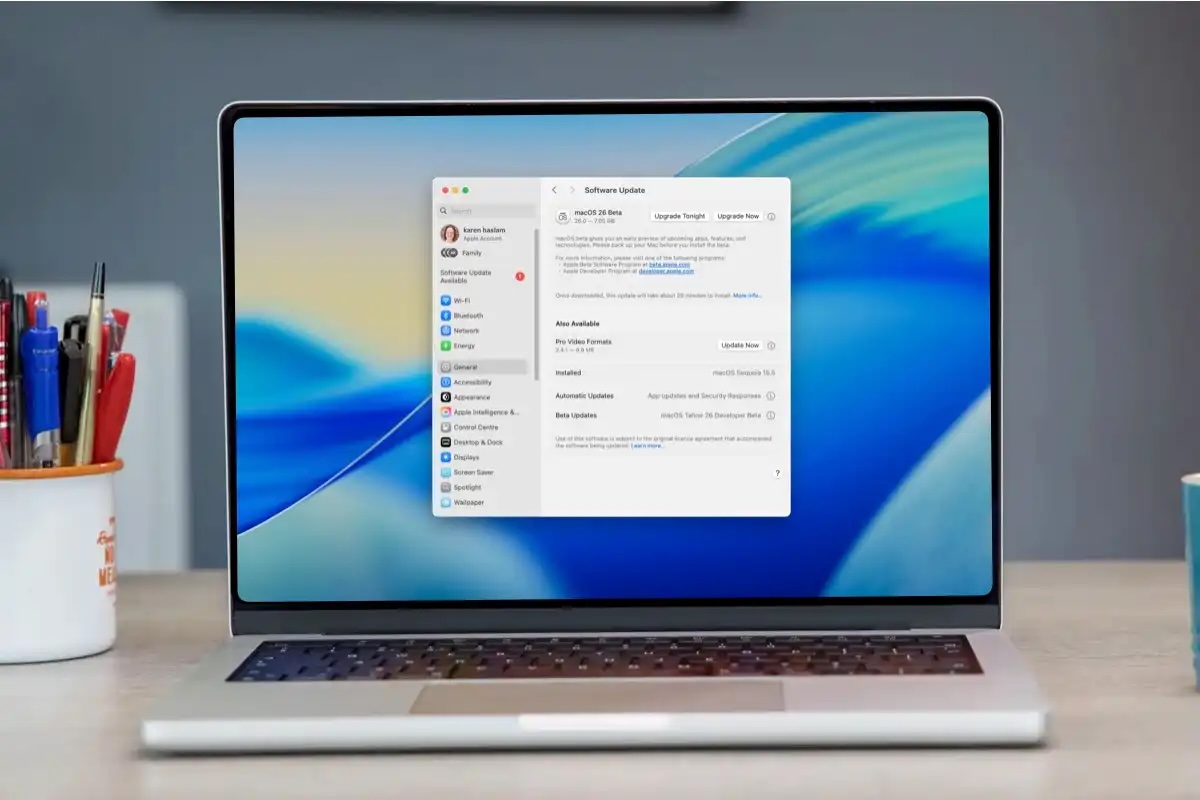
Every WWDC brings the same temptation: Apple shows the next version of macOS, the new features look exciting, and suddenly installing the beta feels like the obvious thing to do.
But a macOS beta is not just a new wallpaper and a few fresh features. It is pre-release software. That means it can be less stable, more demanding, less compatible with some apps, and less predictable than the version of macOS currently running on your Mac.
For some users, installing the macOS beta after WWDC is worth it. For others, it is a bad idea, especially on a main MacBook used for work, study, client projects, travel, or anything important.
This guide helps you decide whether you should install the macOS beta after WWDC 2026, what to check before updating, what performance issues to expect, and how to keep your Mac usable if you decide to test it.
Quick answer: you should not install a macOS beta on your main Mac unless you are comfortable with bugs, battery drain, app compatibility problems, performance changes, and the possibility of needing to restore from a backup. If you still want to test it, back up first, check app compatibility, avoid installing during important work periods, and monitor CPU, memory, battery, and background apps after installation.
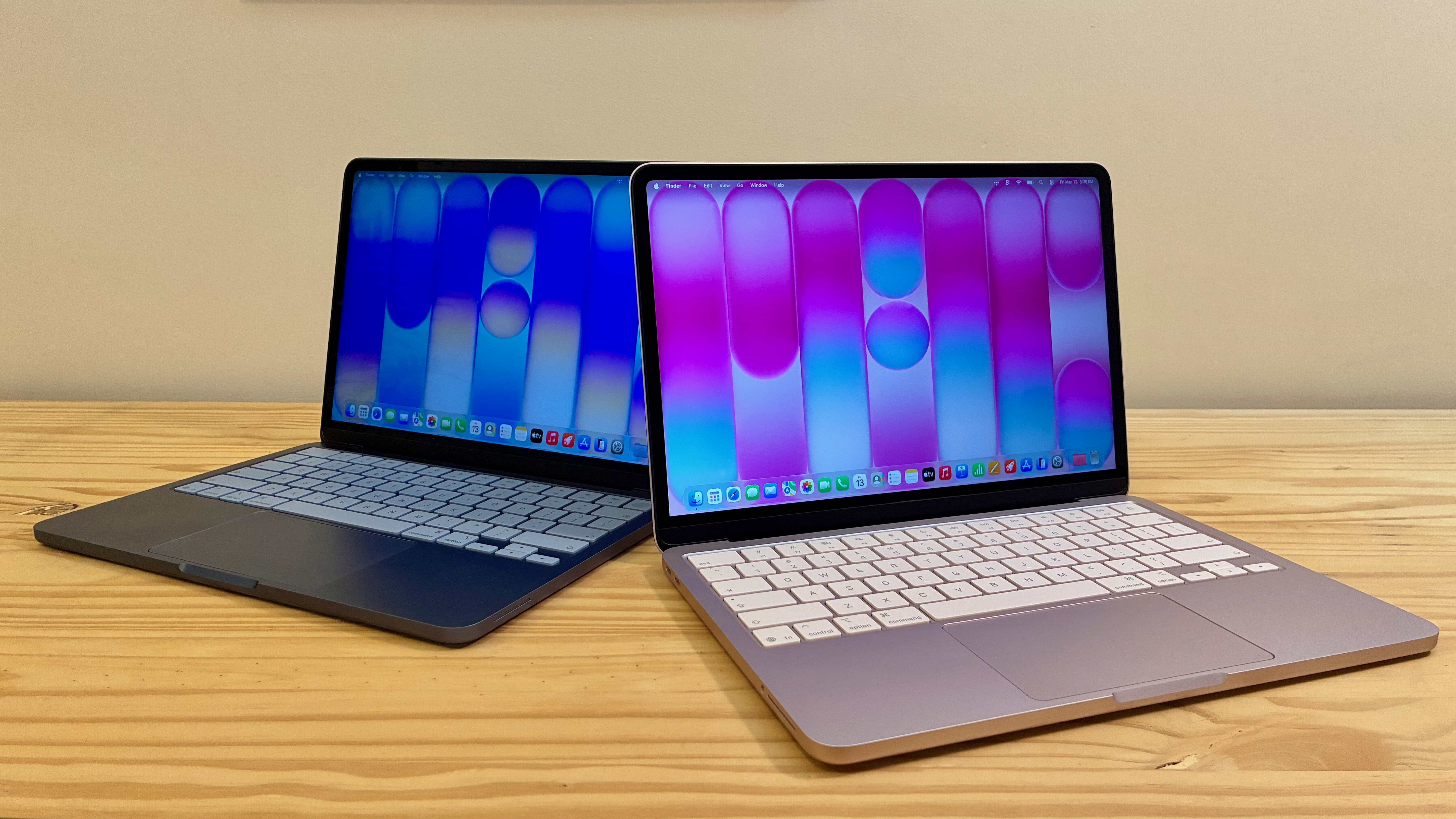
Why the macOS beta is tempting after WWDC 2026
WWDC is designed to make the future of Apple software feel close. New macOS features, design changes, developer tools, productivity improvements, AI features, app updates, and system refinements can make your current version of macOS feel old overnight.
That excitement is normal.
You may want the beta because:
- You want to try the next macOS features early.
- You are curious about the new interface.
- You want to test app compatibility.
- You write about Apple or macOS.
- You develop Mac apps.
- You want to know how your MacBook handles the update.
- You simply enjoy testing new software.
There is nothing wrong with that. The problem begins when curiosity turns into a rushed update on a Mac you cannot afford to break.
What a macOS beta really means
A beta version of macOS is unfinished software made available for testing before the final public release.
That means the beta may include:
- Bugs.
- Battery drain.
- Performance issues.
- App crashes.
- Missing or unfinished features.
- Visual glitches.
- Compatibility problems.
- Higher background activity.
- Unexpected heat or fan noise.
- Sync issues with iCloud or third-party apps.
Some beta versions are surprisingly stable. Others are not. The problem is that you cannot know how it will behave on your specific Mac, with your specific apps, your browser tabs, your cloud storage, your extensions, your peripherals, and your workflow.
A beta is not dangerous because it is always broken. It is risky because it is unpredictable.
The best rule: do not install a beta on a Mac you cannot afford to lose for a day
This is the simplest decision rule.
If your Mac is essential, be careful.
Do not install the macOS beta immediately if your Mac is used for:
- Client work.
- School or university deadlines.
- Freelance projects.
- Design or development work.
- Video editing or production.
- Accounting or business documents.
- Medical, legal, or administrative tasks.
- Travel where you cannot easily restore the Mac.
- Anything you need to work reliably tomorrow.
If you have a secondary Mac, the beta makes much more sense. If you only have one MacBook, especially one you depend on daily, waiting is usually smarter.
Should you install the macOS beta? Quick decision table
| Your situation | Install the beta? | Why |
|---|---|---|
| You have a secondary Mac | Yes, if you want to test | Lower risk if something breaks |
| You are a Mac app developer | Yes, carefully | You may need to test compatibility early |
| You use one MacBook for work | Usually no | Too much risk for daily productivity |
| You have urgent deadlines this week | No | Beta problems could cost time |
| You rely on specific professional apps | Wait | Compatibility may not be ready |
| You are just curious | Wait for later beta builds | Early builds are usually the riskiest |
| You have a full backup and time to troubleshoot | Maybe | Risk is more manageable |
The more important your Mac is, the less you should rush.
Why macOS betas can feel slower
A macOS beta can feel slower for several reasons.
First, the system may run extra background tasks after installation. It may reindex files, update system databases, analyze photos, refresh iCloud data, rebuild caches, or update app components.
Second, some apps may not be optimized yet for the new version. A browser, creative app, sync tool, video call app, utility, or menu bar helper can behave normally on your current macOS version and become heavier on a beta.
Third, beta builds often include diagnostic systems and unfinished code paths. That does not mean the final version will be slow. It means the test version may not reflect final performance.
Common symptoms after installing a macOS beta include:
- Higher CPU usage.
- More battery drain.
- Warmer MacBook temperatures.
- Louder fan noise.
- Apps launching more slowly.
- Browser tabs feeling heavier.
- Cloud sync running longer than usual.
- Background apps behaving differently.
The important question is whether the issue is temporary post-update work or an ongoing beta problem.
The 5-minute check before installing a macOS beta
Before installing the beta, run this quick checklist.
| Check | What to ask | Why it matters |
|---|---|---|
| Backup | Can I restore this Mac if something goes wrong? | A beta can force you to recover |
| Workload | Do I have deadlines in the next few days? | Do not update before critical work |
| Apps | Do my essential apps support the beta? | App compatibility can break workflows |
| Storage | Do I have enough free space? | Updates need room to install and operate |
| Battery | Can I tolerate worse battery life temporarily? | Beta builds can change energy behavior |
| Time | Do I have time to troubleshoot? | Installing is easy; fixing can take longer |
If one of these answers makes you uncomfortable, wait.
1. Back up your Mac before installing the beta
Do not install a macOS beta without a backup.
A backup is not optional if the Mac matters. It is your exit plan.
Before updating:
- Create a full backup.
- Make sure important documents are saved.
- Check that cloud files are fully synced.
- Export important project files if needed.
- Keep installers or licenses for essential apps.
- Know how you would restore the Mac if the beta fails.
Many people think about backup only after something goes wrong. With beta software, that is backwards. You should know your recovery path before you click install.
2. Check your essential apps first
Your Mac is not useful because macOS launches. It is useful because your apps work.
Before installing a macOS beta, list your essential apps:
- Browser.
- Password manager.
- Cloud storage.
- Email app.
- Design tools.
- Video or audio tools.
- Developer tools.
- Office apps.
- Accounting or admin apps.
- VPN or security tools.
- Printer, scanner, display, or audio drivers.
Then check whether those apps are known to work with the beta.
The riskiest apps are often the ones that depend deeply on macOS:
- System utilities.
- Menu bar tools.
- Window managers.
- Backup tools.
- VPN apps.
- Drivers.
- Security tools.
- Audio interfaces.
- Development tools.
If one critical app is not ready, the beta is not ready for your main Mac.
3. Expect battery life to be less predictable
Battery life is one of the first things users notice after installing a macOS beta.
Sometimes battery drain is temporary because macOS is doing post-update work. Sometimes it is caused by one app that behaves badly on the beta. Sometimes it is caused by a browser, sync tool, background item, or menu bar utility that is no longer optimized.
After installing a beta, watch:
- Battery percentage during normal use.
- Energy Impact in Activity Monitor.
- Apps using significant energy.
- Whether the MacBook drains while sleeping.
- Whether the fan becomes louder than before.
- Whether the MacBook gets warm during light work.
Do not judge battery life in the first hour after installation. But if battery drain remains bad after a day or two, investigate.
4. Use Activity Monitor after installing the beta
After installing a macOS beta, Activity Monitor becomes your best diagnostic tool.
Check these tabs:
- CPU: find apps using too much processor power.
- Memory: check memory pressure and heavy apps.
- Energy: find apps draining battery.
- Disk: see whether indexing, syncing, or file operations are active.
- Network: see which apps are sending or receiving data.
This helps you separate three different situations:
| What you see | Likely meaning | Best action |
|---|---|---|
| High CPU right after update | Temporary background work may be running | Wait, plugged in, then recheck |
| One app stays high for hours | App may be incompatible or stuck | Update, quit, reinstall, or report feedback |
| Battery drains faster than before | Energy-heavy app or beta behavior | Check Energy tab and background apps |
| Memory pressure stays high | Too many apps or memory issue | Quit heavy apps and restart |
| Disk activity stays high | Sync, indexing, or database rebuild | Let it finish if expected |
Do not guess. Measure first.
5. Do not test a beta with all your apps running
One mistake is installing the beta, reopening everything, and then blaming macOS when the Mac feels heavy.
Start clean.
After the beta installs:
- Restart the Mac.
- Open only essential apps first.
- Check Activity Monitor.
- Add your usual apps gradually.
- Watch which app changes performance.
This makes troubleshooting much easier.
If you open twenty apps at once and battery life collapses, you will not know which app caused it. If you add apps one by one, patterns become obvious.
6. Where AppHalt helps after a macOS beta install
A macOS beta can make background activity harder to predict.
An app that behaved quietly before may use more CPU. A browser may feel heavier. A sync tool may run longer. A menu bar utility may not be optimized yet. A creative app may keep helper processes active.
AppHalt helps by giving you a practical way to reduce background activity without constantly quitting and reopening your whole workspace.
Use AppHalt after a beta install when:
- You want to pause apps you are not actively using.
- You want to reduce background CPU usage.
- Your MacBook gets warmer than before.
- Battery life feels worse after the beta.
- You want to isolate which apps affect performance.
- You want to keep your workspace but stop unused apps from working.
AppHalt is not a beta fixer. It cannot make unfinished software final. But it can help reduce unnecessary background workload while you test the beta.
Use it carefully. Do not pause apps that are saving, syncing important files, uploading, downloading, rendering, recording, exporting, compiling, or handling live work.

7. Should MacBook Neo users install the macOS beta?
MacBook Neo users should be especially thoughtful.
The MacBook Neo is designed as an accessible, lightweight MacBook for everyday use. That makes it attractive for students, casual users, writers, families, and people who want a simple Mac. But that also means many users may rely on it as their only laptop.
If your MacBook Neo is your main computer, do not rush into the beta just because WWDC made it look exciting.
Install the beta only if:
- You have a reliable backup.
- You can tolerate bugs.
- You do not rely on one critical app that may break.
- You have time to troubleshoot.
- You understand how to restore if needed.
Wait if:
- You use it for school deadlines.
- You use it for work every day.
- You need stable battery life.
- You travel with it.
- You are not comfortable diagnosing issues.
For most everyday MacBook Neo users, the smarter move is to wait for a later beta or the final release.
8. Best time to install the macOS beta
The first beta is usually the most tempting. It is also usually the riskiest.
A safer timeline looks like this:
| Timing | Risk level | Who it suits |
|---|---|---|
| Immediately after WWDC | Highest | Developers, testers, secondary Macs |
| Public beta period | Medium | Curious users with backups and patience |
| Later beta builds | Lower | Users who want early access with less risk |
| Final release | Lowest | Most normal users |
| First bug-fix release after final | Very low | Users who value stability most |
If you are not testing apps or writing about macOS, you probably do not need the first beta.
9. Common mistakes before installing a macOS beta
Mistake 1: Installing without a backup
This is the biggest mistake. A beta without a backup turns curiosity into risk.
Mistake 2: Installing before a deadline
Never install a beta the day before important work. Even small bugs can waste hours.
Mistake 3: Assuming all apps will work
System utilities, drivers, VPN apps, creative tools, and developer tools can behave differently on beta software.
Mistake 4: Blaming the beta before checking Activity Monitor
Sometimes the beta is not the only issue. One background app, browser tab, or sync process may be causing most of the problem.
Mistake 5: Reopening every app immediately
Open apps gradually after installation. It helps you identify what causes performance or battery issues.
Mistake 6: Expecting final-release battery life
Beta battery life can be inconsistent. Do not install if battery reliability is critical this week.
Best order to prepare your Mac for a macOS beta
If you decide to install the beta, follow this order:
- Back up your Mac.
- Check essential app compatibility.
- Free storage space.
- Update your current apps.
- Remove unnecessary login items.
- Quit heavy apps before installing.
- Plug in your MacBook.
- Install only when you have time to troubleshoot.
- After installation, open apps gradually.
- Use Activity Monitor to check CPU, memory, energy, disk, and network.
- Use AppHalt to pause unused apps while testing performance.
This turns the beta from a blind update into a controlled test.
FAQ: should I install macOS beta?
Should I install the macOS beta on my main Mac?
Usually no, unless you are comfortable with bugs, app compatibility issues, battery drain, and troubleshooting. A secondary Mac is safer.
Is the macOS beta safe?
It can be safe to test if you have a backup and understand the risks. But it is pre-release software, so stability is not guaranteed.
Will the macOS beta make my Mac slower?
It might. Some slowdowns are temporary after installation, while others may come from apps that are not yet optimized for the beta.
Can the macOS beta drain MacBook battery?
Yes. Battery drain can happen because of beta system behavior, background tasks, app compatibility issues, indexing, sync, or energy-heavy apps.
Should MacBook Neo users install the macOS beta?
Only if they have a backup, time to troubleshoot, and no critical dependency on perfect stability. Most everyday MacBook Neo users should wait.
What should I do before installing a macOS beta?
Back up your Mac, check essential apps, free storage, update current apps, remove unnecessary login items, and avoid installing before important work.
How do I know if an app is causing beta performance problems?
Open Activity Monitor and check CPU, Memory, Energy, Disk, and Network. Then open apps gradually to see which one causes the issue.
Can AppHalt help after installing a macOS beta?
AppHalt can help reduce unnecessary background activity by pausing unused apps. It will not fix beta bugs, but it can help keep the workload lighter while testing.
Should I wait for the public beta?
If you are not a developer, waiting for a public beta or later beta builds is usually safer than installing immediately after WWDC.
Should I wait for the final macOS release?
Yes, if your Mac is critical for work, study, travel, or daily reliability. The final release is usually the better choice for most users.
Useful official Apple resources
If you want to go deeper, these Apple resources are useful:
- WWDC26 — Apple Developer
- Apple Beta Software Program
- Activity Monitor User Guide for Mac
- View energy consumption in Activity Monitor on Mac
- Open items automatically when you log in on Mac
Final thoughts: the macOS beta is exciting, but your main Mac deserves caution
Installing a macOS beta after WWDC can be exciting. You get early access, new features, and a glimpse of where the Mac is going next.
But excitement is not the same as readiness.
If your Mac is essential, wait. If you have a secondary Mac, a backup, and time to troubleshoot, testing can be worth it. If you rely on your MacBook for work, school, travel, or client projects, stability matters more than early access.
The smartest beta testers are not the fastest installers. They are the ones who prepare, back up, measure performance, and know how to recover.
Your Mac should help you work, not become the work.
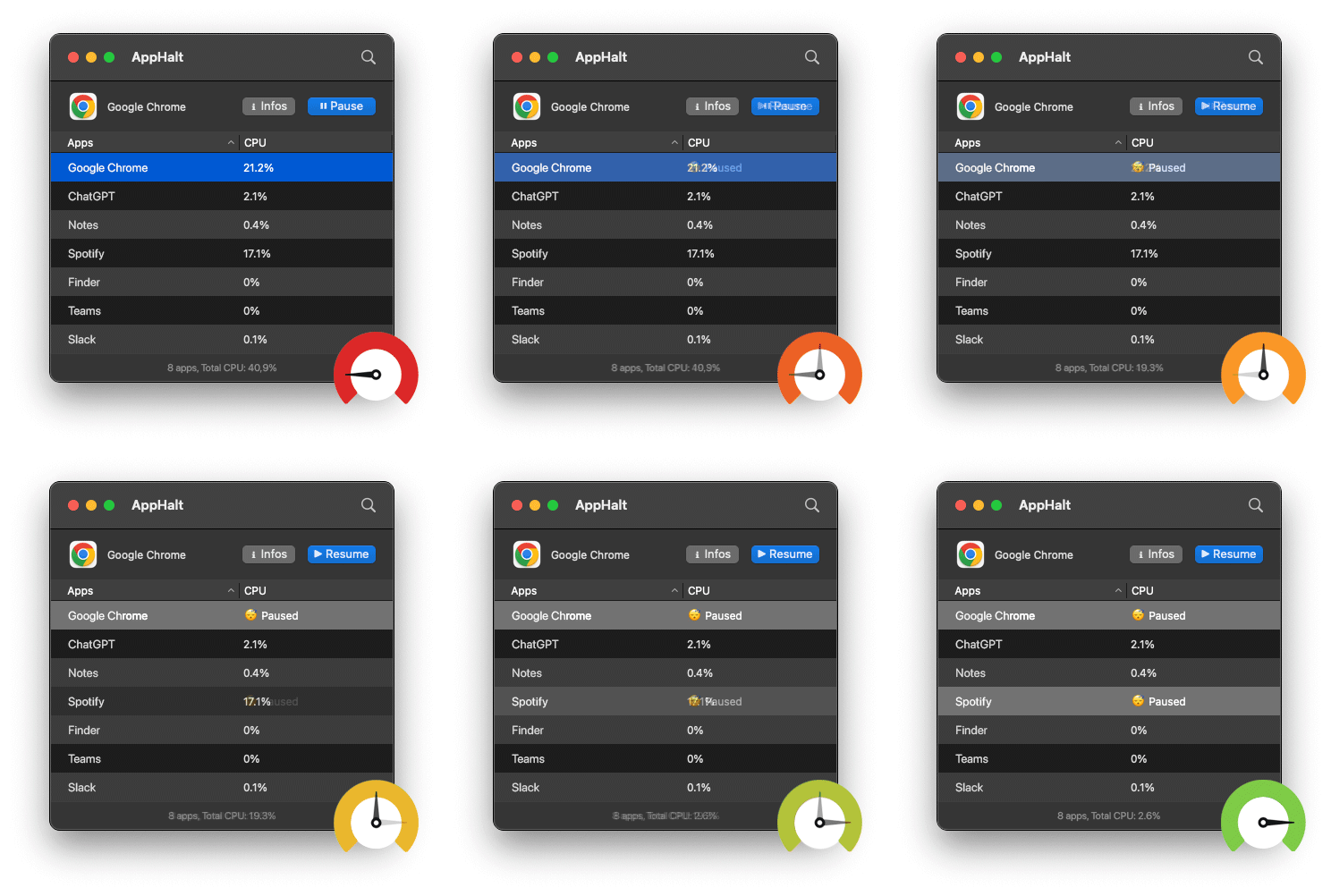
🚀 Keep Your Mac Calmer After a macOS Beta with AppHalt
AppHalt helps your Mac stop wasting power on apps you are not using, especially when testing a new macOS version.
After a beta install, background apps can make performance and battery life harder to judge. AppHalt gives you a smarter middle ground: pause unused apps, reduce background CPU usage, and keep your Mac focused on what you are actually testing.
✅ Reduce background CPU usage.
✅ Help prevent overheating, fan noise, and battery drain.
✅ Pause unused apps without fully breaking your workflow.
✅ Keep your Mac feeling faster, lighter, and calmer.
📥 Testing the next macOS beta? Download AppHalt now.