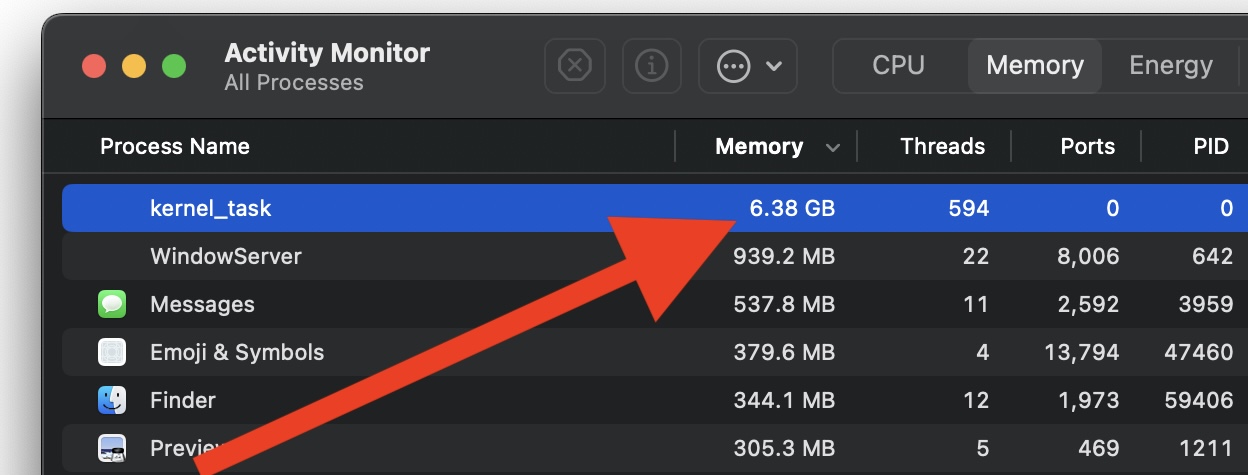
If you opened Activity Monitor and saw kernel_task using a huge amount of CPU, your first reaction was probably simple: “What is this, and should I stop it?”
The answer is important: do not try to kill kernel_task like a normal app.
kernel_task is a macOS system process. When it appears to use a large percentage of CPU, it is often a sign that macOS is responding to CPU temperature, system load, heavy apps, external devices, or background work. In many cases, kernel_task is not the real cause of the problem. It is the warning light.
This is why so many “quick fixes” for kernel_task are misleading. The goal is not to attack the system process. The goal is to find what is making your Mac work too hard.
This guide explains what kernel_task high CPU means on Mac, what not to do, how to diagnose the real cause, and how to reduce CPU, heat, fan noise, and background app load safely.
Quick answer: if kernel_task is using high CPU on Mac, do not force quit it. Check Activity Monitor for apps using CPU intensely, reduce heat and background workload, close or pause unused apps, disconnect nonessential accessories, update macOS and apps, test in Safe Mode if needed, and investigate external displays, charging, browser tabs, sync tools, and menu bar utilities.

What is kernel_task on Mac?
kernel_task is a core macOS system process. It is not a normal app like Safari, Chrome, Figma, Photoshop, Mail, Slack, or Spotify.
You may see it in Activity Monitor under the CPU tab. Sometimes it appears to use a very large percentage of CPU, which can make your Mac feel slow, hot, or unresponsive.
This can be confusing because kernel_task looks like the problem. But in many cases, it is more accurate to think of it as part of macOS trying to protect or manage the system.
That is why the worst response is to panic and force quit random system processes.
The better question is:
What conditions are making kernel_task become active?
Why kernel_task can use high CPU
kernel_task can show high CPU when your Mac is dealing with heavy system conditions. The most common theme is pressure: thermal pressure, CPU pressure, app pressure, accessory pressure, or background workload.
Common triggers include:
- Apps using too much CPU.
- Browser tabs or web apps running heavily.
- Video calls and screen sharing.
- Creative apps rendering or exporting.
- Cloud sync tools working in the background.
- External displays increasing system load.
- USB-C hubs, docks, drives, or accessories.
- Charging-related heat.
- Poor airflow or using the MacBook on a soft surface.
- macOS or app updates running background tasks.
- Login items and menu bar utilities.
- One app behaving badly after an update.
The important point: kernel_task high CPU is often not fixed by focusing on kernel_task itself.
You fix it by reducing the conditions that make your Mac work too hard.
What not to do when kernel_task is high
Before the fixes, the safety warning matters.
| Bad reaction | Why it is risky | Better action |
|---|---|---|
| Force quit kernel_task | It is a system process, not a normal app | Find the app or condition causing system pressure |
| Kill random processes | You may break apps, lose work, or destabilize macOS | Start with apps you recognize |
| Install random cleaner tools | They may add more background activity | Use Activity Monitor first |
| Assume your Mac is broken | The cause may be temporary workload or heat | Diagnose step by step |
| Ignore external devices | Hubs, displays, drives, and chargers can affect load | Test with accessories disconnected |
The safest strategy is to treat kernel_task as a signal and investigate the surrounding workload.
The 5-minute kernel_task diagnosis
Use this quick method before changing everything at once.
| Minute | What to check | What it tells you |
|---|---|---|
| 1 | Activity Monitor → CPU | Which apps are using CPU intensely |
| 2 | Heat, fan noise, charging, and airflow | Whether thermal pressure may be involved |
| 3 | Browser, video calls, cloud sync | Whether everyday apps are creating hidden load |
| 4 | External displays and accessories | Whether connected devices are part of the issue |
| 5 | Login items, updates, and Safe Mode | Whether startup software or a buggy app may be involved |
This method prevents the most common mistake: blaming the visible system process instead of the real workload.
1. Check Activity Monitor for the real CPU users
Open Activity Monitor from Applications > Utilities, or search for it with Spotlight.
Click the CPU tab, then sort by % CPU.
Look for apps you recognize that are using a lot of CPU. These are often more useful to investigate than kernel_task itself.
Common CPU-heavy apps include:
- Browsers with many tabs.
- Video call apps.
- Cloud sync tools.
- Creative apps.
- Developer tools.
- Games.
- Virtual machines.
- Media encoders.
- Menu bar utilities.
- Apps stuck after an update.
If you find an app using high CPU and you do not need it right now, save your work and quit it normally.
If the app is frozen or marked as not responding, force quit may be appropriate. But use force quit only for the specific app that is stuck, not for random macOS processes.
2. Reduce heat before trying complicated fixes
Because kernel_task often appears during thermal pressure, reduce heat first.
Simple checks:
- Move your MacBook to a hard, flat surface.
- Do not use it on a bed, pillow, blanket, or soft fabric.
- Disconnect accessories you do not need.
- Close heavy apps you are not using.
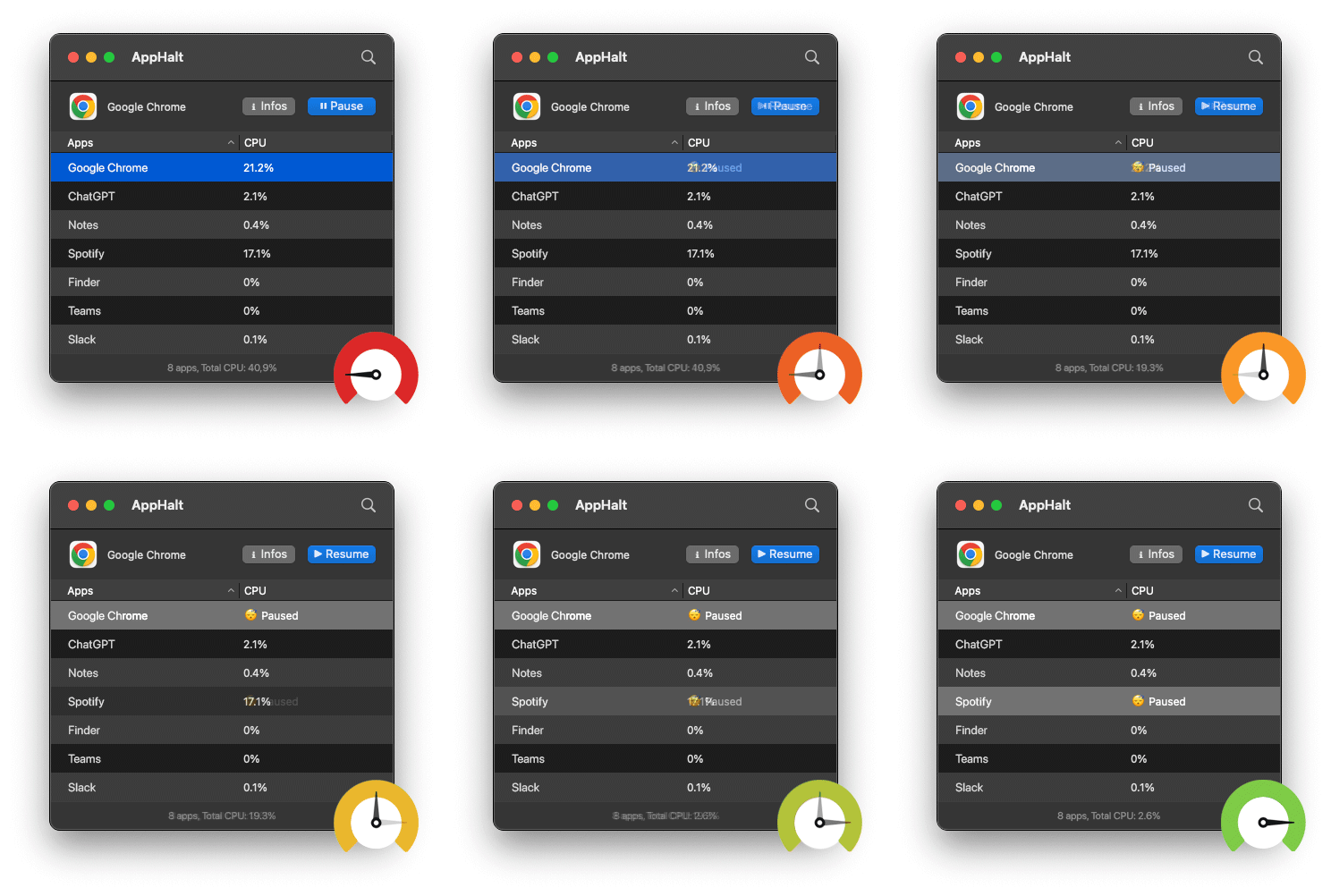
- Pause unused apps with AppHalt.
- Stop video calls, exports, or downloads if they are not needed.
- Let the Mac cool for a few minutes.
This may sound too simple, but it matters. If your Mac is hot, every heavy app becomes more expensive.
If kernel_task drops after your Mac cools down, the issue was likely connected to heat or workload pressure.
3. Check your browser tabs and web apps
Browsers are one of the most common hidden causes of high CPU on Mac.
A browser can run email, video, documents, dashboards, chat, music, AI tools, admin panels, analytics, and social feeds at the same time. Even one browser window can contain dozens of active processes.
Browser-related triggers include:
- Too many tabs.
- Video or audio pages.
- Heavy web apps.
- Auto-refresh dashboards.
- Browser extensions.
- Ads and trackers.
- Tabs restored from previous sessions.
- Multiple browser profiles.
To test quickly:
- Bookmark tabs you do not need.
- Close video or dashboard tabs.
- Disable extensions you no longer use.
- Restart the browser.
- Recheck Activity Monitor.
If CPU pressure drops, the browser was part of the problem.
4. Pause unused apps instead of leaving everything active
When kernel_task is high, you want to reduce overall workload. Quitting apps works, but it can be annoying if you want to keep your workspace.
This is where AppHalt fits naturally.
AppHalt lets you pause unused apps without fully quitting them. This gives you a middle ground between leaving everything active and closing your whole workflow.
Use AppHalt when:
- You want to reduce background CPU usage.
- Your MacBook is warm or slow.
- You have many apps open but only need one or two right now.
- You want to keep app state for later.
- You are trying to reduce fan noise or heat.
- You want to isolate whether background apps are contributing to the issue.
Do not pause apps that are saving, syncing important files, uploading, downloading, rendering, recording, exporting, compiling, or handling live work.
Also, do not pause or try to stop kernel_task. Pause normal apps you recognize and do not need right now.
5. Check external displays, hubs, docks, and accessories
External devices can increase system load or contribute to heat.
If kernel_task becomes high while your Mac is connected to accessories, test without them.
Check:
- External displays.
- USB-C hubs.
- Docks.
- External drives.
- Audio interfaces.
- Webcams.
- Chargers.
- Adapters.
- Card readers.
Run a simple test:
- Save your work.
- Disconnect nonessential accessories.
- Restart the Mac.
- Use the Mac without accessories for a while.
- Reconnect devices one by one.
If kernel_task spikes only when one accessory is connected, that device, cable, dock, or setup may be involved.

6. Look at charging and power conditions
Some users notice kernel_task high CPU when the MacBook is charging, connected to a dock, or under desk-load conditions with displays and accessories.
This does not mean charging is broken. It means charging can add heat, and heat can combine with CPU-heavy work.
Try this:
- Use the original or a trusted charger.
- Avoid cheap or unstable hubs.
- Move the charger or cable if one side of the Mac feels hot.
- Disconnect accessories while charging as a test.
- Let the Mac cool down before starting heavy work again.
If the issue only appears in one charging setup, test a different cable, charger, port, or hub.
7. Review login items and menu bar utilities
If kernel_task becomes active soon after startup, your Mac may be loading too much at login.
Open System Settings > General > Login Items & Extensions or Login Items, depending on your macOS version.
Remove apps that do not need to open automatically.
Common candidates:
- Old utilities.
- Launchers you rarely use.
- Chat apps you prefer opening manually.
- Video call apps.
- Duplicate menu bar tools.
- Trial apps.
- Cloud tools you no longer use.
Be careful with password managers, backup tools, security tools, hardware drivers, VPNs, and cloud sync apps you depend on.
Startup clutter can create heat and CPU load before you even begin working.
8. Update macOS and your apps
If kernel_task high CPU appeared after an update, app install, driver change, or new accessory, update everything relevant.
Prioritize:
- macOS updates.
- Browser updates.
- Creative app updates.
- Video call apps.
- Cloud sync apps.
- Developer tools.
- Menu bar utilities.
- Drivers for displays, audio devices, printers, scanners, or docks.
A buggy or outdated helper process can create unusual load. Updating is often safer than installing random “fix” tools.
9. Test in Safe Mode if the problem keeps returning
If the problem continues, Safe Mode can help you determine whether software that loads at startup is involved.
Safe Mode prevents some startup software from loading, performs basic checks, and clears certain caches. That makes it useful for testing whether the issue is connected to login items, extensions, caches, or third-party software.
Use Safe Mode as a diagnostic step, not as a permanent way to use your Mac.
Basic approach:
- Start your Mac in Safe Mode using Apple’s instructions for your Mac model.
- Check whether
kernel_taskstill spikes. - Restart normally.
- If the issue disappears in Safe Mode, review startup apps, extensions, and recently installed utilities.
If you are not comfortable with Safe Mode or the issue continues after all basic checks, contact Apple Support or a qualified technician.
10. When kernel_task high CPU may point to a deeper issue
Most kernel_task spikes are connected to workload, heat, accessories, or software. But sometimes the issue deserves deeper investigation.
Take it more seriously if:
kernel_taskstays high after restart.- The Mac becomes unusable with no apps open.
- The issue appears only with one port, charger, or accessory.
- The Mac overheats during very light work.
- Fans run loudly all the time.
- The Mac shuts down unexpectedly.
- Safe Mode does not improve anything.
- Battery or hardware warnings appear.
At that point, do not keep adding software tools. Reduce variables, back up your data, and consider professional diagnosis.
What to quit, pause, test, or leave alone
| Situation | Best action | Why |
|---|---|---|
kernel_task is high | Do not force quit it | It is a macOS system process and usually a signal |
| A normal app is using high CPU | Quit or troubleshoot it | It may be creating workload or heat |
| An unused app is open in the background | Pause it with AppHalt | It can reduce background CPU activity |
| A browser has many active tabs | Close tabs or restart the browser | Tabs can create CPU and heat |
| The issue appears with a dock or display | Test without accessories | External setups can affect load or heat |
| The issue persists after restart | Try Safe Mode or get support | Startup software or hardware may be involved |
Common mistakes when fixing kernel_task high CPU
Mistake 1: Trying to force quit kernel_task
kernel_task is not the app you should attack. Focus on the apps, heat, accessories, or system conditions around it.
Mistake 2: Ignoring heat
If your MacBook is warm, on a soft surface, charging, and running heavy apps, you have several thermal triggers at once.
Mistake 3: Blaming macOS before checking apps
A browser, sync app, video call app, menu bar utility, or creative tool may be the real workload source.
Mistake 4: Keeping every app open while troubleshooting
If everything stays open, you cannot isolate the cause. Close or pause apps step by step.
Mistake 5: Ignoring accessories
Docks, displays, drives, hubs, and chargers can change the situation. Always test with nonessential accessories disconnected.
Mistake 6: Installing cleaner apps instead of diagnosing
Another utility may add more background processes. Activity Monitor, Safe Mode, and controlled testing are more useful.
Best order to fix kernel_task high CPU on Mac
Follow this order for the safest troubleshooting path:
- Do not force quit
kernel_task. - Open Activity Monitor and sort by CPU.
- Quit normal apps using high CPU if you do not need them.
- Close browser tabs and restart the browser if needed.
- Pause unused apps with AppHalt to reduce background CPU activity.
- Improve airflow and let the Mac cool.
- Disconnect nonessential accessories and test again.
- Review login items and background items.
- Update macOS and your main apps.
- Test in Safe Mode if the issue keeps returning.
- Contact Apple Support if the issue persists with minimal apps and accessories.
This order starts with the easiest, safest, and most likely causes before moving to deeper diagnosis.
FAQ: kernel_task high CPU on Mac
What is kernel_task on Mac?
kernel_task is a macOS system process. It can appear in Activity Monitor and may show high CPU when the system is responding to workload, heat, or other conditions.
Why is kernel_task using so much CPU?
kernel_task can use high CPU when your Mac is under thermal or system pressure. Heavy apps, browser tabs, video calls, cloud sync, accessories, charging, and poor airflow can all contribute.
Should I force quit kernel_task?
No. Do not treat kernel_task like a normal app. Focus on reducing the workload or condition that is causing it to become active.
Can kernel_task make my Mac slow?
When kernel_task shows high CPU, your Mac may feel slow. But the real issue is often the underlying heat, app workload, or system condition that triggered it.
Can AppHalt fix kernel_task high CPU?
AppHalt does not directly fix kernel_task, and you should not pause system processes. AppHalt can help reduce background CPU activity from normal apps, which may lower overall workload and heat.
Why does kernel_task get high when my MacBook is hot?
kernel_task is connected to macOS system behavior around CPU temperature. If your MacBook is hot, reducing heat and CPU-heavy apps should be your first move.
Can an external monitor cause kernel_task high CPU?
An external monitor can add system load, especially with docks, hubs, charging, and multiple apps. Test without the display and accessories to see whether the issue improves.
Can charging cause kernel_task high CPU?
Charging can add heat. If kernel_task spikes only while charging or using a dock, test another charger, cable, port, or setup.
Why is kernel_task high when no apps are open?
Apps may still be running in the background. Check Activity Monitor, login items, menu bar apps, cloud sync, browser helpers, and connected accessories.
Will restarting my Mac fix kernel_task?
A restart can help if the issue is temporary. If kernel_task returns quickly, look for heat, heavy apps, startup items, accessories, or app compatibility problems.
Should I reset anything to fix kernel_task?
Start with safer steps first: Activity Monitor, cooling, quitting heavy apps, disconnecting accessories, updating software, and Safe Mode. Avoid drastic resets unless you know they apply to your Mac model or Apple Support recommends them.
Is kernel_task high CPU a virus?
Usually no. kernel_task is part of macOS. If you suspect malware because of other symptoms, use trusted security tools and avoid downloading random “fix” apps.
Useful official Apple resources
If you want to go deeper, these Apple resources are useful:
- If kernel_task is using a large percentage of your Mac CPU
- View CPU activity in Activity Monitor on Mac
- Quit an app or process in Activity Monitor on Mac
- Start up your Mac in safe mode
- Activity Monitor User Guide for Mac
Final thoughts: kernel_task is the signal, not the enemy
Seeing kernel_task high CPU in Activity Monitor can be worrying, especially if your Mac becomes slow, hot, or noisy. But the right response is not to fight the system process.
The right response is to investigate what made it active.
Start with CPU-heavy apps. Check browser tabs. Reduce heat. Improve airflow. Disconnect accessories. Review login items. Update macOS and apps. Test in Safe Mode if needed. If the issue continues with minimal apps and accessories, get professional support.
Most importantly, reduce unnecessary background workload before your Mac gets overwhelmed.
Your Mac should spend its CPU on the work you are doing now, not on forgotten apps, hidden tabs, stuck sync, or utilities quietly pushing the system into thermal pressure.
🚀 Reduce Background CPU Pressure with AppHalt
AppHalt helps your Mac stop wasting CPU on apps you are not using.
When kernel_task appears high, the right fix is to reduce the workload around it. AppHalt gives you a smarter middle ground: pause unused apps, reduce background CPU usage, and help your Mac stay cooler, quieter, and more focused.
✅ Reduce background CPU usage.
✅ Help prevent overheating, fan noise, and battery drain.
✅ Pause unused apps without fully breaking your workflow.
✅ Keep your Mac feeling faster, lighter, and calmer.
📥 Want to reduce background CPU pressure on your Mac? Download AppHalt now.