To stop apps opening on startup, review Login Items in System Settings and remove only the apps you do not need immediately after signing in. This helps startup feel lighter, but it does not mean every background item should be disabled.
How to stop apps opening at login on Mac
- Open System Settings.
- Choose General, then Login Items & Extensions.
- Select a recognised app under Open at Login and remove it if you do not want it to launch automatically.
- Review background items separately, keeping services needed for sync, backup, security, or work.
When to pause instead of changing startup
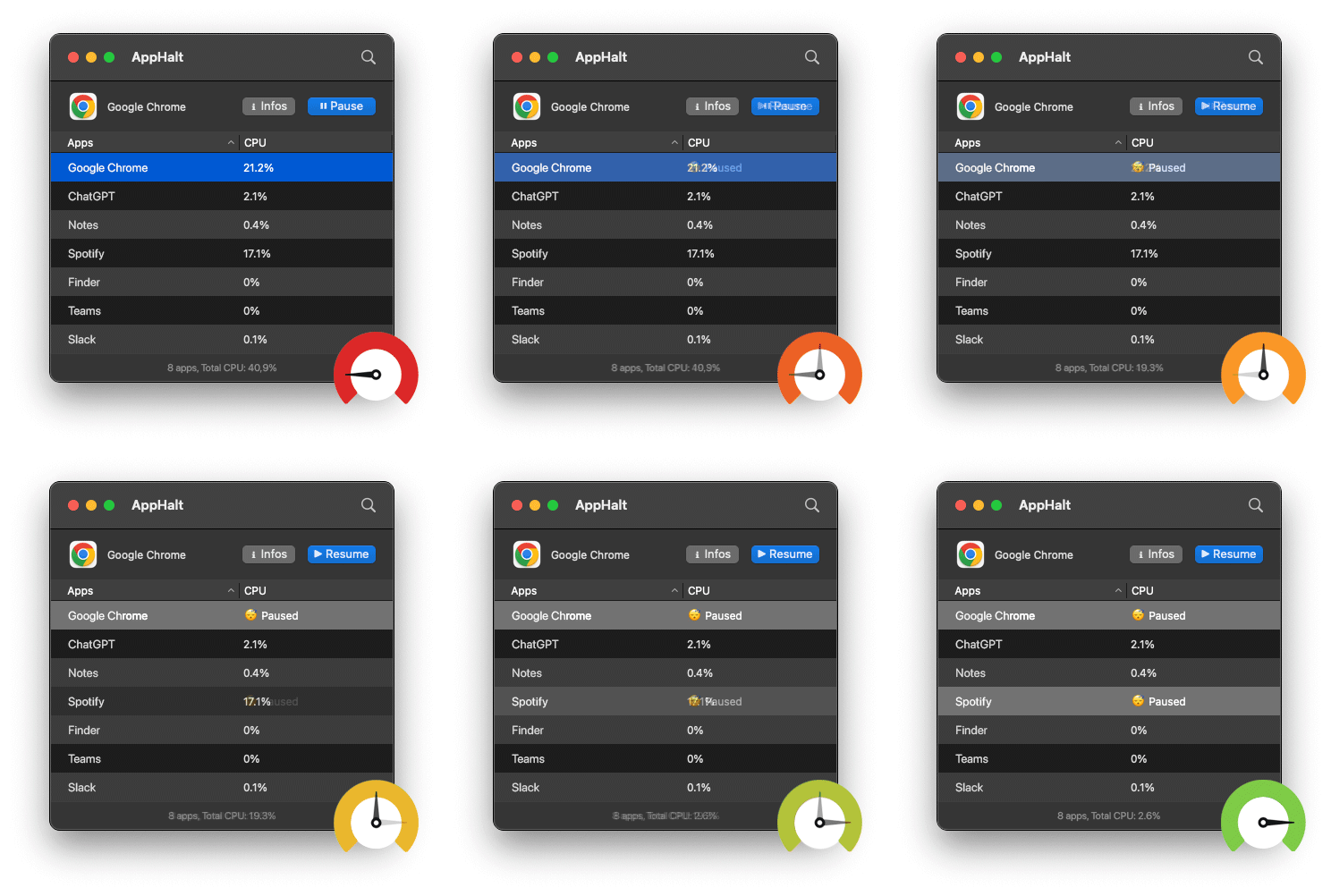
If an app is useful after login but not needed for the next few hours, AppHalt offers a reversible option: pause it without closing its windows or documents. Do not pause an app while it is backing up, syncing, uploading, rendering, or doing other work you need.
If your Mac feels slow right after you turn it on, the problem may not be macOS itself. It may be everything opening automatically the moment you log in.
Many Mac users start the day with more apps running than they realize. Messaging apps, cloud sync tools, menu bar utilities, browser sessions, launchers, updaters, meeting apps, design tools, and background helpers can all start automatically.
Some of them are useful. Some of them are unnecessary. Some were added months ago and forgotten.
The result is simple: your MacBook wakes up already busy. Before you open a document, start a call, or write a single sentence, your Mac may already be syncing, checking, refreshing, indexing, scanning, or loading apps you do not need yet.
This guide explains how to stop apps opening on startup on Mac, how to manage Login Items and Background Items safely, what you should not disable, and how to keep your MacBook faster, calmer, and less cluttered after login.
Quick answer: to stop apps opening on startup on Mac, open System Settings, go to General, then Login Items & Extensions. Remove apps you do not want to open automatically, review background items carefully, disable only what you understand, clean up browser session restore, and use AppHalt to pause unused apps that still keep working after startup.
Why apps opening on startup can slow down your Mac
Startup apps are not automatically bad. Some apps should open when you log in. A password manager, backup tool, security app, or essential cloud service may be useful from the start.
The problem begins when too many apps open automatically without a clear reason.
Apps opening at startup can affect:
- Login speed.
- CPU usage.
- Memory pressure.
- Battery life.
- Fan noise.
- Heat.
- Network usage.
- Visual clutter.
- Focus and attention.
Even if each app uses only a small amount of resources, the combined effect can be noticeable.
A Mac that opens ten apps at login has to do ten things before it even starts doing your work.
Startup apps vs background items: what is the difference?
On modern macOS versions, startup behavior is not only about visible apps. Some items open with windows. Some run quietly in the background. Some appear in the menu bar. Some are helpers attached to apps you installed.
| Type | What it does | Example | Should you disable it? |
|---|---|---|---|
| Login Item | Opens automatically when you log in | Chat app, launcher, calendar app | Disable if you do not need it at startup |
| Background Item | Runs tasks even when the app is not open | Sync helper, updater, menu bar service | Disable carefully |
| Menu Bar App | Runs visibly in the menu bar | Clipboard manager, VPN, monitor app | Keep only if useful daily |
| Browser Session Restore | Reopens tabs or windows automatically | Chrome, Safari, Firefox, Arc | Limit if it creates heavy startup load |
| Cloud Sync Tool | Syncs files after login | iCloud Drive, Dropbox, Google Drive, OneDrive | Keep if needed, but control large syncs |
This distinction matters because the safest fix depends on the type of item.
Removing a chat app from startup is usually simple. Disabling a background helper for a backup or password manager may break something important.
The 5-minute startup app diagnosis
Before removing anything, use this quick diagnosis to understand what is making your Mac busy after login.
| Minute | What to check | What it tells you |
|---|---|---|
| 1 | Login Items & Extensions | Which apps open automatically or run in the background |
| 2 | Menu bar | Which utilities are always active |
| 3 | Activity Monitor → CPU | Which startup apps are working hardest |
| 4 | Activity Monitor → Memory | Which apps add memory pressure after login |
| 5 | Browser and cloud sync | Whether restored tabs or file sync are creating the startup load |
This method helps you avoid the classic mistake: disabling random things without understanding what they do.
1. Stop apps opening on startup from System Settings
The main place to manage startup apps is System Settings.
To stop apps opening on startup on Mac:
- Click the Apple menu.
- Open System Settings.
- Go to General.
- Open Login Items & Extensions or Login Items, depending on your macOS version.
- In the login items list, select apps you do not want to open automatically.
- Click the remove button.
Good candidates to remove from startup include:
- Chat apps you do not need immediately.
- Meeting apps you only use during calls.
- Launchers you are only testing.
- Old utilities.
- Apps you rarely use.
- Media apps.
- Design or creative apps you prefer opening manually.
- Project tools you only need during work hours.
Removing an app from startup does not uninstall it. It simply prevents it from opening automatically when you log in.
2. Review “Allow in the Background” items carefully
Background items are more subtle than normal startup apps.
An app may not open a visible window, but it may still run a helper in the background. That helper might check for updates, sync data, handle notifications, manage a menu bar item, support hardware, or keep part of the app ready.
Before disabling background access, ask:
- Do I recognize this app or developer?
- Do I still use this app?
- Does this app need background access to work properly?
- Is it related to backup, cloud sync, security, password management, or hardware?
- Would disabling it break something I rely on?
Items that may deserve caution:
- Password managers.
- Backup tools.
- Security apps.
- VPN apps.
- Cloud sync tools.
- Printer or scanner helpers.
- Audio interface or display utilities.
- Device drivers.
Items that are often easier to test disabling:
- Old apps you no longer use.
- Trial apps.
- Menu bar utilities you forgot about.
- Launchers you do not use daily.
- Apps that duplicate another app.
The safe rule is simple: disable what you understand, then test. Do not disable everything in one pass.
3. Check apps that reopen because of macOS restore behavior
Sometimes apps open again because macOS is restoring your previous session, not because the app is in Login Items.
When shutting down or restarting, macOS may offer an option to reopen windows when logging back in. If that option is enabled, apps and windows can return after restart.
If your Mac seems to reopen too many apps after restart, check the shutdown or restart dialog and look for the option related to reopening windows when logging back in.
This is different from Login Items:
| Behavior | Cause | Fix |
|---|---|---|
| Same app opens every login | Login Item | Remove it from Login Items |
| Apps reopen after restart | Session restore | Disable reopening windows when logging back in |
| Browser opens old tabs | Browser restore setting | Change browser startup settings |
| Menu bar helper returns | Background Item | Review background access or app preferences |
This distinction saves time because removing a Login Item will not fix every kind of automatic reopening.
4. Stop browser tabs from reopening automatically
For many users, the biggest startup app is the browser.
Even if only one browser opens, it may restore dozens of tabs. Those tabs may contain email, video, dashboards, messaging, AI tools, project management, documents, admin panels, music, and social feeds.
That can make your Mac feel slow immediately after login.
Browser startup load often comes from:
- Restored sessions.
- Pinned tabs.
- Heavy web apps.
- Video or audio pages.
- Extensions.
- Multiple browser profiles.
- Dashboards that refresh automatically.
To reduce browser startup load:
- Change your browser startup setting so it opens a clean page instead of the previous session.
- Use bookmarks instead of keeping every page open.
- Remove extensions you no longer use.
- Close video and dashboard tabs before quitting.
- Keep only essential pinned tabs.
If your Mac becomes faster after changing browser startup behavior, the issue was not just “startup apps”. It was the browser bringing back too much work.
5. Reduce cloud sync load after login
Cloud sync apps often start automatically because they need to keep files updated. That can be useful, but it can also make your Mac busy after login.
Common sync tools include:
- iCloud Drive.
- iCloud Photos.
- Dropbox.
- Google Drive.
- OneDrive.
- Backup tools.
- Project sync services.
After login, these apps may scan files, compare folders, upload changes, download updates, or index content.
If the sync is important, let it finish. If your Mac feels slow every morning, check whether a sync app is constantly working after startup.
Good habits:
- Sync only folders you actually need on this Mac.
- Avoid syncing huge archives automatically.
- Let large syncs finish while plugged in.
- Check for stuck files if syncing never ends.
- Use app-level pause controls instead of force quitting sync tools.
Do not disable cloud sync blindly if you depend on it. Control it intentionally.
6. Clean up menu bar apps
Menu bar apps are easy to forget because they look small. But they can still run all day.
Examples include:
- Clipboard managers.
- Calendar helpers.
- Weather apps.
- Window managers.
- System monitors.
- Screenshot tools.
- VPN apps.
- Launchers.
- Note tools.
- Audio utilities.
Some are excellent. Some are useful. Some are clutter.
Ask one question:
Would I manually open this app every day if it did not start automatically?
If the answer is no, it probably does not need to open at startup.
Menu bar cleanup is not only about appearance. It often reduces background checks, update calls, notifications, and hidden resource use.
7. Use Activity Monitor after login
After removing obvious startup apps, restart your Mac and watch what happens.
Open Activity Monitor and check:
- CPU: which apps are working hardest after login.
- Memory: which apps add pressure immediately.
- Energy: which apps affect battery from the start.
- Network: which apps begin syncing or calling servers.
- Disk: which apps are reading or writing heavily.
This helps you identify startup apps that are not obvious in System Settings.
For example, a browser may not look like a startup issue until Activity Monitor shows it consuming CPU or memory immediately after login. A cloud app may not look suspicious until Network or Disk activity stays high.
Startup optimization is not just about removing items from a list. It is about checking what your Mac actually does after login.
8. Use AppHalt after startup to control apps that still stay active
Removing startup apps is useful, but it does not solve every problem.
Some apps need to open. Some apps you open manually later. Some apps are useful during the day but should not keep working forever after you stop using them.
This is where AppHalt fits naturally.
AppHalt does not replace Login Items settings. It solves a different problem: apps that are open but should not keep consuming CPU and energy in the background.
Use both together:
- Login Items: stop unnecessary apps from opening automatically.
- Activity Monitor: identify apps using CPU, memory, or energy.
- AppHalt: pause unused apps without fully quitting your workspace.
This gives you more control than simply quitting everything or letting every app stay active.
AppHalt is especially useful if:
- You keep many apps open during the day.
- You want fewer apps wasting CPU in the background.
- Your MacBook gets warm or loud after several hours.
- You work on battery and want to reduce unnecessary activity.
- You do not want to rebuild your workspace after quitting apps.
Do not pause apps that are saving, syncing important files, uploading, downloading, rendering, recording, exporting, compiling, or handling live work.
9. What startup apps should you keep?
The best startup setup is not empty. It is intentional.
Some apps are worth keeping at login because they support your daily workflow or protect your data.
| Usually worth keeping | Why | What to check |
|---|---|---|
| Password manager | Helps with secure login and autofill | Keep if you use it daily |
| Backup tool | Protects important files | Make sure it is not constantly stuck |
| Security or VPN app | May protect your connection or device | Keep only if trusted and needed |
| Essential cloud sync | Keeps important work available | Limit synced folders if needed |
| Hardware utility | Supports display, audio, printer, scanner, or input devices | Keep if the hardware depends on it |
If an app protects security, files, passwords, backups, or hardware, be more careful before disabling it.
10. What startup apps should you remove?
Some startup apps are easy to remove because they do not need to be ready immediately.
Good candidates include:
- Apps you use once a week or less.
- Video call apps outside meeting hours.
- Media players.
- Shopping or social apps.
- Trial utilities.
- Old cloud tools.
- Duplicate menu bar apps.
- Launchers you forgot about.
- Project apps you can open manually.
The rule is simple:
If you would not open it manually every day, it probably does not need to open automatically.
11. Common mistakes when stopping startup apps on Mac
Mistake 1: Disabling everything at once
This makes troubleshooting harder. Disable a few obvious items first, restart, and test.
Mistake 2: Confusing Login Items with Background Items
A visible startup app and an invisible background helper are not the same thing. Treat background items more carefully.
Mistake 3: Ignoring browser session restore
Your browser can reopen a huge workload even if it is not the main Login Item problem.
Mistake 4: Removing security or backup tools without thinking
Some apps need to start automatically to protect your files or device. Disable only what you understand.
Mistake 5: Only optimizing startup, then leaving apps running all day
A clean startup helps, but apps can still pile up later. Use AppHalt to pause unused apps during the day.
Mistake 6: Installing more optimization tools than you remove
Too many utilities can become the very startup clutter you are trying to fix.
Best order to stop apps opening on startup on Mac
If you want the cleanest path, follow this order:
- Open System Settings and go to Login Items & Extensions.
- Remove obvious apps you do not need at startup.
- Review Background Items carefully and disable only what you understand.
- Check browser startup settings and stop huge session restore.
- Review cloud sync and avoid unnecessary large folders.
- Clean up menu bar utilities you do not use daily.
- Restart your Mac and observe startup again.
- Use Activity Monitor to confirm what is still busy after login.
- Use AppHalt during the day to pause unused apps that stay open.
This order is safer than deleting apps randomly or disabling every background item in one session.
FAQ: how to stop apps opening on startup on Mac
How do I stop apps opening on startup on Mac?
Open System Settings, go to General, then Login Items & Extensions or Login Items. Select the apps you do not want to open automatically and remove them from the login items list.
Why do apps open automatically when I start my Mac?
Apps may open because they are Login Items, background items, menu bar utilities, browser restored sessions, cloud sync tools, or windows reopened from your previous session.
Does removing a Login Item uninstall the app?
No. Removing a Login Item only stops the app from opening automatically when you log in. The app remains installed and can still be opened manually.
What are Background Items on Mac?
Background Items are app components that can run tasks even when the main app is not open. They may handle syncing, updates, notifications, menu bar features, or device support.
Is it safe to disable Background Items on Mac?
It depends. Disable items you recognize and do not need. Be careful with items related to passwords, backups, security, cloud sync, VPNs, hardware, printers, scanners, audio devices, or displays.
Why does my Mac still reopen apps after I remove Login Items?
macOS may be reopening windows from your previous session, or your browser may be restoring tabs. This is different from Login Items and needs to be changed separately.
Can startup apps slow down my Mac?
Yes. Startup apps can use CPU, memory, energy, disk, and network resources right after login. Too many startup apps can make your Mac feel slow before you even start working.
Which startup apps should I keep?
Keep apps that are essential for security, backup, passwords, cloud files, VPN access, or hardware you use daily. Remove apps that are optional, old, duplicated, or rarely used.
How do I stop Chrome or Safari opening tabs on startup?
Check your browser’s startup settings and disable previous-session restore if it reopens too many tabs. Use bookmarks instead of keeping every page open.
Can AppHalt stop apps from opening at startup?
AppHalt is not a Login Items manager. Use macOS System Settings to stop apps opening at startup. Use AppHalt after startup to pause unused apps that are open but should not keep working in the background.
Should I remove all menu bar apps from startup?
No. Keep the ones you use daily or depend on. Remove menu bar apps that are old, duplicated, rarely used, or constantly running without a clear benefit.
Why is my MacBook slow right after login?
Your MacBook may be opening too many apps, restoring browser tabs, syncing cloud files, loading menu bar utilities, or running background helpers immediately after login.
How often should I review startup apps on Mac?
Review startup apps every few weeks or after installing several new apps. Many apps add helpers or startup behavior quietly over time.
Useful official Apple resources
If you want to go deeper, these Apple guides are useful:
- Open items automatically when you log in on Mac
- Activity Monitor User Guide for Mac
- View CPU activity in Activity Monitor on Mac
- View memory usage in Activity Monitor on Mac
- View energy consumption in Activity Monitor on Mac
Final thoughts: your Mac should not start the day overloaded
Stopping apps from opening on startup is one of the simplest ways to make your Mac feel cleaner and faster.
But the goal is not to remove everything. The goal is to decide what deserves to start automatically.
Keep the tools that protect your files, passwords, security, hardware, and essential workflow. Remove apps that are optional, forgotten, duplicated, or rarely used. Clean up browser session restore. Control cloud sync. Watch menu bar utilities. Then use Activity Monitor to see what still keeps your Mac busy after login.
A fast Mac startup is not only about reaching the desktop quickly. It is about reaching a desktop that is actually ready for you.
Your MacBook should not spend its first minutes working for apps you did not ask to open.
🚀 Keep Your Mac Cleaner After Startup with AppHalt
AppHalt helps your Mac stop wasting power on apps you are not using after startup.
Use macOS Login Items to stop unnecessary apps from opening automatically. Then use AppHalt to pause unused apps that stay open but should not keep consuming CPU and energy in the background.
✅ Reduce background CPU usage.
✅ Help prevent overheating, fan noise, and battery drain.
✅ Pause unused apps without fully breaking your workflow.
✅ Keep your Mac feeling faster, lighter, and calmer.
📥 Want a Mac that starts cleaner and stays calmer? Download AppHalt now.