If your Mac feels slow after installing the macOS 27 beta, you are not alone — and it does not automatically mean your Mac is broken.
Beta versions of macOS are exciting because they give you early access to Apple’s next features. But they can also feel less stable, less optimized, and more demanding than the public release you were using before.
With macOS 27 Golden Gate, many users will want to try new features like Siri AI, Visual Intelligence, refined Liquid Glass design, improved search, and system performance changes. But early beta software can also bring slower app launches, higher CPU usage, battery drain, heat, fan noise, background indexing, app compatibility issues, and unexpected glitches.
The important thing is to avoid panic. A slow Mac after a macOS beta install is often caused by temporary background work, unoptimized apps, heavy browser sessions, login items, cloud sync, or apps using more CPU than usual.
This guide explains why the macOS 27 beta can make your Mac feel slow, what to check first, which fixes are safe, and how to keep your Mac usable while testing pre-release software.
Quick answer: if macOS 27 beta feels slow, wait for initial indexing to finish, restart your Mac, check Activity Monitor, update apps, reduce login items, close or pause unused apps, stop browser tabs and cloud sync, check battery and energy usage, and avoid judging beta performance too early. AppHalt can help by reducing unnecessary background CPU usage while you test the beta.
Why macOS 27 beta can feel slow
A macOS beta is pre-release software. It is available for testing before the final public version is ready for everyone.
That means performance may not be fully optimized yet. Some apps may not be updated. Some system features may still be changing. Some background processes may run more often than usual. Some bugs may appear only on specific Macs or workflows.
After installing macOS 27 beta, your Mac may feel slow because of:
- Spotlight indexing.
- Photo analysis.
- iCloud syncing.
- App compatibility issues.
- High CPU usage from background processes.
- Memory pressure.
- Login items launching automatically.
- Browser tabs restored after the update.
- Apps not yet optimized for macOS 27.
- Beta bugs.
- Battery and energy changes.
- New visual effects or interface changes.
The first rule is simple: do not judge the beta in the first hour after installing it.
Your Mac may be doing a lot of cleanup, indexing, syncing, and rebuilding in the background.
macOS 27 beta slow: what is normal and what is not?
| Symptom | Normal after beta install? | What to do |
|---|---|---|
| Mac feels slow for the first few hours | Often normal | Leave it plugged in and let background tasks finish |
| Battery drains faster on day one | Common | Check again after indexing and sync finish |
| One app uses high CPU constantly | Not ideal | Update, quit, reinstall, or report the issue |
| Mac gets hot with no apps open | Possible but worth checking | Use Activity Monitor and inspect background tasks |
| Apps crash repeatedly | Beta risk | Check compatibility or wait for app updates |
| Mac stays slow for several days | Not normal | Investigate apps, login items, memory, energy, or consider restoring |
A beta can be slower than expected, but it should not make your Mac unusable forever. If the problem does not improve after a day or two, start diagnosing seriously.
The 5-minute macOS 27 beta performance diagnosis
Before changing random settings, use this quick diagnosis.
| Minute | What to check | What it tells you |
|---|---|---|
| 1 | Activity Monitor → CPU | Which apps or processes are using processor power |
| 2 | Activity Monitor → Memory | Whether your Mac is under memory pressure |
| 3 | Activity Monitor → Energy | Which apps are draining battery or causing heat |
| 4 | Login Items and Background Items | Whether too many apps start automatically |
| 5 | Browser tabs, cloud sync, and old apps | Whether your normal workflow is overloading the beta |
This is the safest way to understand whether the slowdown comes from macOS itself, one app, background sync, memory pressure, or too many apps running at once.
1. Wait for indexing and background tasks to finish
After a major macOS beta install, your Mac may need time to finish background work.
This can include:
- Spotlight indexing files.
- Rebuilding caches.
- Analyzing photos.
- Syncing iCloud data.
- Updating system databases.
- Refreshing Mail search.
- Updating app helpers.
- Rechecking security and privacy permissions.
During this period, the Mac may feel slower, warmer, louder, or more battery-hungry.
The best first step is simple:
- Plug in the Mac.
- Keep it awake for a while.
- Avoid opening every app immediately.
- Let background tasks finish.
- Restart once after the first long setup period.
If performance improves after a few hours, the issue was probably temporary post-update work.
2. Restart your Mac after installing macOS 27 beta
Restarting sounds basic, but it matters after a beta install.
A restart can help clear stuck processes, reset app helpers, reload system services, and give you a cleaner baseline.
Do this after the first post-installation period:
- Save your work.
- Quit open apps.
- Restart the Mac.
- Wait a few minutes after login.
- Open Activity Monitor before launching your usual apps.
This helps you see whether the Mac is slow because of the system itself or because your normal apps are reopening and creating load.
3. Check Activity Monitor for high CPU usage
Activity Monitor is the best place to start when macOS 27 beta feels slow.
Open Applications > Utilities > Activity Monitor, then click the CPU tab.
Sort by % CPU and look for anything unusually high.
Common causes include:
- Browsers with many tabs.
- Cloud sync tools.
- Photo libraries being analyzed.
- Mail indexing.
- Developer tools.
- Creative apps.
- Video call apps.
- Menu bar utilities.
- Apps not optimized for the beta.
If a normal app is using high CPU and you do not need it, quit it. If an app keeps returning to high CPU after every launch, update it or check whether the developer supports macOS 27 beta yet.
Do not kill random system processes unless you know exactly what they are. Start with apps you recognize.
4. Check memory pressure after the beta update
A macOS beta can make memory pressure more noticeable, especially on Macs with 8GB of unified memory.
Open Activity Monitor and click the Memory tab.
Look at Memory Pressure:
| Memory Pressure | Meaning | Best action |
|---|---|---|
| Green | Your Mac is handling memory well | No urgent action needed |
| Yellow | Your Mac is under memory pressure | Close tabs, quit unused apps, pause background apps |
| Red | Your Mac is struggling | Save work, quit heavy apps, restart if needed |
Also check Swap Used. Some swap is normal, but high swap combined with yellow or red Memory Pressure can make the beta feel much slower.
If your Mac has 8GB of memory, be especially careful with browsers, video calls, creative apps, and too many background tools.
5. Reduce background apps before blaming macOS 27 beta
When a beta feels slow, it is tempting to blame the beta immediately. Sometimes that is fair. But very often, the problem is your normal app load running on top of a less optimized system.
Good candidates to close or pause:
- Browsers with many tabs.
- Discord, Slack, Teams, or Messages.
- Cloud sync tools not needed right now.
- Video call apps after meetings.
- Creative apps left open.
- Game launchers.
- Media apps.
- Menu bar utilities.
- Apps that open automatically at login.

If you are finished with an app, quit it. If you want to keep it ready for later but stop it from working in the background, pause it with AppHalt.
6. Use AppHalt to keep macOS 27 beta more responsive
AppHalt is especially useful when testing a macOS beta because beta performance can be harder to judge.
If too many apps are running in the background, you may think macOS 27 beta is slow when the real issue is that your Mac is overloaded.
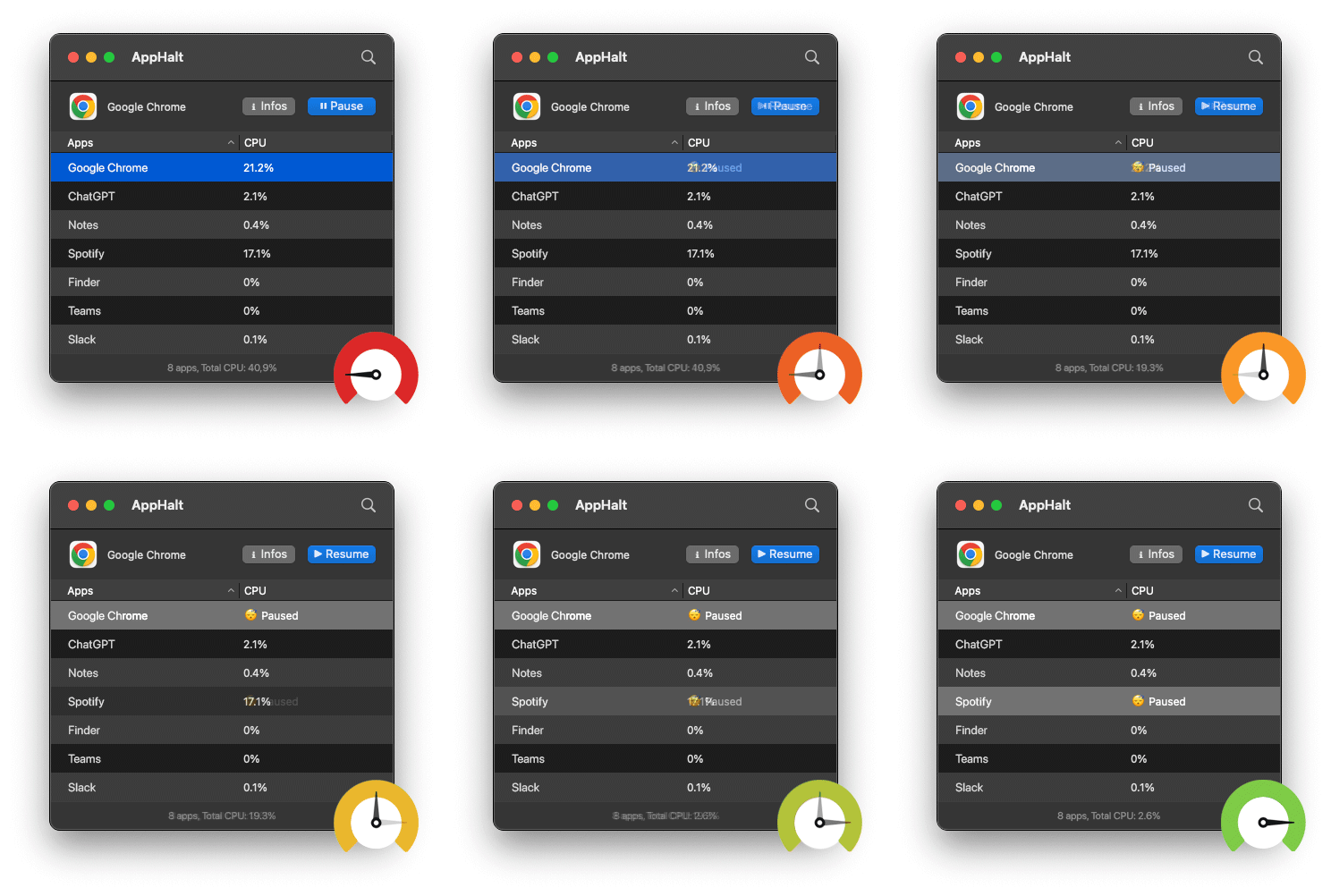
AppHalt helps by letting you pause unused apps without fully quitting them. This can reduce background CPU usage and help your Mac focus on the app you are actually using.
Use AppHalt when:
- macOS 27 beta feels slower than expected.
- Your MacBook gets warm after the beta update.
- Battery drains faster than before.
- Apps keep running in the background.
- You want to test beta performance with fewer variables.
- You do not want to quit your whole workspace.
AppHalt does not fix beta bugs. It does not make unfinished software final. But it can help reduce unnecessary background activity, which makes beta testing cleaner and more stable.
Do not pause apps that are saving, syncing important files, uploading, downloading, rendering, recording, exporting, compiling, or handling live work.
7. Check battery drain on macOS 27 beta
Battery drain is common after installing beta software.
Sometimes it is temporary. Sometimes one app is causing it. Sometimes the beta itself is not optimized yet. The key is to check evidence before assuming the battery is damaged.
Open Activity Monitor and check the Energy tab.
Look for:
- Energy Impact: current energy use.
- 12 hr Power: energy use over time.
- Preventing Sleep: apps that may stop your Mac from sleeping.
- Apps using significant energy: common sources of drain.
Also check:
- Browser tabs.
- Cloud sync.
- Photo analysis.
- Mail indexing.
- Login items.
- Menu bar apps.
- External displays and accessories.
If battery drain remains severe after a day or two, it may be a beta issue, an app compatibility issue, or a background process that needs attention.
8. Review Login Items and Background Items
After installing a beta, startup clutter can feel worse than before.
Open System Settings > General > Login Items & Extensions or Login Items, depending on your macOS version.
Remove apps that do not need to open automatically.
Good candidates include:
- Old utilities.
- Chat apps you do not need immediately.
- Video call apps.
- Launchers.
- Media apps.
- Trial apps.
- Duplicate menu bar tools.
Be careful with password managers, backup tools, VPN apps, security tools, cloud sync, and hardware drivers.
A cleaner startup makes beta testing easier because fewer apps are competing with macOS during login.
9. Update your apps after installing macOS 27 beta
Some apps may behave poorly on the macOS 27 beta simply because they are not ready yet.
Prioritize updates for:
- Browsers.
- Cloud sync apps.
- Security tools.
- VPN apps.
- Creative apps.
- Developer tools.
- Video call apps.
- Audio and display utilities.
- Menu bar apps.
If one app becomes slow, unstable, or CPU-heavy after the beta, check the developer’s website, release notes, support forum, or update channel.
Do not assume every app is ready for a new beta on day one.
10. Avoid using the beta on your main Mac if reliability matters
If you depend on your Mac for work, school, clients, travel, or important files, be careful.
A macOS beta can be useful, but it can also cost time.
Do not install or keep the beta on your main Mac if you cannot tolerate:
- Battery drain.
- Slower performance.
- App crashes.
- Compatibility issues.
- Unexpected restarts.
- Missing features.
- Broken workflows.
- Needing to restore from backup.
If you already installed it and regret it, make sure your important files are backed up before trying any major recovery or downgrade process.
11. Use Feedback Assistant if the beta bug is real
If you find a repeatable bug, report it.
The purpose of beta software is testing. If macOS 27 beta causes a specific issue on your Mac, Apple needs clear feedback.
Good feedback includes:
- Your Mac model.
- The macOS beta build.
- The app involved.
- Steps to reproduce the issue.
- Screenshots or screen recordings if useful.
- Whether the issue happens after restart.
- Whether it happens in a clean user account.
Do not report “my Mac is slow” without context. Report what is slow, when it happens, and what triggers it.
12. Best order to fix macOS 27 beta slow performance
Follow this order for the safest troubleshooting path:
- Wait for background indexing after installation.
- Plug in your Mac and let sync tasks finish.
- Restart your Mac after the first setup period.
- Open Activity Monitor and check CPU, Memory, and Energy.
- Update your apps, especially browsers and utilities.
- Close browser tabs and stop media playback.
- Pause unused apps with AppHalt.
- Pause nonessential cloud sync.
- Review Login Items and Background Items.
- Test with fewer apps open before judging beta performance.
- Report real beta bugs with Feedback Assistant.
- Restore from backup if the beta is not usable for your workflow.
This order avoids risky fixes and focuses on the most likely causes first.
Common mistakes after installing macOS 27 beta
Mistake 1: Judging performance immediately
The first hour after installation can be misleading. macOS may be indexing, syncing, analyzing, and rebuilding in the background.
Mistake 2: Reopening every app at once
If you reopen your entire workspace immediately, you will not know whether macOS 27 beta is slow or your app load is too heavy.
Mistake 3: Ignoring Activity Monitor
Activity Monitor helps you see what is really using CPU, memory, energy, disk, and network resources.
Mistake 4: Blaming the beta before updating apps
Some apps need updates to behave properly on a new macOS beta.
Mistake 5: Leaving browser tabs and sync tools running
Browsers and cloud sync can make beta performance look worse than it really is.
Mistake 6: Installing the beta without a backup
Beta software can go wrong. A backup is your safety net.
FAQ: macOS 27 beta slow
Why is macOS 27 beta slow on my Mac?
macOS 27 beta may feel slow because of indexing, iCloud sync, app compatibility issues, high CPU usage, memory pressure, background apps, login items, or beta bugs.
Is it normal for macOS beta to be slow after installing?
Yes, it can be normal during the first few hours. Your Mac may be finishing background tasks. If it stays slow for several days, investigate further.
How do I fix macOS 27 beta battery drain?
Check Activity Monitor’s Energy tab, reduce browser tabs, pause unused apps, stop cloud sync, lower brightness, review login items, and wait for post-update background tasks to finish.
Can AppHalt make macOS 27 beta faster?
AppHalt can help reduce unnecessary background CPU usage by pausing unused apps. It does not fix beta bugs, but it can make beta testing cleaner and help your Mac focus on fewer active apps.
Should I install macOS 27 beta on my main Mac?
Only if you can tolerate bugs, performance issues, battery drain, and app compatibility problems. If your Mac is essential for work or school, waiting is safer.
Why is my MacBook hot after installing macOS 27 beta?
Heat can come from indexing, app updates, iCloud sync, high CPU usage, or unoptimized apps. Check Activity Monitor and let background tasks finish while plugged in.
Why is my MacBook battery draining after macOS 27 beta?
Battery drain can come from background indexing, apps using significant energy, cloud sync, browser tabs, login items, or beta-level energy optimization issues.
How long should I wait before judging macOS 27 beta performance?
Wait at least several hours, and ideally a full day of normal use. If performance remains poor after background tasks finish, start diagnosing apps and system activity.
Should I downgrade from macOS 27 beta?
Consider restoring if the beta breaks important apps, drains battery badly, causes crashes, or makes your Mac unreliable. Make sure your data is backed up first.
Can macOS 27 beta make old apps slower?
Yes. Apps that are not optimized or updated for the beta may behave worse until their developers release compatibility updates.
Does macOS 27 beta affect gaming performance?
It can. Beta bugs, background tasks, graphics changes, and app compatibility can affect FPS. Use Game Mode when available, lower background apps, and check Activity Monitor.
Is macOS 27 Golden Gate stable?
Beta stability can vary by build, Mac model, and app workflow. Treat it as test software until the final release is available.
Useful official Apple resources
If you want to go deeper, these Apple resources are useful:
- macOS 27 Golden Gate Preview
- Apple Beta Software Program
- Apple Developer Software Releases
- Activity Monitor User Guide for Mac
- View energy consumption in Activity Monitor on Mac
Final thoughts: macOS 27 beta is exciting, but performance needs context
macOS 27 Golden Gate is exciting because it brings new features, design refinements, Siri AI, Visual Intelligence, and deeper system changes. But early beta software should be treated carefully.
If your Mac feels slow after installing the macOS 27 beta, do not panic. Give the system time to finish background work. Restart. Check Activity Monitor. Update apps. Reduce browser tabs. Pause unused apps. Review login items. Stop unnecessary sync. Then judge performance again.
The beta may be the cause. But your background app workload may also be making the beta look worse than it really is.
A cleaner Mac is easier to test. A quieter background workload makes performance problems easier to understand. And fewer active apps give macOS 27 beta a better chance to feel responsive while Apple continues improving it.
🚀 Keep macOS 27 Beta Faster and Calmer with AppHalt
AppHalt helps your Mac stop wasting CPU on apps you are not using while testing the macOS beta.
Instead of quitting your whole workspace or letting every app keep running in the background, AppHalt gives you a smarter middle ground: pause unused apps, reduce background CPU usage, and help your Mac stay lighter while you test macOS 27 beta.
✅ Reduce background CPU usage.
✅ Help prevent overheating, fan noise, and battery drain.
✅ Pause unused apps without fully breaking your workflow.
✅ Keep your Mac feeling faster, lighter, and calmer.
📥 Testing macOS 27 beta? Download AppHalt now.