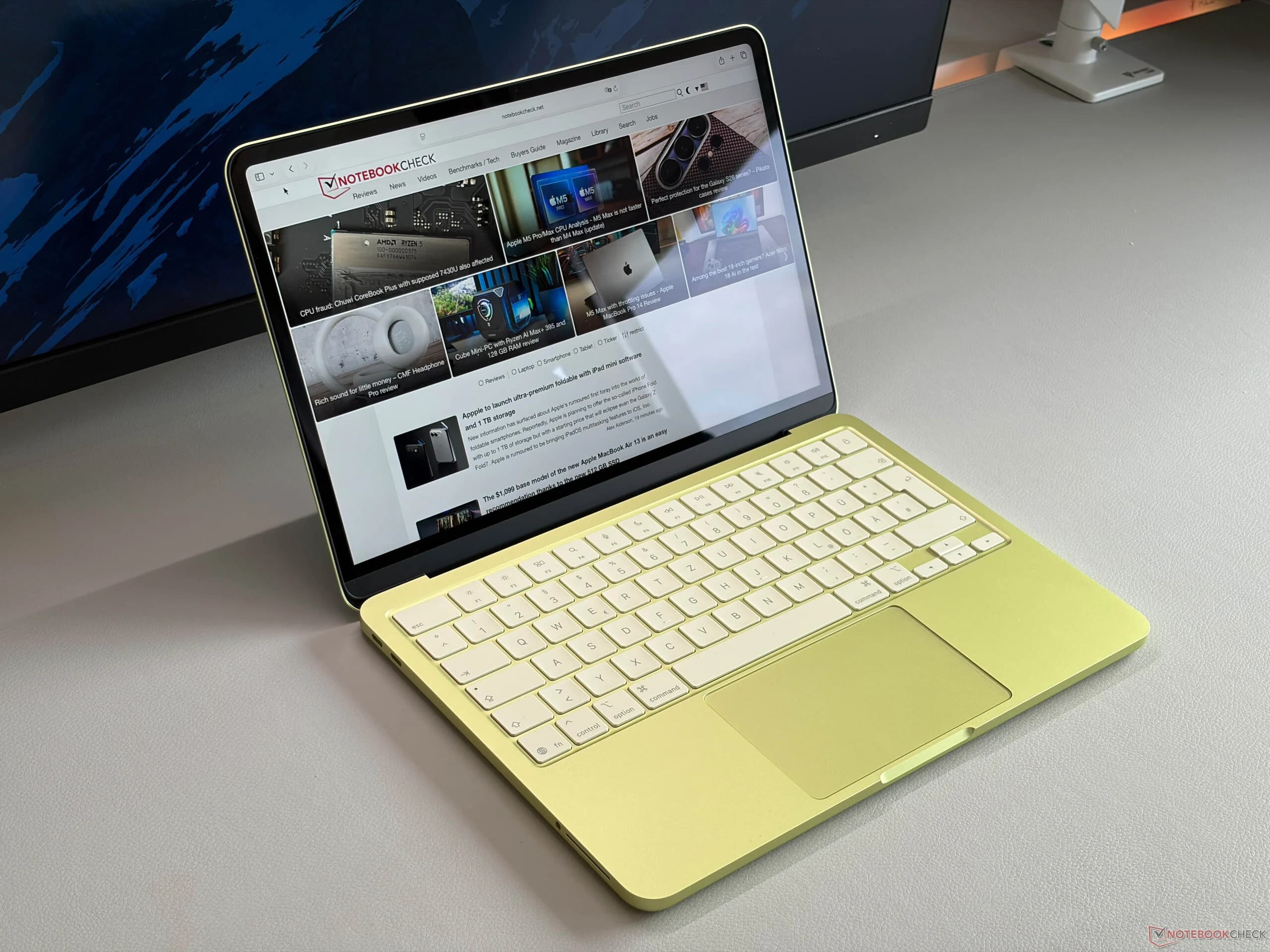
The MacBook Neo is built to be light, affordable, and easy to carry. But for many buyers, the real question is simple: how good is MacBook Neo battery life in everyday use?
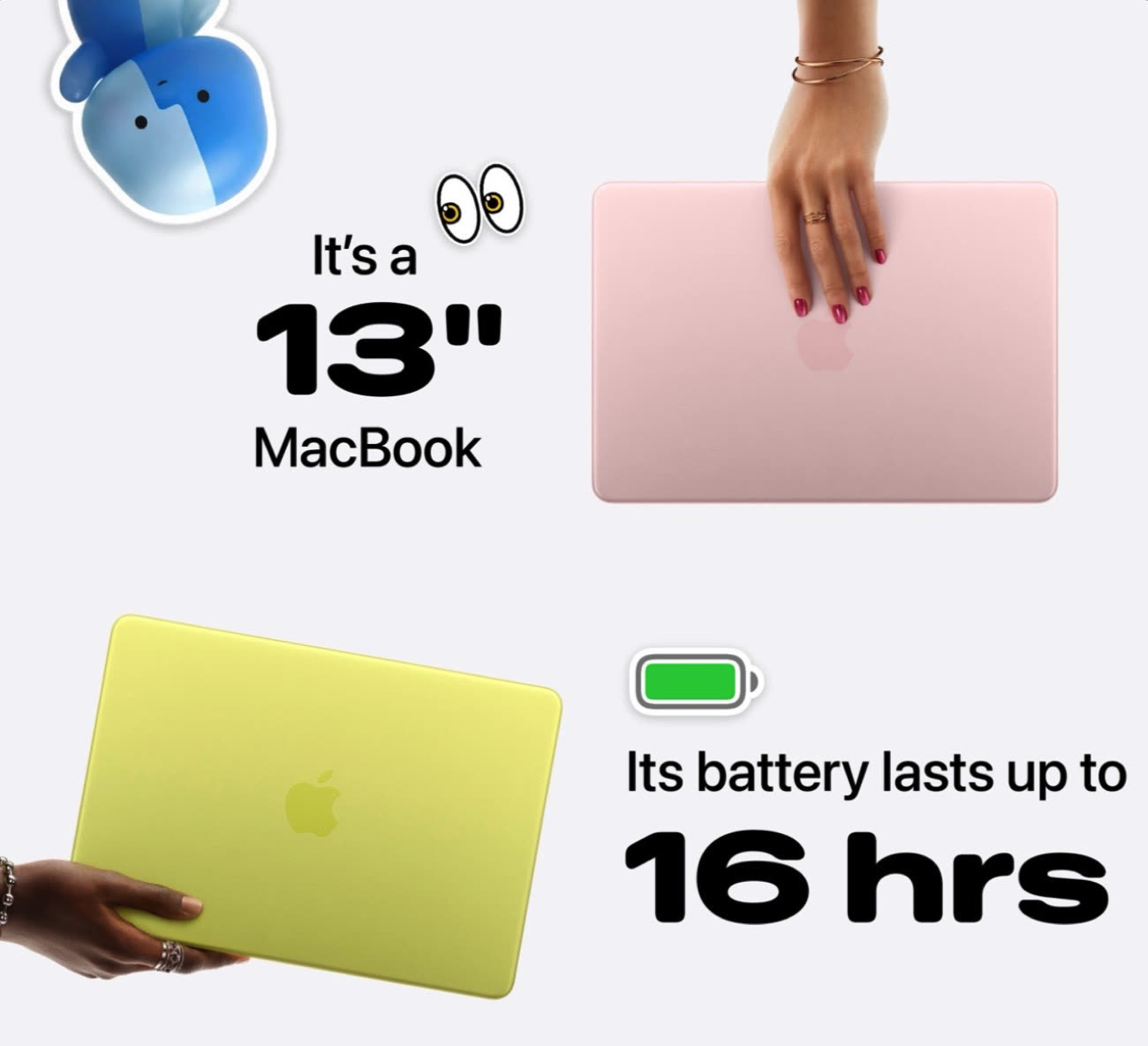
Apple lists the MacBook Neo with up to 16 hours of video streaming and up to 11 hours of wireless web use. Those numbers are useful, but they do not tell the whole story. Your real battery life depends on what you do with the MacBook Neo: browser tabs, screen brightness, video calls, cloud sync, external displays, background apps, and how many apps stay active when you are not using them.
For simple work, the MacBook Neo can be a strong everyday laptop. For heavy multitasking, long video calls, too many browser tabs, or background apps that never stop working, the battery can drain faster than expected.
This guide explains what to expect from MacBook Neo battery life, why your results may differ from Apple’s numbers, which settings actually help, and how to keep the MacBook Neo running longer without ruining your workflow.
Quick answer: MacBook Neo battery life is best when your workload is light and controlled: moderate brightness, fewer browser tabs, fewer background apps, Low Power Mode when needed, no unnecessary peripherals, and no heavy sync or video calls running in the background. If your MacBook Neo battery drains too fast, check Battery settings, Activity Monitor, browser tabs, login items, cloud sync, and apps using significant energy.
What Apple says about MacBook Neo battery life
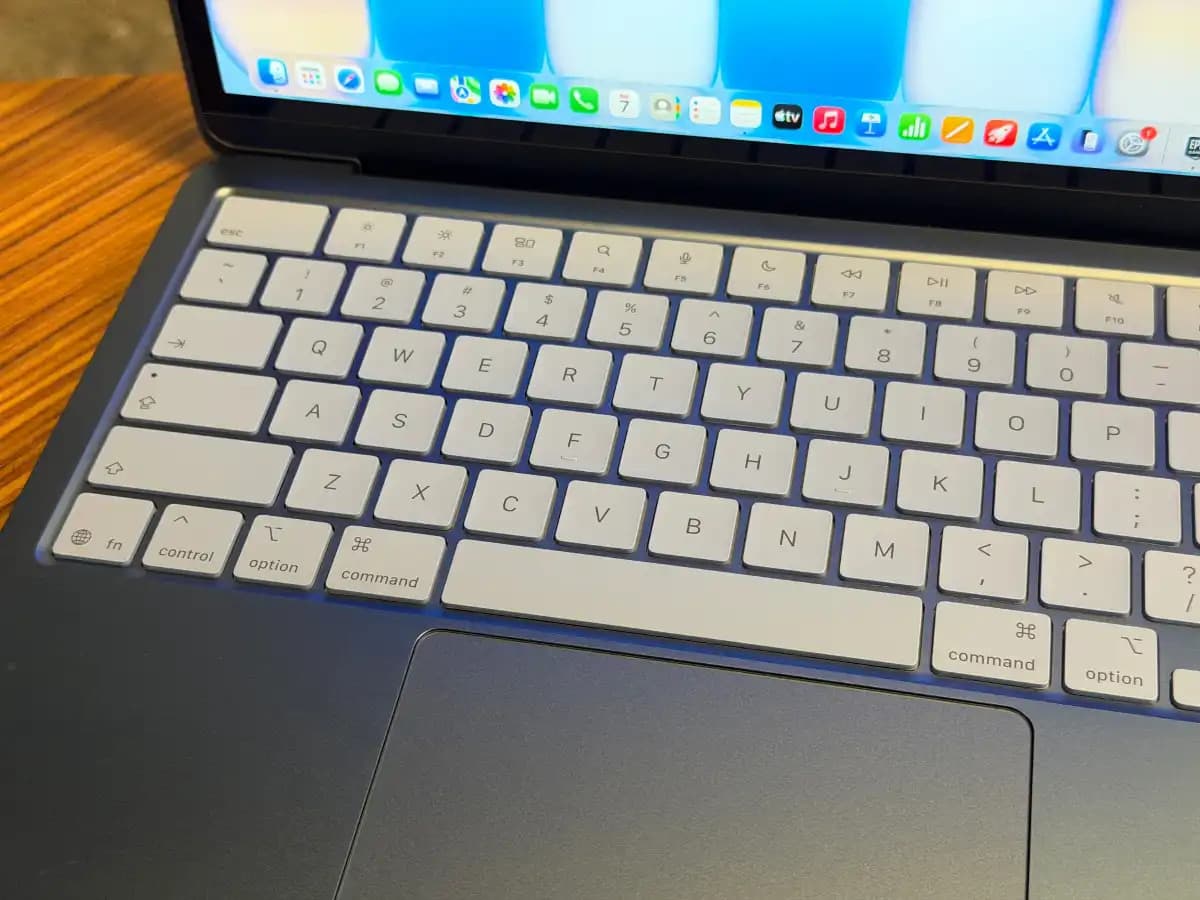
The MacBook Neo is officially rated for up to 16 hours of video streaming and up to 11 hours of wireless web browsing. It uses a built-in 36.5-watt-hour lithium-ion battery and comes with a 20W USB-C power adapter.
Those figures are helpful as a baseline, but they are not a promise that every user will get the same result every day.
Battery life varies depending on:
- Screen brightness.
- Browser tabs.
- Video calls.
- Background apps.
- Cloud sync.
- External accessories.
- Wi-Fi conditions.
- App efficiency.
- macOS settings.
- Battery health over time.
The important point is this: MacBook Neo battery life is not only about the battery. It is about workload.
MacBook Neo battery life: realistic expectations
Apple’s numbers are useful, but your real day is probably more mixed than a single video streaming or web browsing test.
Most people use a combination of browser tabs, email, documents, notes, messaging, music, cloud sync, video calls, and occasional heavier apps. That mix changes battery life dramatically.
| Use case | Expected battery behavior | Why |
|---|---|---|
| Writing, notes, light browsing | Strong | Low CPU and moderate energy use |
| Streaming video | Good | Optimized playback can be efficient |
| Many browser tabs and web apps | Variable | Tabs, scripts, extensions, and web apps can drain energy |
| Video calls | Lower | Camera, microphone, speakers, network, and CPU are active |
| External display setup | Lower | Bigger desk workflows often mean more apps and windows |
| Cloud sync or large downloads | Lower | Network, disk, and CPU stay active |
| Heavy creative or developer work | Much lower | CPU, memory, storage, and graphics workload increase |
If you mostly write, browse, study, and watch videos, the MacBook Neo can feel efficient. If you use it like a workstation with many active apps, the battery will reflect that.
Why your MacBook Neo battery drains faster than expected
Fast battery drain usually has a cause. It may not be obvious, but it is rarely random.
Common reasons include:
- Screen brightness is too high.
- Too many browser tabs are open.
- Browser extensions are active everywhere.
- Video call apps remain open after meetings.
- Cloud sync is uploading or downloading files.
- Apps are using significant energy in the background.
- Login items open automatically after startup.
- External displays, hubs, or accessories are connected.
- macOS is doing post-update work.
- One app is stuck or behaving badly.
The MacBook Neo is efficient when the workload is controlled. It becomes less impressive when too many things keep working at the same time.
The 5-minute MacBook Neo battery diagnosis
Before changing every setting, diagnose the problem.
| Minute | What to check | What it tells you |
|---|---|---|
| 1 | Battery settings | Battery usage over the last 24 hours or 10 days |
| 2 | Activity Monitor → Energy | Which apps are using the most energy |
| 3 | Browser tabs and extensions | Whether your browser is the real battery drain |
| 4 | Cloud sync and downloads | Whether files are keeping your Mac active |
| 5 | Login items and background apps | Whether apps start working before you need them |
This diagnosis is more useful than guessing because it shows whether the issue is screen brightness, apps, tabs, sync, accessories, or background activity.
1. Turn on Low Power Mode when battery life matters
Low Power Mode is one of the simplest ways to make the MacBook Neo more conservative when you are away from power.
Use it when:
- You are traveling.
- You are working from a café.
- You are in class.
- You are not near a charger.
- You need the MacBook Neo to last longer than usual.
- You are doing light work and do not need maximum performance.
To enable it, open System Settings, go to Battery, and choose the Low Power Mode option that fits your situation.
Low Power Mode is not magic. It will not cancel out a heavy video call, dozens of tabs, or cloud sync running all day. But it helps when your workload is already reasonable.
2. Reduce display brightness before touching advanced settings
Display brightness is one of the most obvious battery levers. It is also one of the easiest to forget.
The MacBook Neo has a bright 13-inch Liquid Retina display. That is useful, but brightness costs energy. If your screen is much brighter than needed, battery life will drop faster.
Use a practical rule:
- Indoors: keep brightness comfortable, not maximum.
- On battery: lower brightness first before changing complex settings.
- In bright sunlight: expect faster battery drain.
- During long writing sessions: use the lowest comfortable brightness.
You do not need to make the screen unpleasantly dim. The goal is to avoid wasting power on brightness you do not need.
3. Check Activity Monitor for apps using energy
When battery drains too fast, Activity Monitor gives you evidence.
Open Activity Monitor, then click the Energy tab.
Look at:
- Energy Impact: which apps are using power now.
- 12 hr Power: which apps used energy over time.
- Preventing Sleep: whether an app may stop your Mac from sleeping properly.
- App Nap: whether macOS is reducing background activity for that app.
Good candidates to investigate include:
- Browsers.
- Video call apps.
- Cloud sync tools.
- Media apps.
- Creative tools.
- Menu bar utilities.
- Apps that remain active after you close their window.
If one app repeatedly appears at the top, it is not just “MacBook Neo battery life”. It is that app’s workload.
4. Control browser tabs, the hidden battery drain
The browser is often the biggest battery variable on a MacBook Neo.
One browser can hold email, documents, dashboards, videos, music, AI tools, social feeds, admin panels, shopping carts, project management, and many pages you plan to read later.
Browser battery drain often comes from:
- Too many open tabs.
- Video or audio pages.
- Auto-refreshing dashboards.
- Heavy web apps.
- Browser extensions.
- Ads and trackers.
- Restored sessions.
- Multiple browser profiles.
To improve battery life:
- Close tabs you do not need today.
- Bookmark pages instead of keeping them open.
- Remove extensions you no longer use.
- Stop video or audio playback when you are done.
- Restart the browser if it has been open for days.
- Avoid restoring huge sessions automatically.
If your MacBook Neo lasts much longer after browser cleanup, the battery was not the problem. The browser workload was.
5. Stop unused apps from working in the background
Many Mac apps keep running after you stop actively using them. Closing a window does not always quit the app.
That matters on battery.
An app sitting in the Dock can still use CPU, memory, energy, network, notifications, or helper processes. A few apps may not matter. Many apps can add up.
Good candidates to close or pause:
- Video call apps after meetings.
- Creative tools after finishing a task.
- Old browser windows.
- Media apps left open.
- Chat apps you do not need right now.
- Utilities that keep checking data.
- Apps opened once and forgotten.
If you are done with an app, quit it. If you want to keep it open for later but stop background activity, pause it with AppHalt.
6. Use AppHalt to reduce background battery waste
AppHalt is especially useful on the MacBook Neo because this laptop is designed for efficient everyday work, not unlimited background clutter.
AppHalt lets you pause unused apps without fully quitting them. This gives you a middle ground between closing your entire workspace and letting every app continue working in the background.
Use AppHalt when:
- You are working on battery.
- You want to reduce background CPU usage.
- Your MacBook Neo gets warm during light work.
- You want fewer apps consuming energy.
- You have many apps open but only need one or two now.
- You want to keep your workflow without letting everything stay active.
AppHalt is not a battery repair tool. It does not change battery chemistry or replace Battery settings. Its role is more practical: it helps reduce unnecessary app activity, which can help your MacBook Neo spend less energy on things you are not using.
Do not pause apps that are saving, syncing important files, uploading, downloading, rendering, recording, exporting, compiling, or handling live work.
7. Review Login Items so your MacBook Neo starts lighter
If too many apps open automatically, your MacBook Neo begins the day already busy.
Open System Settings, go to General, then open Login Items & Extensions or Login Items, depending on your macOS version.
Remove apps that do not need to start automatically.
Good candidates include:
- Chat apps you do not need immediately.
- Video call apps.
- Old utilities.
- Launchers you rarely use.
- Menu bar apps you forgot about.
- Media apps.
- Cloud tools you no longer use.
Be careful with password managers, backup tools, security apps, VPNs, hardware drivers, and cloud sync tools you depend on.
A cleaner startup often means better battery behavior throughout the day.
8. Control cloud sync before blaming the battery
Cloud sync can quietly use energy for a long time.
This includes:
- iCloud Drive.
- iCloud Photos.
- Dropbox.
- Google Drive.
- OneDrive.
- Backup tools.
- Project sync apps.
Cloud sync is useful. But it can reduce battery life when it is uploading, downloading, scanning, indexing, or comparing many files.
Battery drain from sync is common after:
- Setting up a new MacBook Neo.
- Moving many files into cloud storage.
- Importing photos or videos.
- Restoring from backup.
- Installing a macOS update.
- Working across multiple cloud services.
If sync is important, let it finish while plugged in. If it can wait, pause sync inside the app. Avoid force quitting sync tools while files are actively moving.
9. Disconnect peripherals you are not using
Apple specifically recommends disconnecting peripherals you are not using to conserve battery power. This matters on the MacBook Neo because its role is often portable, simple, and lightweight.
Peripherals that can affect battery include:
- USB-C hubs.
- External drives.
- External displays.
- Audio interfaces.
- Webcams.
- Adapters.
- Card readers.
- Charging docks.
If you are working on battery, disconnect what you do not need.
An external display is useful, but it can reduce battery life directly and indirectly. It also encourages heavier multitasking, which can increase energy use.
10. Use external displays carefully on battery
The MacBook Neo supports one external display up to 4K at 60Hz, but external display setups are usually better when plugged in.
Why?
A larger screen often leads to:
- More windows open.
- More browser tabs visible.
- More apps running at once.
- More background work.
- More peripherals connected.
If you want the best MacBook Neo battery life, use the built-in display when mobile and save the external display setup for desk work near power.
If you must use an external display on battery, keep apps and tabs under control.
11. Optimize charging for long-term battery health
Battery life today and battery health over time are related, but they are not the same thing.
Battery life is how long your MacBook Neo lasts on a charge today.
Battery health is how well the battery keeps performing after months or years of use.
Apple’s Optimized Battery Charging can learn your charging routine and delay charging past 80% when it predicts you will stay plugged in for a while, then finish charging before you unplug.
Use this if you often keep your MacBook Neo plugged in at a desk.
Good habits:
- Keep Optimized Battery Charging enabled.
- Avoid unnecessary heat while charging.
- Use reliable chargers and cables.
- Do not panic about occasionally charging to 100%.
- Avoid leaving the MacBook Neo hot for long periods.
The goal is not battery anxiety. The goal is sane charging habits.
12. Do not chase battery myths
A lot of battery advice is outdated, exaggerated, or too generic.
You do not need to:
- Fully drain the battery every time.
- Manually micromanage every charge cycle.
- Quit every app every five minutes.
- Keep brightness unusably low.
- Install random battery optimizer apps.
- Obsess over every 1% drop.
Better habits are simpler:
- Use Low Power Mode when needed.
- Keep brightness reasonable.
- Close or pause unused apps.
- Control browser tabs.
- Disconnect unused accessories.
- Check Battery settings and Activity Monitor when something feels wrong.
Battery life improves when the MacBook Neo has less unnecessary work to do.
MacBook Neo battery life checklist
| Action | Impact | When to use it |
|---|---|---|
| Enable Low Power Mode | High | Travel, school, cafés, long battery days |
| Reduce brightness | High | Anytime screen brightness is higher than needed |
| Close browser tabs | High | When the browser is your main work tool |
| Pause unused apps with AppHalt | High | When apps stay open but are not needed now |
| Review Energy tab | High | When battery drains faster than expected |
| Disconnect accessories | Medium | When working away from power |
| Clean Login Items | Medium | When the Mac starts busy every day |
| Control cloud sync | Medium to high | After file moves, imports, updates, or restores |
Common MacBook Neo battery life mistakes
Mistake 1: Expecting Apple’s maximum number in every situation
Apple’s battery figures are useful, but real life includes mixed usage. Video calls, browser tabs, sync, brightness, and background apps can reduce battery life.
Mistake 2: Ignoring browser tabs
On the MacBook Neo, the browser can be the biggest battery drain. Tabs, extensions, media, and web apps deserve attention.
Mistake 3: Letting apps stay open all day
Apps you are not using can still consume CPU, memory, energy, and network resources. Quit or pause them.
Mistake 4: Keeping too many Login Items
If many apps start automatically, your MacBook Neo may waste energy from the beginning of the day.
Mistake 5: Using an external display on battery without changing habits
A bigger screen often leads to heavier multitasking. If you use an external monitor on battery, keep your workload lighter.
Mistake 6: Blaming battery health before checking apps
A degraded battery can matter, but app workload is often the first thing to check when battery drains too fast.
Best order to improve MacBook Neo battery life
Follow this order for the most practical results:
- Reduce display brightness to a comfortable level.
- Enable Low Power Mode when you need longer battery life.
- Open Activity Monitor and check the Energy tab.
- Close browser tabs you do not need.
- Remove unused browser extensions.
- Quit apps you are finished using.
- Pause unused apps with AppHalt when quitting is too disruptive.
- Pause nonessential cloud sync when working on battery.
- Disconnect peripherals you are not using.
- Review Login Items so fewer apps start automatically.
- Check Battery settings for usage patterns over 24 hours or 10 days.
This order focuses on the highest-impact changes first.
FAQ: MacBook Neo battery life
How long does MacBook Neo battery last?
Apple lists the MacBook Neo for up to 16 hours of video streaming and up to 11 hours of wireless web browsing. Real battery life depends on your apps, brightness, browser tabs, cloud sync, accessories, and background activity.
Why is my MacBook Neo battery draining fast?
Your MacBook Neo battery may drain fast because of high brightness, browser tabs, video calls, cloud sync, apps using significant energy, external accessories, login items, or background apps that keep running.
How do I improve MacBook Neo battery life?
Use Low Power Mode, reduce brightness, close unused browser tabs, quit or pause unused apps, disconnect peripherals, control cloud sync, and check Activity Monitor’s Energy tab.
Does Low Power Mode help MacBook Neo?
Yes. Low Power Mode can help conserve energy when you are away from power, especially if your workload is light or moderate.
Do background apps drain MacBook Neo battery?
Yes. Background apps can use CPU, memory, network, disk, and energy even when you are not actively using them.
Can AppHalt help MacBook Neo battery life?
AppHalt can help reduce unnecessary background activity by pausing unused apps. It does not repair the battery, but it can help your MacBook Neo spend less energy on apps you are not using.
Does an external display drain MacBook Neo battery?
An external display can reduce battery life, especially if it encourages heavier multitasking or requires hubs and accessories. For best battery life, use external displays while plugged in.
Should I keep MacBook Neo plugged in all the time?
It is fine to use it plugged in when needed. Keep Optimized Battery Charging enabled so macOS can manage charging more intelligently over time.
Does closing apps improve MacBook Neo battery life?
Yes, if those apps were using energy. Closing or pausing unused apps reduces unnecessary background work.
How do I see what is draining my MacBook Neo battery?
Open Activity Monitor and check the Energy tab. Also check Battery settings to view usage over the past 24 hours or last 10 days.
Is MacBook Neo battery life good for students?
Yes, for typical student use such as notes, browsing, documents, streaming, and online classes. Battery life will be shorter during long video calls, heavy browser sessions, or multitasking.
Why does my MacBook Neo battery drain overnight?
Overnight drain can come from apps preventing sleep, cloud sync, browser activity, wake settings, accessories, or background tasks. Check Activity Monitor’s Energy tab and Battery settings.
Useful official Apple resources
If you want to go deeper, these Apple resources are useful:
- MacBook Neo Technical Specifications
- Charge the MacBook Neo battery
- View energy consumption in Activity Monitor on Mac
- Activity Monitor User Guide for Mac
- Open items automatically when you log in on Mac
Final thoughts: MacBook Neo battery life is about workload control
The MacBook Neo can offer strong battery life for everyday tasks, but only when the workload matches the machine.
If you browse lightly, write, study, watch videos, and keep apps under control, battery life can be one of the MacBook Neo’s strengths. If you keep dozens of tabs open, run video calls, sync files, connect accessories, use an external display, and leave apps running all day, battery life will drop faster.
The best battery habit is not obsessing over every percentage point. It is reducing unnecessary work.
Use Low Power Mode when needed. Keep brightness reasonable. Check Activity Monitor. Close tabs. Disconnect peripherals. Quit or pause unused apps. Let the MacBook Neo spend battery on what you are doing now, not on everything you forgot to stop.
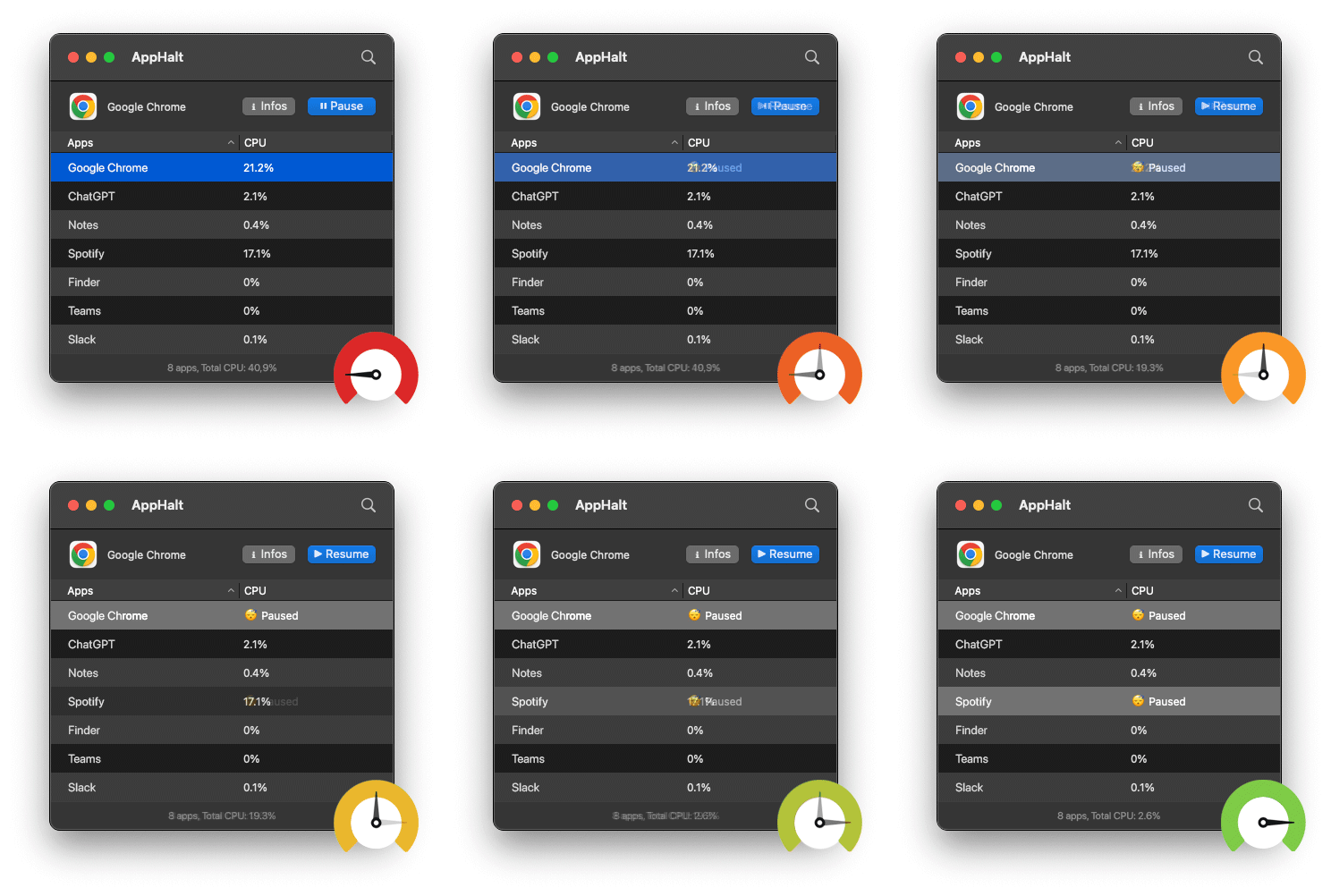
🚀 Make Your MacBook Neo Battery Last Longer with AppHalt
AppHalt helps your MacBook Neo stop wasting battery on apps you are not using.
Instead of quitting your whole workspace or letting every app keep running in the background, AppHalt gives you a smarter middle ground: pause unused apps, reduce background CPU usage, and help your MacBook Neo stay lighter, calmer, and more efficient on battery.
✅ Reduce background CPU usage.
✅ Help prevent overheating, fan noise, and battery drain.
✅ Pause unused apps without fully breaking your workflow.
✅ Keep your Mac feeling faster, lighter, and calmer.
📥 Want better MacBook Neo battery life? Download AppHalt now.