
Your MacBook may feel slow after a macOS update, but that does not always mean the update “ruined” your Mac.
After installing a new version of macOS, many MacBook users notice the same thing: apps open slowly, the fan gets louder, the battery drains faster, the MacBook gets warm, or simple actions feel less smooth than before.
It is frustrating because the update was supposed to improve your Mac, not make it feel heavier.
But here is the important part: a MacBook slow after a macOS update is often busy, not broken. After an update, macOS may need time to index files, update app data, sync iCloud, analyze photos, rebuild caches, update background services, and let apps adapt to the new system.
Sometimes the slowdown is temporary. Sometimes an app, browser, login item, or background process keeps using too much CPU after the update. The key is knowing the difference.
This guide will help you understand why your MacBook is slow after a macOS update, what is normal, what is not, and how to fix the real cause without guessing.
Quick answer: if your MacBook is slow after a macOS update, give it some time to finish indexing and syncing, then check Activity Monitor for high CPU, Memory, and Energy usage. Update your apps, reduce background apps, restart your browser, review login items, free storage, and pause unused apps that keep working in the background.
Why your MacBook gets slow after a macOS update
A macOS update changes more than the visible interface. Behind the scenes, your Mac may need to reorganize, verify, rebuild, sync, and optimize many things.
After an update, your MacBook may be slow because of:
- Spotlight indexing files again.
- iCloud Drive syncing or checking files.
- Photos analyzing your library.
- Mail rebuilding or rechecking messages.
- Apps updating their data for the new macOS version.
- Browser sessions restoring heavy tabs.
- Login items starting again after reboot.
- Old apps behaving badly with the new system.
- Background helpers using CPU.
- Low storage making post-update work harder.
- Cloud tools scanning or reindexing folders.
This is why your MacBook can feel slower even if nothing looks wrong. The visible desktop may look calm, but the system may still be doing post-update work.
The question is not only “Why is my MacBook slow?” The better question is:
Is my MacBook still finishing update-related work, or is something stuck?
What is normal after a macOS update?
Some temporary slowdown after a macOS update can be normal. Your MacBook may feel warmer, use more battery, or run background tasks for a while.
This is especially common after:
- A major macOS upgrade.
- A large security update.
- Restoring from backup.
- Turning iCloud features back on.
- Updating many apps at once.
- Reopening a large browser session.
- Restarting after weeks without a reboot.
During this period, your MacBook may use more CPU and energy than usual. The fan may become louder. Battery life may look worse. Apps may bounce longer before opening.
If this improves after a few hours of normal use while plugged in, it was probably temporary post-update work.
What is not normal after a macOS update?
Not every slowdown should be ignored. If your MacBook remains slow for days, gets hot during light work, or keeps draining battery quickly, something may be wrong.
Warning signs include:
- Your MacBook stays slow for several days after the update.
- The fan becomes loud during simple tasks.
- Battery drains unusually fast with only light apps open.
- One app always uses high CPU.
- Your browser becomes heavy immediately after opening.
- Cloud sync never seems to finish.
- Login items make startup painfully slow.
- Apps freeze or show the spinning beach ball repeatedly.
If you see these signs, do not keep waiting. Diagnose the workload.
The 5-minute post-update MacBook diagnosis
Before reinstalling macOS, deleting random files, or downloading a cleaner app, do this quick diagnosis.
| Minute | What to check | What it tells you |
|---|---|---|
| 1 | CPU tab in Activity Monitor | Which app or process is making your MacBook work hard |
| 2 | Memory tab in Activity Monitor | Whether your MacBook is overloaded after the update |
| 3 | Energy tab in Activity Monitor | Which apps are causing heat or battery drain |
| 4 | Login items and background items | Whether startup is overloaded after reboot |
| 5 | Unused open apps | Whether pausing or quitting apps makes the MacBook feel faster |
This diagnosis gives you direction. Without it, you are only guessing.
MacBook slow after update: symptoms and likely causes
Use this table to match the symptom to the most likely cause.
| Symptom | Likely cause | Best first fix |
|---|---|---|
| MacBook slow right after update | Indexing, app updates, background maintenance | Plug in and give macOS time to finish |
| MacBook still slow after days | Stuck app, old software, login item, sync issue | Check Activity Monitor and update apps |
| Fan loud after update | High CPU or Energy usage | Sort Activity Monitor by CPU and Energy |
| Battery drains fast after update | Background tasks, cloud sync, browser tabs | Check Energy usage and reduce background apps |
| Browser slow after update | Restored tabs, outdated extensions, web apps | Restart browser and remove unnecessary extensions |
| Startup slow after update | Login items and background items reload after reboot | Review Login Items in System Settings |
| Apps freeze after update | Compatibility issue or app bug | Update the app or reinstall it carefully |
1. Give your MacBook time, but not forever
The first fix is also the easiest: wait a little.
After a macOS update, your MacBook may need time to finish background work. This can include indexing, syncing, checking files, rebuilding app data, and optimizing system components.
For the best conditions:
- Plug in your MacBook.
- Keep it on a hard, flat surface.
- Leave it connected to Wi-Fi.
- Avoid judging performance during the first busy period.
- Restart once after the update has settled.
If your MacBook improves after a few hours, there may be nothing else to fix.
But if it stays slow for days, gets hot during simple work, or drains battery abnormally, move to diagnosis. Waiting forever is not a strategy.
2. Check CPU usage in Activity Monitor
If your MacBook is still slow after a macOS update, open Activity Monitor.
Click the CPU tab and sort by % CPU. This shows which apps or processes are using processing power.
After an update, high CPU may come from:
- Spotlight indexing.
- Photos analysis.
- Cloud sync tools.
- Browsers restoring old sessions.
- Apps updating background data.
- Old apps that are not fully compatible.
- Menu bar utilities running helpers.
- A stuck app that failed to settle after the update.
If a familiar app is using high CPU and you do not need it right now, quit it or pause it. If a process name is unfamiliar, do not force quit it randomly. Look for patterns first.
The goal is not to close everything. The goal is to find what is making your MacBook work too hard.
3. Check Memory Pressure after the update
After a macOS update, your usual workflow may feel heavier than before. Apps may use more memory, extensions may behave differently, or background tasks may temporarily increase pressure.
In Activity Monitor, open the Memory tab. Look at Memory Pressure.
If memory pressure is high during normal work, your MacBook may be juggling too many active tasks at once.
Common causes include:
- Too many browser tabs restored after the update.
- Large creative apps open in the background.
- Messaging apps, cloud sync, and browser all active together.
- Old apps using memory inefficiently.
- Apps that have been open since before the update.
To reduce memory pressure:
- Restart your MacBook.
- Close large files you are not using.
- Restart your browser.
- Quit or pause apps you do not need.
- Update apps that feel unusually heavy.
Memory pressure is more useful than guessing whether your MacBook “has enough RAM”. It tells you whether your current workload is too heavy right now.
4. Check Energy usage if the MacBook is hot or losing battery
If your MacBook gets hot or battery drains quickly after a macOS update, open the Energy tab in Activity Monitor.
Look for apps with high energy impact, especially apps you are not actively using.
Common post-update energy drains include:
- Browsers with restored tabs.
- Cloud sync apps scanning folders.
- Video call apps left open.
- Creative apps updating previews or libraries.
- Mail or messaging apps checking large histories.
- Menu bar utilities not optimized for the new macOS version.
If one app has high Energy impact and you do not need it now, quit it or pause it. If battery improves afterward, that app was part of the problem.
5. Restart your MacBook after the update settles
A restart can help after macOS has finished its initial post-update work.
Do not restart every five minutes while the system is still busy. Let macOS finish the first wave of indexing, syncing, and app updates. Then restart once to clear temporary states and reload your apps cleanly.
After restarting, watch what happens:
- Does the MacBook feel fast before opening apps?
- Does it slow down after opening your browser?
- Does it get hot after cloud sync starts?
- Does it become slow only after login items load?
- Does one app always trigger the slowdown?
The pattern matters. It tells you what to fix next.
6. Update your apps, not only macOS
A macOS update can expose old app problems. An app that worked fine before may become slow, power-hungry, or unstable if it has not been updated for the new system.
Update your most-used apps first:
- Browsers.
- Video call apps.
- Cloud sync apps.
- Design tools.
- Office apps.
- Developer tools.
- Menu bar utilities.
- Security and backup tools.
Also check browser extensions. Old extensions can cause slow browsing, high CPU, battery drain, and strange behavior after a system update.
If one app remains slow after updating, try reinstalling it from its official source. Avoid downloading random “fixed” versions from unknown websites.
7. Reduce browser load after a macOS update
Your browser is often the real reason your MacBook feels slow after an update.
After restarting, many browsers restore your previous session. That can bring back dozens of tabs, heavy web apps, dashboards, videos, pinned tabs, and extensions at once.
Your MacBook may not be slow because of macOS. It may be slow because your browser restored yesterday’s workload.
To fix this:
- Restart your browser.
- Close tabs you do not need today.
- Remove extensions you no longer use.
- Avoid restoring huge sessions automatically.
- Use bookmarks or reading lists instead of keeping everything open.
- Check whether one website causes CPU spikes every time.
If your MacBook feels faster after cleaning the browser session, the update was not the only issue. The browser load was.
8. Stop unused apps from working in the background
After a macOS update, many apps wake up, check compatibility, refresh data, sync files, rebuild caches, or reload helpers. Some calm down. Some do not.
This is why background apps matter so much after an update.
An unused app can still slow your MacBook by:
- Using CPU.
- Refreshing data.
- Syncing files.
- Checking for updates.
- Running helper processes.
- Keeping network connections alive.
- Rebuilding local data.
The usual advice is to quit apps. That works. But quitting everything can break your workflow, especially if you want to keep windows, files, and sessions available.
This is where AppHalt fits naturally.
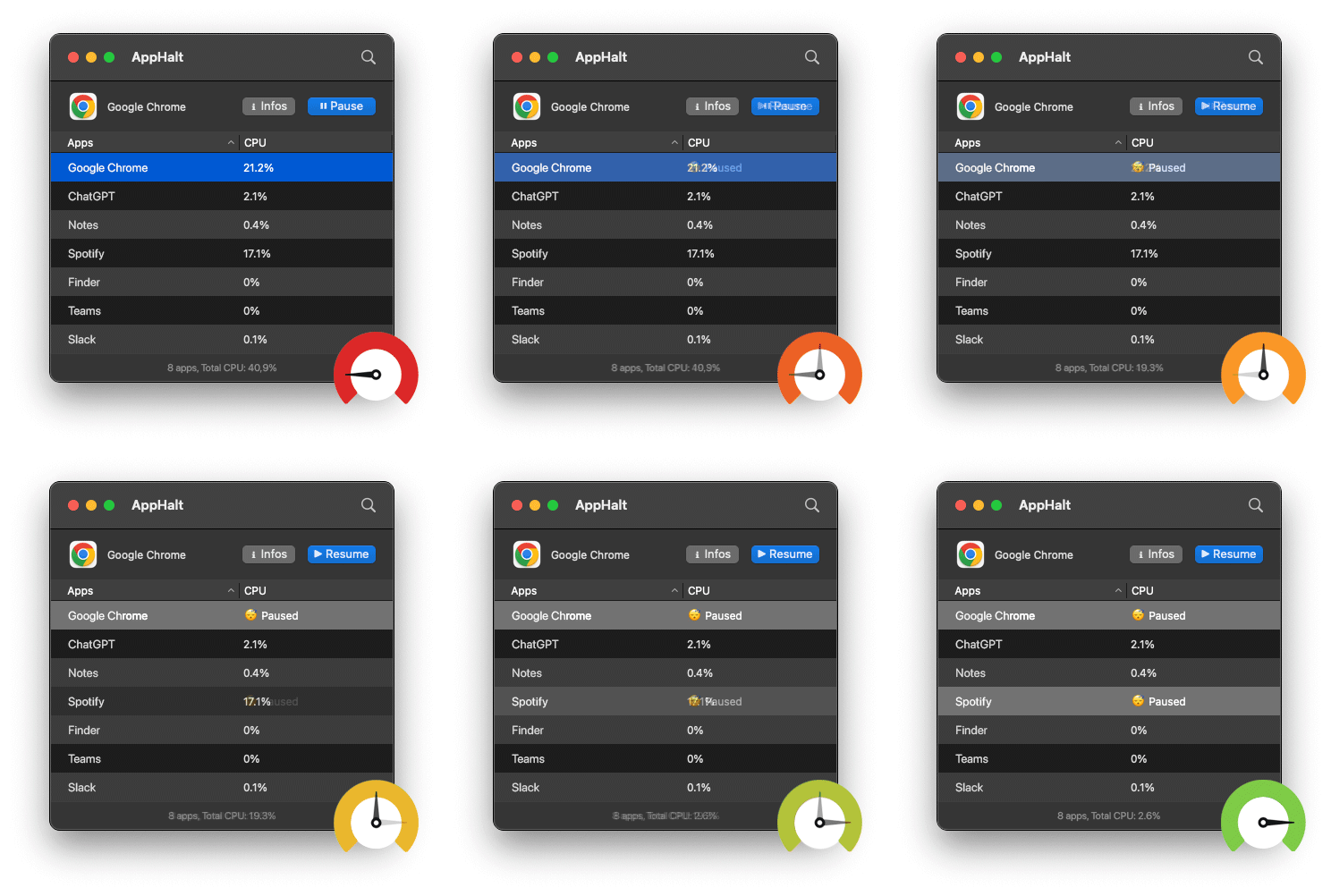
AppHalt lets you pause unused apps so they stop wasting CPU and energy while your MacBook focuses on what you are doing now. It gives you a middle ground between leaving everything running and closing your whole workspace.
Use AppHalt for apps you recognize and do not need right now. Do not pause apps that are saving, uploading, downloading, rendering, recording, syncing important files, or handling live work.
9. Review login items and background items
A macOS update often ends with a restart. After that restart, login items may all launch again. If you have too many startup apps, your MacBook can feel slow before you even open anything manually.
To review login items:
- Open System Settings.
- Go to General.
- Open Login Items & Extensions or Login Items.
- Remove apps you do not need at startup.
- Review background items carefully.
Good candidates to remove from startup include:
- Old utilities.
- Chat apps you prefer opening manually.
- Menu bar apps you rarely use.
- Launchers you tested and forgot.
- Cloud tools for services you no longer use.
- Apps that duplicate another tool.
Be careful with password managers, security tools, backup tools, hardware drivers, and cloud apps you rely on. The goal is not to disable everything. The goal is to make startup intentional again.
10. Free storage if the update left your MacBook tight on space
macOS updates need space. After an update, your MacBook may also keep temporary files, installer data, app updates, local snapshots, and rebuilt caches for a while.
If your storage is nearly full, your MacBook may feel slower because macOS has less room to work.
To check storage:
- Open System Settings.
- Go to General.
- Click Storage.
Safe cleanup steps:
- Empty the Trash.
- Clean old files from Downloads.
- Remove old .dmg installers.
- Delete duplicate video exports.
- Move large archives to external storage.
- Remove apps you no longer use.
- Review large files before deleting anything.
Do not delete random files from System or Library folders just because your MacBook is slow. Storage cleanup should be visible, boring, and safe.
11. Check cloud sync if your MacBook stays busy
After a macOS update, cloud services may rescan, compare, upload, download, or reindex files.
This can involve:
- iCloud Drive.
- iCloud Photos.
- Dropbox.
- Google Drive.
- OneDrive.
- Backup tools.
- File-sharing apps.
Temporary sync is normal. Endless sync is not.
If your MacBook is slow, hot, or losing battery and a sync app never seems to finish, open the sync app and check its status. Look for stuck files, errors, huge folders, or repeated uploads.
If you are on battery, consider pausing non-urgent sync until you are plugged in.
12. Use Safe Mode if the slowdown does not make sense
If your MacBook remains slow after an update and you cannot find the cause, Safe Mode can help you diagnose whether software loaded at startup is part of the problem.
Safe Mode starts your Mac with fewer background items and performs certain checks. If your MacBook feels much better in Safe Mode, the issue may be linked to login items, extensions, startup software, or third-party components.
Safe Mode is not a daily performance mode. It is a diagnostic tool.
Use it when:
- Your MacBook remains slow after basic fixes.
- Startup is unusually slow.
- Apps freeze repeatedly.
- You suspect a third-party utility.
- Activity Monitor does not clearly explain the problem.
If Safe Mode improves performance, review recently installed apps, startup items, utilities, extensions, and drivers.
13. Avoid post-update myths that waste time
After a frustrating update, bad advice becomes tempting. Avoid these myths.
Myth 1: “The update destroyed my MacBook”
Sometimes updates introduce bugs, but many post-update slowdowns come from temporary indexing, app compatibility, browser sessions, cloud sync, or background processes. Diagnose before blaming the whole system.
Myth 2: “You should install a cleaner immediately”
A cleaner app does not know which app is using CPU right now. Start with Activity Monitor. Find the workload first.
Myth 3: “Clearing cache always helps”
Cache is not automatically bad. macOS and apps use cache to avoid repeating work. Clearing it blindly can make apps rebuild data and feel slow again temporarily.
Myth 4: “A new MacBook is the only fix”
If your MacBook is very old or underpowered, hardware can be a limitation. But many post-update slowdowns are caused by apps, tabs, sync, startup items, or background workload. Fix those before replacing the machine.
14. Build a post-update recovery routine
The best way to handle a macOS update is to give your MacBook a clean recovery process.
Right after the update
- Plug in your MacBook.
- Keep it on Wi-Fi.
- Let it finish background work.
- Avoid opening every app immediately.
- Do not judge performance in the first busy period.
After a few hours
- Restart your MacBook once.
- Open Activity Monitor if it still feels slow.
- Update your main apps.
- Restart your browser.
- Reduce unused background apps.
The next day
- Review login items.
- Check storage.
- Remove old apps or utilities.
- Check cloud sync status.
- Use Safe Mode if the slowdown remains unexplained.
This routine helps you avoid panic and fix the real issue faster.

Why background apps are the hidden post-update problem
The most annoying post-update slowdown is the one that does not look obvious.
You may see a clean desktop and think your MacBook is doing nothing. But behind the scenes, it may be handling browser helpers, cloud sync, app updates, login items, menu bar utilities, indexing, notifications, and apps that reopened after restart.
By the time you start working, your MacBook may already be busy.
Background apps can slow your MacBook after an update by using:
- CPU.
- Memory.
- Energy.
- Network.
- Disk activity.
This is why managing background activity is one of the most practical post-update fixes. You do not need to delete random files. You do not need to reinstall macOS first. You need to stop unused apps from competing with the work you are doing now.
Where AppHalt fits after a macOS update
AppHalt is useful after a macOS update because updates often wake everything up: apps, helpers, login items, sync tools, browsers, and background utilities.
Instead of quitting your entire workspace, AppHalt lets you pause unused apps so they stop wasting CPU and energy in the background.
It is especially useful if:
- Your MacBook feels slow after a macOS update.
- Your fan is louder than usual.
- Your battery drains faster after updating.
- Your browser and apps feel heavier than before.
- You keep many apps open during the day.
- You want to reduce background activity without closing everything.
AppHalt is not a replacement for app updates, storage cleanup, or Safe Mode diagnosis. It solves a specific problem: unused apps continuing to work when they should not.
After a macOS update, that problem becomes more visible.
Best order to fix a MacBook slow after macOS update
If your MacBook is slow after a macOS update, follow this order:
- Plug it in and give it time to finish indexing, syncing, and updating.
- Restart once after the first busy period settles.
- Check CPU usage in Activity Monitor.
- Check Memory Pressure if everything feels heavy.
- Check Energy usage if the MacBook is hot or losing battery.
- Update your main apps, especially browsers, sync tools, and utilities.
- Restart your browser and reduce tabs/extensions.
- Pause or quit unused apps to reduce background workload.
- Review login items and background items.
- Free storage safely if your disk is nearly full.
- Check cloud sync if the MacBook stays busy.
- Use Safe Mode if the slowdown remains unexplained.
This order starts with the safest and most likely fixes. You do not need to reinstall macOS before checking whether one app is quietly using your MacBook’s resources.
FAQ: MacBook slow after macOS update
Why is my MacBook slow after a macOS update?
Your MacBook may be slow after a macOS update because macOS is indexing files, syncing iCloud, updating app data, rebuilding caches, or running background maintenance. If the slowdown lasts for days, check Activity Monitor for high CPU, Memory, or Energy usage.
How long should a MacBook be slow after an update?
Some slowdown can happen shortly after a major update while macOS finishes background work. If your MacBook remains slow for several days, gets hot during light work, or drains battery quickly, investigate apps, login items, browser tabs, and sync tools.
Why is my MacBook hot after a macOS update?
Your MacBook may get hot after an update because CPU-intensive background tasks are running. Indexing, cloud sync, app updates, Photos analysis, browser tabs, or old utilities can all create heat.
Why is my battery draining fast after a macOS update?
Battery drain after a macOS update often comes from background work. Check Activity Monitor’s Energy tab and look for apps using power while you are not actively using them.
Should I reinstall macOS if my MacBook is slow after updating?
Not as a first step. Start with Activity Monitor, app updates, browser cleanup, login items, storage, cloud sync, and Safe Mode. Reinstalling macOS should come after simpler diagnosis and fixes.
Can old apps make a MacBook slow after a macOS update?
Yes. An old app may not behave well after a macOS update. Update your main apps first, especially browsers, video call apps, cloud sync tools, design apps, utilities, and background tools.
Can browser tabs slow down my MacBook after an update?
Yes. If your browser restores a large session after the update, tabs and extensions may create CPU, memory, and energy pressure. Restart the browser and reopen only what you need.
Can AppHalt help after a macOS update?
AppHalt can help if your MacBook feels slow because unused apps keep working in the background. It lets you pause apps you do not need right now, reducing unnecessary CPU and energy usage without fully quitting your workflow.
Is it safe to pause apps after a macOS update?
Yes, if you choose carefully. Pause apps you recognize and do not need right now. Avoid pausing apps that are saving, syncing, uploading, downloading, rendering, recording, or handling important live work.
Why is my MacBook slow even after restarting?
If your MacBook is still slow after restarting, a login item, background item, browser session, sync tool, or app may be starting again automatically. Review Activity Monitor and Login Items.
Should I use a cleaner app after a macOS update?
Do not make that your first move. A cleaner app cannot tell you which app is currently using CPU or energy. Start with Activity Monitor and safe macOS settings before deleting files.
When should I contact Apple Support?
Contact Apple Support or a qualified technician if your MacBook remains extremely slow after updates, restarts, app updates, Safe Mode checks, and basic troubleshooting, or if it shows hardware warnings, shutdowns, or abnormal heat.
Useful official Apple resources
If you want to go deeper, these Apple guides are useful:
- Activity Monitor User Guide for Mac
- Open items automatically when you log in on Mac
- Start up your Mac in Safe Mode
- See used and available storage space on your Mac
Final thoughts: a slow MacBook after an update is usually busy, not doomed
A MacBook slow after a macOS update can be annoying, but it is not always a disaster. Often, your MacBook is finishing background work, updating app data, syncing files, restoring browser sessions, or carrying old apps into a new system.
The best fix is not panic. It is visibility and control.
Give the update time to settle. Check Activity Monitor. Update your apps. Reduce browser load. Review login items. Free storage safely. Watch cloud sync. And most importantly, stop unused apps from competing with what you are doing now.
Your MacBook should not feel slow because yesterday’s apps are still working in the background.
🚀 Speed Up Your MacBook After a macOS Update with AppHalt
AppHalt helps your MacBook stop wasting power on apps you are not using.
After a macOS update, apps and background tools can become more active than usual. AppHalt gives you a smarter middle ground: pause unused apps, reduce background CPU usage, and help your MacBook feel faster, cooler, and more focused.
✅ Reduce background CPU usage after updates.
✅ Help prevent overheating and battery drain.
✅ Pause unused apps without fully breaking your workflow.
✅ Keep your MacBook feeling faster, lighter, and calmer.
📥 Want your MacBook to feel fast again after an update? Download AppHalt now.