Your MacBook fan is not loud for no reason. It is reacting to heat, and heat usually means your Mac is working harder than it should.
When a MacBook fan suddenly becomes loud, it can feel worrying. You may be writing an email, watching a video, browsing a few tabs, or doing what seems like light work, and suddenly your MacBook sounds like it is preparing for takeoff.
The first thought is often hardware panic: maybe the fan is broken, maybe the battery is failing, maybe the MacBook is too old, maybe macOS is too heavy now.
Sometimes hardware can be involved. But most of the time, a loud MacBook fan is caused by workload: CPU usage, background apps, browser tabs, cloud sync, video calls, external displays, menu bar utilities, or apps that keep working even after you stop using them.
This guide will help you understand why your MacBook fan is so loud, how to find the real cause, what to fix first, and how to make your MacBook quieter without guessing.
Quick answer: if your MacBook fan is loud, check CPU and Energy usage in Activity Monitor, close or pause unused apps, reduce heavy browser tabs, stop unnecessary cloud sync, remove useless login items, improve airflow, and update apps that may be using too much power in the background.
Why your MacBook fan gets loud
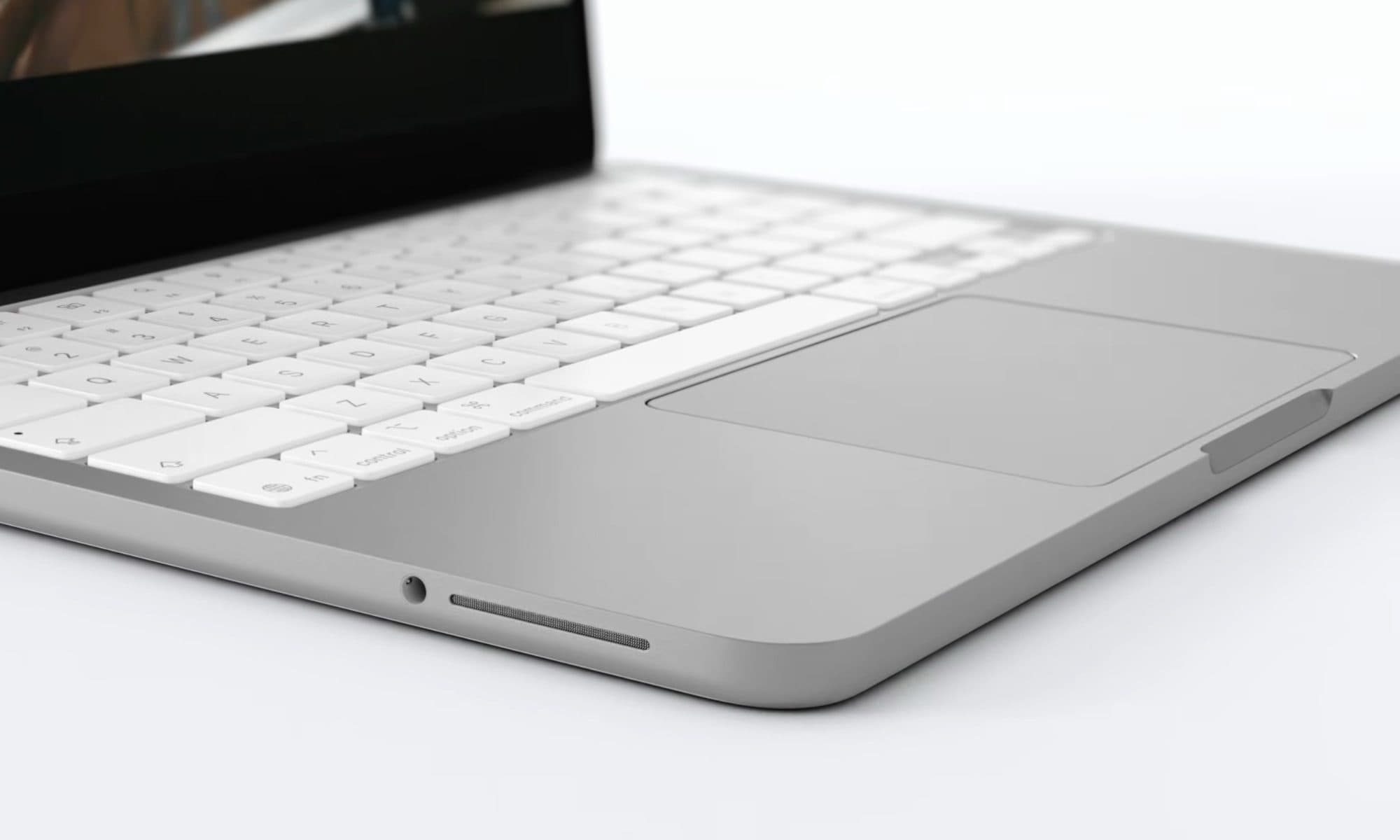
Your MacBook fan exists to move heat away from internal components. When your MacBook gets warmer, the fan can spin faster. When the fan spins faster, you hear it.
So the real question is not only “Why is my fan loud?” The better question is:
What is making my MacBook hot enough to need more cooling?
The most common causes are:
- High CPU usage.
- Too many background apps.
- Browser tabs using power in the background.
- Video calls, camera use, or screen sharing.
- Cloud sync or backup activity.
- Apps stuck after an update.
- External displays increasing graphics workload.
- Menu bar utilities refreshing all day.
- Blocked airflow from using the MacBook on a soft surface.
- macOS indexing or background maintenance after an update.
A loud fan is not always bad. It can simply mean your MacBook is cooling itself. The problem is when the fan becomes loud during light work, stays loud for too long, or becomes loud even when nothing obvious is happening.
That is usually a sign that something invisible is creating workload.
The 5-minute loud MacBook fan diagnosis
Before resetting your Mac, installing a cleaner app, or assuming the fan is broken, spend five minutes checking the real cause.
| Minute | What to check | What it tells you |
|---|---|---|
| 1 | CPU tab in Activity Monitor | Which app is making your MacBook work hard |
| 2 | Energy tab in Activity Monitor | Which app may be creating heat and battery drain |
| 3 | Browser tabs and extensions | Whether your browser is the hidden fan trigger |
| 4 | Cloud sync, backup, or downloads | Whether files are moving in the background |
| 5 | Unused open apps | Whether pausing or quitting apps makes the fan calm down |
This diagnosis is simple, but it is powerful. It helps you avoid the most common mistake: trying random fixes without knowing what is causing the fan noise.
MacBook fan noise symptoms and likely causes
Not all fan noise means the same thing. Use this table to understand what your MacBook may be telling you.
| Symptom | Likely cause | Best first fix |
|---|---|---|
| Fan loud during light work | Background apps, browser tabs, or CPU usage | Check CPU and Energy in Activity Monitor |
| Fan loud after opening browser | Heavy tabs, extensions, video, ads, or web apps | Restart browser and reduce tabs/extensions |
| Fan loud during video calls | Camera, microphone, network, CPU, screen sharing | Pause or quit unused apps before calls |
| Fan loud after macOS update | Indexing, Photos analysis, app updates, sync | Let temporary tasks finish, then check Activity Monitor |
| Fan loud with external monitor | Higher graphics workload | Reduce other background activity |
| Fan loud and battery draining fast | High CPU or Energy impact | Find and stop the app causing the workload |
| Fan stays loud even after closing apps | Stuck process, poor airflow, or deeper issue | Restart, check Activity Monitor, then investigate further |
1. Check CPU usage first
If your MacBook fan is loud, start with CPU usage.
CPU is your Mac’s processing power. When an app uses a lot of CPU, your MacBook produces more heat. When heat rises, the fan may spin faster to cool the machine.
Open Activity Monitor, then click the CPU tab. Sort by % CPU. Look for apps using more CPU than expected.
Common fan triggers include:
- A browser with too many active tabs.
- A video call app during or after a meeting.
- A design app with a large file open.
- A cloud sync app processing many files.
- A developer tool compiling or indexing.
- A media app encoding, scanning, or analyzing files.
- A menu bar utility constantly refreshing data.
- An app that is stuck and keeps using CPU.
If you recognize the app and you do not need it right now, quit it or pause it. If the fan starts calming down after that, you found the source.
Do not force quit random system processes. Focus first on apps you recognize and control.
2. Check Energy impact because fan noise, heat, and battery drain are connected
A loud fan often comes with two other symptoms: heat and battery drain.
That is not a coincidence. If your MacBook is using more energy, it often produces more heat. If it produces more heat, the fan may become louder.
In Activity Monitor, open the Energy tab. Look for apps with a high energy impact, especially apps you are not actively using.
Apps that often create high energy impact include:
- Browsers.
- Video meeting apps.
- Cloud storage tools.
- Creative apps.
- Messaging apps.
- Streaming apps.
- Live dashboards.
- Menu bar utilities.
If one app has high CPU and high energy impact, it is a strong suspect. You do not need to guess. Your MacBook is showing you where the noise may come from.
3. Stop unused apps from making your fan louder
Many users keep apps open all day because it feels convenient. The problem is not that apps are open. The problem is that some open apps keep working after they stop being useful.
An unused app can make your MacBook fan louder by:
- Using CPU in the background.
- Refreshing data.
- Checking for updates.
- Syncing files.
- Keeping network connections alive.
- Rendering previews.
- Running helper processes.
- Waking up repeatedly.
This is why your fan can become loud even when you are doing something simple. The visible task may be light. The hidden workload may not be.
The usual advice is to quit unused apps. That works, but it can break your workflow. You may lose open windows, project context, loaded files, and sessions you wanted to return to later.
This is where AppHalt is useful.
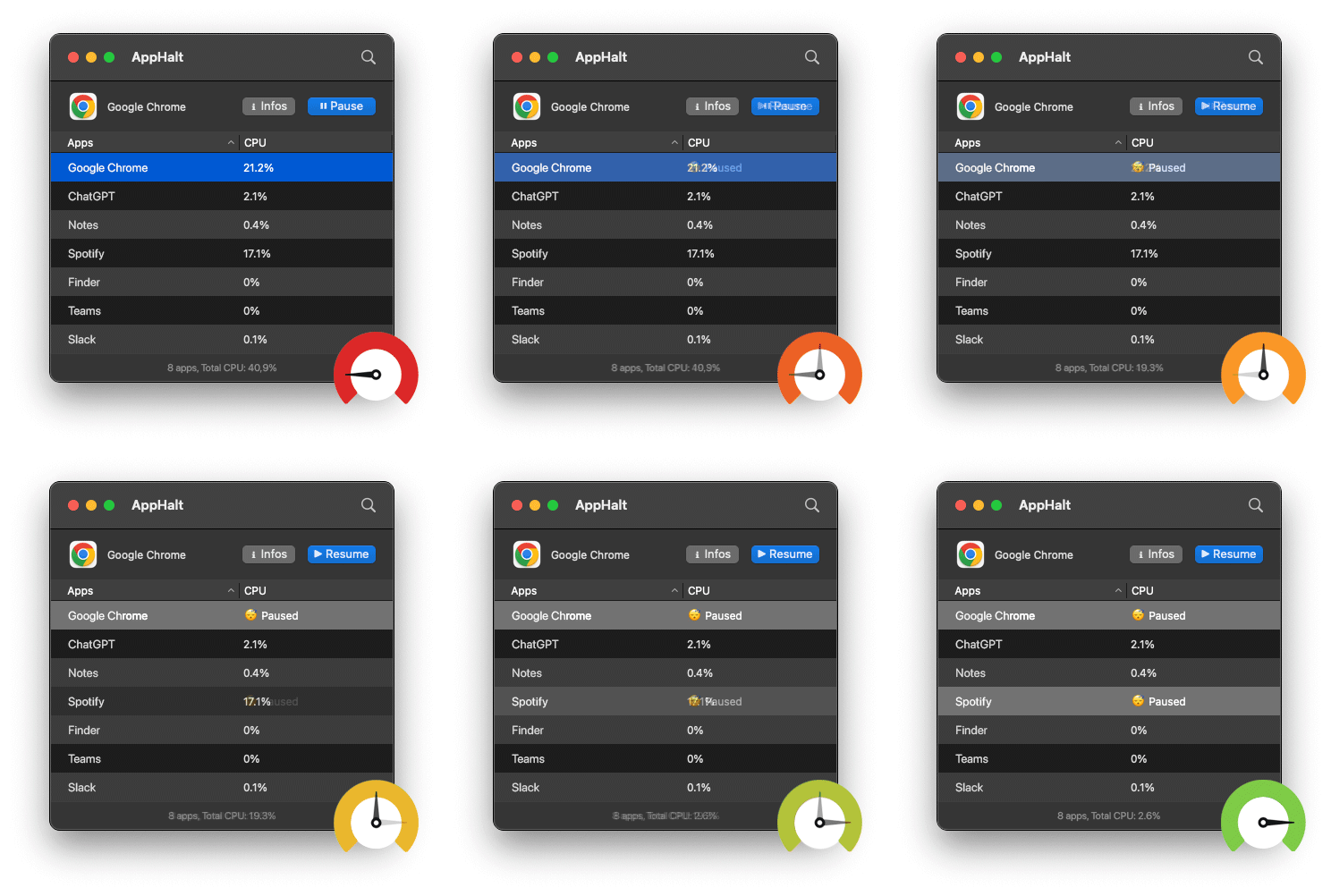
AppHalt gives you a middle ground between leaving everything running and quitting everything. You can pause unused apps so they stop wasting CPU and energy while your MacBook focuses on what you are doing now.
Use AppHalt for apps you recognize and do not need right now. Do not pause apps that are saving, uploading, downloading, syncing important files, rendering, recording, or handling live work.
4. Quit, force quit, leave open, or pause: which action is best?
Different actions solve different problems. Choosing the right one can reduce fan noise without making your workflow painful.
| Action | Best when | Fan noise impact | Workflow impact |
|---|---|---|---|
| Leave open | You are actively using the app | Depends on workload | Most convenient |
| Quit | You are done with the app | Stops the app completely | Closes the app state |
| Force quit | The app is frozen or not responding | Stops the app immediately | Can lose unsaved work |
| Pause | You want to keep app state but stop background work | Can reduce wasted CPU and heat | Keeps your workspace easier to resume |
The practical rule is simple:
- Leave open apps you are actively using.
- Quit apps you will not use again soon.
- Force quit only when an app is frozen.
- Pause apps that are open for later but should not keep working now.
This is the quiet MacBook principle: stop unnecessary work, not your whole workflow.
5. Fix browser fan noise
Your browser may be the reason your MacBook fan is loud.
Modern browsers are not small tools. They run email, documents, dashboards, video, AI tools, music, project management, admin panels, analytics, social feeds, and full web apps.
A browser can make your fan louder through:
- Too many tabs.
- Video playback.
- Auto-refreshing dashboards.
- Heavy websites.
- Ads and trackers.
- Extensions running on every page.
- Pinned tabs that never sleep.
- Old sessions restored every morning.
To reduce browser-related fan noise:
- Close tabs you do not need today.
- Remove extensions you forgot you installed.
- Restart the browser if it has been open for days.
- Avoid leaving video tabs running in the background.
- Use bookmarks instead of keeping every page open.
- Check whether one specific website triggers fan noise every time.
If your fan calms down after closing or restarting the browser, your browser was part of the problem.
6. Prepare your MacBook before video calls
Video calls can make a MacBook fan loud very quickly.
A call can use the camera, microphone, speakers, network, CPU, graphics, and sometimes screen sharing at the same time. If you also keep heavy apps open in the background, your MacBook has to cool two workloads at once: the meeting and everything else.
Before a long call:
- Close or pause unused apps.
- Close heavy browser tabs.
- Stop unnecessary downloads or uploads.
- Pause cloud sync if it is not needed.
- Quit creative apps you will not use during the call.
- Avoid screen sharing more than necessary.
A video call is already demanding. Do not make your MacBook carry old work at the same time.
7. Check cloud sync, backups, and indexing
Your MacBook fan may become loud because your Mac is moving, scanning, indexing, uploading, downloading, or analyzing files.
This often happens after:
- A macOS update.
- Setting up a new Mac.
- Restoring from backup.
- Adding many photos or videos.
- Moving files into iCloud Drive, Dropbox, Google Drive, or OneDrive.
- Connecting an external drive.
- Installing or updating large apps.
Temporary fan noise during heavy sync or indexing can be normal. But if the same activity never seems to finish, check the app responsible.
Open Activity Monitor and look at CPU, Disk, and Network. If one sync tool is constantly active, open that app and look for stuck files, errors, or folders that are too large to sync comfortably.
Cloud sync is useful. Endless cloud sync is fan noise disguised as convenience.
8. Review login items and background items
If your fan becomes loud soon after startup, login items may be part of the problem.
Login items are apps that open automatically when you log in. Background items can also run helper tasks behind the scenes. Some are useful. Others are old leftovers from apps you barely use.
To review them:
- Open System Settings.
- Go to General.
- Open Login Items & Extensions or Login Items, depending on your macOS version.
- Remove apps you do not need at startup.
- Review background items carefully.
Good candidates to remove from startup include:
- Old utilities.
- Chat apps you prefer opening manually.
- Menu bar apps you rarely use.
- Launchers you tested but abandoned.
- Cloud tools for services you no longer use.
- Apps that duplicate other tools.
Be careful with password managers, security tools, backup tools, hardware drivers, and cloud apps you rely on. The point is not to disable everything. The point is to stop unnecessary background work from starting automatically.
9. Improve airflow before blaming the fan
Software often causes fan noise, but physical conditions matter too.
Your MacBook needs to release heat. If you use it on a bed, sofa, blanket, pillow, or soft surface, heat can build up faster. A hard, flat surface is better.
Simple airflow habits help:
- Use your MacBook on a desk or hard surface.
- Avoid soft surfaces that trap heat.
- Keep vents and hinge areas clear.
- Do not use the MacBook in direct sunlight for long periods.
- Avoid stacking objects around it while it is working.
Better airflow will not fix a runaway app. But it helps your MacBook cool itself properly.
10. Disconnect accessories you do not need
Accessories can increase workload. External displays, hubs, drives, cameras, audio interfaces, and capture devices can all add demand.
If your fan is loud, ask:
- Am I using an external display?
- Is an external drive indexing or copying files?
- Is a webcam or capture device active?
- Is a hub connected with multiple devices?
- Is a backup running to an external disk?
Accessories are not bad. They are simply part of the workload. If your fan is already loud, disconnect what you do not need and see whether the MacBook becomes quieter.
11. Update macOS and apps that trigger fan noise
Fan noise can come from bugs. An outdated app may use too much CPU, fail to sleep properly, or behave badly after a macOS update.
Update macOS through System Settings > General > Software Update.
Also update apps that often trigger fan noise:
- Browsers.
- Video call apps.
- Cloud sync tools.
- Creative apps.
- Developer tools.
- Messaging apps.
- Menu bar utilities.
Before installing a major macOS upgrade, back up your Mac. A minor update is usually simple. A major upgrade deserves more caution, especially if you use older professional software, drivers, plugins, or hardware accessories.
12. Use Low Power Mode when quiet matters
Low Power Mode can help reduce energy use on supported MacBooks. It can be useful when you want longer battery life, lower heat, or quieter performance during light work.
But Low Power Mode is not a magic fix for a runaway app.
If an app is using too much CPU, Low Power Mode may reduce overall demand, but you should still find and fix the app causing the problem.
The best combination is simple:
- Use Low Power Mode when you need efficiency.
- Pause or quit unused apps to reduce background work.
- Close browser tabs and heavy web apps.
- Stop unnecessary sync while on battery.
Less work usually means less heat. Less heat usually means less fan noise.
13. Watch fan noise after macOS updates
It is common for a MacBook to become louder after a macOS update. The system may be indexing files, updating app data, analyzing photos, syncing cloud content, or rebuilding background information.
If this happens for a short time, it may be normal. Plug in your MacBook, give it time, and avoid judging performance during the busiest post-update period.
But if fan noise continues for days, check Activity Monitor. Look for apps or processes using high CPU or Energy. Also update your main apps, because an old app may behave badly after macOS changes.
Temporary fan noise after an update is one thing. Constant fan noise is a signal.
14. Avoid MacBook fan noise myths
Fan noise advice online can be messy. Some advice helps. Some advice wastes time.
Myth 1: “A loud fan means the fan is broken”
Not necessarily. A loud fan often means your MacBook is cooling itself because workload increased. Check CPU and Energy before assuming hardware failure.
Myth 2: “A cleaner app will make the fan quiet”
A cleaner app will not magically know which app is using CPU right now. Start with Activity Monitor. Find the workload before trying to clean the system.
Myth 3: “If only one window is open, nothing is running”
Wrong. Background apps, browser helpers, cloud sync, login items, update agents, and menu bar tools can all keep working behind the scenes.
Myth 4: “Fan noise is always dangerous”
Fan noise is not automatically dangerous. It is part of cooling. What matters is whether the noise makes sense for the task you are doing.
15. Build a quiet MacBook routine
The best way to keep your MacBook quieter is to reduce unnecessary workload before it turns into heat.
Before focused work
- Close or pause apps you do not need.
- Restart the browser if it feels heavy.
- Stop unnecessary downloads or sync.
- Use a hard, flat surface.
- Disconnect accessories you do not need.
Before video calls
- Close unused browser tabs.
- Pause background apps.
- Quit creative tools you are not using.
- Avoid unnecessary screen sharing.
- Check that cloud sync is not running heavily.
Once a week
- Restart your MacBook.
- Review login items.
- Update your main apps.
- Remove apps you no longer use.
- Review browser extensions.
This routine works because it targets the real source of most avoidable fan noise: unnecessary work.
Why background apps are a hidden fan noise problem
The most annoying fan noise is the one that does not seem to match what you are doing.
You may be writing a note, reading a page, or answering an email. But your MacBook may still be handling browser helpers, cloud sync, messaging apps, menu bar tools, update agents, video call leftovers, and apps you opened hours ago.
By the afternoon, your MacBook may still be carrying the morning.
Background apps can make the fan louder by using:
- CPU.
- Energy.
- Network.
- Disk activity.
- Memory.
This is why controlling background activity is one of the most practical ways to make a MacBook quieter. You do not need to delete random files. You do not need to reinstall macOS. You simply need to stop apps from doing work you do not need right now.
Where AppHalt fits into a quieter MacBook workflow
AppHalt is built around a simple idea: your MacBook should not get loud because of apps you are not using.
Instead of forcing you to quit everything, AppHalt lets you pause unused apps. This can help reduce background CPU usage and energy impact while keeping your workflow easier to resume.
It is especially useful if:
- Your MacBook fan gets loud while multitasking.
- You keep many apps open during the day.
- Your fan becomes loud during light work.
- Your battery drains fast while apps sit in the background.
- You want to reduce CPU usage without constantly checking Activity Monitor.
- You want a calmer MacBook without closing your whole workspace.
AppHalt is not a hardware repair tool. It will not fix a broken fan, blocked vents, or damaged components. Its job is more specific: help reduce unnecessary background app activity.
That is often where avoidable fan noise begins.
Best order to fix a loud MacBook fan
If your MacBook fan is loud, follow this order:
- Check CPU usage in Activity Monitor.
- Check Energy impact to find apps using power.
- Pause or quit unused apps to reduce background workload.
- Restart your browser and reduce tabs/extensions.
- Stop unnecessary cloud sync while on battery.
- Use a hard, flat surface and avoid blocking airflow.
- Disconnect accessories you do not need.
- Review login items and background items.
- Update macOS and fan-triggering apps.
- Contact Apple Support if fan noise remains abnormal after basic checks.
This order starts with the safest, fastest, most reversible fixes. You do not need to panic before checking whether one app is quietly making your MacBook work too hard.
FAQ: MacBook fan loud
Why is my MacBook fan so loud?
Your MacBook fan may be loud because of high CPU usage, background apps, browser tabs, video calls, cloud sync, external displays, blocked airflow, or outdated software. Start by checking CPU and Energy usage in Activity Monitor.
Why is my MacBook fan loud when nothing is open?
Something may still be running in the background. Login items, menu bar apps, browser helpers, cloud sync, update agents, and system tasks can all use resources even when your screen looks quiet.
Can background apps make my MacBook fan loud?
Yes. Background apps can use CPU, energy, network, disk, and memory. If several apps keep working while you are not using them, they can create heat and make the fan louder.
Does Chrome make MacBook fans loud?
Chrome can contribute to fan noise if many tabs, extensions, videos, ads, or heavy web apps are active. Safari, Arc, Firefox, and other browsers can also make the fan louder when overloaded.
Why does my MacBook fan get loud during video calls?
Video calls use the camera, microphone, speakers, network, CPU, and sometimes screen sharing. If other heavy apps are open at the same time, the fan can become loud quickly.
Is a loud MacBook fan bad?
Not always. Fan noise means your MacBook is cooling itself. But if the fan is loud during light work, stays loud for too long, or appears with heat and battery drain, you should check what is causing the workload.
Should I quit apps to make my MacBook fan quieter?
Yes, quitting unused apps can help if they are using CPU or energy. If you want to keep your app state but stop background activity, pausing unused apps with AppHalt can be a better middle ground.
Can AppHalt help make my MacBook fan quieter?
AppHalt can help reduce avoidable fan noise by pausing unused apps that would otherwise keep using CPU or energy in the background. It does not replace hardware repair, but it can help reduce unnecessary workload.
Is it safe to use AppHalt when my fan is loud?
AppHalt is designed to pause apps you choose. Use it on apps you recognize and do not need right now. Avoid pausing apps that are saving, syncing, uploading, downloading, rendering, recording, or handling live work.
Why is my MacBook fan loud after a macOS update?
After a macOS update, your MacBook may run indexing, cloud sync, Photos analysis, app updates, or background maintenance. If fan noise continues for days, check Activity Monitor and update your apps.
Can low storage make my MacBook fan loud?
Low storage is not always a direct fan noise cause, but it can make macOS work harder in some situations, especially when combined with high memory pressure, app updates, downloads, or file operations.
When should I worry about MacBook fan noise?
You should investigate if the fan becomes loud during light work, stays loud after closing apps, appears with extreme heat, or continues after restart and updates. If it remains abnormal, contact Apple Support or a qualified technician.
Useful official Apple resources
If you want to go deeper, these Apple guides are useful:
- Activity Monitor User Guide for Mac
- Keep your Mac laptop within acceptable operating temperatures
- Change Battery settings on a Mac laptop
- Open items automatically when you log in on Mac
Final thoughts: your MacBook should not get loud for apps you are not using
A loud MacBook fan is not always a hardware problem. Often, it is a workload problem.
Your MacBook may be carrying browser tabs, background apps, cloud sync, video call leftovers, menu bar utilities, external devices, and apps you opened hours ago but forgot to close.
The best fix is not panic. It is visibility and control.
Check CPU. Check Energy. Reduce browser load. Stop unnecessary sync. Review login items. Improve airflow. Update your software. And most importantly, stop unused apps from creating heat in the background.
Your MacBook should stay quiet because it is focused, not because you closed your entire workflow.
🚀 Keep Your MacBook Quieter with AppHalt
AppHalt helps your MacBook stop wasting power on apps you are not using.
Instead of quitting everything or letting every app run in the background, AppHalt gives you a smarter middle ground: pause unused apps, reduce background CPU usage, and help your MacBook stay quieter, cooler, and more efficient.
✅ Reduce background CPU usage.
✅ Help prevent overheating and fan noise.
✅ Pause unused apps without fully breaking your workflow.
✅ Keep your MacBook feeling faster, quieter, and calmer.
📥 Want a quieter MacBook with less background waste? Download AppHalt now.
A loud fan is usually a symptom. Check Activity Monitor step by step to see which process is creating the sustained work behind it.