The MacBook Neo can work with an external display, but there is one important detail you need to understand before buying a monitor, dock, hub, or USB-C adapter.
The MacBook Neo supports one external display up to 4K at 60Hz. That is enough for a clean desk setup, a larger workspace, studying, writing, browsing, light productivity, and everyday work. But it is not the same as a high-end multi-monitor Mac setup.
The real question is not only “Can MacBook Neo connect to an external display?” The better question is: how do you build an external display setup that does not make your MacBook Neo feel slower, hotter, or more cluttered?
This guide explains how MacBook Neo external display support works, which USB-C port to use, what kind of monitor makes sense, what adapters to avoid, why external screens can make a Mac feel slower, and how to keep performance smooth with fewer background apps.
Quick answer: MacBook Neo supports one external display up to 4K at 60Hz. Use the USB 3 USB-C port for the monitor, choose a reliable USB-C to DisplayPort or HDMI adapter if needed, avoid expecting dual-monitor support, and keep background apps under control because a bigger screen often leads to heavier multitasking.
Can MacBook Neo connect to an external display?
Yes. The MacBook Neo can connect to one external display with up to 4K resolution at 60Hz.
This makes it suitable for:
- A simple home office setup.
- A student desk with a larger screen.
- Writing, browsing, email, and documents.
- Light design work.
- Online classes.
- Video calls with notes open beside them.
- Watching videos on a larger monitor.
- Using the MacBook Neo as a compact desktop machine.
But the MacBook Neo is not designed as a heavy multi-display workstation. If you want two or three external monitors, a more advanced Mac is a better fit.
MacBook Neo external display support: the simple version
| Question | Answer | What it means |
|---|---|---|
| How many external displays? | One | Do not buy a dual-monitor setup expecting native support |
| Maximum external resolution | Up to 4K | A 4K monitor is the practical ceiling |
| Maximum refresh rate | 60Hz | Good for productivity, not ideal for high-refresh gaming |
| Best port for display | USB 3 USB-C port | Use the port that supports DisplayPort |
| Can the built-in display stay active? | Yes | You can use the MacBook screen and external display together |
For most users, this is enough. One good external display can make the MacBook Neo much more comfortable without turning the setup into a complex workstation.
Use the right USB-C port on MacBook Neo
This is the most important practical detail.
The MacBook Neo has two USB-C ports, but they are not equivalent for display use.
One USB-C port supports USB 3, charging, and DisplayPort. This is the port you should use for your external display.
The other USB-C port supports USB 2 and charging. It is useful for charging and simple accessories, but it is not the port to rely on for external display output.
| Port | Best use | Why it matters |
|---|---|---|
| USB 3 USB-C port | External display, faster accessories, charging | Supports DisplayPort and higher data speed |
| USB 2 USB-C port | Charging, simple peripherals | Not the right choice for display output |
If your external display does not work, the first thing to check is simple: are you using the correct USB-C port?
Best monitor type for MacBook Neo
The best external monitor for MacBook Neo is not necessarily the biggest or most expensive one.
The best choice is a monitor that matches the MacBook Neo’s strengths and limits.
For most people, the sweet spot is:
- 24-inch or 27-inch display.
- 4K resolution if your budget allows.
- 60Hz refresh rate.
- USB-C input if possible.
- Good text clarity.
- Adjustable height or a proper stand.
- Reliable macOS compatibility.
A 4K 60Hz monitor is a strong match because it uses the MacBook Neo’s supported external display capability without expecting more than the machine is designed to provide.
A 1080p monitor will work, but text may look less sharp. A 1440p monitor can be a good middle ground, depending on size and scaling. A high-refresh gaming monitor is usually not the point of this machine.
USB-C, HDMI, DisplayPort: which adapter should you use?
Your best adapter depends on the monitor.
| Monitor input | Recommended connection | Notes |
|---|---|---|
| USB-C | USB-C to USB-C cable | Cleanest setup if the monitor supports display over USB-C |
| DisplayPort | USB-C to DisplayPort adapter or cable | Often reliable for 4K 60Hz |
| HDMI | USB-C to HDMI adapter | Check that the adapter supports 4K at 60Hz |
| Dock or hub | USB-C hub with display support | Choose carefully; cheap hubs can create problems |
The adapter matters. A weak adapter can create flickering, resolution limits, refresh rate issues, random disconnects, or heat.
Do not assume every USB-C to HDMI adapter supports 4K at 60Hz. Some support only 4K at 30Hz, which can make the display feel less smooth.
Can MacBook Neo support two external monitors?
Officially, the MacBook Neo supports one external display.
This matters because some docks and adapters advertise multiple monitor ports. That does not mean the MacBook Neo will natively drive two external displays the way a higher-end Mac might.
If you need two external monitors every day, the MacBook Neo is probably not the right Mac for you.
You may see workarounds using special display technologies or software-based adapters, but those setups can add complexity, latency, compatibility issues, CPU overhead, and driver dependency. For most users, they are not worth it on an entry-level MacBook.
The cleanest recommendation is simple: use one good external display.
Why an external display can make MacBook Neo feel slower
An external display does not automatically make the MacBook Neo slow. But it often changes how people use the machine.
A larger screen encourages more multitasking:
- More browser tabs.
- More windows open at once.
- More apps visible at the same time.
- More dashboards and documents.
- More background communication apps.
- More cloud sync and web tools.
That is where performance can change.
The external monitor is not always the problem. The new desk workflow is often the problem.
A MacBook Neo with 8GB unified memory can feel fast when the workload is focused. It can feel tighter when an external display turns it into a mini workstation with 25 tabs, messages, email, notes, cloud sync, video calls, and a few apps left open in the background.
The 5-minute MacBook Neo external display diagnosis
If your MacBook Neo feels slow or hot with an external monitor, run this quick diagnosis.
| Minute | What to check | What it tells you |
|---|---|---|
| 1 | Correct USB-C port | Whether the display is connected through the right port |
| 2 | Resolution and refresh rate | Whether the monitor is running at a reasonable setting |
| 3 | Activity Monitor → CPU | Which apps are working hardest |
| 4 | Activity Monitor → Memory | Whether multitasking is pushing memory pressure |
| 5 | Browser tabs and background apps | Whether the larger screen created a heavier workflow |
This helps you avoid blaming the monitor when the real issue is too many active apps.
Best external display setup for MacBook Neo
For most people, the best setup is simple:
- One external display.
- 24-inch or 27-inch size.
- 4K at 60Hz if possible.
- USB-C or DisplayPort connection.
- A reliable adapter if HDMI is required.
- MacBook Neo on a stand for better airflow.
- Keyboard and mouse or trackpad.
- Charging connected separately if needed.
- Only essential apps open.
This gives you the comfort of a desktop setup without pushing the MacBook Neo into a role it was not designed for.
The cleaner your setup, the better the MacBook Neo will feel.

How to keep MacBook Neo fast with an external display
Once you connect an external monitor, your main risk is not the cable. It is clutter.
Use these habits:
- Close browser tabs you are not using.
- Quit apps you are done with.
- Remove unnecessary Login Items.
- Limit menu bar utilities.
- Avoid leaving video call apps open after meetings.
- Pause nonessential cloud sync during heavy work.
- Use Activity Monitor when performance changes.
- Keep the MacBook on a hard surface or stand.
- Do not use a cheap hub that overheats or disconnects.
The MacBook Neo is a focused machine. It performs best when the workflow is focused too.
Where AppHalt helps in a MacBook Neo external display setup
An external display makes multitasking easier. That is useful, but it can also make the MacBook Neo busier.
You may keep Mail, Messages, a browser, a video call app, notes, a PDF, music, cloud sync, and a design app open at the same time. Even if you are actively using only two of them, the others may still consume CPU, memory, energy, or network resources in the background.
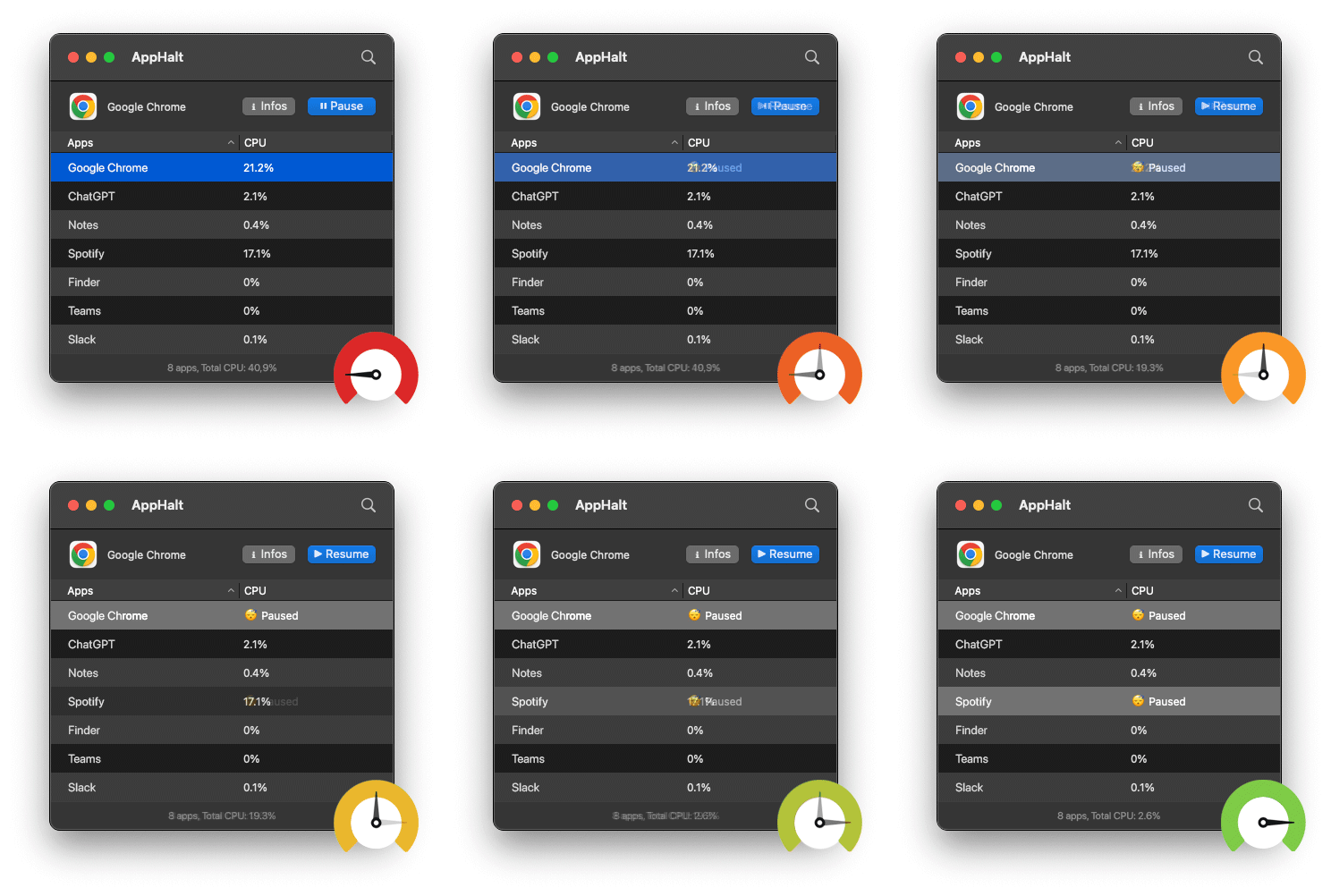
AppHalt helps by giving you a middle ground between quitting everything and letting every app stay active.
Use AppHalt when:
- You want to keep apps open for later.
- You do not want unused apps doing background work.
- Your MacBook Neo feels slower on an external display.
- Your desk setup encourages too much multitasking.
- You want fewer apps using CPU and energy.
- You want to keep the MacBook Neo cooler and calmer.
AppHalt does not change the MacBook Neo’s display limits. It does not add support for extra monitors. Its role is different: it helps reduce unnecessary background activity so the MacBook Neo can focus on the apps you are actually using.
Do not pause apps that are saving, syncing important files, uploading, downloading, rendering, recording, exporting, compiling, or handling live work.
MacBook Neo external display mistakes to avoid
Mistake 1: Using the wrong USB-C port
Use the USB 3 USB-C port for display output. If the monitor does not work, check the port before replacing the monitor or adapter.
Mistake 2: Buying a dual-monitor dock expecting two native displays
The MacBook Neo supports one external display. If two external monitors are essential, choose a Mac designed for that workflow.
Mistake 3: Using a cheap 4K adapter
Some adapters support only 4K at 30Hz or behave unreliably. Choose one that clearly supports the resolution and refresh rate you need.
Mistake 4: Blaming the display when the browser is overloaded
If your MacBook Neo feels slow on a monitor, check browser tabs and background apps before blaming the screen.
Mistake 5: Turning the MacBook Neo into a workstation
The MacBook Neo can be a good desk Mac, but it is still an entry-level MacBook. Do not expect heavy pro multitasking from it.
Mistake 6: Ignoring heat and airflow
A desk setup can trap heat if the MacBook sits flat under a monitor, near a warm hub, or on a soft surface. Use a clean, ventilated setup.
Best order to set up an external display on MacBook Neo
Follow this order for the cleanest setup:
- Choose one external display, ideally 4K at 60Hz for the best balance.
- Use the USB 3 USB-C port for display output.
- Use a reliable USB-C, DisplayPort, or HDMI adapter if needed.
- Check display resolution and refresh rate in System Settings.
- Place the MacBook Neo on a hard surface or stand for airflow.
- Connect keyboard and mouse or trackpad if using a desk setup.
- Open only essential apps first and test performance.
- Watch Activity Monitor if the Mac feels slower.
- Pause unused apps with AppHalt to reduce background activity.
- Avoid dual-monitor expectations unless you are ready for workarounds and compromises.
This setup keeps the MacBook Neo in its comfort zone.
FAQ: MacBook Neo external display
Can MacBook Neo connect to an external display?
Yes. MacBook Neo can connect to one external display with up to 4K resolution at 60Hz.
How many external monitors does MacBook Neo support?
MacBook Neo supports one external display. If you need multiple external monitors natively, another Mac model may be a better choice.
Which USB-C port should I use for a MacBook Neo external display?
Use the USB 3 USB-C port, because it supports DisplayPort and higher data speed. The USB 2 USB-C port is better suited for charging and simpler peripherals.
Can MacBook Neo run a 4K monitor?
Yes. MacBook Neo supports one external display up to 4K at 60Hz.
Can MacBook Neo run two external monitors?
Not natively. The MacBook Neo is officially designed for one external display. Dual-monitor workarounds may add complexity and are not the cleanest recommendation.
Does an external display make MacBook Neo slower?
The display itself does not automatically make it slow, but an external display often encourages heavier multitasking. More apps, tabs, and windows can increase CPU, memory, and energy use.
Why does my MacBook Neo get warm with an external monitor?
Heat can come from display output, charging, docks, hubs, browser tabs, video calls, background apps, or poor airflow. Test with fewer apps and fewer accessories.
Should I use HDMI or DisplayPort with MacBook Neo?
Both can work if the adapter is reliable. USB-C to DisplayPort is often a clean choice for monitors with DisplayPort. If using HDMI, make sure the adapter supports 4K at 60Hz.
Can I close the MacBook Neo lid while using an external monitor?
You may be able to use the MacBook Neo in a desk setup with external keyboard, mouse, power, and display, depending on your setup. For performance and heat, keeping the MacBook open can also help with airflow and give you a second screen.
Can AppHalt improve external display performance on MacBook Neo?
AppHalt does not change display limits, but it can help reduce unnecessary background CPU activity by pausing unused apps. That can make a MacBook Neo desk setup feel calmer and more responsive.
What is the best external monitor for MacBook Neo?
For most users, a 24-inch or 27-inch 4K 60Hz monitor with a reliable USB-C, DisplayPort, or HDMI connection is the best practical match.
Why is my external display stuck at 30Hz?
The adapter, cable, hub, or monitor input may not support 4K at 60Hz. Use a cable or adapter clearly rated for the resolution and refresh rate you want.
Useful official Apple resources
If you want to go deeper, these Apple resources are useful:
- MacBook Neo Technical Specifications
- Connect an external display to MacBook Neo
- Take a tour of MacBook Neo
- Activity Monitor User Guide for Mac
- View CPU activity in Activity Monitor on Mac
Final thoughts: one good monitor is the right MacBook Neo setup
The MacBook Neo can be a very comfortable little desk Mac when paired with one good external display.
The best setup is not complicated: one 4K 60Hz monitor, the right USB-C port, a reliable adapter if needed, good airflow, and a focused app workload.
The main mistake is expecting the MacBook Neo to behave like a professional multi-monitor workstation. It is not built for that. It is built for simple, everyday computing — and one good external display fits that purpose well.
Keep the setup clean, keep browser tabs under control, avoid unnecessary hubs, and do not let a bigger screen become an excuse to keep every app open forever.
A bigger display gives your MacBook Neo more visual space. App discipline keeps that space from becoming performance clutter.
🚀 Keep Your MacBook Neo Faster on an External Display with AppHalt
AppHalt helps your MacBook Neo stop wasting resources on apps you are not using.
An external display often leads to more windows, more tabs, and more background apps. AppHalt gives you a smarter middle ground: pause unused apps, reduce background CPU usage, and keep your MacBook Neo focused on the work in front of you.
✅ Reduce background CPU usage.
✅ Help prevent overheating, fan noise, and battery drain.
✅ Pause unused apps without fully breaking your workflow.
✅ Keep your Mac feeling faster, lighter, and calmer.
📥 Want a cleaner MacBook Neo desk setup? Download AppHalt now.