
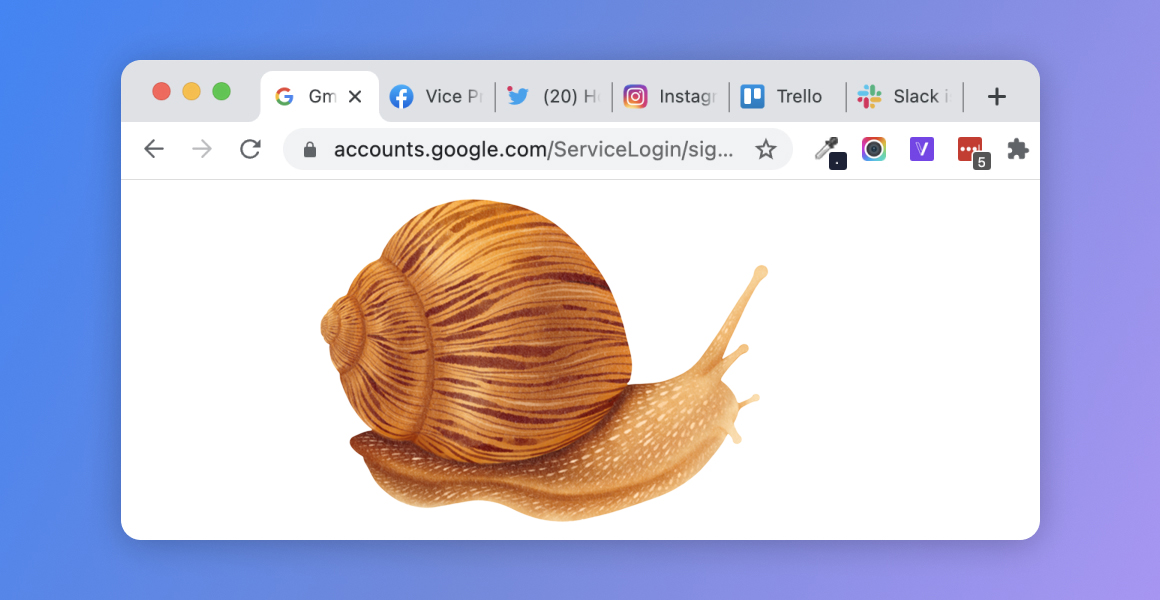
1. Mac Slow After Opening Too Many Tabs? You’re Not Alone 🐌
If your Mac gets slow after opening too many tabs in Chrome, Safari, or Firefox, you’re not imagining things. It’s a common problem—even with newer MacBooks. Browsers can quietly eat through your memory and CPU until everything slows down.
The good news? You can fix this without closing your entire workspace.
2. Why Do Tabs Make Your Mac Lag?
Each browser tab is a separate process—sometimes with its own scripts, animations, media, and memory usage. Add in background sync and extensions, and suddenly your Mac runs out of RAM or swaps memory aggressively. That’s when your Mac slows down after opening too many tabs.
3. Chrome vs Safari: Which Is Gentler?
Safari is more efficient on macOS than Chrome or Firefox. If you’re seeing lag after opening tabs in Chrome, try switching to Safari for better memory management—especially on battery power.
No need to close tabs. Just pause what’s not essential right now.
5. More Tips for Tab-Heavy Users
- Use a tab manager extension to suspend inactive tabs
- Restart your browser every few hours
- Turn off unused browser extensions
- Keep your Mac cool with a stand or active ventilation
Need Help from Apple?
Apple’s performance support page can help: Speed up your Mac – Apple Support

- ✅ Pause background apps eating CPU & RAM
- ✅ Speed up your Mac without closing browser tabs
- ✅ Enjoy multitasking without slowdowns
Where AppHalt may help
If Activity Monitor shows a regular app you recognise using resources while you do not need it, AppHalt gives you a reversible option: pause that selected app without quitting it, then resume it later. AppHalt does not repair macOS or guarantee a speed, temperature, battery, or stability result; the effect depends on what the app was doing.
Do not pause an app that is uploading, syncing, backing up, rendering, recording, playing media, or handling a call you need to continue.

