
Mac Battery Draining Fast? Here’s How to Fix It and Make It Last Longer
Ever unplug your MacBook in the morning, full of optimism, only to find it begging for the charger before lunch? If your Mac battery is draining fast, it’s not just frustrating—it’s a productivity killer.
You start blaming the battery. Maybe it’s old? Maybe your Mac is too old? But in reality, it’s often not the battery itself—it’s what’s running in the background, hidden in plain sight.
Let’s dive into what really causes fast battery drain on macOS and how you can fix it—without becoming a system expert or closing all your apps. Spoiler alert: there’s a smarter way than just dimming your screen.
Common Reasons Your Mac Battery Is Draining Quickly
1. Background Apps Eating CPU
Apps like Chrome, Dropbox, Microsoft Teams, Slack, or even Spotify can continue working in the background—even when they’re minimized. They consume CPU and power constantly, slowly draining your battery while you think your Mac is “doing nothing.”
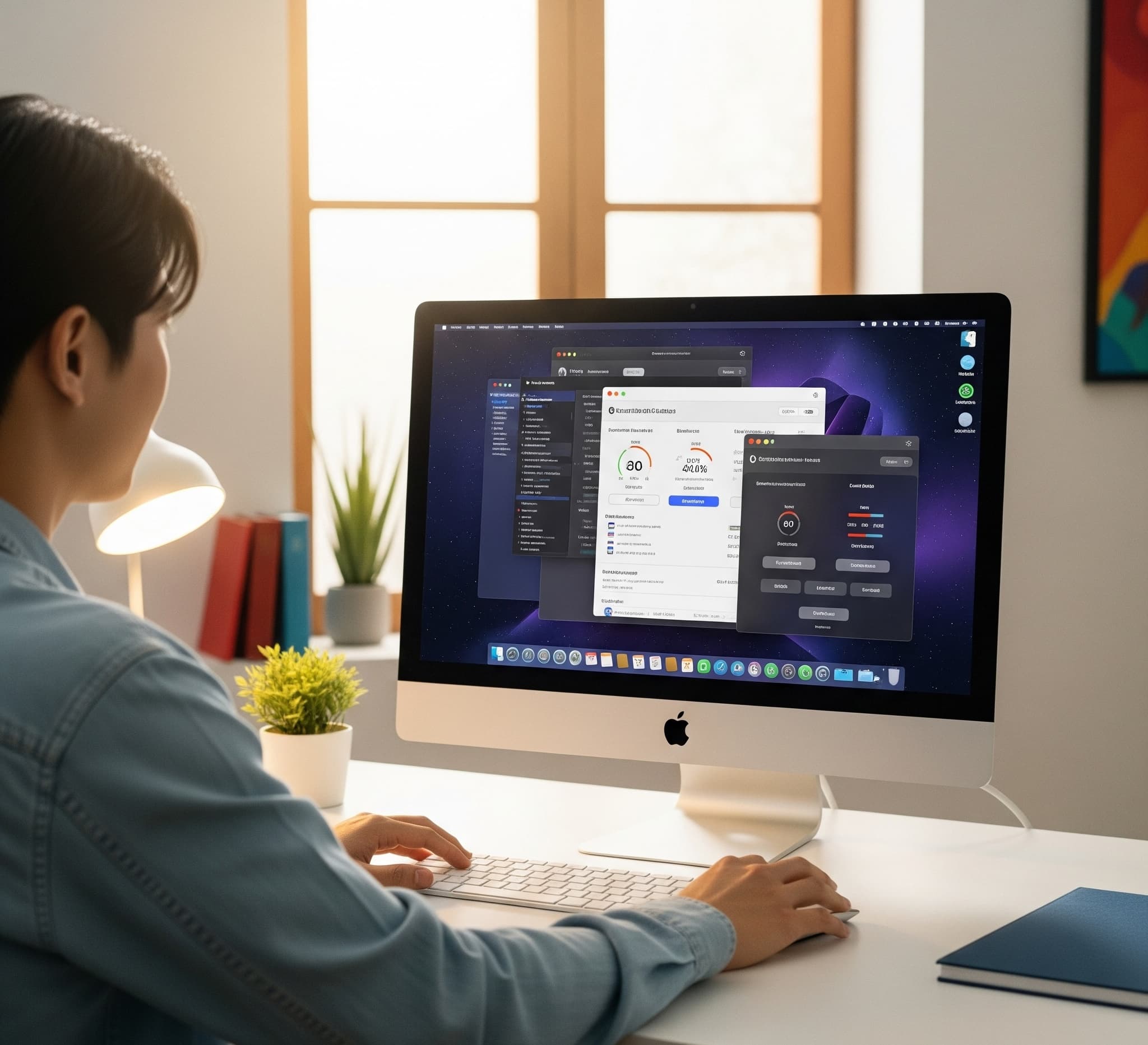
2. High Screen Brightness and Visual Effects
macOS animations, transparency, and high screen brightness look great—but they cost energy. On Retina displays, the screen is one of the biggest power consumers. Combine that with high refresh visuals, and it’s game over for your battery.
3. Poor App Optimization
Not all apps are built the same. Some apps are optimized for Apple Silicon (M1/M2), others still run via Rosetta. These older apps consume more power, and if left open all day, they turn your Mac into a stealth power drainer.
4. Browser Tabs and Streaming
Watching YouTube, Netflix or running 20+ browser tabs? That’s GPU + CPU + network load, all combined. It drains your battery faster than you’d think—even if you’re “just watching a video.”
5. Syncing Services and iCloud
iCloud Drive, Photos, Mail, and other sync services quietly update in the background—especially after sleep or wake. They use Wi-Fi, CPU, and disk activity, adding strain without warning.
Real User Scenario: “I Didn’t Touch It, and It Still Lost 30% Battery”
This is common. You close your MacBook lid and walk away. A few hours later, you open it—and boom, battery is at 58%. Why?
Because while you thought your Mac was asleep, apps like Zoom or Dropbox were still running in the background. And macOS features like Power Nap can keep things active during sleep, draining energy silently.
How to Extend Your Mac Battery Life (Without Going Crazy)
✅ Step 1: Check Battery Usage in Settings
Go to System Settings → Battery and click “Usage History.” See which apps consume the most power. You might be surprised—some apps burn battery even when idle.
It’s perfect for resource-heavy tools like Photoshop, Discord, or video apps. You keep them ready to go, but without the constant drain.
✅ Step 3: Reduce Brightness and Visual Effects
Lower your screen brightness. Then go to System Settings → Accessibility → Display and reduce motion or transparency. These small changes can give you 10–15% more usage per charge.
✅ Step 4: Close Browser Tabs You Don’t Use
Every tab consumes RAM, CPU, and sometimes GPU. If you keep 30 tabs open, you’re wasting power—even when idle. Try bookmarks or tab managers to keep things light.

✅ Step 5: Turn Off Unused Connections
Bluetooth and Wi-Fi consume battery. If you’re not using AirDrop, AirPlay, or a wireless device, disable Bluetooth when not needed. Similarly, disable Wi-Fi if you’re working offline.
Let’s Talk About Smart Sleep
It detects apps that are still running in the background while idle, and pauses them automatically. You wake your Mac up in the morning—and the battery is still right where you left it.
This Isn’t Just About Saving Battery—It’s About Saving Your Flow
You save your battery. You stay productive. You keep your sanity.
Bonus Tips: MacBook Battery Best Practices
- 🔋 Keep battery between 20–80% for longevity
- ☀️ Avoid charging while in direct sunlight or on fabric
- 🧠 Don’t leave your Mac always plugged in—let it cycle
- 🛠️ Keep macOS updated—Apple improves battery handling regularly
Conclusion: Take Back Control of Your Battery
If your Mac battery is draining fast, it’s not a mystery—and it’s not your fault. Background apps, hidden syncs, and inefficient software are to blame. But now you know what to do.
Pause the apps, unplug the energy leaks, and let your Mac finally breathe. You’ll get more hours, fewer frustrations, and a better experience—every time you open the lid.

- ✅ Pause apps, not your workflow
- ✅ Reduce overnight battery drain
- ✅ Extend battery health and lifespan
Where AppHalt may help
If Activity Monitor shows a regular app you recognise using resources while you do not need it, AppHalt gives you a reversible option: pause that selected app without quitting it, then resume it later. AppHalt does not repair macOS or guarantee a speed, temperature, battery, or stability result; the effect depends on what the app was doing.
Do not pause an app that is uploading, syncing, backing up, rendering, recording, playing media, or handling a call you need to continue.

