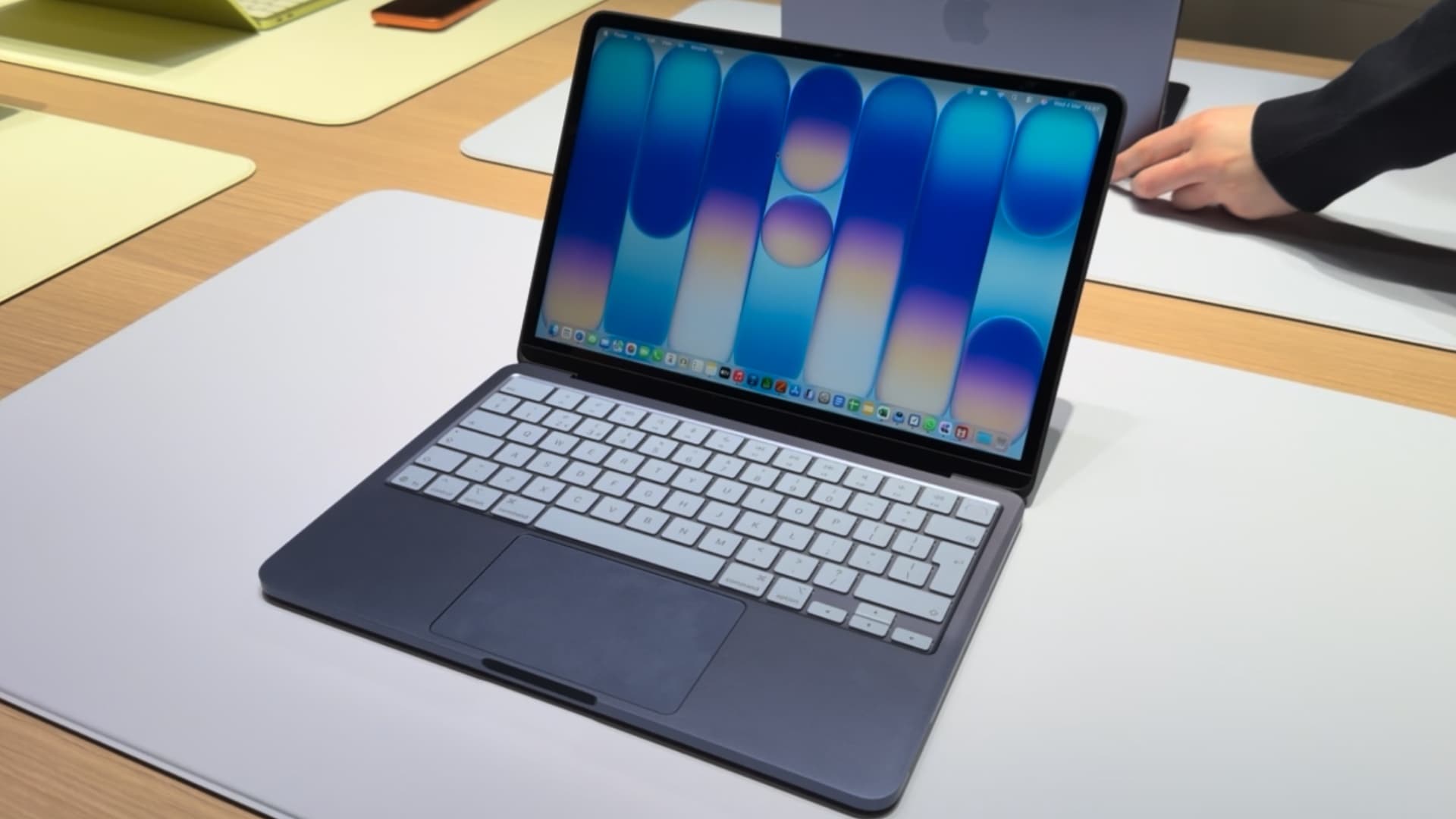
Your MacBook battery may not be dying. It may simply be working too hard.
When a MacBook battery drains fast, most people immediately blame the battery itself. Maybe it is old. Maybe macOS is heavier than before. Maybe the charger is not good enough. Maybe it is time to replace the MacBook.
Sometimes the battery is the problem. But very often, the real cause is simpler: your MacBook is spending energy on apps, tabs, background processes, sync tools, and tasks you are not actively using.
A MacBook does not lose battery only because the screen is on. It loses battery because the system is working. CPU usage, memory pressure, background apps, browser tabs, cloud sync, video calls, notifications, and menu bar utilities can all drain power quietly.
This guide will help you understand why your MacBook battery is draining so fast, how to find the real cause, and what to do before assuming your battery is finished.
Quick answer: if your MacBook battery drains fast, check Energy usage in Activity Monitor, reduce background apps, close heavy browser tabs, lower unnecessary startup items, stop endless cloud sync, update macOS, and pause unused apps that do not need to keep working.

Why your MacBook battery drains fast
Battery drain is not always caused by the battery. It is often caused by workload.
Your MacBook uses more power when it has more work to do. That work can be visible, like editing a video or joining a video call. But it can also be invisible, like cloud syncing, indexing, browser extensions, background refresh, app helpers, or a process stuck in the background.
The most common causes of fast MacBook battery drain are:
- Apps using too much CPU.
- Too many apps open in the background.
- Browsers with many tabs or extensions.
- Video calls and screen sharing.
- Cloud sync running constantly.
- Menu bar utilities waking up all day.
- High screen brightness.
- Bluetooth devices and external accessories.
- Old or misbehaving apps.
- Low signal Wi-Fi causing more network effort.
- macOS updates, indexing, or Photos analysis running after an update.
The important idea is simple: your MacBook battery drains faster when your MacBook is busy.
So the best question is not only “Is my battery bad?” The better question is:
What is making my MacBook work so hard?
The 5-minute MacBook battery diagnosis
Before changing settings randomly, do this quick diagnosis. It helps you find the real reason your battery is dropping.
| Minute | What to check | What it tells you |
|---|---|---|
| 1 | Energy tab in Activity Monitor | Which apps are draining the most power |
| 2 | CPU tab in Activity Monitor | Which apps are making your MacBook work hard |
| 3 | Browser tabs and extensions | Whether your browser is the main battery drain |
| 4 | Cloud sync and downloads | Whether files are moving in the background |
| 5 | Unused open apps | Whether pausing or quitting apps improves battery life |
This diagnosis is more useful than guessing. It shows whether the problem is your battery, your apps, your browser, your settings, or your current workload.
MacBook battery drain symptoms and likely causes
Battery problems can look similar, but the causes are different. Use this table to choose the right fix faster.
| Symptom | Likely cause | Best first fix |
|---|---|---|
| Battery drops quickly while doing simple tasks | Background apps, browser tabs, or CPU usage | Check Energy and CPU in Activity Monitor |
| MacBook gets hot on battery | High CPU usage or heavy background activity | Pause or quit unused heavy apps |
| Battery drains during sleep | Apps, network activity, notifications, or wake events | Check background apps and sleep settings |
| Battery drains fast after macOS update | Indexing, Photos analysis, cloud sync, or app updates | Let temporary tasks finish, then check Activity Monitor |
| Battery drains fast only with browser open | Tabs, extensions, media, ads, or web apps | Restart browser and reduce tabs/extensions |
| Battery drains during video calls | Camera, microphone, CPU, network, screen sharing | Close unused apps before calls |
| Battery health looks fine but battery still drops fast | Software workload, not battery wear | Reduce background CPU and energy impact |
1. Check Energy usage in Activity Monitor
The first serious step is to open Activity Monitor.
Activity Monitor shows what your MacBook is doing behind the scenes. For battery problems, start with the Energy tab. This view helps you identify apps with high energy impact.
Look for apps that have a high energy impact even when you are not actively using them.
Common examples include:
- Browsers with many tabs.
- Video meeting apps.
- Cloud sync tools.
- Messaging apps.
- Design or creative tools left open.
- Music or media apps.
- Menu bar utilities.
- Apps stuck after an update.
If an app is using energy and you do not need it right now, quit it or pause it.
Important: do not close random system processes you do not understand. Focus first on apps you recognize.
2. Check CPU usage because CPU drains battery
Battery drain and CPU usage are closely linked. The more your MacBook’s processor works, the more power it uses.
In Activity Monitor, open the CPU tab and sort by % CPU. If one app is using a lot of CPU while sitting in the background, it may be one of the reasons your battery is dropping.
This is especially common with:
- Browsers.
- Video call apps.
- AI tools.
- Design software.
- Cloud storage apps.
- Developer tools.
- Apps that failed to close properly.
A MacBook battery does not care whether the workload is visible or invisible. If the CPU is working, power is being used.
This is why background apps matter so much. They may not be in front of you, but they can still consume energy.
3. Stop unused apps from draining battery in the background
Many MacBook users keep apps open all day. That is understandable. It feels convenient. You may want your workspace ready, your files open, your conversations available, and your tools waiting in the Dock.
But convenience has a cost when apps keep working after you stop using them.
An app can drain battery in the background by:
- Checking for updates.
- Syncing files.
- Refreshing notifications.
- Keeping network connections alive.
- Rendering previews.
- Using helper processes.
- Waking up repeatedly.
The usual advice is to quit apps. That works, but it can also break your flow. You lose the exact state of what you were doing. You may need to reopen files, reload sessions, reconnect tools, or rebuild your workspace.
This is where AppHalt is useful.
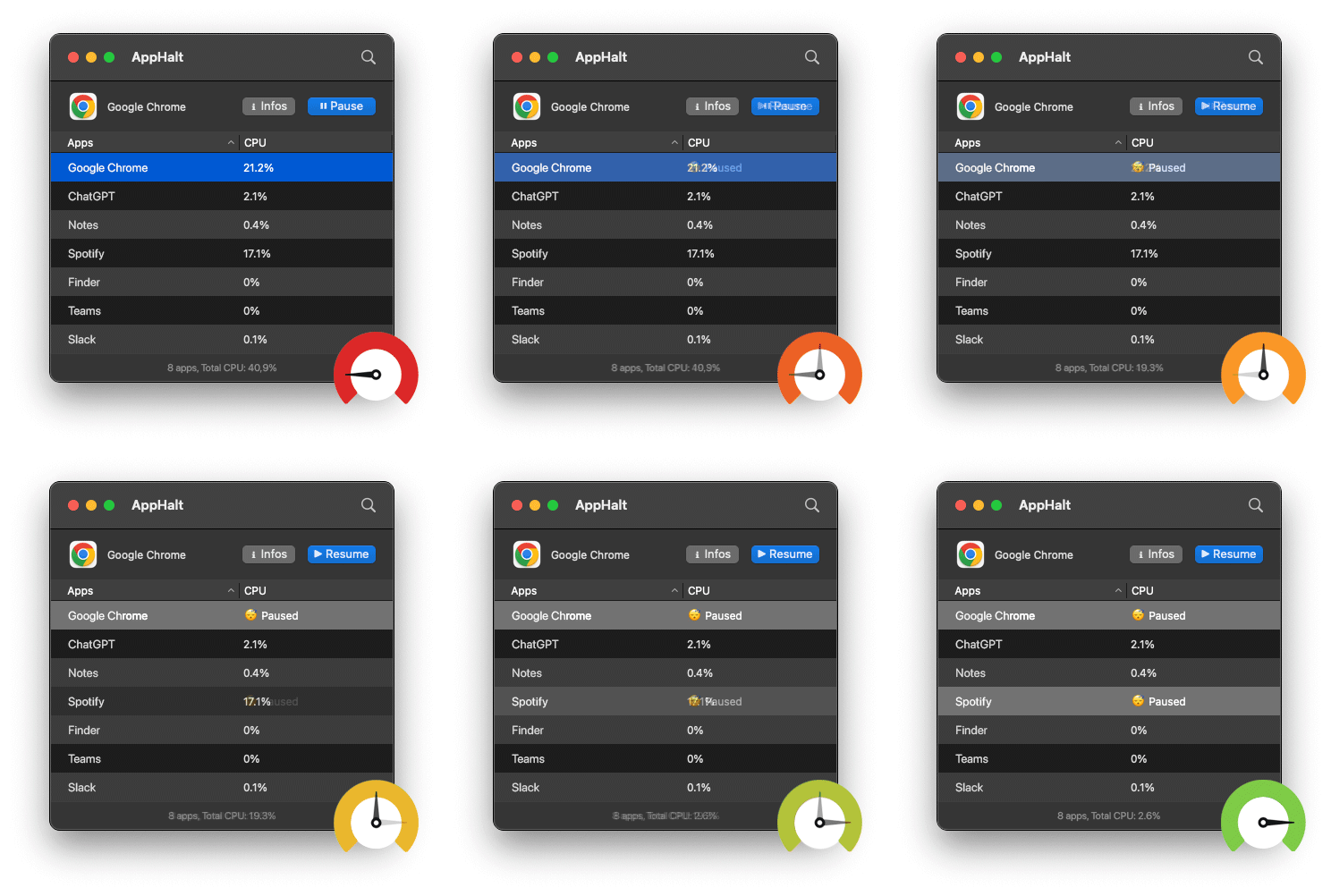
AppHalt gives you a middle ground between leaving everything running and quitting everything. You can pause unused apps so they stop wasting CPU and battery while your MacBook focuses on what you are doing now.
Use AppHalt for apps you recognize and do not need right now. Do not pause apps that are saving, uploading, downloading, rendering, recording, syncing important files, or handling live work.
4. Quit, pause, or leave open: what saves battery?
Not every app should be treated the same way. Some should stay open. Some should be quit. Some are perfect candidates for pausing.
| Action | Best when | Battery impact | Workflow impact |
|---|---|---|---|
| Leave open | You are actively using the app | Depends on app activity | Most convenient |
| Quit | You are done with the app for now | Best for stopping battery use | Breaks the current app state |
| Force quit | The app is frozen or not responding | Stops the app immediately | Can lose unsaved work |
| Pause | You want to keep the app state but stop background work | Can reduce wasted CPU and energy | Keeps your workspace easier to resume |
The practical rule is simple:
- Leave active apps open.
- Quit apps you will not use again soon.
- Force quit only when an app is frozen.
- Pause apps that are open for later but do not need to work now.
This is one of the best habits for improving MacBook battery life without making your workflow painful.
5. Reduce browser battery drain
Your browser may be the biggest battery drain on your MacBook.
Modern browsers are not simple web viewers anymore. They run documents, music, video, dashboards, AI tools, email, messaging, analytics, admin panels, project management, and full web apps.
That means your browser can drain battery through:
- Too many tabs.
- Video playback.
- Auto-refreshing dashboards.
- Heavy web apps.
- Ads and trackers.
- Extensions running on every page.
- Pinned tabs that never sleep.
- Old sessions restored automatically.
To reduce browser battery drain:
- Close tabs you do not need today.
- Remove extensions you no longer use.
- Restart the browser once a day if it becomes heavy.
- Use bookmarks instead of keeping everything open.
- Avoid leaving video or dashboard tabs running in the background.
If your MacBook battery improves after closing your browser, your battery was not the only issue. Your browser workload was.
6. Watch video calls, screen sharing, and meetings
Video calls are expensive for battery life. They use the camera, microphone, speakers, network, CPU, and sometimes screen sharing at the same time.
Apps like Zoom, Teams, Google Meet, FaceTime, Slack calls, and Discord can drain battery quickly, especially during long meetings.
Before a long call:
- Close or pause unused apps.
- Close heavy browser tabs.
- Lower screen brightness if possible.
- Stop cloud sync if it is not needed.
- Avoid running design, video, or development tools in the background.
Video calls are already demanding. Do not make your MacBook carry extra apps at the same time.
7. Check cloud sync and background downloads
Cloud sync can quietly drain your MacBook battery.
iCloud Drive, Dropbox, Google Drive, OneDrive, Photos, and backup tools can all use energy while uploading, downloading, scanning, or indexing files.
This is normal after:
- Adding many files.
- Importing photos or videos.
- Setting up a new Mac.
- Restoring from backup.
- Moving folders into cloud storage.
- Updating macOS.
If sync is temporary, let it finish while plugged in. If sync never ends, investigate. A stuck file or endless sync loop can waste battery for days.
Open the sync app and check its status. If possible, pause syncing when you are on battery and do not need immediate updates.
8. Lower screen brightness, but do not stop there
Screen brightness matters. A brighter screen uses more power. Lowering brightness can help, especially on long sessions away from the charger.
But brightness is only one part of battery life.
If your screen is dim but your MacBook is still hot, noisy, or dropping battery fast, the problem is probably not brightness alone. Your MacBook is working too hard.
So yes, reduce brightness when you can. But also check:
- CPU usage.
- Energy impact.
- Background apps.
- Browser tabs.
- Cloud sync.
- Login items.
Brightness saves power. Reducing unnecessary work saves power too.
9. Review login items and background items
If many apps launch automatically when you start your MacBook, battery drain can begin before you even open your first document.
To review login items:
- Open System Settings.
- Go to General.
- Open Login Items & Extensions or Login Items.
- Remove apps you do not need at startup.
- Review background items carefully.
Apps that often do not need to launch automatically include:
- Chat apps you open manually.
- Old utilities.
- Launchers you rarely use.
- Menu bar tools you forgot about.
- Apps from services you no longer use.
Be careful with password managers, security tools, backup tools, hardware drivers, and cloud apps you depend on. The goal is not to disable everything. The goal is to make startup intentional.
10. Update macOS and battery-hungry apps
Battery drain can come from bugs. An outdated app may keep running inefficiently, fail to sleep properly, or use too much CPU after a macOS change.
Update macOS through System Settings > General > Software Update.
Also update apps that often affect battery life:
- Browsers.
- Video call apps.
- Cloud sync tools.
- Design tools.
- Messaging apps.
- Developer tools.
- Menu bar utilities.
Before a major macOS upgrade, back up your Mac. Minor updates are usually simple. Major upgrades deserve more caution, especially if you use older professional software or plugins.
11. Check battery health, but do not confuse health with drain
Battery health matters. If your battery is old or degraded, it will not last as long as it used to.
But battery health is not the same thing as battery drain.
A MacBook with good battery health can still drain quickly if apps are consuming too much power. A MacBook with lower battery health can still improve if you reduce background workload.
Check your battery health in macOS settings. If macOS reports that service is recommended, the battery itself may need attention. But if battery health looks normal and the MacBook still drains quickly, focus on energy usage and background apps.
The battery may be fine. The workload may not be.
12. Avoid charging myths and focus on workload
Battery advice online often becomes confusing. Some users worry constantly about charging percentages, cycles, adapters, sleep settings, and whether they should keep the MacBook plugged in.
Those things can matter. But they are not the first place to look when battery drops fast during normal use.
Start with what your MacBook is doing right now:
- Is one app using too much CPU?
- Are browser tabs active?
- Is cloud sync running?
- Are many apps open in the background?
- Is a video call app still active?
- Are menu bar utilities constantly refreshing?
You do not need battery superstition. You need battery visibility.
13. Reduce menu bar utilities
Menu bar apps look small, but they can add up. Each one may check something, sync something, scan something, monitor something, or notify you about something.
Common menu bar apps include:
- Clipboard managers.
- Calendar helpers.
- Cloud tools.
- Screenshot utilities.
- VPN apps.
- Monitoring tools.
- Launchers.
- Note tools.
- Messaging apps.
Some are useful. Some are essential. But every background utility should earn its place.
Ask:
- Do I use this every day?
- Does it need to run on battery?
- Can I open it manually?
- Does it appear in Activity Monitor?
- Does it duplicate another tool?
Less background utility load usually means a calmer, longer-lasting MacBook.
14. Use Low Power Mode when it makes sense
Low Power Mode can help reduce energy usage on supported MacBooks. It is useful when you need to extend battery life during travel, meetings, writing sessions, or light work.
But Low Power Mode is not a substitute for good app hygiene.
If a browser tab, cloud app, video call, or background process is consuming energy, reducing that workload can still make a big difference. Low Power Mode helps your MacBook use less power. Reducing unnecessary work gives it less work to do in the first place.
The two ideas work well together:
- Use Low Power Mode when you need more battery time.
- Pause or quit unused apps to reduce background energy drain.
15. Build a simple MacBook battery routine
The best battery routine is short enough to repeat.
Before working on battery
- Close browser tabs you do not need.
- Pause or quit unused apps.
- Stop unnecessary cloud sync.
- Lower brightness if comfortable.
- Disconnect accessories you do not need.
During the day
- Watch for heat or fan noise.
- Check Energy impact if battery drops too fast.
- Avoid leaving video apps open after calls.
- Pause heavy apps when switching tasks.
Once a week
- Restart your MacBook.
- Review login items.
- Update key apps.
- Clean unused browser extensions.
- Remove apps you no longer use.
This routine is not complicated. That is why it works.
Why background apps are one of the biggest battery problems
The most frustrating battery drain is the one you cannot see.
You may think your MacBook is doing almost nothing because only one or two windows are visible. But behind the scenes, macOS may still be handling multiple active apps, helpers, tabs, sync tools, notifications, and background services.
This is why battery life can feel inconsistent. One day your MacBook lasts for hours. Another day it drops quickly with the same screen brightness. The difference is often not the battery. It is the workload.
Background apps can quietly use:
- CPU.
- Memory.
- Network.
- Disk activity.
- Energy.
And because they are not always visible, they are easy to forget.
That is why controlling background activity is one of the most practical ways to extend MacBook battery life.
Where AppHalt fits into better MacBook battery life
AppHalt is built around a simple idea: your MacBook should not spend battery on apps you are not using.
Instead of forcing you to quit everything, AppHalt lets you pause unused apps. That means you can reduce background CPU usage and energy impact while keeping your workflow easier to return to.
It is especially useful if:
- You keep many apps open during the day.
- Your MacBook gets hot while multitasking.
- Your battery drops fast even during light work.
- You often forget to close apps after using them.
- You want to reduce CPU usage without constantly managing Activity Monitor.
- You want better battery life without breaking your workflow.
AppHalt is not a replacement for battery health, macOS updates, or good charging habits. It is a practical tool for one important part of the problem: background app activity.
That is often where real battery waste happens.
Best order to fix MacBook battery drain
If your MacBook battery is draining fast, follow this order:
- Check Energy usage in Activity Monitor.
- Check CPU usage and find apps working too hard.
- Pause or quit unused apps to reduce background drain.
- Restart your browser and reduce tabs/extensions.
- Stop unnecessary cloud sync while on battery.
- Lower screen brightness if comfortable.
- Review login items and background items.
- Update macOS and battery-heavy apps.
- Check battery health if drain remains abnormal.
This order starts with the most common and reversible fixes. You do not need to replace a battery before checking whether one app is quietly draining it.
FAQ: MacBook battery draining fast
Why is my MacBook battery draining so fast?
Your MacBook battery may drain fast because of high CPU usage, background apps, browser tabs, video calls, cloud sync, high brightness, menu bar utilities, or outdated software. Start by checking Energy and CPU usage in Activity Monitor.
Why is my MacBook battery draining when nothing is open?
Something may still be running in the background. Login items, menu bar apps, browser helpers, sync tools, update agents, and system tasks can all use energy even when your screen looks quiet.
Can background apps drain MacBook battery?
Yes. Background apps can use CPU, network, disk, memory, and energy. If several apps keep working while you are not using them, battery life can drop faster.
Does Chrome drain MacBook battery?
Chrome can drain battery if many tabs, extensions, videos, ads, or heavy web apps are active. Safari, Arc, Firefox, and other browsers can also drain battery when overloaded.
Why does my MacBook get hot and lose battery fast?
Heat and battery drain often come from workload. If CPU usage is high, your MacBook uses more energy and produces more heat. Check Activity Monitor to find the app causing the load.
Does quitting apps save MacBook battery?
Yes, quitting unused apps can save battery if those apps were using resources. But if you want to keep your app state, pausing unused apps with AppHalt can be a better middle ground.
Is it bad to leave apps open on a MacBook?
Not always. Some apps use little power when idle. Others keep working in the background. The issue is not simply whether an app is open, but whether it is active and using energy.
Why does my MacBook battery drain after a macOS update?
After a macOS update, your MacBook may run indexing, cloud sync, Photos analysis, app updates, or background maintenance. This can be temporary. If it continues, check Activity Monitor and update your apps.
Should I replace my MacBook battery?
Only after checking battery health and ruling out software causes. If macOS reports a battery service recommendation, replacement may be needed. If battery health looks normal, focus first on energy usage and background apps.
Can AppHalt improve MacBook battery life?
AppHalt can help improve battery life by reducing unnecessary background app activity. It lets you pause apps you are not using, which can reduce CPU usage and energy impact.
Is AppHalt safe for battery saving?
AppHalt is designed to pause apps you choose. Use it on apps you recognize and do not need right now. Avoid pausing apps that are saving, syncing, uploading, downloading, rendering, recording, or handling live work.
Useful official Apple resources
If you want to go deeper, these Apple guides are useful:
- Activity Monitor User Guide for Mac
- Monitor your Mac laptop’s battery
- Open items automatically when you log in on Mac
- Change Battery settings on a Mac laptop
Final thoughts: your battery should not power apps you are not using
A fast-draining MacBook battery does not always mean the battery is dead. Often, it means the MacBook is doing too much work.
It may be carrying old tabs, background apps, sync tools, video call leftovers, menu bar utilities, and apps you opened hours ago but forgot to close.
The best fix is not panic. It is visibility and control.
Check Energy usage. Check CPU. Reduce browser load. Stop unnecessary sync. Review login items. Update your software. And most importantly, stop unused apps from draining power in the background.
Your MacBook battery should serve your current work, not every app waiting silently behind it.
🚀 Keep Your MacBook Battery Healthy with AppHalt
AppHalt helps your MacBook stop wasting battery on apps you are not using.
Instead of quitting everything or letting every app run in the background, AppHalt gives you a smarter middle ground: pause unused apps, reduce background CPU usage, and help your MacBook stay cooler, calmer, and more efficient.
✅ Reduce background power consumption.
✅ Help prevent overheating and excessive battery wear.
✅ Pause unused apps without fully breaking your workflow.
✅ Extend your MacBook battery life with less effort.
📥 Want a MacBook that lasts longer during the day? Download AppHalt now.