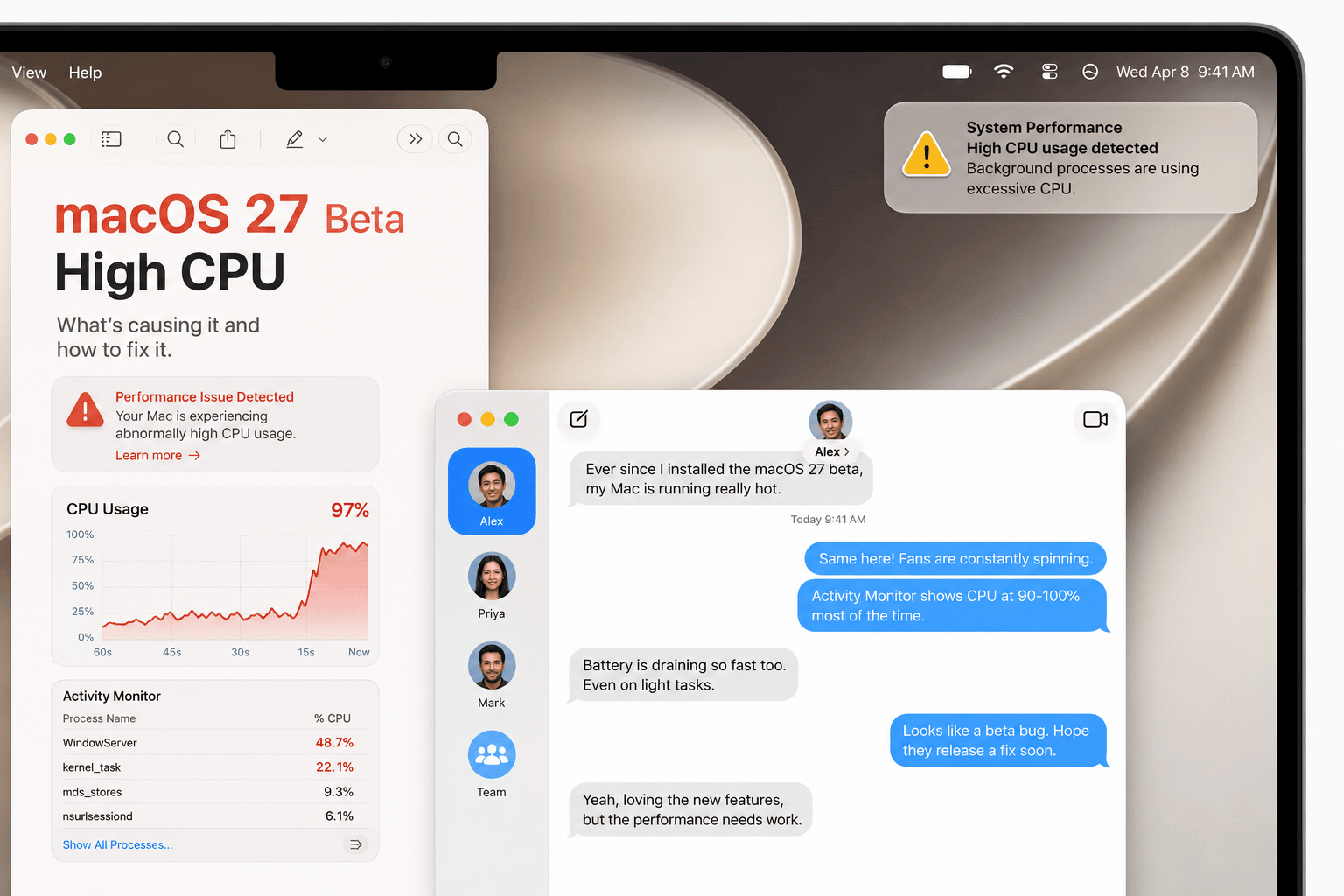
If your Mac feels hot, slow, noisy, or unusually busy after installing the macOS 27 beta, high CPU usage is one of the first things to check.
Beta versions of macOS are exciting because they give you early access to Apple’s next features. But they can also make your Mac work harder than usual, especially during the first hours or days after installation.
With macOS 27 Golden Gate beta, your Mac may be indexing files, syncing iCloud data, analyzing photos, rebuilding caches, updating app components, or running apps that are not fully optimized yet. That extra work can create high CPU usage, battery drain, heat, fan noise, and slower performance.
The important thing is not to guess. If macOS 27 beta feels slow, open Activity Monitor and check what is actually using CPU.
This guide explains why macOS 27 beta can cause high CPU usage, what is normal after a beta update, how to find the real process or app causing the issue, and how to reduce CPU load safely without breaking your workflow.
Quick answer: if macOS 27 beta has high CPU usage, open Activity Monitor, sort by % CPU, wait for post-update indexing to finish, restart your Mac, update apps, reduce browser tabs, stop unnecessary cloud sync, review Login Items, pause unused apps with AppHalt, and avoid force quitting random system processes unless you know exactly what they are.

Why macOS 27 beta can cause high CPU usage
A macOS beta is pre-release software. It is designed for testing, feedback, and developer preparation before the final release.
That means performance may not be fully optimized yet. Some apps may not be ready. Some system processes may run more often than usual. Some background tasks may need to rebuild data after the update.
Common causes of high CPU after installing macOS 27 beta include:
- Spotlight indexing.
- iCloud Drive syncing.
- Photos analysis.
- Mail indexing.
- Browser sessions restored after the update.
- Apps not optimized for macOS 27 yet.
- Login Items launching automatically.
- Cloud sync tools scanning files.
- Security or VPN tools behaving differently on the beta.
- Menu bar utilities running background checks.
- Developer tools or creative apps using helper processes.
- Beta bugs.
Some CPU spikes are normal. Constant high CPU that makes your Mac unusable is not something to ignore.
macOS 27 beta high CPU: what is normal?
Not every CPU spike means something is wrong. CPU behavior Likely meaning Best action High CPU for the first hour after install Post-update indexing or setup Plug in, wait, and recheck later One app stays high for hours App issue or compatibility problem Update, quit, reinstall, or report it CPU spikes when opening browser Tabs, extensions, or restored session Close tabs and remove unused extensions CPU stays high with no visible apps Background process or login item Check Activity Monitor and Login Items High CPU plus heat and fan noise Sustained workload or thermal pressure Reduce apps, improve airflow, and investigate
The first rule is simple: do not judge the beta immediately after installation. Give macOS time to finish its background work. But if CPU stays high after several hours or days, diagnose it properly.
The 5-minute macOS 27 beta CPU diagnosis
Use this quick method before changing random settings. Minute What to check What it tells you 1 Activity Monitor → CPU Which apps or processes are using the most CPU 2 System vs User CPU Whether macOS or user apps are causing most of the load 3 Browser tabs and extensions Whether your browser is the hidden CPU problem 4 Cloud sync and file activity Whether sync or indexing is keeping the Mac busy 5 Login Items and background apps Whether apps start consuming CPU automatically
This gives you a clean diagnosis instead of blindly blaming the beta.
1. Open Activity Monitor and sort by CPU
Activity Monitor is the most useful tool when macOS 27 beta feels slow or hot.
To check CPU usage:
- Open Applications.
- Open Utilities.
- Launch Activity Monitor.
- Click the CPU tab.
- Click % CPU to sort processes by CPU usage.
Look first for normal apps you recognize:
- Safari, Chrome, Firefox, Arc, or another browser.
- Dropbox, Google Drive, OneDrive, or iCloud-related processes.
- Photos.
- Mail.
- Zoom, Teams, Slack, Discord, or other communication apps.
- Creative apps.
- Developer tools.
- Game launchers.
- Menu bar utilities.
If a normal app is using high CPU and you do not need it right now, quit it normally. If it is frozen, force quit that specific app. Do not randomly force quit macOS system processes.
2. Understand System CPU vs User CPU
In Activity Monitor, CPU activity can come from macOS itself or from apps you opened.
This distinction matters. CPU type What it means What to check System CPU CPU used by macOS processes Indexing, system services, drivers, beta processes User CPU CPU used by your apps and their processes Browsers, sync tools, creative apps, utilities Idle CPU CPU not being used Higher idle means your Mac has more breathing room
If User CPU is high, start with apps you opened. If System CPU is high, wait for indexing, check connected accessories, update apps and drivers, and look for recurring system-level processes.
3. Wait for Spotlight indexing and beta setup tasks
After installing macOS 27 beta, your Mac may need time to finish setup work.
This can include:
- Spotlight indexing.
- Mail search indexing.
- Photos analysis.
- iCloud Drive sync.
- System cache rebuilding.
- Security and privacy checks.
- App helper updates.
- Background database updates.
During this time, CPU usage can be higher than usual.
Best first step:
- Plug in your MacBook.
- Keep it on a hard, ventilated surface.
- Let it finish background tasks.
- Avoid opening every app immediately.
- Restart after the first long setup period.
If CPU usage drops later, the issue was probably temporary post-update work.
4. Restart your Mac after the first setup period
A restart can help after installing a beta.
It can clear stuck app helpers, reload services, stop temporary processes, and give you a cleaner baseline.
Use this order:
- Let the Mac finish the first post-update work.
- Save open documents.
- Quit your apps.
- Restart the Mac.
- Wait a few minutes after login.
- Open Activity Monitor before launching your usual workspace.
This helps you see whether the Mac is busy by itself or whether your usual apps create the CPU load.
5. Check your browser before blaming macOS 27 beta
Your browser may be the biggest CPU user after a beta update.
When macOS restarts after installation, your browser may restore dozens of tabs at once. Each tab can run scripts, ads, media, notifications, web apps, extensions, or background tasks.
Browser CPU problems often come from:
- Too many tabs.
- Video or audio playback.
- AI tools left open.
- Auto-refresh dashboards.
- Browser extensions.
- Web apps like email, chat, project management, or documents.
- Multiple profiles running at once.
- A huge restored session after restart.
To reduce browser CPU:
- Close tabs you do not need today.
- Bookmark pages instead of keeping them open.
- Remove extensions you no longer use.
- Stop video and audio playback.
- Restart the browser.
- Disable automatic huge session restore if it hurts performance.
If CPU usage drops after browser cleanup, the beta was not the only issue. Your browser workload was part of the problem.
6. Stop cloud sync from using CPU in the background
Cloud sync apps can use CPU after a beta update because they may scan, compare, upload, download, index, or verify files.
Check these tools:
- iCloud Drive.
- iCloud Photos.
- Dropbox.
- Google Drive.
- OneDrive.
- Backup apps.
- Project sync tools.
Sync activity can be normal after a major update, especially if many files changed or the app needs to rebuild its index.
If sync is important, let it finish while plugged in. If it is not urgent, pause sync from inside the app.
Do not force quit a sync tool while important files are actively moving unless you understand the risk.
7. Pause unused apps to reduce CPU load
Many apps continue running after you stop actively using them.
On macOS, closing a window does not always quit the app. The app may stay open in the Dock, keep helper processes active, refresh data, sync files, or use CPU in the background.
Good candidates to close or pause:
- Browsers you are not using right now.
- Video call apps after meetings.
- Creative apps after finishing a task.
- Messaging apps during focused work.
- Media apps.
- Game launchers.
- Old apps left open after testing.
- Menu bar utilities that refresh data.

If you are finished with an app, quit it. If you want to keep it ready for later but stop it from working in the background, pause it with AppHalt.
8. Use AppHalt to reduce macOS 27 beta high CPU
AppHalt is especially useful when testing macOS beta software because beta performance can be harder to judge.
If too many apps are active, you may think macOS 27 beta is the only problem. But the real issue may be that your Mac is running a beta plus your usual background clutter.
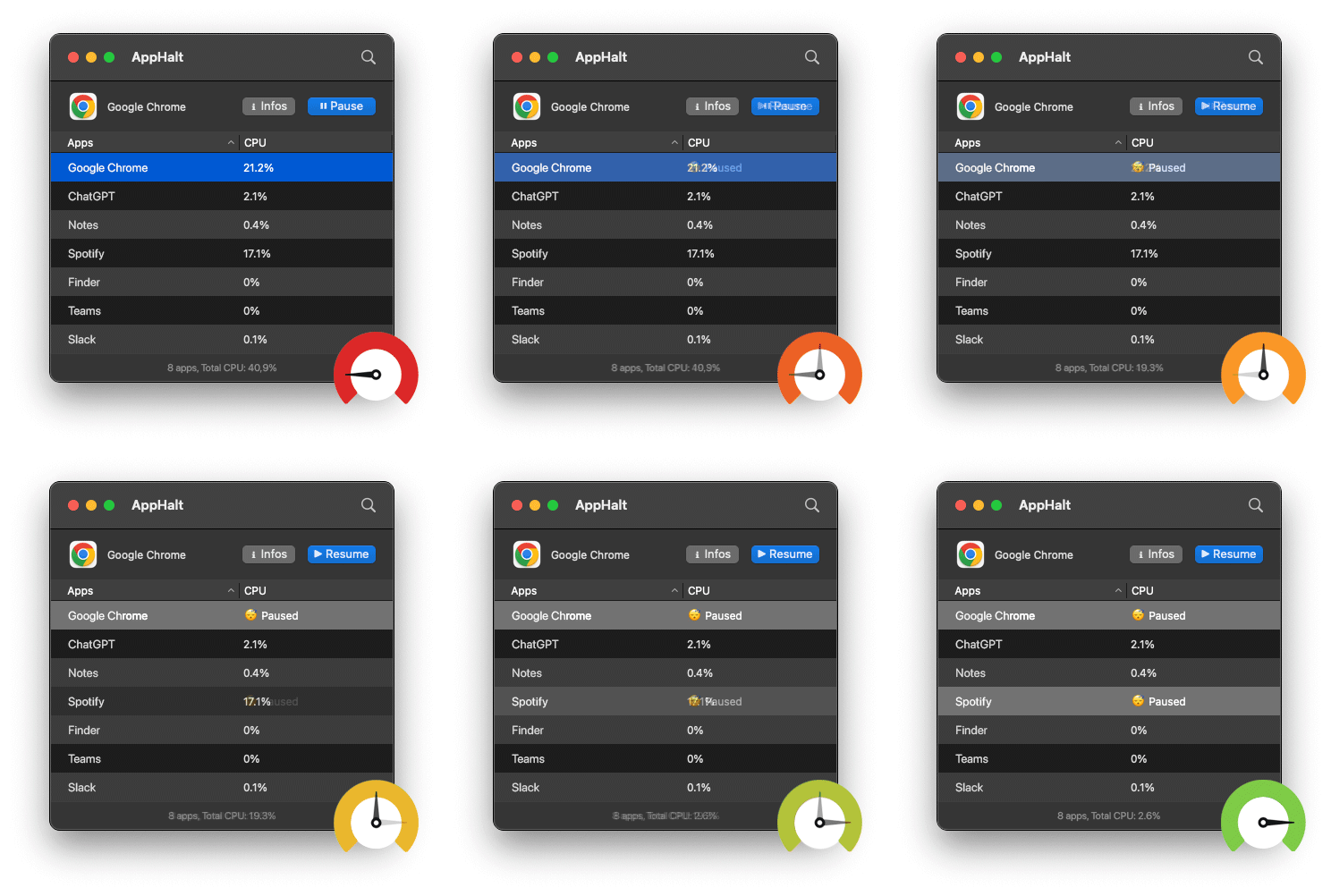
AppHalt lets you pause unused apps without fully quitting them. This can reduce background CPU activity and help your Mac focus on fewer active tasks.
Use AppHalt when:
- macOS 27 beta feels slow or hot.
- Activity Monitor shows many active apps.
- Your browser, chat apps, or utilities keep using CPU.
- You want to reduce background CPU without closing your whole workspace.
- You want to test beta performance with fewer variables.
- You want your MacBook to feel cooler and calmer.
AppHalt does not fix beta bugs. It does not make unfinished software final. But it can help reduce unnecessary background workload, which is exactly what you want when diagnosing high CPU usage.
Do not pause apps that are saving, syncing important files, uploading, downloading, rendering, recording, exporting, compiling, or handling live work.
9. Review Login Items and Background Items
If CPU is high shortly after login, startup apps may be part of the problem.
Open System Settings > General > Login Items & Extensions or Login Items, depending on your macOS version.
Remove apps that do not need to open automatically.
Good candidates include:
- Old utilities.
- Chat apps you do not need immediately.
- Video call apps.
- Launchers.
- Media apps.
- Trial apps.
- Duplicate menu bar tools.
Be careful with password managers, VPNs, security software, backup tools, cloud sync apps, and hardware drivers.
A cleaner startup makes beta testing easier because fewer apps compete with macOS immediately after login.
10. Update apps that keep using CPU
Some apps may not be ready for macOS 27 beta yet.
If one app keeps using high CPU, check for an update.
Prioritize updates for:
- Browsers.
- Cloud sync tools.
- Video call apps.
- Creative apps.
- Developer tools.
- VPN apps.
- Security tools.
- Menu bar utilities.
- Audio, display, printer, or scanner utilities.
If an app still uses high CPU after updating, check the developer’s release notes or support forum. The app may need a beta compatibility update.
11. Check CPU, memory, and energy together
CPU is important, but it is not the whole story.
A Mac can feel slow because of CPU, memory pressure, energy drain, disk activity, network activity, or a combination of all of them.
In Activity Monitor, check:
- CPU: which apps are using processor power.
- Memory: whether memory pressure is green, yellow, or red.
- Energy: which apps are using significant energy.
- Disk: whether apps are reading or writing heavily.
- Network: whether downloads or sync tools are active.
This gives you a more complete picture of what macOS 27 beta is doing.
12. When high CPU on macOS 27 beta is a real problem
Some CPU activity is normal after installation. But some signs deserve attention.
Take it seriously if:
- CPU stays high for several days.
- Your MacBook gets hot with no apps open.
- Fans run loudly during light work.
- Battery drains much faster than before.
- One process repeatedly uses high CPU.
- Apps crash or freeze.
- The Mac becomes unreliable for work or school.
- High CPU returns immediately after every restart.
If the issue is repeatable, report it through Feedback Assistant. If the Mac is critical and the beta is not usable, consider restoring to a stable macOS version from backup.
Best order to fix macOS 27 beta high CPU
Follow this order for the safest results:
- Wait for post-update indexing to finish.
- Plug in your MacBook and keep it ventilated.
- Restart after the first setup period.
- Open Activity Monitor and sort by % CPU.
- Identify normal apps using high CPU.
- Close browser tabs and remove unused extensions.
- Pause unused apps with AppHalt.
- Pause nonessential cloud sync.
- Review Login Items and Background Items.
- Update apps that keep using CPU.
- Check Memory and Energy tabs for related problems.
- Report repeatable beta bugs with Feedback Assistant.
Common mistakes when macOS 27 beta has high CPU
Mistake 1: Force quitting random system processes
Do not kill processes just because you do not recognize them. Start with normal apps you know and understand.
Mistake 2: Judging the beta too early
The first hours after installation can be misleading because macOS may still be indexing and syncing.
Mistake 3: Reopening every app immediately
If you reopen your entire workspace, you cannot tell whether macOS 27 beta is slow or your app load is too heavy.
Mistake 4: Ignoring the browser
Browsers can be huge CPU users, especially after restoring many tabs.
Mistake 5: Forgetting cloud sync
Cloud sync can use CPU, disk, network, and energy after a beta update.
Mistake 6: Installing more optimization tools
More utilities can mean more background processes. Start with Activity Monitor and simple app control first.
FAQ: macOS 27 beta high CPU
Why is macOS 27 beta using so much CPU?
macOS 27 beta may use high CPU because of indexing, iCloud sync, Photos analysis, Mail indexing, app compatibility issues, browser tabs, login items, or beta-level system processes.
Is high CPU normal after installing macOS 27 beta?
Some high CPU is normal during the first hours after installation. If it continues for days or makes the Mac unusable, investigate apps and background processes.
How do I find what is using CPU on macOS 27 beta?
Open Activity Monitor, click the CPU tab, and sort by % CPU. Look for apps or processes using unusually high CPU.
Can AppHalt help with macOS 27 beta high CPU?
AppHalt can help reduce unnecessary background CPU usage by pausing unused apps. It does not fix beta bugs, but it can make your Mac easier to diagnose and keep lighter during beta testing.
Why is my MacBook hot after installing macOS 27 beta?
Your MacBook may be hot because of indexing, sync, high CPU usage, app updates, browser tabs, cloud activity, or apps not optimized for the beta.
Should I force quit high CPU processes?
Force quit only apps you recognize and understand, especially if they are frozen. Do not force quit random macOS system processes.
Why is my browser using high CPU after macOS 27 beta?
Your browser may have restored many tabs, extensions, videos, dashboards, or web apps after the update. Close unused tabs and restart the browser.
Can cloud sync cause high CPU after macOS 27 beta?
Yes. iCloud Drive, Photos, Dropbox, Google Drive, OneDrive, and backup apps can use CPU while scanning, syncing, indexing, uploading, or downloading files.
Should I downgrade if macOS 27 beta CPU usage stays high?
If the beta makes your Mac unreliable for work, school, or daily use, restoring to a stable macOS version from backup may be safer.
How long should I wait before judging macOS 27 beta CPU usage?
Wait several hours at minimum, and ideally a full day of normal use. If high CPU continues after background tasks finish, diagnose further.
Does high CPU cause battery drain on macOS 27 beta?
Yes. High CPU can increase battery drain, heat, fan noise, and overall energy use.
Is macOS 27 beta safe for my main Mac?
Only if you can tolerate bugs, high CPU, battery drain, app compatibility issues, and troubleshooting. If you need reliability, waiting is safer.
Useful official Apple resources
If you want to go deeper, these Apple resources are useful:
- Apple Developer Software Releases
- Apple Beta Software Program
- View CPU activity in Activity Monitor on Mac
- View memory usage in Activity Monitor on Mac
- View energy consumption in Activity Monitor on Mac
Final thoughts: high CPU on macOS 27 beta needs a clean diagnosis
High CPU after installing macOS 27 beta can be frustrating, especially if your Mac felt fast before the update.
But the right reaction is not panic. It is diagnosis.
Let indexing finish. Restart. Open Activity Monitor. Sort by CPU. Check browsers, sync tools, login items, and apps not optimized for the beta. Pause unused apps. Update problematic apps. Watch memory and energy too.
Some CPU load is normal after a beta update. Some comes from your apps. Some may be a real beta bug.
The cleaner your Mac is, the easier it becomes to understand what is actually happening.
🚀 Reduce macOS 27 Beta High CPU with AppHalt
AppHalt helps your Mac stop wasting CPU on apps you are not using while testing macOS 27 beta.
Instead of quitting your whole workspace or letting every app keep running in the background, AppHalt gives you a smarter middle ground: pause unused apps, reduce background CPU usage, and help your Mac stay lighter during beta testing.
✅ Reduce background CPU usage.
✅ Help prevent overheating, fan noise, and battery drain.
✅ Pause unused apps without fully breaking your workflow.
✅ Keep your Mac feeling faster, lighter, and calmer.
📥 Testing macOS 27 beta with high CPU? Download AppHalt now.