
MacBook Pro Fan Always On After macOS Update? Here’s What to Do
Updated your MacBook Pro and now the fans never stop? Whether you’re using the latest macOS Tahoe or another recent version, a constantly spinning fan is a red flag—and a major annoyance.
Not only is it distracting, but it also drains your battery, slows down performance, and heats up your Mac. Here’s what causes this issue and how to fix it effectively.
Why Is Your MacBook Pro Fan Always On?
1. High CPU Usage After macOS Updates
macOS updates often trigger background processes like Spotlight indexing, Photos syncing, and iCloud updates. These run silently—but they hit the CPU hard, causing your fan to spin constantly.
2. Rogue or Outdated Applications
Apps not optimized for the latest macOS version can go haywire. Some might spike CPU usage permanently, pushing your Mac into overdrive. Others may relaunch endlessly in the background.
3. Heavy Menu Bar Utilities and Extensions
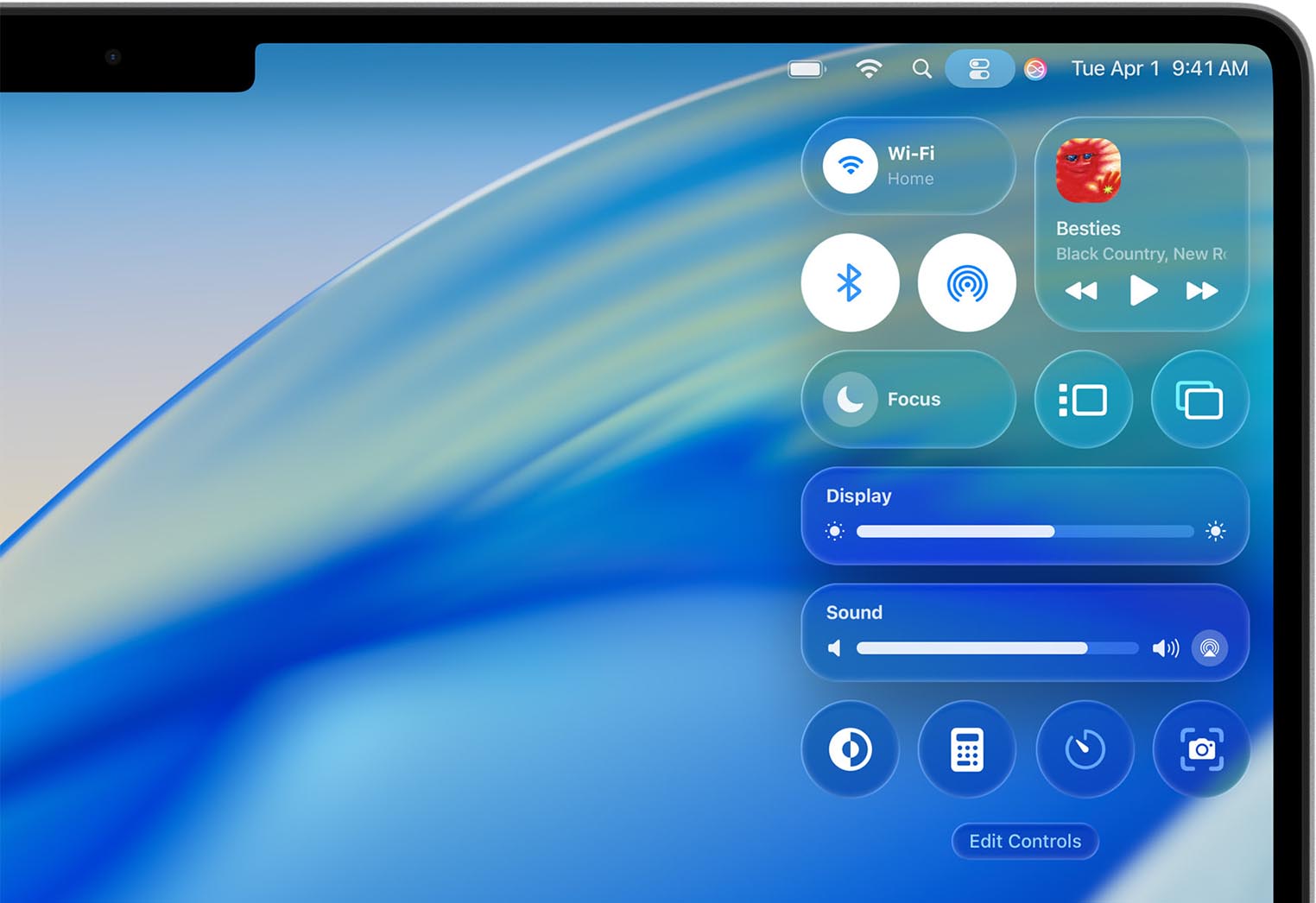
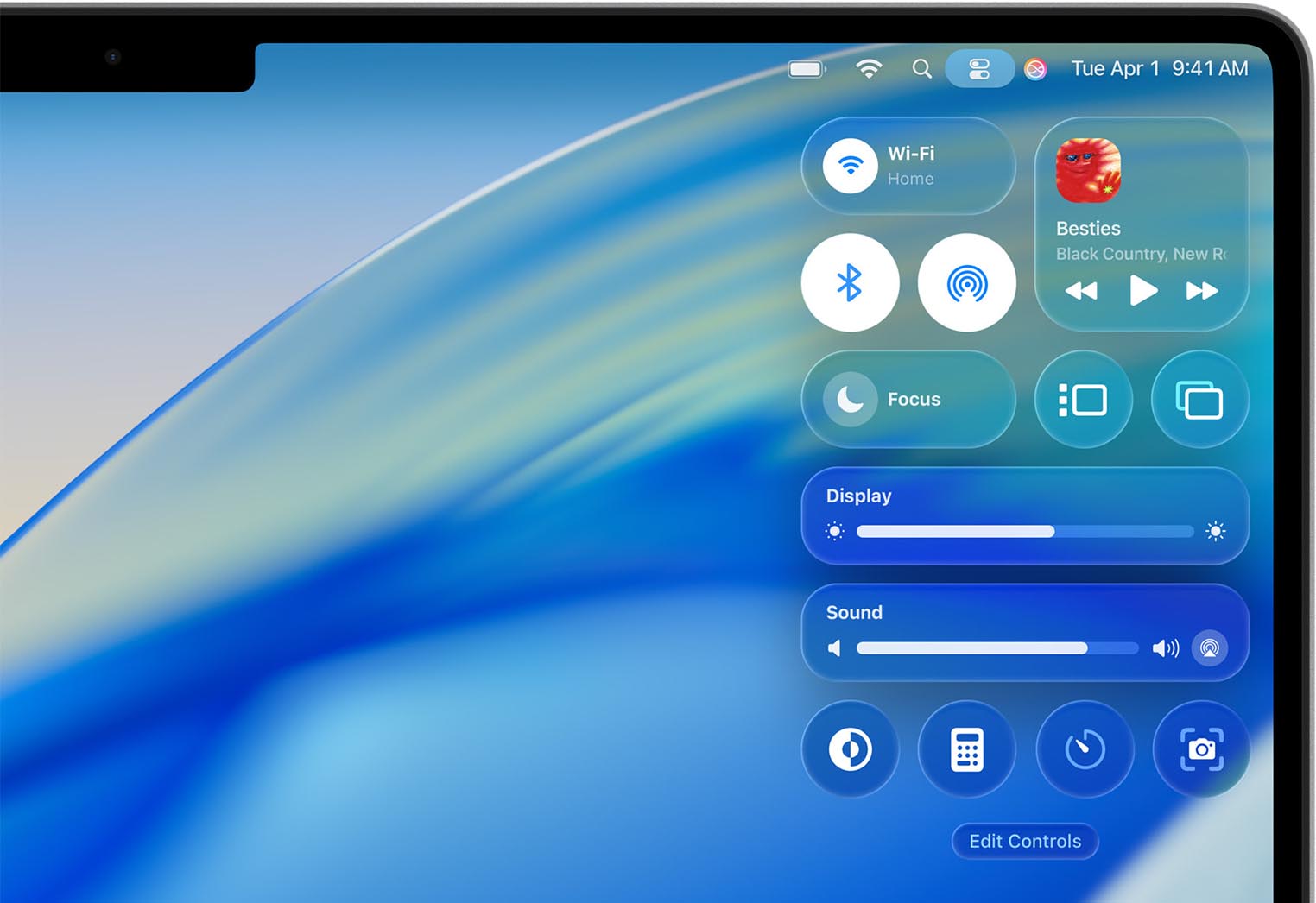
Those innocent-looking tools in your menu bar—Dropbox, OneDrive, Creative Cloud, VPN clients—can run non-stop after a system update. They check for updates, sync files, and stress your CPU even when you’re idle.
4. SMC (System Management Controller) Conflicts
Sometimes, the SMC can go out of sync after an update, misreading temperature or CPU load, and making your fans go wild even when usage is normal.
Quick Fixes for Loud Fans on MacBook Pro
✅ Step 2: Reset the SMC
If you’re on an Intel MacBook Pro, reset the SMC (System Management Controller). This can fix false fan triggers. For Apple Silicon Macs, just shut down, wait 30 seconds, and reboot—it resets automatically.
✅ Step 3: Clean Up Login Items
Go to System Settings → General → Login Items. Remove anything that doesn’t need to launch. Fewer startup apps = fewer CPU cycles = calmer fans.
✅ Step 4: Monitor With Activity Monitor
✅ Step 5: Update or Reinstall Problematic Apps
If one app is repeatedly spiking CPU (like Chrome Helper or Slack), make sure it’s updated for macOS Tahoe. Otherwise, uninstall and reinstall it cleanly.
- ✅ Real-time CPU insights
- ✅ Visual usage indicators (🔴, 🟠, 🟡, 🟢)
- ✅ Auto-pause for background apps (Auto-Pause)
Conclusion: Bring Peace Back to Your MacBook
If your MacBook Pro fan is always on after a macOS update, don’t ignore it. High CPU usage not only creates noise—it shortens battery life and reduces system performance.

🌬️ Fan won’t stop spinning?
- ✅ Pause resource-heavy apps
- ✅ Cool down your Mac
- ✅ Silence the fan and work in peace
Where AppHalt may help
If Activity Monitor shows a regular app you recognise using resources while you do not need it, AppHalt gives you a reversible option: pause that selected app without quitting it, then resume it later. AppHalt does not repair macOS or guarantee a speed, temperature, battery, or stability result; the effect depends on what the app was doing.
Do not pause an app that is uploading, syncing, backing up, rendering, recording, playing media, or handling a call you need to continue.

