
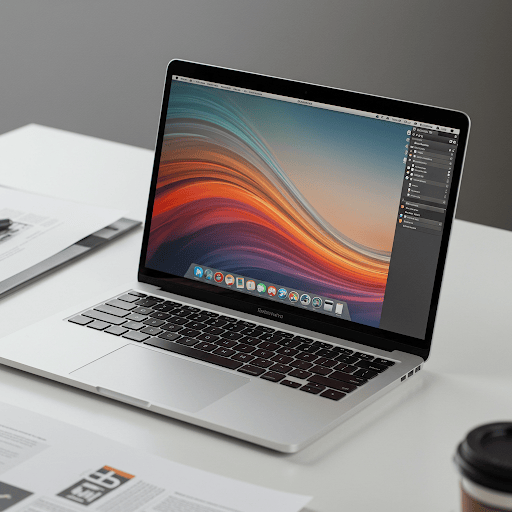
1. Mac Overheating During Video Calls? You’re Not Alone 🔥
If your Mac is overheating during video calls, you’re not imagining things. Whether it’s Zoom, Google Meet, or Microsoft Teams, video conferencing is one of the most demanding tasks for your Mac. Fans spinning, the keyboard getting warm, battery draining fast—it’s a clear signal that your CPU and GPU are under heavy load.
2. Why Video Calls Make Your Mac Overheat
Video apps require real-time video processing, camera usage, screen sharing, background blurring, and more. Combine that with active background apps (Chrome, Slack, Spotify…), and your Mac starts to struggle. That’s when your Mac overheats during video calls—even with the lid open.

3. What Are the Risks of Mac Overheating?
Occasional heat isn’t dangerous, but persistent overheating can lead to:
- Thermal throttling (slower performance)
- Increased fan noise
- Reduced battery lifespan
- Possible hardware wear over time
Keeping your Mac cool is essential if you take video calls daily.
4. Use AppHalt to Reduce Heat in One Click 🛠️
AppHalt is the easiest way to prevent Mac overheating during video calls. It lets you pause background apps before or during your call—without closing them. This lowers CPU usage and helps your Mac focus solely on the video stream, not on 10 other things running behind the scenes.
5. Bonus Tips to Keep Your Mac Cool During Video Calls
- Use Safari instead of Chrome (lower CPU impact)
- Close tabs and apps you don’t need during the call
- Avoid virtual backgrounds or blurs when possible
- Use headphones to avoid internal speaker heat
Still Overheating? Try Apple’s Thermal Advice
Apple provides official guidance here: Apple – Operating Temperatures
🚀 Stay Cool and Focused on Calls with AppHalt

AppHalt is the easiest way to avoid overheating, battery drain, and slowdowns—without quitting what you need.
- ✅ Pause heavy background apps during calls
- ✅ Keep your Mac cool and fans quiet
- ✅ Maintain performance even in long Zoom or Meet sessions
📥 Download AppHalt now and make every video call smoother and cooler.

