Before
Everything stays open, and some apps keep working even when you are not using them.
Browser activity on Mac
Pause Chrome on Mac without closing your tabs. Learn when pausing is safe, what stops while paused, and how to resume your browser workspace.
Free to try. No account. No card.
Quick answer
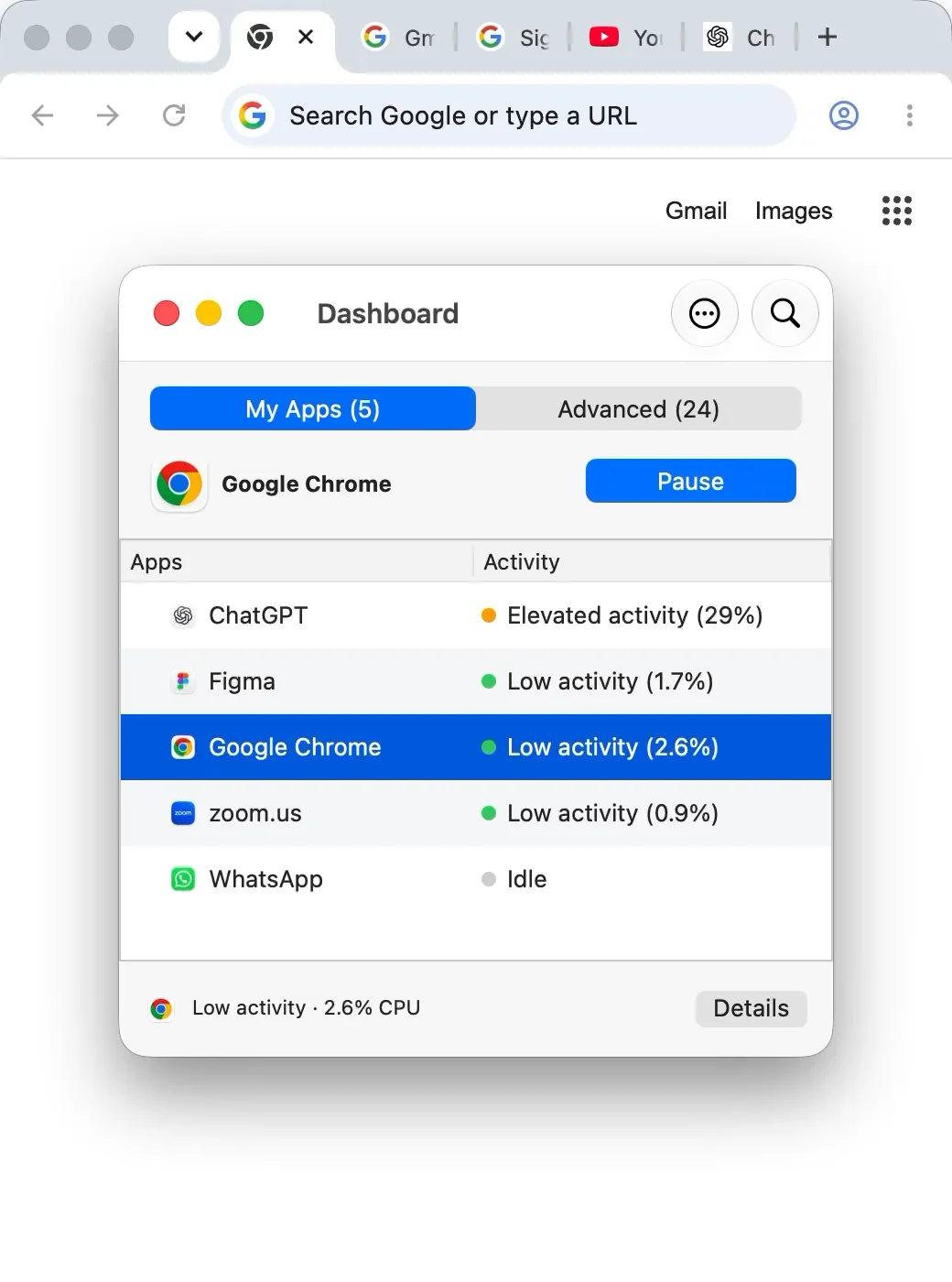
Save any work in web apps and check that Chrome has no active download, upload, call, or important sync. Then select Chrome in AppHalt and pause it. Your windows and tabs stay open; resume Chrome before you need its notifications or background work again.
Everything stays open, and some apps keep working even when you are not using them.
You keep the workspace, pause selected user apps, and resume them when they matter again.
Chrome-specific checklist
In Chrome, open More → More tools → Task manager and sort by CPU. It can point to a tab, extension, or background page that keeps working. Save unsaved work before ending any task. Check Activity Monitor again after changing one thing.
Close or reload that tab, or disable one extension at a time. You may be able to keep using the rest of Chrome.
Try Chrome Settings → Performance → Memory Saver. Chrome can deactivate eligible inactive tabs and reload them when you return.
Pause Chrome with AppHalt when you want to keep the session open. Downloads, calls, notifications and web app sync may stop until you resume it.
Chrome's Task Manager guidance and Performance settings guide explain the built-in controls. See the AppHalt measurements and protocol for evidence, methodology and limits. The synthetic test is separate from real-world Chrome performance.
The real problem
Browsers are workspaces now. They hold dashboards, docs, web apps, chats, and research. That is why quitting them can feel expensive. AppHalt fits the moment when you want to preserve that context without letting the session stay active.
Closing the browser may mean losing the shape of your workday.
Some extensions, dashboards, and web apps refresh in the background.
Pause the browser when you need the context later but not the activity now.
The point is to return to the same session deliberately.
Choose the right action
AppHalt works best when the app is not needed right now, but closing it would break your flow.
Good when the app is doing useful work and the Mac still feels fine.
Best when you are done and do not need the workspace preserved.
Only for frozen, broken, or unresponsive apps.
Best when you want to keep the app open but stop its activity for now.
How AppHalt helps
Open AppHalt from the menu bar, choose an app you are not using, pause it, then resume it when needed. No cleaning. No system tricks. No heavy dashboard.
Use the menu bar to see user apps that may be worth pausing.
Select apps you understand and do not need for the current task.
Bring the app back when you want to continue exactly where you left off.
Choose the right control
Choose based on what you need the browser to keep doing. A large tab count alone does not prove that Chrome is using significant CPU.
Use Chrome’s Task Manager to identify a busy tab or extension. Check its Performance settings for Memory Saver. Pausing the whole browser is not appropriate while you need a tab to stay active.
Save drafts and let sync finish. Pause Chrome while you write in another app, keeping the research windows open. Resume Chrome before returning to them; web services may reconnect.
If Chrome is doing background work you do not need, test a pause while keeping the game and voice chat active. Use the gaming diagnostic to check whether it actually makes a difference.
First identify the work behind the reading. A video or meeting naturally uses resources. Follow the energy diagnostic before stopping useful work.
Pausing keeps the browser open and does not automatically free its RAM. Reducing tabs or quitting Chrome after saving your work may be a better fit.
You can still choose when Chrome works in the background. If it was already idle, expect little measurable performance change. See everyday uses beyond a slow Mac.
Check your result
Keep the same tabs and power source, let startup activity settle, and watch Chrome and its helper processes over equal time windows. Pause with AppHalt, then resume and verify that your tabs are usable. Repeat the comparison rather than relying on a single CPU spike.
A CPU change is an observation about this workload. It does not establish a battery-life or FPS improvement. Our measured synthetic demonstration shows the pause-and-resume mechanism on an isolated test app; it is not a Chrome benchmark.
Safety first
Do not pause apps that are exporting, uploading, downloading, backing up, recording, presenting, running a meeting, syncing important work, or handling a system-level task. AppHalt is for user apps you understand and do not need right now.
Exports, uploads, downloads, backups, and renders should finish first.
Avoid pausing calls, recordings, screen sharing, or meeting apps during use.
If you do not know what an app or process does, leave it alone.
Not a cleaner
AppHalt does not delete files, uninstall apps, remove caches, scan junk, or change system settings. It focuses on one action: pausing user apps you are not using right now, so your workspace can stay open without every app staying active.
Free and Pro
Free lets you test the pause/resume habit. Pro is for people who want unlimited app pausing, Auto-Pause, groups, exclusions, and a one-time purchase with no subscription.
Try the core workflow.
For daily Mac control.
For people who keep many apps open.
Keep reading
These pages help you understand the difference between pausing, quitting, background CPU, and Activity Monitor.
FAQ
Save work in web apps and check for downloads, calls, and sync. If Chrome is only open for later, select it in AppHalt, pause it, and resume it before returning to the tabs.
No. Quitting closes the app. Pausing keeps it open but suspended until you resume it.
Paused apps stay open, but you should save important work first. Never pause active exports, uploads, downloads, backups, recordings, meetings, or critical sync.
No. Activity Monitor helps you see what is happening. AppHalt helps you act on selected user apps you are not using.
No. It does not delete files, remove caches, uninstall apps, or change system settings.
Mac users who keep many apps open and want more control without closing their workspace.
Download AppHalt
Use AppHalt when quitting feels too disruptive and leaving every app active feels wasteful.
macOS utility · Free to try · No subscription required