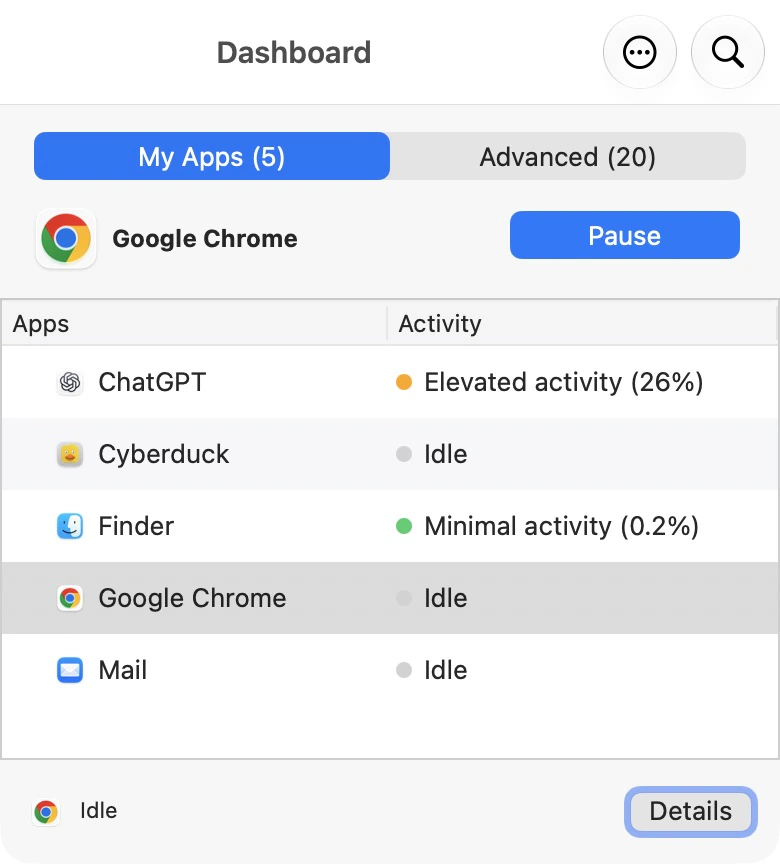
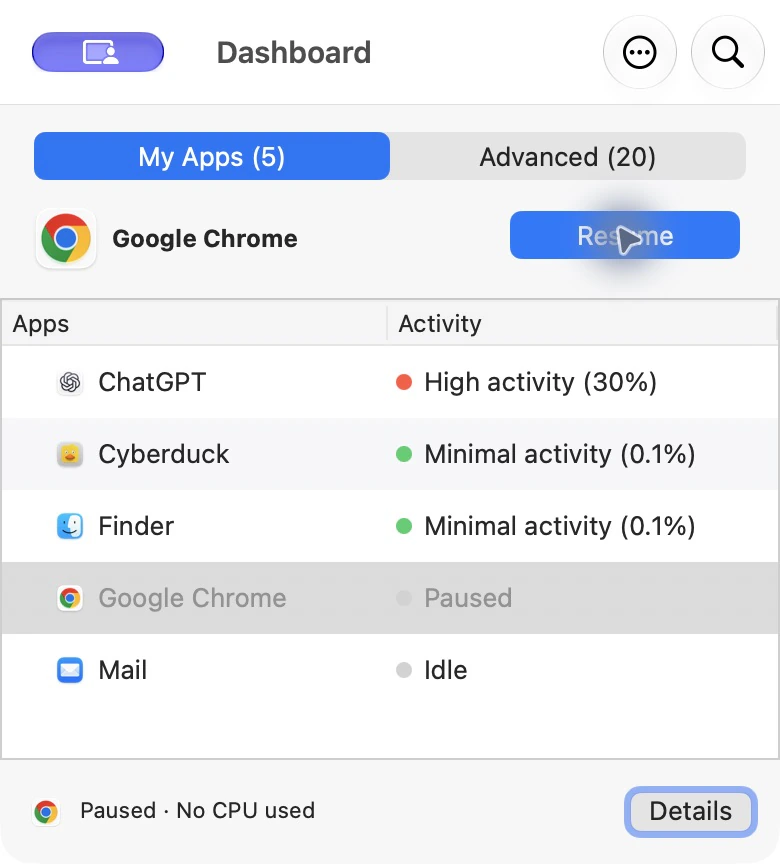
Can I safely click Pause?
Yes. AppHalt does not close apps, delete files, remove documents, or change your work.
Quick Guide
You’re in control. AppHalt keeps apps open, preserves your work, and lets you resume anything you pause.
The app stays open. AppHalt only pauses what it is doing.
Click Resume when you want the app to continue.
That’s expected. Resume it to use it again.
It only means the app may be worth pausing.
Start here
Choose the question closest to what you’re seeing in AppHalt. The goal is not to learn everything. It is to know what to do now.
What happens, whether your work is safe, and how to undo it.
DecisionI don’t know if I should pause this appWhich apps are usually good candidates and which should keep running.
Suggested appsI don’t understand why this app is suggestedWhy AppHalt may surface browsers, chat apps, or design tools.
After pausingSomething looks frozen or wrongWhat to do when an app doesn’t respond or doesn’t come to the front.
SettingsI don’t understand a settingAuto-Pause, excluded apps, background monitoring, and license settings.
AutomationI want to understand Auto-PauseHow automatic pausing works and how you stay in control.
Before you pause
AppHalt pauses what an app is doing. It does not close the app and it does not close your work.
Yes. AppHalt does not close apps, delete files, remove documents, or change your work.
No. Paused apps stay open and keep their current state. Your windows, documents, and unsaved changes remain available.
The app stays open, but temporarily stops what it is doing. Most apps appear unchanged until you return to them or resume them.
The app starts running again. No relaunch is required. In most cases, it continues normally within a few seconds.
Avoid pausing an app while it is playing media, joining a call, uploading, downloading, syncing, backing up, recording, exporting, rendering, or doing something you want to keep running in the background.
Decision guide
Use this when you’re looking at the app list and aren’t sure what to do. The safest rule is simple: pause what you do not need right now, keep running what is actively doing something useful.
Suggested apps
It means the app may be worth pausing if you don’t need it right now. A suggestion is a recommendation, not an alarm.
Browsers often continue running tabs, extensions, notifications, and web apps even when you’re not actively using them. If you are done browsing for now, a browser is often a good candidate.
Chat apps can keep notifications, web views, calls, or background activity running after you’ve stopped using them. Keep them running if you are waiting for messages or calls.
Design tools can continue using resources after a project has been left open. If you are finished for now, pausing the app can help reduce unnecessary background work.
It may already be idle, actively in use, using very few resources, protected, or excluded from suggestions.
No. AppHalt provides recommendations. You always decide which apps stay active and which apps get paused.
App list
Labels are there to reduce guesswork. They explain what AppHalt thinks is happening, but you remain in control.
The app may be worth pausing based on its current activity. It does not mean something is broken or dangerous.
The app remains open but is temporarily inactive. Resume it when you want to use it again.
The app cannot be paused because it may be important for macOS or ongoing background activity.
Settings
These screens control how AppHalt behaves. Each setting is designed to keep you in control while reducing unnecessary background activity.
Use Settings to decide what AppHalt can pause, what it should never touch, how proactive Auto-Pause should be, and how you want to control the app.
Start by adding important apps to Never Pause, then enable Auto-Pause if you want AppHalt to manage inactive apps automatically.
Use General to decide how AppHalt starts, how it appears in the menu bar, whether background processes are shown, and how much confirmation or notification you want.
Add apps here when they should keep running in the background, such as media players, sync tools, calls, backups, exports, or apps you never want AppHalt to pause.
Use Shortcuts if you want instant access to pausing, resuming, opening the menu, or opening the dashboard.
Auto-Pause works best when important apps are excluded first. You can choose when AppHalt steps in, how proactive it should be, and whether apps resume when you switch back.
Use this screen when you need to activate AppHalt Pro from your purchase email and license key.
After activation, AppHalt shows that Pro is active and lists the unlocked benefits.
Common situations
AppHalt is most useful when you want less background activity without quitting everything. It helps you keep your workspace intact while reducing apps you do not need right now.
Review Suggested Apps and pause anything you’re not currently using. Apps left open in the background can continue using your Mac’s power.
Background apps can keep doing work even when they’re not visible. Suggested Apps can help identify apps worth checking first.
Reducing unnecessary background activity may help lower energy usage, especially when several apps are open but not actively needed.
That’s what AppHalt is designed for: keep your workspace intact while reducing unnecessary activity.
Troubleshooting
Start with Resume. It solves most situations immediately.
This is usually expected. Resume the app and try again.
A paused app may appear inactive until it is resumed. Click Resume to continue using it.
Resuming an app does not automatically bring it to the foreground. Click the app in the Dock or switch to it using Command-Tab.
Some apps may need a few moments to resume normal activity. If necessary, switch to the app and interact with it normally.
Click Resume. The app starts running again and your work remains where you left it.
Resume the app first. Most situations are resolved immediately by resuming normal activity.
Automation
Auto-Pause is useful, but it works best when important background apps are excluded first.
Auto-Pause can automatically pause apps that remain inactive in the background.
No. Auto-Pause is designed for apps that have remained inactive in the background.
Yes. Any app paused by Auto-Pause can be resumed whenever you need it.
Exclude apps that should keep working in the background: music, sync, calls, downloads, uploads, backups, recording, exports, and rendering tools.
Advanced users
You do not need to manage processes manually.
AppHalt pauses and resumes app activity at the system level. The goal is to reduce unnecessary background work while keeping the app open and ready to resume.
Dashboard
The menu is made for quick actions. The Dashboard is better when you want more context before deciding what to pause or resume.
Open the Dashboard when you want to review apps more comfortably, compare their current activity, or avoid making a decision from the compact menu alone.
It gives you a larger, calmer view of what AppHalt sees, so you can understand which apps are active, paused, low impact, or worth leaving alone.
Use the menu for quick actions. Use the Dashboard when you want to understand the situation before acting.
Trust
AppHalt manages app activity. It does not manage your files or documents.