
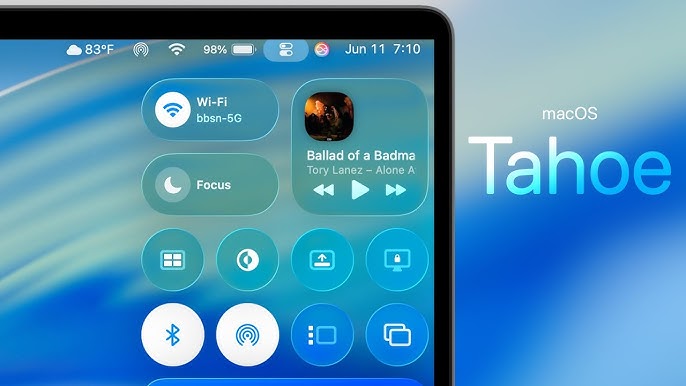
Mac Keeps Freezing After macOS Update? You’re Not Alone (Here’s the Fix)
Did your Mac become unstable or start freezing randomly after installing the latest macOS update—like macOS Tahoe? This isn’t rare. Many users report sudden slowdowns, app hangs, and even total system lockups just after updating.
Let’s dive into why your Mac keeps freezing after an update and what you can do—immediately—to fix it.
Why Is Your Mac Freezing After an Update?
1. Background Processes Overloading CPU
After an update, macOS runs a lot of maintenance in the background: Spotlight reindexing, Photos analysis, app cache rebuilding… These are CPU-hungry and happen silently.

2. App Compatibility Conflicts
Apps not fully updated for the latest macOS version may crash, conflict with system services, or spike CPU usage—leading to temporary freezes or spinning beach balls of death.
3. Too Many Startup Apps or Menu Bar Utilities
Dropbox, OneDrive, VPN clients, Notion, Slack, or even Chrome can launch at login, consuming resources from the get-go and making your Mac unstable.
What to Do If Your Mac Keeps Freezing After a macOS Update
Use the real-time indicators to spot apps marked 🔴 (High usage) or 🟠 (Moderate usage) and pause them with one click. Your Mac will feel smoother in seconds.
✅ Step 2: Use Activity Monitor to Investigate
Launch Activity Monitor → go to the CPU tab → sort by “% CPU”. If you see a process consistently at the top (like WindowServer or kernel_task), it’s time to take action.
✅ Step 3: Disable Unnecessary Login Items
Head to System Settings → General → Login Items. Remove apps you don’t need at startup. Fewer background processes = more stability.
✅ Step 4: Check for App Updates
Open the App Store and check the “Updates” tab. Also manually update apps like Chrome, Zoom, or Adobe tools. Compatibility bugs can lead to freezing and crashes.
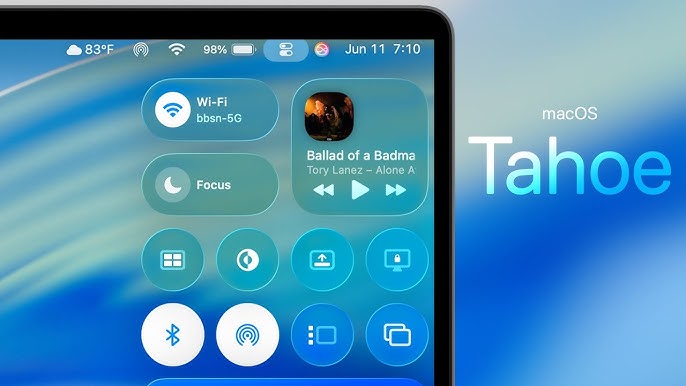
Most users think they need to wipe their Mac to fix freezing. In reality, the problem is usually a resource-hogging background process.
- ✅ Visual indicators for CPU intensity
- ✅ Auto-Pause for background app management
- ✅ Immediate effect without technical tweaks
Conclusion: Stop the Freezing, Reclaim Your Mac

🧊 Mac freezing again?
Stabilize your Mac and prevent crashes in seconds.
- ✅ Pause apps causing overload
- ✅ Free system memory and CPU
- ✅ Regain smooth performance
Where AppHalt may help
If Activity Monitor shows a regular app you recognise using resources while you do not need it, AppHalt gives you a reversible option: pause that selected app without quitting it, then resume it later. AppHalt does not repair macOS or guarantee a speed, temperature, battery, or stability result; the effect depends on what the app was doing.
Do not pause an app that is uploading, syncing, backing up, rendering, recording, playing media, or handling a call you need to continue.

