 AppHalt

Requires macOS 11.7 or laterMac app only
Download AppHalt for Mac.Install AppHalt on your Mac
Download AppHalt.dmg, open it, then drag AppHalt to Applications.The app doesn’t install on phones or tablets.
- 1. Send yourself the link
- 2. Open it on your MacThen download AppHalt.


Copy the link manually
Check my macOS version
On your Mac, open the Apple menu and choose About This Mac. Enter the version shown there. See Apple’s instructions
Pause an app, then resume it
Choose an app you aren’t using right now and whose work can wait. Save your work and let calls, transfers and syncing finish first. Pausing Chrome affects every tab.
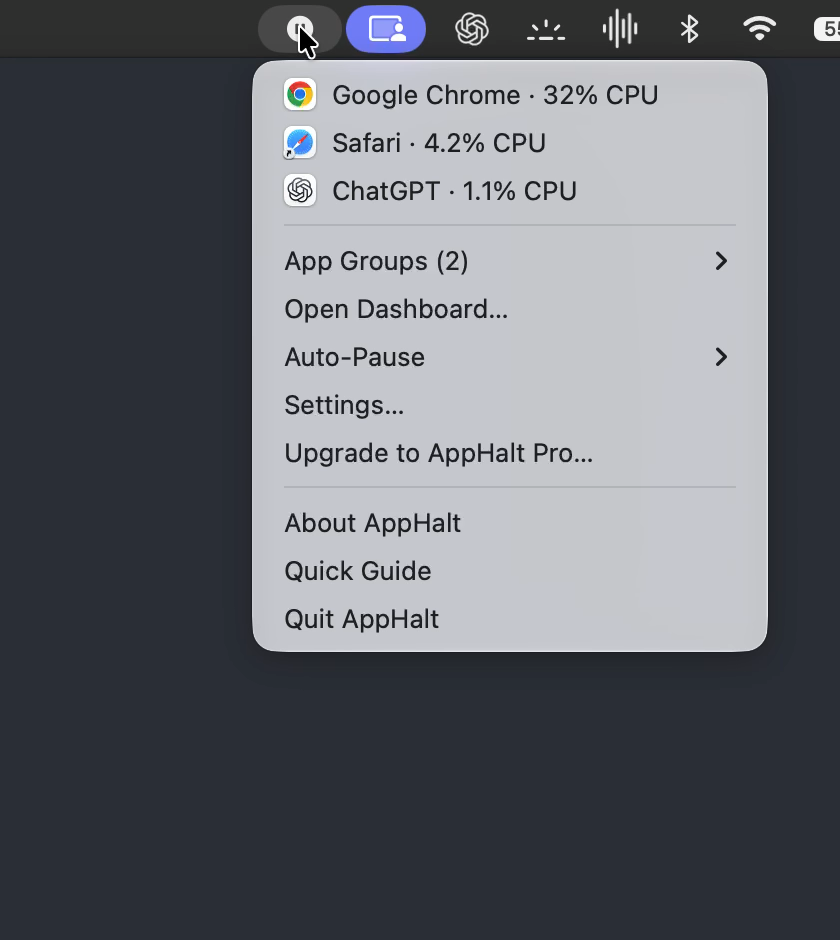
- Open AppHaltClick its icon in the menu bar at the top of your screen.
- Pause the appClick its name. If AppHalt asks for confirmation, choose Pause. The menu then offers Resume followed by the app’s name.
- Resume itChoose Resume followed by its name, then return to the app. Check that the windows, tabs or documents from your test are still there.
While paused, the app may look frozen. Choose Resume in AppHalt to use it again.
If the app is already idle, pausing may make little difference.
Will it help on my Mac?
To see whether pausing helps, look for an app that keeps working when its work can wait. You can check its activity in the Dashboard.
Check activity in the DashboardMy app is missing from the menu. Choose Open Dashboard…, then use Pause and Resume in the Dashboard.I can’t find the AppHalt icon: see how to find the app in the menu bar.
See the illustrated guide