Quick Guide · detailed reference
More control, when you want it.
Start with Manual mode. Dashboard, Never Pause and Auto-Pause are optional tools for more context and control.
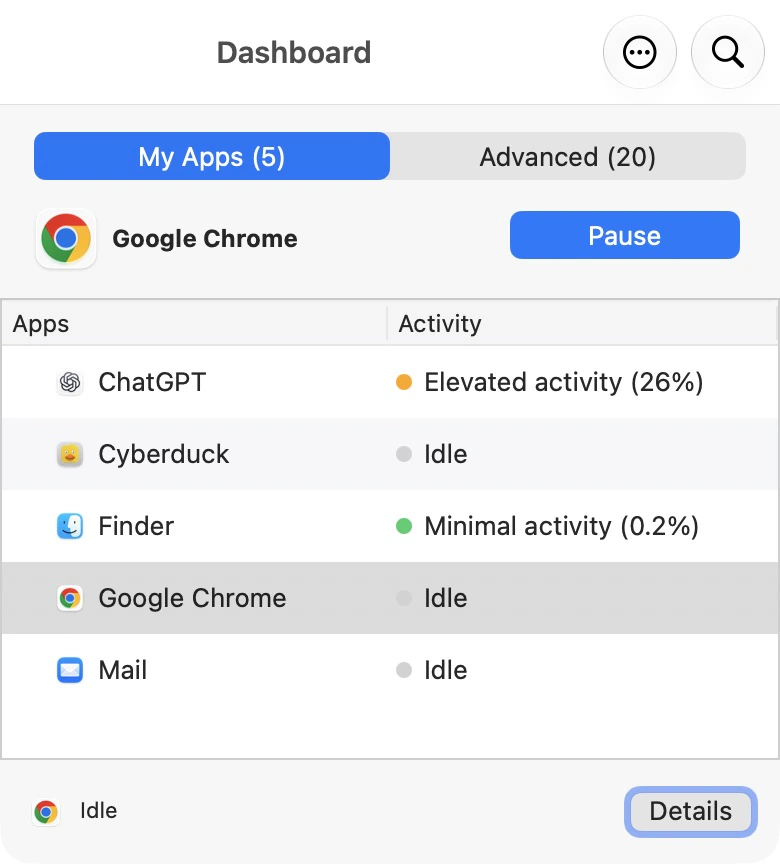
Dashboard
Dashboard gives you more room to compare visible apps and understand current activity. The CPU value is a live activity reading, not a danger score.
- Use it when you want more context before pausing an app.
- Higher CPU means the app is doing more work right now. Pausing it can reduce that load if you do not need that work to continue.
- A suggestion is information, not an automatic pause.
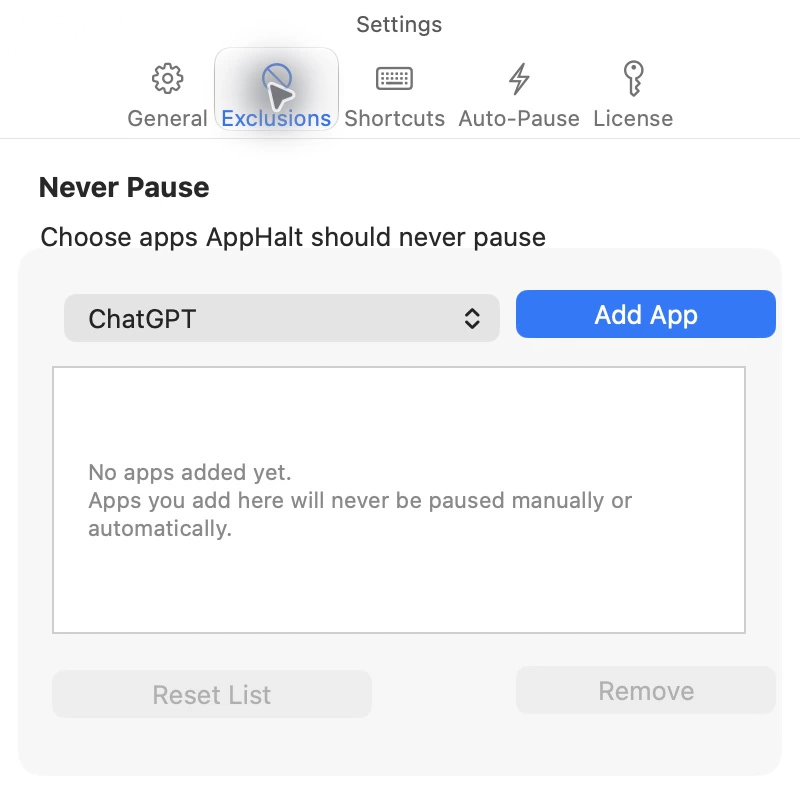
Never Pause
Add an app to Never Pause when it must keep working in the background. This is useful for apps that handle calls, sync, backups, recordings, exports or renders.
- Protected apps are excluded from both manual and automatic pauses.
- Add apps whose work you never want to interrupt.
- You can remove an app from the list later.
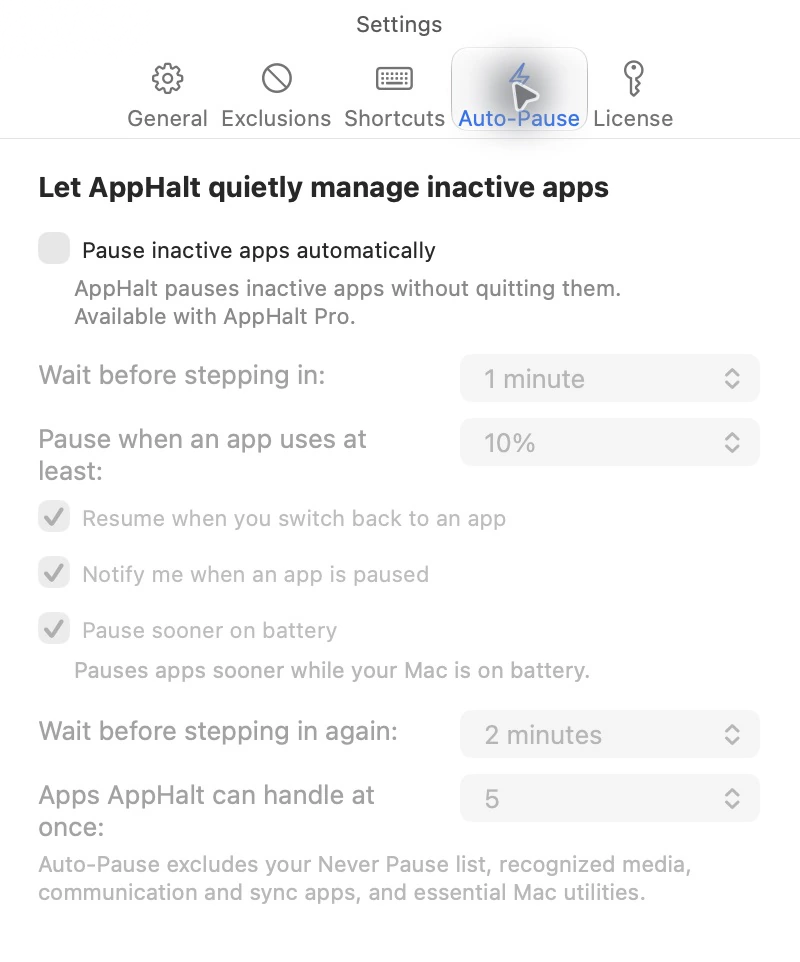
Auto-Pause
Auto-Pause does nothing until you turn it on. Once enabled, it can pause eligible background apps according to the settings you choose.
- Set up Never Pause first.
- Begin with a longer delay while you learn which apps should keep running.
- If an app needs to keep working while you are away, protect it or leave Auto-Pause off for that app.