The app may still be open
The window disappears, but the app can remain available in the Dock, Command-Tab, or menu bar.
Mac app behavior explained
On macOS, closing a window is not always the same as quitting the app. AppHalt gives you another option: pause unused apps so they stay open for later while their activity stops until you resume them.
Close the window. Quit the app. Or pause it and keep your workspace.
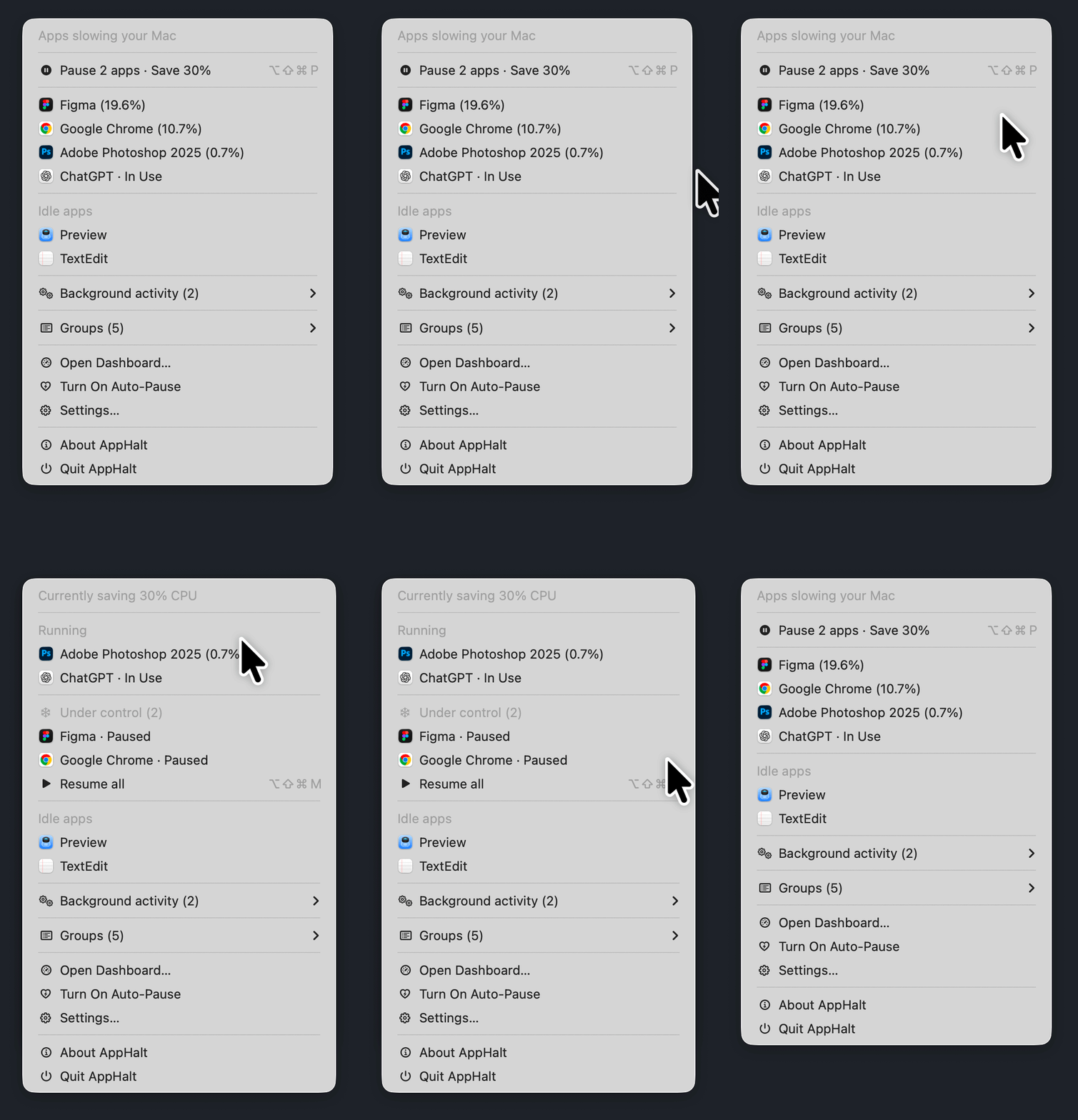
Quick answer
On Mac, the red close button usually closes the current window. The app may still remain open in the Dock, menu bar, or background. To close it completely, use Quit. If you want to keep the app ready but stop unnecessary activity, you can pause it with AppHalt.
The missing middle ground is simple: do not quit your workspace, pause what you are not using.
Why it happens
A Mac app can have one window, many windows, or no visible window at all. Closing the visible window does not always mean the whole app is done.
The window disappears, but the app can remain available in the Dock, Command-Tab, or menu bar.
Messaging, cloud, browser, creative, and utility apps may keep syncing, refreshing, or monitoring after the window closes.
This behavior can make Mac apps faster to reopen and keep your work ready. It only becomes annoying when the activity is not useful.
You can leave the app open, quit it completely, force quit it if it is frozen, or pause it with AppHalt.
Close vs Quit vs Force Quit vs Pause
When a Mac app stays open after closing its window, the right action depends on what you want to preserve.
Close window
Useful when you only want the visible window out of the way. The app may still be running.
Quit app
Good when you are finished. Less ideal when you want to keep files, tabs, or context ready.
Force Quit
Best for frozen apps. Not a calm daily workflow, and it may risk unsaved changes.
Pause with AppHalt
Keep the app and workspace ready, but suspend activity until you resume it.
How to check
If the window is gone but you still see the app active elsewhere, macOS has not fully quit it.
macOS signs
AppHalt action
Need to reduce activity from an app that stays open? Learn how to reduce background CPU usage on Mac.
The middle option
Quitting is clean when you are done. But many Mac users keep apps open because reopening the same workspace takes time. AppHalt is built for that moment.
Leave the app, windows, documents, and tabs in place instead of rebuilding everything later.
Pause a user app you are not using now, so it stops unnecessary activity until you need it again.
Bring the app back from AppHalt when your work returns to it.
Do not pause apps during exports, uploads, downloads, backups, calls, or important sync work.
When this helps
AppHalt is useful when an app should stay ready, but does not need to keep working right now.
Slack or Teams may stay available even when their window is gone. Pause them during focus time if you do not need them.
Keep Figma or other creative tools ready without leaving them active between work sessions.
Closing one window does not always mean every tab, helper, or background activity is gone.
Pause instead of quitting when you know you will return to the same workspace later.
Safe, honest use
There is no single best action for every situation. Use the action that matches the state of the app.
If you no longer need the app or its workspace, quitting is the cleanest choice.
If an app is frozen or unresponsive, Force Quit can help. It should not be your normal way to manage apps.
If the app is not needed now but you want to keep everything ready, pausing is the calm middle ground.
Do not pause apps during exports, saves, downloads, uploads, calls, backups, or file transfers.
Not a cleaner
AppHalt focuses on one simple action: pausing and resuming user apps. It does not remove files, uninstall apps, change system settings, or pretend to fix every Mac problem.
AppHalt does not scare you with vague health warnings or pretend your Mac is broken.
You choose which app to pause, and you can resume it when your work needs it again.
The goal is simple: keep your workspace open while reducing activity you do not need now.
Related AppHalt guides
These pages explain the two most useful next steps: how app pausing works, and how to reduce background CPU activity.
Start here
Learn the core AppHalt workflow: pause unused apps without quitting them.
Next problem
See how to handle apps that keep creating activity in the background.
Start free
Use the free version to test the pause workflow. Upgrade when you want unlimited app pausing and more control.
$0
For testing AppHalt with a small workspace.
$9.99
One-time purchase. No subscription.
FAQ
On macOS, closing a window usually closes that window, not necessarily the whole app. Many Mac apps remain open so they can keep their menu, background tasks, documents, or next window ready. To close the app completely, use Quit.
No. Close hides or closes the current window. Quit closes the app completely. Some apps disappear from the screen but still remain active in the Dock or menu bar.
Look for the app indicator in the Dock, use Command-Tab, check the menu bar, or open Activity Monitor to see active apps and processes.
Quit an app when you are done with it. Keep it open if you need your workspace ready. If you want the app to stay open but stop unnecessary activity, pausing with AppHalt can be a better middle option.
Quit asks the app to close normally. Force Quit is for frozen or unresponsive apps and may risk losing unsaved work. Force Quit is not ideal as an everyday way to control apps.
With AppHalt, pausing means keeping a user app open while suspending its activity until you resume it. It is different from closing a window, quitting an app, or force quitting.
AppHalt is designed to keep your workspace open, but you should save important work and avoid pausing apps during exports, downloads, uploads, backups, or active saves.
No. Activity Monitor is useful for diagnosis. AppHalt is for everyday control when you want to pause and resume user apps without closing your workspace.
No. AppHalt does not delete files, uninstall apps, or change system settings. It focuses on pausing and resuming user apps.
Download AppHalt
Download AppHalt and pause unused Mac apps when closing the window is not enough, but quitting feels too much.
Free to try. Upgrade when you need unlimited pausing.